
Address Book
Table of Contents
1. Use Cases
Quick links: Auto-fill recipient data on order import | Reusing fixed delivery points | Grouping addresses by channel
Scenario 1: Auto-filling recipient data when importing large batches of orders
Situation: Every day you import orders from your channel back-offices or your own system into GoWarehouse. Many of them ship to fixed delivery points (stores, dealers, company warehouses), and each row forces you to fill in a full set of recipient name, phone, and address — lots of fields, easy to mistype.
Use this feature: Build those fixed delivery points into the address book first, giving each a memorable Code (see Add Address). When you later import orders, the file only needs the Code; the system matches it against the address book and auto-fills that address's recipient, phone, and full address, so you never retype them per order.
Result: Your import files become much leaner, recipient data comes from a single proofread address book, and shipping-address errors and returns drop noticeably.
Scenario 2: Reusing a handful of fixed delivery points
Situation: Most of your shipments go to consumers, but a set of fixed addresses come up again and again — a partner store you restock weekly, a returns consolidation warehouse, an overseas forwarding warehouse — and you retype the same address every time you create an order.
Use this feature: Add these fixed addresses to the address book and select them by Code when creating an order; the system auto-fills the full recipient details. When an address moves or a phone number changes, edit it once on Edit Address, and all future orders use the updated data.
Result: Each fixed delivery point needs only one correct record, order creation speeds up, and you avoid the address inconsistencies that come from different people typing it independently.
Scenario 3: Grouping frequently-used addresses by channel
Situation: You run multiple sales channels (Shopee, momo, your own site, etc.), and different channels often map to different returns warehouses or consolidation points. Amid many addresses, your team can't tell at a glance which one belongs to which channel.
Use this feature: When creating or editing an address, set the Default Merchant Channel on Add Address to mark the channel it mainly serves. The address book list shows the channel as a tag, and you can filter by channel.
Result: You quickly find the right address per channel, multi-channel address management becomes more organized, and the chance of picking the wrong address goes down.
2. Features
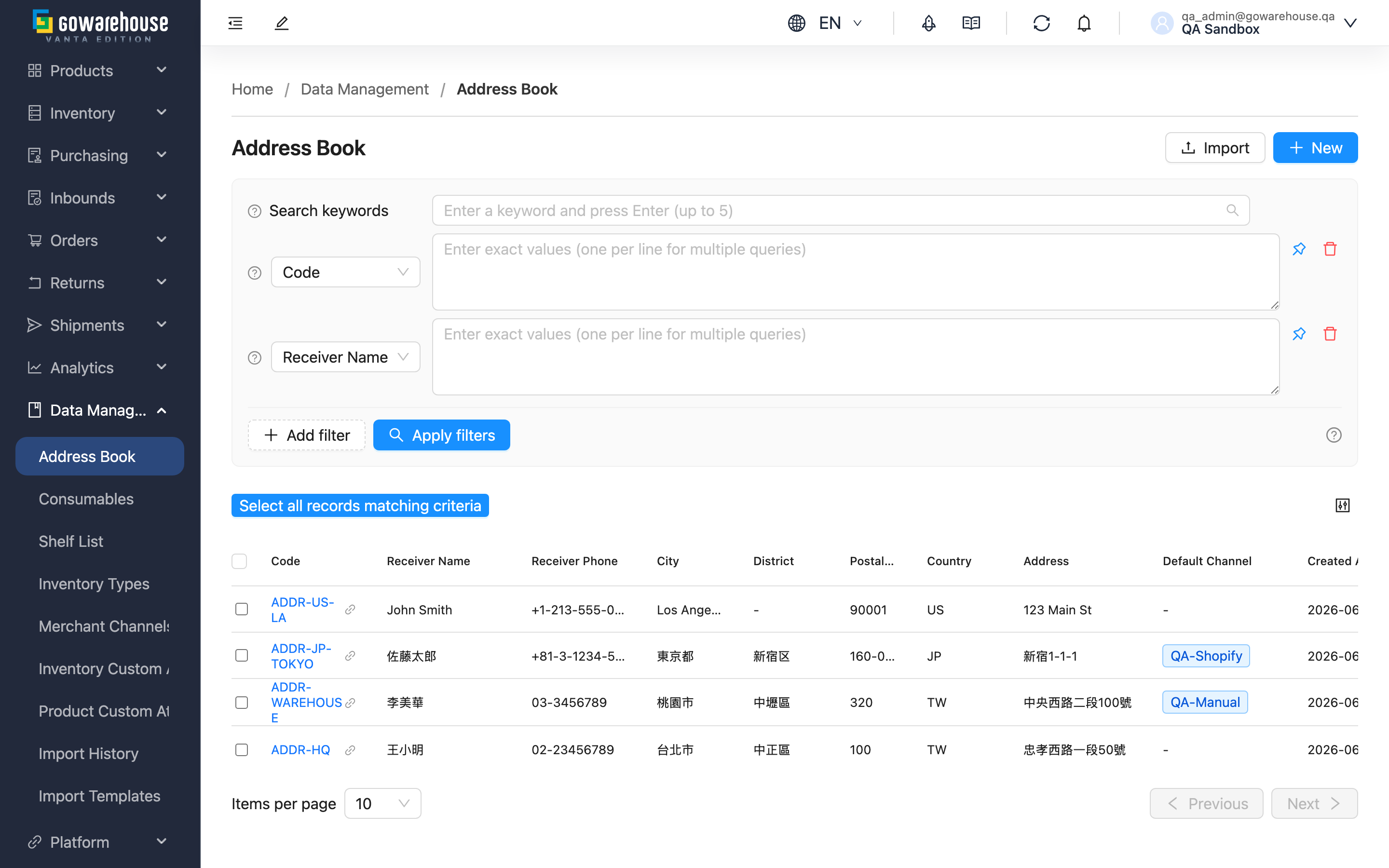
The address book centralizes your frequently-used recipient addresses — stores, dealers, returns warehouses, and other fixed delivery points. Once added, each address has its own Code, which you can select quickly when creating an order, or use to auto-fill complete recipient data when importing orders, saving repeated typing and reducing errors. This page is the entry point to the address book, where you can search, filter, add, import, and export all addresses.
Quick links: Search & Filter | List Columns | Import & Export
2.1 Search & Filter
The search box at the top of the list matches Code, Receiver Name, Receiver Phone, and Address at once. For more precision, use the filter conditions; most support entering multiple values at once (one per line):
| Filter | How to use |
|---|---|
| Code | Enter one or more codes to find specific addresses |
| Default Merchant Channel | Pick a channel from the list to show addresses marked for it |
| Country | When managing overseas addresses, narrow results by country |
For the rest (Receiver Name, Receiver Phone, City), just type the value.
2.2 List Columns
Click the Code to open the Address Book Details; the link icon beside it opens the details in a new tab. Most columns are self-explanatory; only those needing a note are listed:
| Column | Notes |
|---|---|
| Country | Filled only for overseas addresses; usually empty for domestic ones |
| Default Merchant Channel | Shown as a blue tag; left empty when not set |
2.3 Import & Export
To create many addresses at once, use "Import" at the top right: in the dialog, first "Download Template" to get the template, fill it in, and upload. The importable and exportable columns are Code, Receiver Name, Receiver Phone, State / Province, City, District, Postal Code, Address, Country, and Default Merchant Channel. Import rules:
- Every row requires Code, Receiver Name, Receiver Phone, and Address; missing any one fails that row.
- The Code must not repeat within the same file, or it is rejected.
- If a Code in the file already exists in the address book: without "Override existing data" the row is rejected; with it checked, the existing address is updated — see the table below for which columns change.
- Country accepts forms like "Japan", "日本", or "JPN"; the system maps them automatically. A spelling it cannot match is cleared to blank without failing the row — with "Override existing data" checked that wipes the country the existing address had, so use a spelling the system recognizes.
With "Override existing data" checked, what happens to each column depends on whether the file's header row contains that column. The four required columns must always stay in the file — dropping any of them rejects the whole file — while optional columns can be added or removed freely:
| Situation in the file | The existing address's column |
|---|---|
| An optional column's header is not in the file | Keeps its original value |
| The header is present but the cell is blank | Cleared to blank |
| A required column's header is present but the cell is blank | The row fails with a reason; existing data is untouched |
So to update only some columns, delete the optional columns you do not want to touch; to clear a column's old value, keep its header and leave the cell blank.
The table above applies to a plain import with no Import Template applied. If you pick an Import Template in the import dialog and that template sets a default value for a column, the system writes that default value into the column even when the column is absent from the file: a required column no longer blocks the file, and an optional column no longer "keeps its original value" — with "Override existing data" checked, the default value replaces what was there. If you do not want a column touched, make sure the template sets no default value for it.
After submitting an import, go to "Import History" to view the per-row success and failure results.
To export, select the addresses to export and click "Export"; when done, go to "Import History" to download the file.
3. FAQ
3.1 FAQ
▪ During order import, how does the Code fill in the address?
In the order import file you enter a Code; the system matches the address with the same code in your address book and pulls that address's recipient, phone, and full address into the order, so you don't refill the recipient fields on every order.
▪ Any naming suggestions for the Code?
Use a combination of letters, digits, and hyphens, e.g. STORE-TP-01 (Taipei store 1), WH-TC-MAIN (Taichung main warehouse), RETURN-A (returns address A). Avoid special symbols that complicate matching across systems, so order import matches reliably.
▪ Can the same Code be repeated?
During import, the Code is matched both within the same file and against existing addresses: duplicate codes are rejected, or updated onto the existing address when "Override existing data" is checked. We suggest searching the list to confirm the code is unused before naming it.
▪ What is the Default Merchant Channel for?
It's an optional marker that helps you filter by channel in the list to quickly find addresses commonly used by a channel. Shared addresses can be left without one.
▪ Why can't I find a channel when filtering by channel?
The Default Merchant Channel options come from the sales channels you have created. If one is missing, add it under sales channel settings first, then return to the address book.
▪ Where do I download the exported address file?
After clicking "Export", go to "Import History" to view and download the exported file.
3.2 Notices
⚠️ Important
- Checking "Override existing data" during import only touches columns present in the file's header row: optional columns absent from the header keep their original values, while columns present with a blank cell are cleared. To clear a column, keep its header and leave the cell blank; to keep the old value, delete the whole column from the file. The one exception is a column for which an applied Import Template sets a default value — that column is written with the default value whether or not the file contains it.
- Before changing a Code, confirm whether your order import files still match addresses by that code, or the matching will break.
💡 Tip: Add your fixed delivery points (stores, returns warehouses, dealers) to the address book with well-chosen codes first; then order imports only need the code to auto-fill the full address — the most effective way to reduce address errors.
4. Related Features
| Feature | Description | Link |
|---|---|---|
| Add Address | Create a new recipient address | Go |
| Address Book Details | View the full details of a single address | Go |
| Edit Address | Modify an existing address | Go |