
Edit Label Template
Contents
1. Features
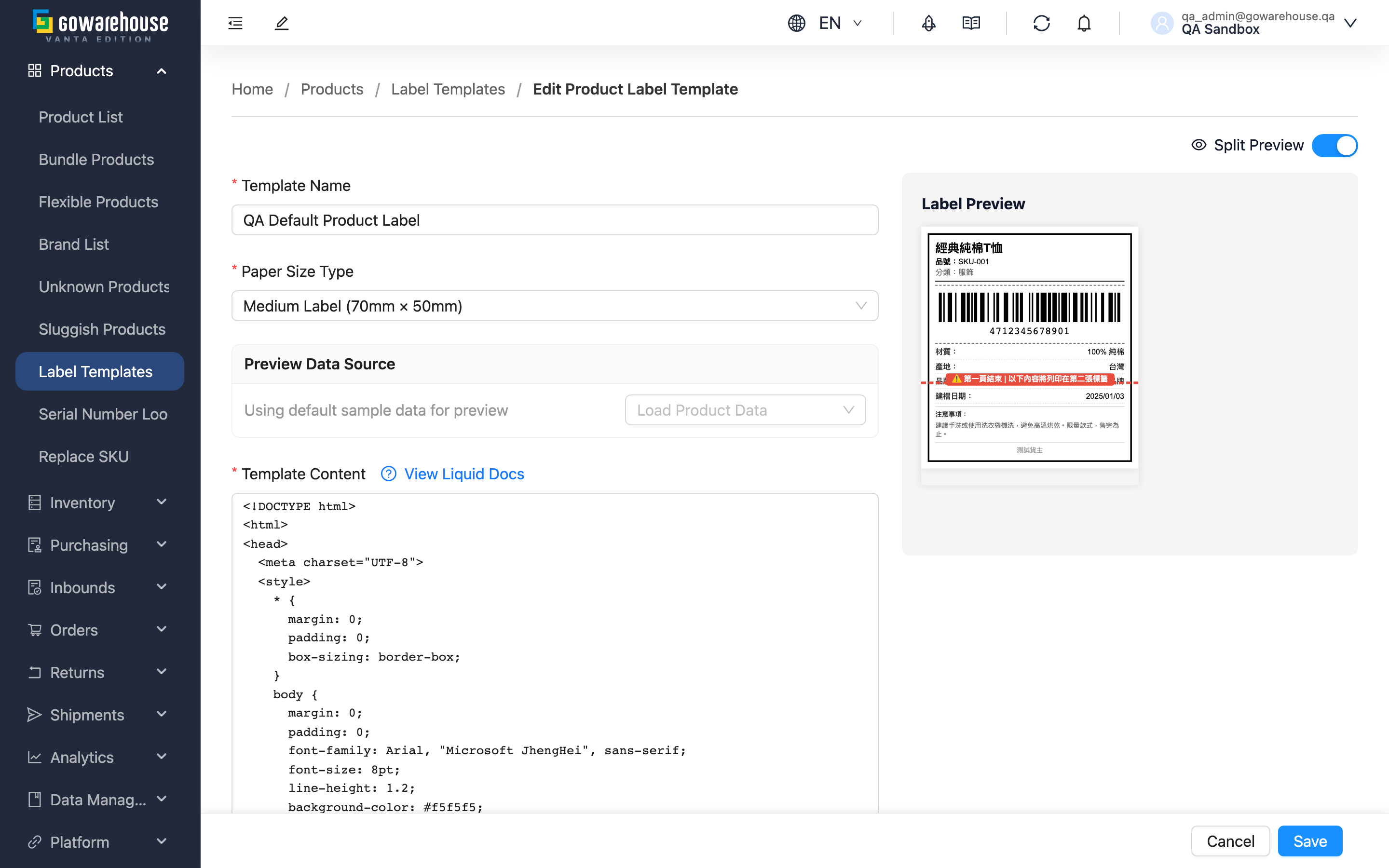
When an existing label template needs adjusting — a different paper size, adding or removing fields on the label, or making it (or un-making it) the default — change it here. The form loads the template's current settings; once you save, the changes take effect, and labels printed with this template afterwards use the new layout. For the full field descriptions, see Add Label Template; this page focuses on what's different when editing.
Quick links: Editable fields | Preview | Steps
1.1 Editable Fields
"Template Name", "Paper Size Type", "Template Content", "Is Default", and "Description" can all be changed. The required fields and limits are the same as when adding (see the form fields on Add Label Template).
1.2 Preview
The live preview on the right updates as you edit. You can load a real product under "Preview Data Source" to confirm the revised label looks right on an actual product.
1.3 Steps
- Change the fields you want to adjust (paper size, template content, default status, etc.)
- Confirm the layout with the live preview or by clicking "Preview"
- Click "Save"; afterwards you return to the template's detail page
2. FAQ
2.1 FAQ
▪ Will labels I already printed change after I edit the template?
No. Changes only affect labels printed with this template afterwards; physical labels already printed and stuck on products are unaffected.
▪ If I make this template the default, what happens to the old default?
The previous default is cleared automatically, because each merchant can have only one default template.
▪ I get an error on save and can't save it
The most common cause is a layout syntax error in the template content, which the system blocks with a prompt; next are a cleared required field, or a custom size with width/height outside the 1–999999 mm range. Check against "Preview" and the default sample layout's format.
▪ What should I watch out for when changing the paper size?
After switching sizes the original layout may no longer fit (e.g. going from a large to a small label leaves content unable to fit). Preview before saving to confirm nothing exceeds the label's edges.
▪ Why can't I open the edit page, or see the "Edit" button?
Editing label templates requires product management permission. If you can't see the "Edit" button on the detail page, contact your administrator to confirm your permissions.
2.2 Notes
⚠️ Important
- Changes only affect labels printed afterwards; physical labels already printed won't change.
- Each merchant can have only one default template; making this template the default clears the previous one.
💡 Tip: After changing the paper size, always preview again to confirm the content doesn't exceed the edges or leave large blank areas at the new size.
3. Related Features
| Feature | Description | Link |
|---|---|---|
| Add Label Template | Create a new label-print template | Go |
| Label Templates list | Manage all label templates | Go |