
Sluggish Product Query
Table of Contents
1. Use Cases
Quick links: Reviewing storage costs | Picking clearance items | Evaluating new products
Scenario 1: Regularly reviewing storage costs to surface space-hogging dead stock
Situation: Your monthly storage fees and inventory value keep climbing, and you suspect some products that no one buys have been occupying warehouse space and tying up capital in non-moving stock.
Use this feature: Set a longer observation period (e.g. six months) together with a higher minimum stock, and let the system list products that "sell little but hold a lot of stock". See Query Conditions for how to set them.
Result: You get a concrete list of overstocked products to base clearance, promotion, or restocking decisions on.
Scenario 2: Picking clearance items before a seasonal sale
Situation: You're running a seasonal clearance sale next month and need to pick out products that have sold slowly recently but still have plenty of stock to add to the sale list.
Use this feature: Shorten the observation period and loosen the maximum sales to quickly isolate items that aren't moving lately but have ample stock. Adjust the thresholds via Query Conditions.
Result: You get a batch of candidate products suitable for the sale, with enough stock so you won't run out mid-event.
Scenario 3: Evaluating the sales performance of newly introduced products
Situation: You introduced a batch of new products or a new brand a while ago, and now want to know which ones simply haven't moved and are still holding stock.
Use this feature: Set the observation period to the number of months since the products launched, set a low maximum sales, then use the brand column in Query Results to focus on this batch.
Result: You can see which new products should stop being restocked or be returned, avoiding further accumulation of dead stock.
2. Feature Overview
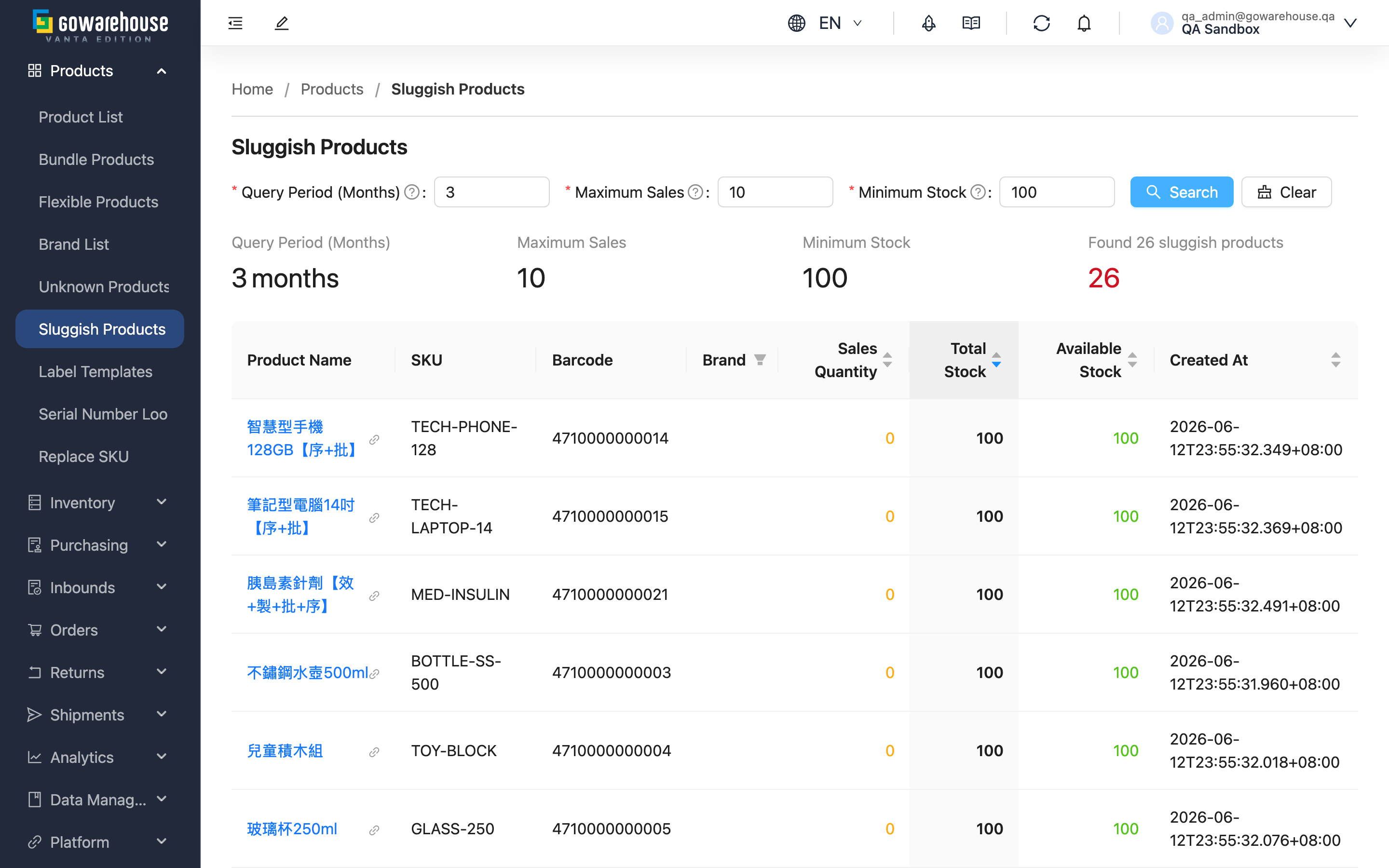
Sluggish Product Query helps you find, in one go, products that "sell slowly yet occupy a lot of stock". Just set the observation period, sales upper limit, and stock lower limit, and the system compares actual sales over that period against current stock, listing products that match both "low sales" and "high stock". This lets you act early on overstocked items — running promotions, clearing them out, or halting restocks — so capital and warehouse space aren't locked up by dead stock.
Quick jump: Query Conditions | Query Results
2.1 Query Conditions
Fields marked with * are required
| Condition | How to fill in | Notes |
|---|---|---|
| *Query Period (Months) | Enter how many recent months of sales to observe | Required, at least 1 month; default 3. A longer period reveals long-term sluggishness |
| *Max Sales | Enter the sales upper limit; only products selling no more than this value over the period are listed | Required, cannot be negative; default 10. Set to 0 for products with no sales at all |
| *Min Stock | Enter the stock lower limit; only products whose total stock reaches this value or above are listed | Required, cannot be negative; default 100. Higher values focus on heavily overstocked products |
After setting the conditions, click "Search" and the system starts the query; results appear below automatically when done. Click "Clear" to reset the conditions and query again.
Condition Adjustment Tips
| Situation | How to adjust |
|---|---|
| Too many results to handle one by one | Lower "Max Sales" or raise "Min Stock" |
| Too few results, almost nothing found | Raise "Max Sales" or lower "Min Stock" |
| Want only products with no movement at all | Set "Max Sales" to 0 |
| Want only products taking up a lot of space | Raise "Min Stock" to 500 or more |
2.2 Query Results
When the query completes, the conditions used and the total number of sluggish products found are shown at the top, while the list below is sorted by "Total Stock" from high to low by default, putting the most heavily overstocked products first.
| Column | Description |
|---|---|
| Product Name | Click to open the product details |
| Sales Quantity | Actual quantity sold during the observation period; counted by order placement time, excluding only canceled orders — orders in all other statuses are included |
| Total Stock | Combined stock across all current warehouses |
| Available Quantity | Total stock minus allocated (already reserved for shipping) quantity — i.e. the amount still available to sell |
| Brand | Click the column's filter icon to view only products of a specific brand |
"Sales Quantity", "Total Stock", and "Available Stock" can all be sorted by clicking the column header, helping you find the products most in need of attention from different angles; the remaining "SKU", "Barcode", and "Created At" columns are shown as labeled.
3. FAQ
3.1 FAQ
▪ How is "Sales Quantity" calculated?
It's the total quantity of items across all non-canceled orders during the observation period, counted by order placement time (the order date). As long as an order isn't canceled it counts, even if it hasn't shipped yet; only canceled orders are excluded.
▪ Why doesn't a poorly selling product show up in the list?
Two possibilities: its sales exceed the "Maximum Sales" you set, or its total stock is below the "Minimum Stock" you set. Try loosening the conditions and querying again.
▪ How do I find products with no sales at all?
Set "Maximum Sales" to 0, and only products that sold zero units during the observation period and reach the stock lower limit will be listed.
▪ What if the query results are empty?
It means no product matches both "low sales" and "high stock" at once, usually because the conditions are too strict. See the Condition Adjustment Tips to loosen the range.
▪ Can I export the results to a file?
Direct export isn't supported for now. You can note the SKUs you need, then go to "Product List", filter, and use that page's export function.
▪ Do results update automatically? How often should I query?
Each query calculates current stock and sales in real time; the system does not auto-update or run on a schedule. We suggest querying manually on a regular basis (e.g. monthly) to keep track of sluggish stock.
▪ What can I do once I find sluggish products?
It depends on the severity: keep watching the mild ones, plan promotions for the moderate ones, and consider clearance or halting restocks for the severe ones. Prioritize products with high "Total Stock" and low "Sales Quantity".
3.2 Notes
⚠️ Important Reminders
- All three query conditions are required; the query period must be at least 1 month, and Max Sales and Min Stock cannot be negative.
- Results cannot be exported directly; handle them via "Product List" (see FAQ).
💡 Tips:
- The list is for reference only; judge it alongside seasonality and market trends.
- Recently launched products may appear simply because their sales window is still short — watch out and exclude them when interpreting.
- High-priced products turn over slowly by nature; consider reviewing them separately from regular products.
4. Related Features
| Feature | Description | Link |
|---|---|---|
| Product List | Browse and manage all products | Go |
| Product Details | View complete information and stock for a single product | Go |
| Brand Management | Manage product brands | Go |