
Current Stock
Table of Contents
1. Use Cases
Quick links: Selling across channels without overselling | Clearing dated stock before it expires | Reserving stock ahead of a campaign
Scenario 1: Selling across channels without overselling
Situation: Your goods are stored in the warehouse, and you list the same product on Shopee, momo and your own website at the same time. Lately you keep hitting overselling — a channel shows it's in stock, but the warehouse can't actually ship it — and customers complain. The root cause: each channel tracks its own number, and none of them knows how many the warehouse can really ship right now.
Use this feature: Current Inventory is your single source of truth for "how many can I still sell." Look at each product's "Available Quantity" — it already subtracts the quantity locked by orders and the quantity held, so what's left is what you can genuinely take new orders for and ship. See Columns for how the quantity figures relate.
Result: You get a reliable sellable ceiling and use it to correct the stock settings on each channel, so you never sell more than the warehouse can actually ship.
Scenario 2: Clearing dated stock before it expires
Situation: You store food, cosmetics or health-and-beauty products that carry an expiration date. The same product arrives in several batches with different expiry dates; your biggest fear is a batch expiring before it sells, leaving the whole lot to be written off as pure loss. You need to know which batch is approaching expiry — before it's too late.
Use this feature: Every inventory record carries its "Batch" and "Expiration Date". Filter by expiration date to surface the batches nearest to expiry (see Search & Filter), then arrange a clearance promotion or tell the warehouse to ship that batch first.
Result: You spot soon-to-expire stock early and move it, turning what could have been a write-off into recoverable revenue.
Scenario 3: Reserving stock ahead of a campaign
Situation: A Mother's Day campaign is coming next month, and you're running a limited offer on your own website. Your worry: before the campaign even starts, the stock meant for it gets shipped out one order at a time by everyday sales, leaving nothing for the campaign day.
Use this feature: Use Inventory Hold to lock the quantity you're saving for the campaign. Held quantity is subtracted from the available quantity, so everyday orders can't be allocated against it; release the hold right before the campaign begins.
Result: The campaign has dedicated stock that everyday shipping can't dilute, and you don't have to worry about it being sold out.
2. Features
Once your goods arrive at the warehouse, Current Inventory is where you check "how much stock is in the warehouse and available to sell right now." It shows, in real time, each product's total quantity, available quantity, and how much is locked by orders or held. Deciding whether to replenish, avoiding overselling, reserving campaign stock, and reconciling with the warehouse at month-end all start here.
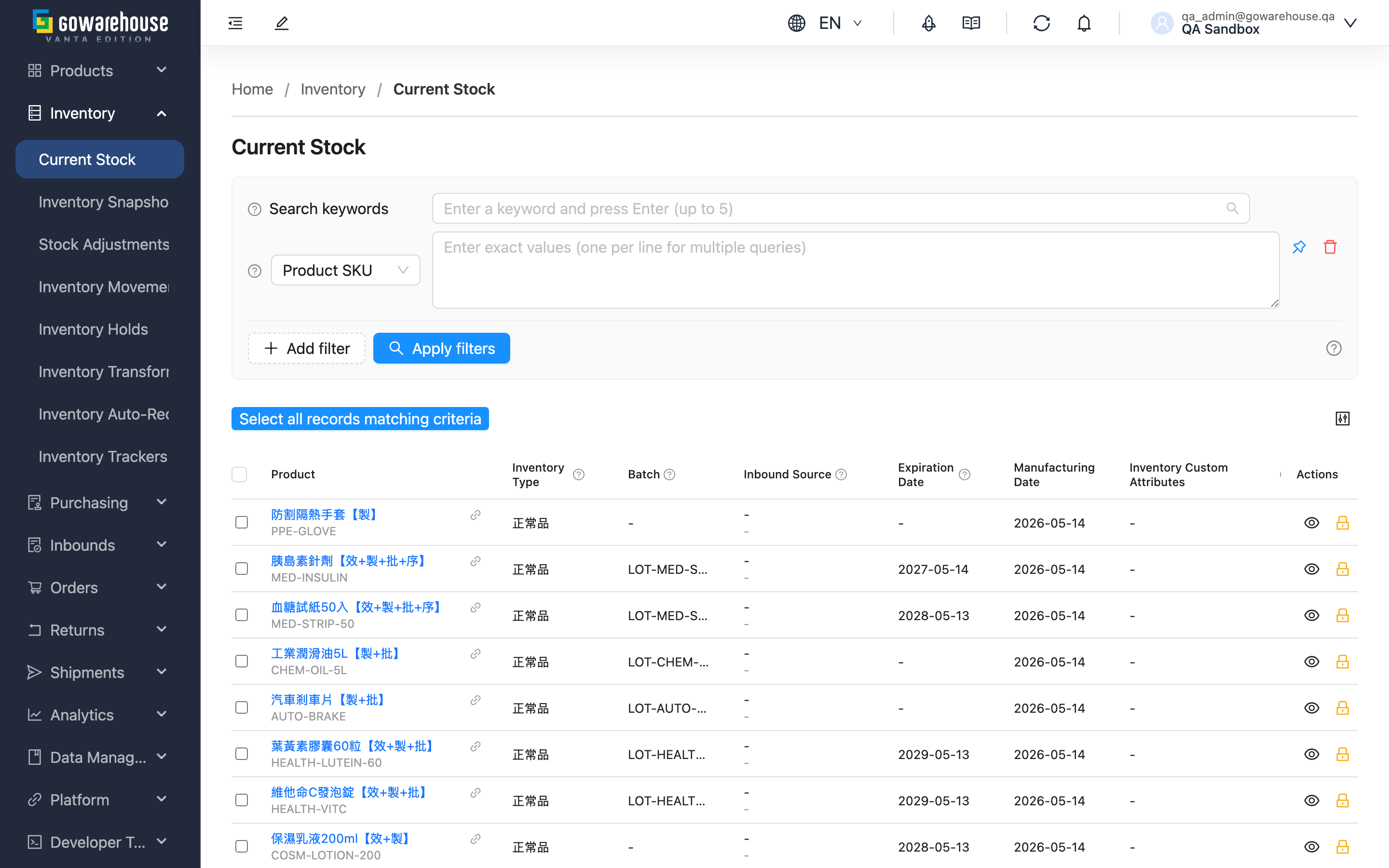
Quick jump: Search & Filter | Columns | Inventory Detail | Inventory Hold | Export
2.1 Search & Filter
The search box matches "Product SKU", "Product Name", "Batch" and "Inventory Custom Attributes" at once — type a keyword to locate stock quickly.
Click "Add filter" to open advanced filters; most conditions are entered by their name. A few deserve explanation:
| Filter | How to use |
|---|---|
| Inventory Type | Pick from the list, e.g. good stock, defective, pending inspection — to view only one quality status |
| Expiration Date | Set a date range; to find soon-to-expire batches, set the end date to the near future (see Scenario 2) |
| Manufacturing Date | Set a manufacturing-date range to trace batches from a specific production period |
💡 Tip: This list only shows items in "In Stock" status. Stock that's fully shipped or cleared won't appear here; to check historical figures, use "Inventory Snapshot" or "Inventory Movements" under Related Features.
2.2 Columns
The most important part of this page is the "quantity" group of columns — the relationship between them determines whether you can correctly judge your sellable amount:
| Column | What it means |
|---|---|
| Quantity | The actual total of this batch in the warehouse, including both locked and available portions |
| Available Quantity | What can genuinely still be ordered and shipped = total − pending put-away − locked − held. Look at this column to judge sellable amount and replenishment |
| Allocated Quantity | Quantity locked by orders awaiting shipment but not yet shipped; released automatically once shipped or the order is cancelled |
| Held Quantity | Quantity reserved by an inventory hold; not used by ordinary orders, and only returns to available after a manual release |
| Pending Putaway | Received and still sitting at the inspection table or other staging location, not yet put away to a formal shelf; not shippable, so not counted in available quantity. Click the figure (when above 0) to see details |
Other columns are mostly self-explanatory; a few notes:
| Column | What it means |
|---|---|
| Product | Product name and SKU; click the name to open the product detail |
| Inventory Type | The quality category, e.g. good stock, defective, pending inspection; types are managed separately and shipping draws the type the order specifies |
| Batch | An identifier distinguishing different inbound batches of the same product, used for source tracing |
| Inbound Source | Which inbound this batch came from and its received date; click to open that inbound and trace the source |
| Status | Inventory status; everything in this list is "In Stock" |
| Warehouse | The warehouse where this batch is stored |
💡 Tip: Click a column header to sort; the question-mark icon beside each header has a detailed explanation.
2.3 Inventory Detail
Click "View Inventory" in the "Actions" column of any row to open that record's full information: beyond the quantities above, it lists which shelves this batch is spread across and how much sits on each (shelf number, shelf type, quantity). When the total looks fine but shipping stalls, this is where you can tell whether the stock is stuck at a staging location like the inspection table, not yet put away to a pickable shelf.
2.4 Inventory Hold
When you want to set part of your stock aside so ordinary orders can't ship it (e.g. campaign reserve, pending quality confirmation), use an inventory hold.
▸ Hold stock
- Select one or more inventory rows and click "Batch Hold"; or click the hold icon in the "Actions" column of a single row
- Enter the quantity to hold for each (cannot exceed that row's available quantity)
- Fill in "Reason" (required), and optionally "Expires On" and "Note"
- Submit to complete the hold
Prerequisite: Only stock with "Available Quantity" greater than 0 can be held. Effect: The held quantity is subtracted from available and counted in "Held Quantity"; during this period ordinary orders cannot be allocated against it. Reversibility: Go to "Inventory" → "Inventory Holds" and release the hold, and the quantity returns to available.
2.5 Export
▸ Export inventory
- Set filter conditions (optional) so the export only contains the data you want
- Select the inventory items to export
- Click the "Export" button
Result: The file downloads automatically once the export is ready; you can also click the "Background Jobs" icon in the top-right to track progress and download. This is handy for month-end reconciliation, comparing the system's figures against the warehouse's actual counts.
3. FAQ
3.1 FAQ
▪ Why can't I see some inventory?
This list only shows items in "In Stock" status. Stock that's fully shipped or cleared won't appear here; to trace historical figures, use "Inventory Snapshot" or "Inventory Movements".
▪ Why is "Available Quantity" lower than "Quantity"?
Because available quantity already subtracts the portion locked by orders (Allocated Quantity) and held (Held Quantity), and the not-yet-put-away quantity isn't counted either. See Columns for the full relationship and each column's definition.
▪ How do I see which orders locked my inventory?
Go to "Product List", open the product detail, click "Inventory", and find the matching batch in the inventory list to see the orders locking that stock — including order number, recipient and order status.
▪ What is "Pending Putaway", and why isn't it available?
After goods arrive and pass receiving, they first sit at a staging location such as the inspection table, and must be put away to a formal shelf before they can be picked and shipped. During this period the quantity shows under "Pending Putaway" and isn't counted in available quantity. If this figure stays above zero for a long time, put-away is stuck — check progress with the warehouse.
▪ What is "Inventory Type"?
Inventory type distinguishes a product's quality status, e.g. good stock (normal, shippable), defective (needs special handling), or pending inspection (quality check not yet done, such as returned goods). Types are managed separately, and at shipping the system draws the type the order specifies.
▪ What is "Batch", and why does one product have several?
A batch distinguishes different inbound lots of the same product. When the same SKU arrives multiple times, or has different expiry/manufacturing dates, each becomes its own inventory record so you can trace source and expiry. At shipping the system decides the draw order by expiry or first-in-first-out.
▪ How do I find expired or soon-to-expire stock?
Filter by "Expiration Date": set the end date to today or earlier to find already-expired stock; set it to a near-future date to find soon-to-expire batches (see Scenario 2). Expired stock cannot be shipped and needs to be discussed with the warehouse for handling.
▪ How do I return held quantity back to available?
Go to "Inventory" → "Inventory Holds", find the hold and release it, and the held quantity returns to "Available Quantity". You can't adjust a hold directly on the Current Inventory page — it must be released via the hold record.
3.2 Notices
⚠️ Important
- This list shows only stock in "In Stock" status; fully shipped or cleared stock is not here
- "Held Quantity" returns to available only after you release it under "Inventory Holds"; it is not released automatically
- Expired stock cannot be shipped and requires manual handling
- "Pending Putaway" is not yet counted in available quantity; rely on available quantity before listing for sale
💡 Tip: Inventory figures are real-time and change with inbound, shipping and order processing; "Allocated Quantity" is released automatically once shipped or the order is cancelled.
4. Related Features
| Feature | Description | Link |
|---|---|---|
| Inventory Snapshot | View the inventory level on each past day — a "time machine" for stock | Go |
| Inventory Movements | View the reason and source of every stock increase or decrease — a "ledger" for stock | Go |
| Inventory Trackers | Set low-stock alerts so best-sellers don't run out | Go |
| Product List | View product information and per-product inventory lookup | Go |