
New Merchant Channel
Table of Contents
1. Feature Guide
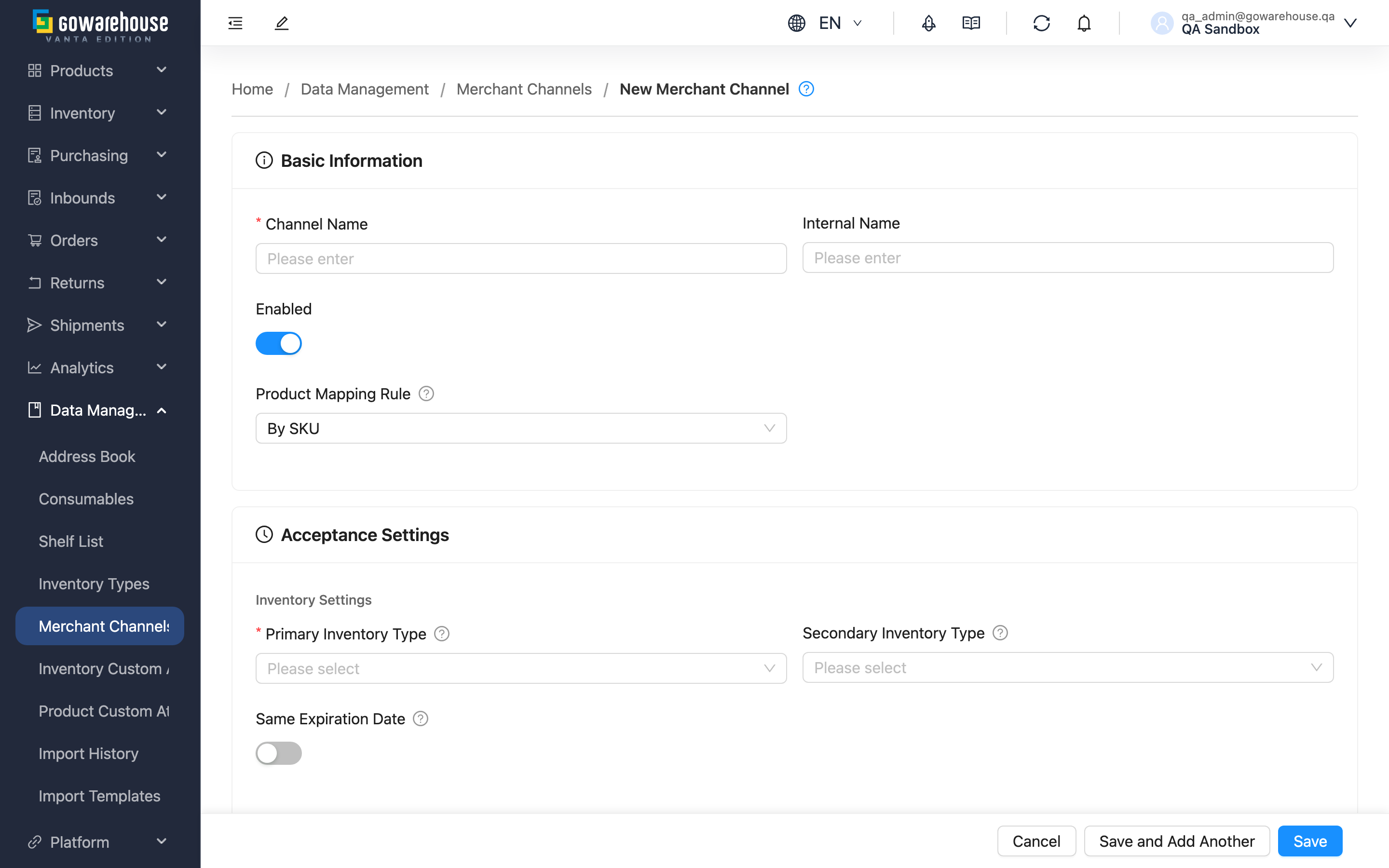
Before you start selling on a new platform, create a matching sales channel here and set up its shipping rules in one go — which inventory type to ship from, the minimum remaining shelf life, whether orders auto-allocate inventory, and whether shipping auto-converts. Once created, orders imported from that platform automatically apply these rules without per-order adjustment. The form is divided into four sections: Basic Info, Acceptance Settings, Order Processing Settings, and Shipping Rule Settings.
Quick Jump: Basic Info | Acceptance Settings | Order Processing Settings | Shipping Rule Settings
1.1 Basic Info
Fields marked with * are required
| Field | How to fill in | Notes |
|---|---|---|
| *Channel Name | Enter the channel name, ideally "platform + store name" | Must be unique within an account; used to identify the source in orders and reports |
| Channel Code | Enter the code for this channel (required) | Must be unique within the merchant; case is ignored. Import files use it to select the channel, and exports carry it out, so you can set it to your ERP's customer code |
| Enabled Status | Toggle switch, enabled by default | When disabled, this channel doesn't receive new orders |
| Product Mapping Rule | Choose By SKU or By Barcode | Determines how order items map to warehouse inventory; the wrong choice makes order items unmatchable and become unknown products |
| Order Template | Select from the list, leave blank for the system default | Specify only when this channel's shipping documents need a particular format |
1.2 Acceptance Settings
This section determines, at shipping time, "which inventory to deduct from" and "the minimum remaining shelf life."
Inventory Settings
Fields marked with * are required
| Field | How to fill in | Notes |
|---|---|---|
| *Primary Inventory Type | Select from the list | The system ships from this inventory first (e.g., good stock) |
| Secondary Inventory Type | Select from the list, optional | When the primary inventory is insufficient, the system deducts from here (e.g., near-expiry stock); if left blank, insufficient primary inventory means out of stock |
| Same Expiration Date | Toggle switch | When on, identical products in the same order must come from the same expiration batch — suited to channels requiring same-batch shipment |
Expiration Management
There are three expiration mechanisms: No Expiration Control (ships as long as not expired, the loosest), By Days, and By Ratio.
| Field | How to fill in | Notes |
|---|---|---|
| Expiration Mechanism | Choose one of the three mechanisms | The value fields below appear only after choosing "By Days" or "By Ratio" |
| Days Before Expiration | Enter days | Used when the mechanism is "By Days"; domestic shipment's remaining shelf life must be ≥ this many days |
| Overseas Days Before Expiration | Enter days | A separate standard for overseas shipment, usually stricter than domestic |
| Expiration Ratio | Enter a percentage | Used when the mechanism is "By Ratio"; remaining shelf life must be ≥ this ratio of the original shelf life |
| Overseas Expiration Ratio | Enter a percentage | The remaining shelf life ratio for overseas shipment |
| Tiered expiration rules | Click "Add" to add a rule | Set different acceptance standards for products of different original shelf-life lengths; threshold values cannot be duplicated |
| Enable Last Shipped Expiration Check | Toggle switch | When on, the same product shipped to this channel can only have equal or longer shelf life, avoiding customers receiving ever-shorter shelf life |
1.3 Order Processing Settings
Each switch here changes the order processing flow; understand it before turning it on.
| Field | How to fill in | Notes |
|---|---|---|
| Allow Partial Allocation | Choose allow / disallow / unset | Allow = reserve items that have stock first and allocate out-of-stock items after replenishment; unset uses your account's default. B2C usually off, B2B usually on |
| Fulfillment Lot Policy | Select from the list | If unset, inherits the account-level setting |
| Auto Complete Fulfillment | Toggle switch | Marks shipment complete right after picking, skipping manual confirmation; suited to simple channels without extra packing checks |
| Auto Recheck Inventory | Toggle switch | When inventory changes (inbound, returns, etc.), automatically rechecks out-of-stock orders and allocates inventory |
| Recheck Inventory Priority | Enter a number after turning on the switch above | Smaller number = higher priority; give important channels (key customers, urgent orders) smaller numbers |
1.4 Shipping Rule Settings
When an order meets a specific condition (Volume, Weight (kg), or Postal Code), it automatically switches the original shipping method to another. For example, "weight over 20kg → auto-convert to large freight." Click "Add Shipping Rule" to set a rule, specifying the original shipping method, trigger condition, and target shipping method.
The shipping method menu only lists shipping types linked to your account; if one is missing, confirm that shipping type is enabled first.
2. FAQ
Quick Jump: FAQ | Important Notes
2.1 FAQ
▪ Can channel names be duplicated?
No. Channel names must be unique within an account. They can be modified after creation, but a meaningful name is recommended.
▪ Which Product Mapping Rule should I choose?
- By SKU: The product code on the order must exactly match the product SKU; suits most cases.
- By Barcode: The product code on the order maps to the product barcode (including primary and secondary barcodes); before choosing this, ensure product barcodes are correctly set and not duplicated, otherwise order items won't match.
▪ What's the difference between "By Days" and "By Ratio"?
- By Days: Remaining shelf life must be ≥ the specified days. For example, set to 90 days, only stock with over 90 days remaining ships.
- By Ratio: Remaining shelf life must be ≥ the specified ratio of the original shelf life. For example, original shelf life 300 days at 30% requires over 90 days remaining.
▪ When do I need to set "tiered expiration rules"?
When products of different original shelf-life lengths need different acceptance standards. For example, products with over a year of original shelf life require 90 days remaining, while products with half a year require only 30 days. Once set, the matching tier is automatically applied based on the product's original shelf life.
▪ Is "Secondary Inventory Type" required?
No. Most channels only need a primary inventory type. The secondary inventory type is for channels that want to "automatically switch to another inventory when the primary is insufficient"; if unset, insufficient primary inventory simply shows out of stock.
▪ Why is the shipping method menu in the shipping rule empty?
Shipping rules can only select shipping types linked to your account. If the menu is empty or the shipping type you want is missing, confirm that shipping type is enabled on your account first.
2.2 Important Notes
⚠️ Important Reminders
- Primary inventory type is required; without it, you cannot save.
- Expiration and inventory type settings directly affect this channel's allocation results; set them carefully.
- Tiered expiration rule thresholds cannot be duplicated; duplicates prevent saving.
💡 Tip: When creating several channels at once, click "Save and Add Another" instead — after saving, the form clears and stays on this page.
3. Related Features
| Feature | Description | Link |
|---|---|---|
| Sales Channels List | View all channels | Go |
| Sales Channel Detail | Review a channel's full settings | Go |
| Order Templates List | Manage shipping document templates | Go |