
Import Template Detail
Table of Contents
1. Features
The detail page shows the full contents of an import template: which import type it is for, which file headers map to which system fields, and which fields are filled with default values automatically. Before importing, you can confirm here that the template is set up correctly, then apply it on the import screen.
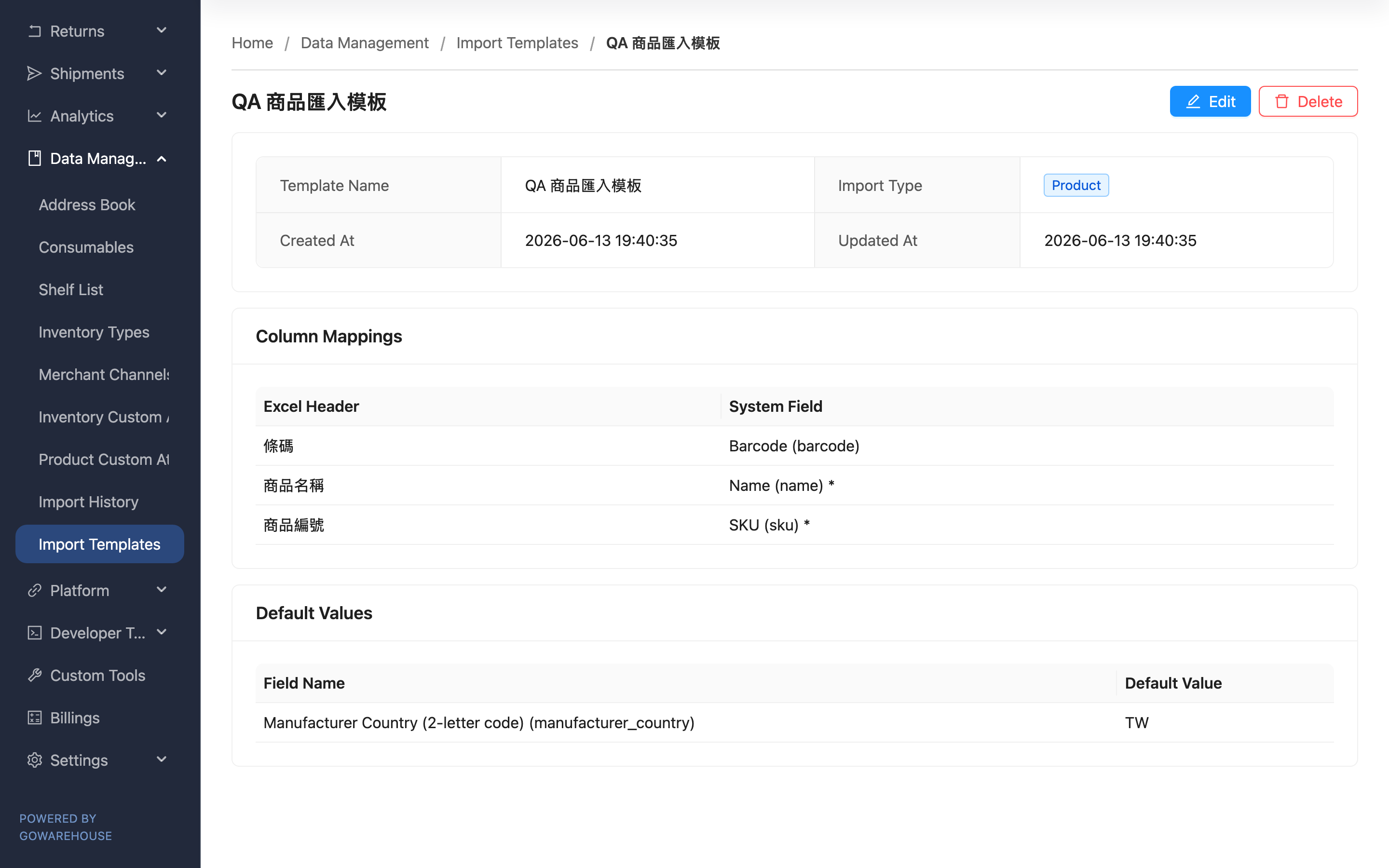
Quick jump: Basic Info | Column Mappings | Default Values | Edit & Delete
1.1 Basic Info
| Field | Description |
|---|---|
| Template Name | The name you gave this template |
| Import Type | Which kind of data import this template is for; fixed after creation and cannot be changed |
1.2 Column Mappings
A table listing each mapping the template defines.
| Field | Description |
|---|---|
| Excel Header | The actual header text in your file |
| System Field | The system field that header maps to; required fields are marked with * |
At import, the system uses this mapping to recognize each column in your file as the correct system field.
1.3 Default Values
Lists fields with a fixed value filled in automatically at import.
| Field | Description |
|---|---|
| Field Name | The system field with a default value |
| Default Value | The fixed value filled in automatically at import |
Fields with a default value do not need to appear in your file and do not appear in the column mappings above.
1.4 Edit & Delete
- Edit: Change the template name, column mappings, and default values. The import type cannot be changed. See Edit Import Template.
- Delete: Remove this template. It cannot be restored, and future imports can no longer apply it; however, completed import records are unaffected (they keep the template name used at the time of import).
2. FAQ
2.1 FAQ
▪ What does the * after a field mean?
It means that field is required for this import type. A required field must have either a header mapping or a default value so it can be filled in correctly at import.
▪ Why are some required fields not in the column mappings but in the default values?
Because they were set as default values. Once a field has a default value, the system fills it in automatically at import, so it no longer needs a header mapping and moves from column mappings to the default values section.
▪ If I edit this template, will it affect data imported with it before?
No. Editing only affects future imports that apply this template; completed import results and records do not change retroactively.
▪ Why does this template have no edit or delete button?
If you cannot see the action buttons, contact your administrator to confirm you have permission to manage import templates.
2.2 Notes
⚠️ Important
- A deleted template cannot be restored, and future imports can no longer apply it.
- The import type cannot be changed; to switch types, create a separate template.
💡 Tip: Before importing, check here that the column mappings and default values match this file, to avoid discovering mis-mapped columns only after importing.
3. Related Features
| Feature | Description | Link |
|---|---|---|
| Edit Import Template | Change this template's name, column mappings, and default values | Go |
| Import Templates | Return to the list of all import templates | Go |
| Import History | Upload a file to run an import and apply a template | Go |