
Order Details
Table of Contents
1. Features
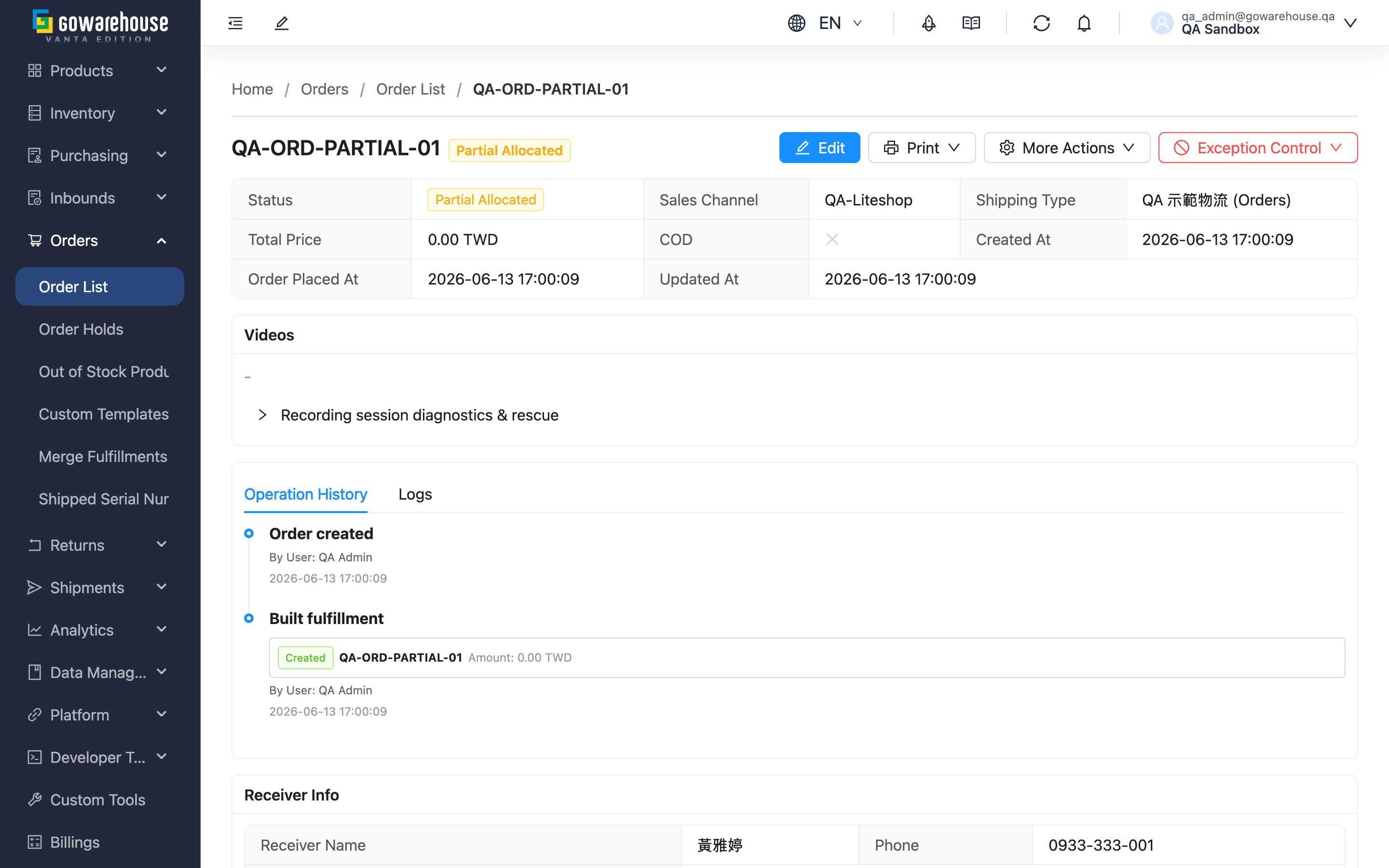
The order details page gathers the complete picture of a single order: what the customer wants, how far the warehouse has gotten, and what was shipped. Here you can view receiver info and amounts, track the progress of every fulfillment and shipment, and run actions such as edit, hold, and cancel. When a customer calls asking "where is my package", this page gives the full answer.
Quick jump: Order Info | Items & Fulfillments | Available Actions
1.1 Order Info
The top of the page shows the order's basic data: receiver info such as "Receiver Name", "Phone", "Full Address", along with "Total Price", "Shipping Type", and "Sales Channel". If the order was imported from an e-commerce platform, the "EC Account" source is shown; when that field carries a "Not linked to platform" tag, the order still has an e-commerce account attached but no longer exchanges data with the platform — see Copied orders are no longer linked to the platform.
If the order is currently held, a hold warning appears at the top of the page, listing each hold's reason and who placed it, helping you decide how to proceed.
1.2 Items & Fulfillments
The details page presents the order's various aspects in tabs:
| Tab | Content |
|---|---|
| Items | The products in the order, each item's "Expected Quantity" and "Shipped Quantity", inventory status, plus the allocated batch and expiration date |
| Fulfillments | Each fulfillment under the order and its shipment status and tracking number. A fulfillment represents "the contents of one shipment" and is the document the warehouse actually works from |
| Parcels | Contents, consumables, and packing time of packed parcels; a parcel the system generated automatically (created when a fulfillment ships without ever being packed) has no consumables — that is normal |
| Serial Numbers | Serial numbers of shipped products (if the product has serial-number management enabled) |
| Value Added Services | Value-added service items and fees included in this order |
| Attachments | Order attachments, including manual uploads and files brought in with the import batch |
The relationship between orders and fulfillments: An order is the customer's shopping list, recording what the customer wants; a fulfillment is the shipping work order the warehouse builds from the order, recording what the warehouse actually ships. One order may be split into multiple fulfillments due to multiple warehouses or shipping in-stock items first, or merged with other orders into one fulfillment. So an order's status is in fact the aggregate of all its fulfillments' statuses.
Lower on the page is the order's history, listing each step — creation, edits, holds, shipping — in reverse chronological order for traceability.
1.3 Available Actions
The action buttons on the page show or hide automatically based on the order's current status — only the actions currently allowed appear.
| Action | When available / Effect |
|---|---|
| Edit | Enter Edit Order. Cancelable, canceled, or "Partial Shipped" orders can be edited; orders already in picking (fulfillment is "Processing") or fully shipped cannot |
| Hold Orders | Pauses shipping for orders in "Pending Allocation", "Allocated", "Processing", "Partial Shipped"; an order can have only one hold at a time |
| Cancel | Cancels the order and releases reserved inventory; "Partial Shipped" and fully shipped orders cannot be canceled |
| Resume Orders | Resumes a "Canceled" order; the system rechecks inventory |
| Check Stock | Rechecks inventory, used after restocking to try to release out-of-stock orders |
| Create Return | Creates a return order for this order |
| Duplicate Order | Open a new order from this one's delivery info and item details, commonly for resending; available in any status. You type the new order number yourself in the confirmation dialog, stock is allocated again, and the original order is untouched. A copy of a platform-imported order is no longer linked to the platform — see below |
| Print / download the shipping detail PDF |
⚠️ Copied orders are no longer linked to the platform
Once an order imported from an e-commerce platform is copied, the copy leaves the platform behind and becomes the warehouse's own order:
- Later platform-side changes land on the original order only: when the buyer changes the address or items on the platform, or the platform cancels the order, the sync updates the original order and never touches the copy. Changes to the copy have to be made in the system.
- Shipping the copy does not report the tracking number back to the platform: the original order still reports as usual; the copy does not. This prevents two orders pointing at the same platform order, where the one shipped later would overwrite the earlier tracking number. Because no request goes to the platform either, a copy that still carries a platform-exclusive shipping type (one the platform ships for you) cannot obtain a tracking number at all: switch its shipping type to one of the warehouse's own carriers, request the tracking number again, and then pass that number on to the buyer yourself.
- The copy still carries the same e-commerce account: platform-specific settings such as the shipping type need it to resolve their names. The "EC Account" field gains a "Not linked to platform" tag so you can tell it apart from orders that are still syncing; orders still linked to the platform do not carry this tag.
2. FAQ
2.1 FAQ
▪ Why does one order have multiple fulfillments?
When products in the order are spread across different warehouses, some are out of stock and the in-stock ones ship first, or it's merged with another order to the same receiver, the system splits the order into multiple fulfillments. Each fulfillment is an independent shipping operation, shipped and tracked separately.
▪ What's the difference between "Expected Quantity" and "Shipped Quantity"?
"Expected Quantity" is the quantity the customer ordered; "Shipped Quantity" is the quantity actually shipped. When they differ, that item still has a portion unshipped (possibly out of stock or split).
▪ Why is there no "Edit" button on this order?
Action buttons show by status. When the order has entered warehouse picking (fulfillment is "Processing") or is fully shipped, the edit button is hidden automatically to prevent changing content already in process or shipped.
▪ The order address or store code is wrong, but the order isn't editable — what do I do?
When the order has progressed too far to be fully edited, you can hold the order first, then use "Correct Information" to edit fields such as receiver, phone, address, and store code (which don't affect items), then release the hold.
▪ What is the "Logs" tab for?
When the order came in via an e-commerce platform or external system integration, this records the data exchange with that platform, for troubleshooting sync issues. Manually created orders won't have such records.
If a webhook delivery row shows "Failed" or "Awaiting Retry", a "Retry" button appears on that row so you can resend it without leaving the order. The row turns to "Awaiting Retry" immediately; the system resends in the background, and that row's delivery status and "Retries" refresh automatically within about ten seconds. If they haven't updated by then (the target timed out, or this attempt failed again and was queued for the next automatic backoff), reload the page to see the latest result. Both your manual resend and the system's next scheduled retry go to the webhook's current URL: after you correct a wrong address, rows still sitting at "Awaiting Retry" switch to the new address on their own, with nothing to handle row by row; rows already at "Failed" are no longer retried automatically and still need this button. Expand the row to see the address each attempt was actually sent to — that is how you tell a target that never answered apart from one you were still calling at a retired address. Delivered webhooks, and rows from platform integrations or the Partners API, do not get this button. If a webhook fails 10 times in a row the system deactivates it and notifies you; while it is deactivated none of its rows show this button — reactivate it on the webhook settings page (reactivating resets the consecutive-failure count) and the button comes back.The action requires the "Logs - Write" permission.
▪ After copying a platform order, does the copy follow address changes or cancellations made on the platform?
No. Platform-side address changes, item changes, and cancellations apply to the original order only; the copy is already detached from the platform, so every change to it has to be made in the system. Shipping the copy also does not report the tracking number back to the platform. How to tell: orders whose "EC Account" field carries the "Not linked to platform" tag are exactly these — see Copied orders are no longer linked to the platform.
▪ A shipment shows as deleted — what happened?
When editing an order, the system rebuilds the unshipped fulfillments and voids the original shipments along with them; these voided shipments remain in the list marked as deleted for historical reference.
▪ One parcel in "Parcels" has no consumables — was something left unpacked?
No. When a fulfillment ships without ever being packed by the warehouse, the system automatically generates one parcel containing the products and quantities actually shipped; that parcel has no consumables and no recorded weight or dimensions. Seeing this is a normal record, not a sign that something was left unpacked.
2.2 Notices
⚠️ Important reminders
- Editing an order voids the unshipped fulfillments and their shipments and reallocates inventory, even if you only change one field
- Holding an order only pauses shipping; it does not cancel the order — to terminate an order, run cancel
- A fully shipped order cannot be edited or canceled; to adjust it, use the return flow
💡 Tip: When a customer calls to chase a package, check the shipment tracking number and delivery status in the "Fulfillments" tab to report the current progress.
3. Related Features
| Feature | Description | Link |
|---|---|---|
| Order List | Return to the list of all orders | Go |
| Edit Order | Modify the content of an unshipped order | Go |
| Add Order | Create an order manually | Go |