
Edit Return Order
Table of Contents
1. Features
A return order records the products and quantities you expect to send back to the warehouse, and the warehouse counts the incoming goods against it. If you entered the wrong quantity, missed an item, or the customer changes the return after the fact, you can come back and modify the return order — as long as the warehouse has not started verification. Accurate return data gives the warehouse a correct checklist to count against, preventing mismatches that would affect your inventory accuracy.
Quick Jump: When Editing Is Allowed | Editable Fields | Return Items | Effects of Your Changes
1.1 Which Statuses Can Be Edited
A return order's status changes as the warehouse progresses through verification. Only return orders in "Pending" status can be edited — that is, the stage before the warehouse has verified any item. The "Edit" button on the detail page only appears in this status.
Once the warehouse begins verification, the status automatically becomes "Partial Received", and from there through "Received", "Done", and "Canceled" no edit entry is offered.
| Return Order Status | Editable | Notes |
|---|---|---|
| Pending | Yes | Warehouse has not verified yet; content can still be adjusted |
| Partial Received | No | At least one item verified; the order is locked |
| Received | No | Warehouse has declared all goods received |
| Done | No | Return has been converted to inbound and completed |
| Canceled | No | Return order is canceled (resume it back to "Pending" first to edit) |
Design rationale: warehouse staff count the incoming goods item by item against the return order. Changing products or quantities mid-verification would make the verified results inconsistent with the document, breaking the match between records and reality. The system therefore locks the entire order once the first item is verified, keeping the checklist consistent throughout.
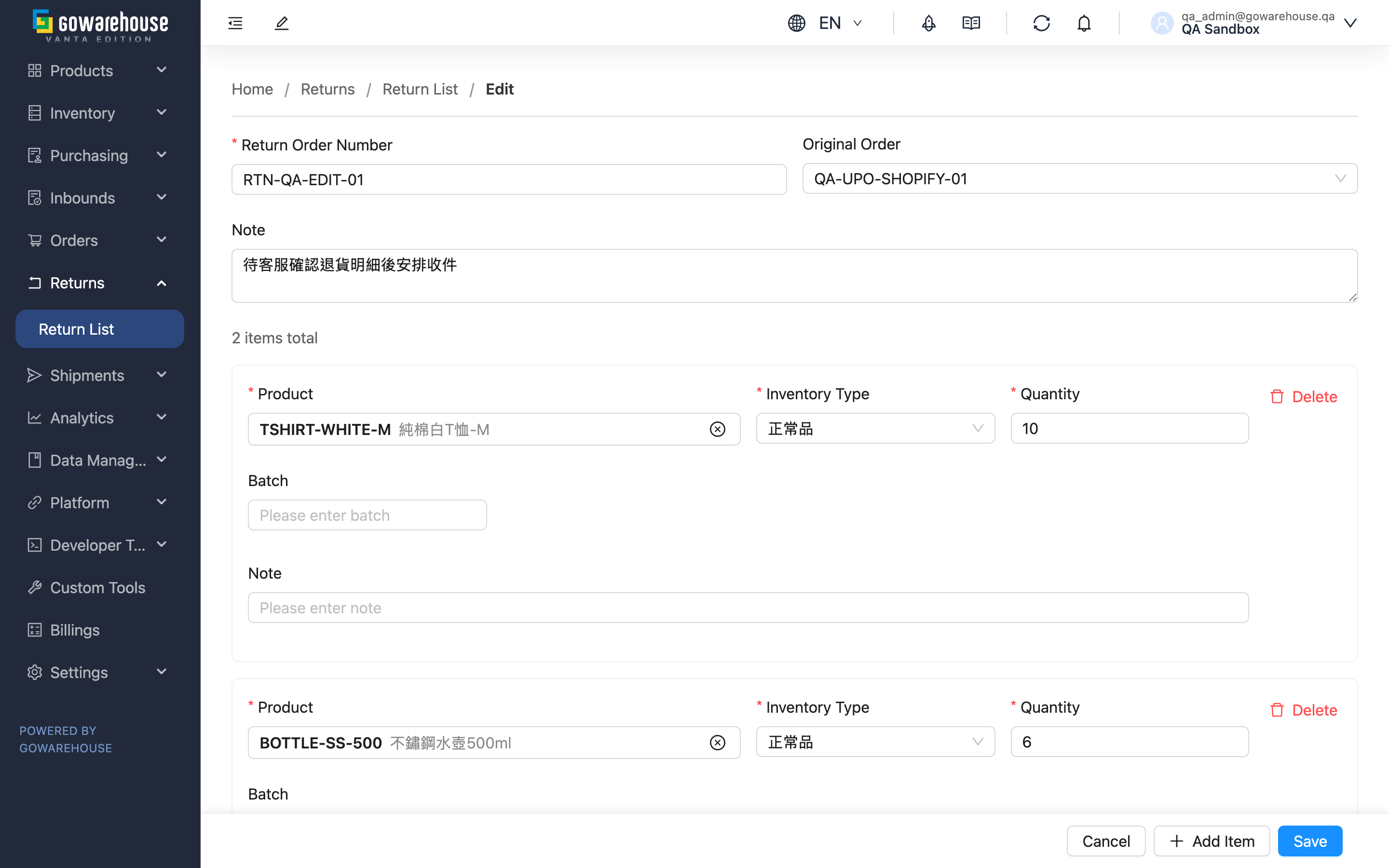
1.2 Editable Fields
Fields marked with * are required
| Field | How to Modify | Notes |
|---|---|---|
| *Return Order Number | Edit the text directly | Must be unique among your other return orders |
| Original Order | Search and re-select another order, or clear it | Changing or clearing it replaces all return items — see Effects of Your Changes |
| Note | Edit the text directly | Optional |
The account and warehouse a return order belongs to are set at creation time and cannot be changed on the edit page.
1.3 Return Items
Return items are the core of the order. You can add or remove entire item rows, or adjust the fields of existing items:
| Field / Action | How to Modify | Notes |
|---|---|---|
| Product | Search and select a different product | After switching products, double-check the inventory type and quantity are still correct |
| Inventory Type | Re-select from the dropdown | If an option is missing, add it under your account's inventory type settings first |
| Quantity | Enter the quantity you expect to return | Minimum 1 |
| Manufacturing Date / Expiration Date | Pick from the date picker | Shown only when the product has shelf-life days configured |
| Batch | Type the batch number | Optional; used to match a specific incoming batch |
| Note | Enter note text | Optional |
| Add an item | Click the "Add Item" button to add a blank row, then fill it in | — |
| Remove an item | Click the remove button on that item's row | A return order must keep at least one item |
Once all changes are made, click "Save" to apply them.
1.4 Effects of Your Changes
The reversibility and side effects of editing a return order are summarized below:
- Changing or clearing the original order replaces all return items: re-selecting the Original Order loads the new order's item details and overwrites the existing return items; clearing the original order empties the items, leaving a single blank row. If you have manually adjusted the items, record them before switching orders so your work is not overwritten.
- Saving returns you to the detail page: after each successful save, you are taken back to the return order's detail page, where you can immediately verify the updated content.
- Edits are logged: the system records the before-and-after differences of each edit (products, quantities, batches, expiration dates, and more), so you can later look up who changed what and when.
- Unsaved changes do not take effect: clicking "Cancel" discards all unsaved changes and returns to the previous page, leaving the return order unchanged.
2. FAQ
Quick Jump: FAQ | Important Notes
2.1 FAQ
▪ Why can't I find the "Edit" button on the detail page?
Only return orders in "Pending" status show the edit button. Once the warehouse starts verification (the status becomes "Partial Received" or later), the edit entry disappears. See Which Statuses Can Be Edited.
▪ The warehouse already started verifying, but the customer changed the return — what do I do?
Once verification starts, this return order can no longer be changed. Handle it another way: for items not yet received, the warehouse counts by actual arrival (verification goes by what is physically received); if the whole return is canceled, you can cancel the return order while it is still in an allowed status. Confirm the next step with the warehouse rather than expecting to edit this order to reflect the change.
▪ I re-selected an original order and all my filled-in return items disappeared?
That is expected. Changing the Original Order replaces all existing return items with the new order's item details, overwriting anything you filled in manually. If you need to keep them, write them down before switching orders. See Effects of Your Changes.
▪ What's the minimum return quantity? Can I enter 0?
The minimum for each return item is 1; you cannot enter 0. If an item is no longer being returned, delete the entire row instead of setting its quantity to 0.
▪ Can I delete all the return items?
No. A return order must keep at least one return item. If you want to clear all items, the return order no longer serves a purpose — consider canceling the entire return order instead.
▪ I changed the return order number but it won't save — why?
The Return Order Number must be unique among your return orders. If the number you changed to is already used by another return order, the system blocks it and flags the duplicate. Use a number that isn't already in use.
▪ Can I see what I changed earlier?
Yes. After each saved edit, the system records the before-and-after differences, including products, quantities, batches, expiration dates, and notes. You can later trace who changed what and when in the return order's history.
2.2 Important Notes
⚠️ Important Reminders
- Only return orders in "Pending" status can be edited; once the warehouse starts verification the order is locked and can no longer be changed.
- Changing or clearing the original order overwrites the return items in bulk; manually filled content is lost and cannot be recovered.
- A return order must keep at least one return item; you cannot delete them all.
- Clicking "Cancel" discards all unsaved changes.
💡 Tip: Before switching products or heavily adjusting item rows, confirm the warehouse has not started verification, so you don't discover mid-edit that the order is already locked.
3. Related Features
| Feature | Description | Link |
|---|---|---|
| Return List | Track the progress and status of all return orders | Go |
| Return Order Details | View the full return order and its verification results | Go |
| Create Return Order | Create a new return order when a customer wants to return goods | Go |