
Sales Channels List
Table of Contents
1. Use Cases
Quick Links: Case 1: Same product on multiple platforms with different shipping standards | Case 2: Set channels up before orders are imported | Case 3: Pause intake when a platform store goes offline
Case 1: Same product on multiple platforms with different shipping standards
Situation: You sell the same product on Shopee, momo, and your own website, and also stock it at PXMart and Carrefour. Shopee requires shipped goods to have 90+ days of remaining shelf life, PXMart at least one third, while your website's clearance section only cares that items aren't expired. If every order used a single standard, you'd either use the strictest one (needlessly blocking sellable stock) or the loosest one (shipping to PXMart and getting returns).
Use this feature: Create one sales channel per platform, and write the expiration requirements, which inventory type to ship from, and shipping conversion rules into each channel (see Create Sales Channel). Whichever platform an order comes from, the system automatically applies that channel's rules.
Result: A single product ships under each platform's own standard, without judging every order by hand, and stock that doesn't meet a standard won't be allocated to the wrong channel.
Case 2: Set channels up before orders are imported
Situation: You're about to connect a newly opened e-commerce platform account for automatic order import. The moment an order is imported, the system needs to know which channel it belongs to and which shipping rules to apply; if the channel doesn't exist yet, the order can't be processed because it lacks rules.
Use this feature: Create the matching channel here first (e.g., "Shopee Flagship"), set its inventory and expiration rules, then bind the platform account to this channel in the e-commerce account settings. Manually created orders must also select a channel.
Result: From then on, orders from that platform are automatically assigned to the right channel with the right rules, and won't get stuck on "no shipping rules found."
Case 3: Pause intake when a platform store goes offline
Situation: A platform store is going offline seasonally or pausing operations, and you don't want new orders assigned to this channel during that period.
Use this feature: In the channel settings, switch the Enabled Status to disabled (see Edit Sales Channel) — there's no need to delete the whole channel.
Result: Once disabled, the channel no longer appears in the channel menu for new orders and stops receiving imported orders; existing orders ship as usual, and you can switch it back to enabled when operations resume.
2. Feature Guide
A sales channel is a "shipping rulebook" dedicated to each of your sales channels — which inventory type to ship from, the minimum remaining shelf life, how shipping methods auto-convert, and whether orders auto-allocate inventory are all written into the channel. When processing an order, the system automatically applies the matching rules based on which channel the order came from, letting the same product ship under each platform's own standard. This page is the entry point for all channels, where you can search, review channels, and proceed to create or edit them.
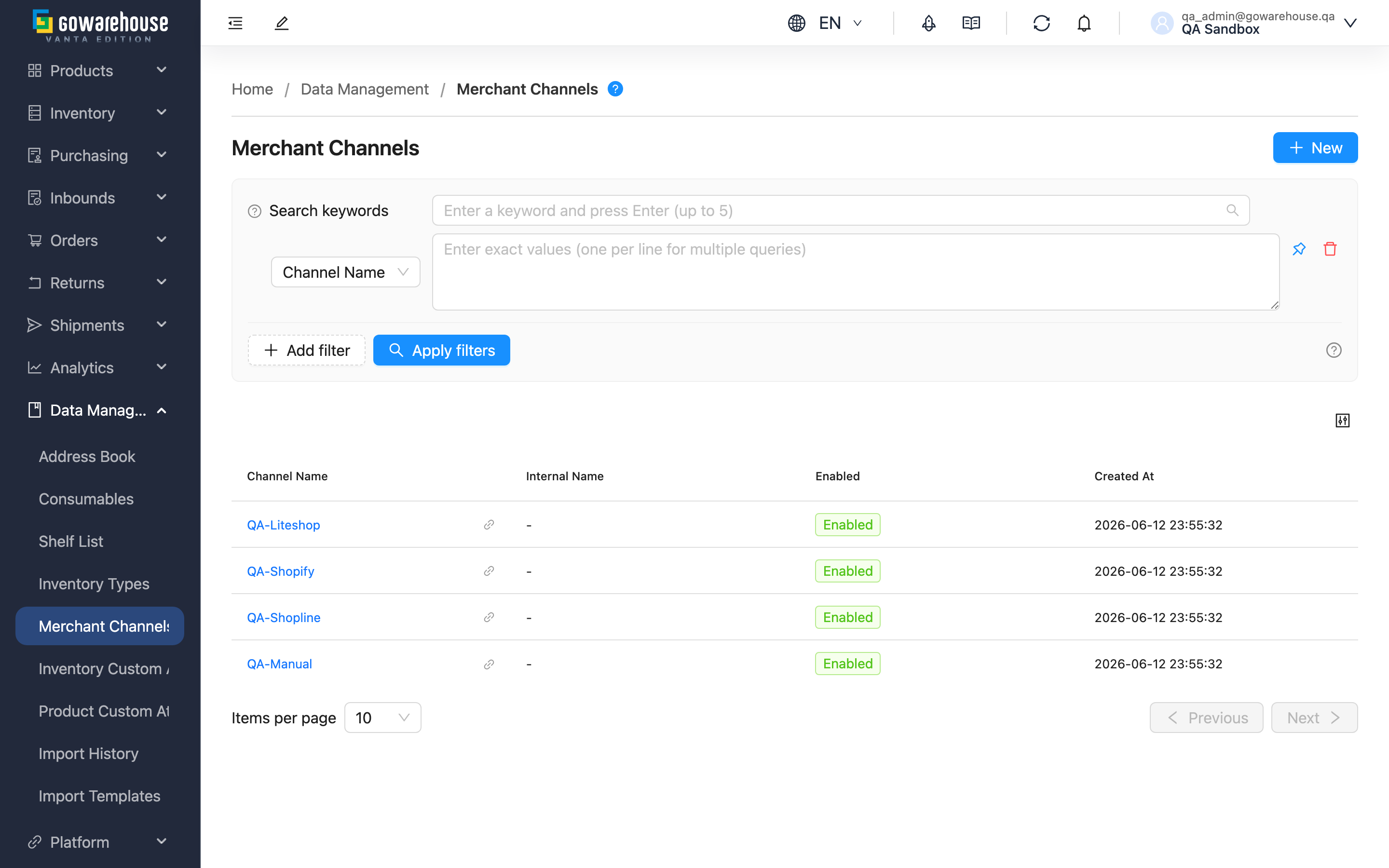
Quick Jump: Search & Filter | List Columns | Operations
2.1 Search & Filter
| Filter | How to use |
|---|---|
| Search box | Enter a Channel Name or Channel Code keyword to filter the list instantly |
| Enabled | Filter enabled or disabled channels |
By default only enabled channels are listed; to also review disabled channels, filter by Enabled.
2.2 List Columns
| Column | Description |
|---|---|
| Channel Name | Click to open the channel's detail page |
| Channel Code | The code import and export files use to identify the channel; unique within the merchant |
| Enabled Status | Whether the channel is currently enabled; disabled channels don't receive new orders |
| Created At | Channel creation date |
2.3 Operations
| Operation | Description |
|---|---|
| New | Create a new sales channel; go to Create Sales Channel |
| Click a channel name | Open Sales Channel Detail to review the full settings, then proceed to edit |
3. FAQ
Quick Jump: FAQ | Important Notes
3.1 FAQ
▪ Why must every order have a channel?
When processing an order, the system needs to know which inventory type to use, whether shelf life is sufficient, and which shipping method to take — these rules are all written into the channel. Without a channel, the system doesn't know what standard to process the order by. Orders imported from e-commerce platforms get their channel automatically via the bound account; manually created orders require you to select a channel.
▪ Can channel names be duplicated?
No. Channel names must be unique within an account, so you and the system can clearly distinguish the source on orders and reports.
▪ What happens after disabling a channel?
Once disabled, the channel won't appear in the channel menu for new orders and won't receive imported orders. Existing orders are unaffected and ship normally. See Case 3.
▪ Can sales channels be deleted?
Deleting existing sales channels is not supported. If a channel is no longer used, disable it instead (see Edit Sales Channel) — this preserves the channel attribution of historical orders while stopping new intake.
▪ Why can't I find a certain channel in the list?
The list shows only enabled channels by default. If the channel is disabled, filter by Enabled Status to view disabled channels.
▪ Where are a channel's fees (inspection fee, picking fee) configured?
Fee settings are maintained by the warehouse. You can view them on the Sales Channel Detail page, but cannot edit them in the brand portal.
3.2 Important Notes
⚠️ Important Reminders
- Create the matching channel and complete account binding before importing orders, otherwise orders can't be processed for lack of rules (see Case 2).
- A channel's expiration and inventory type settings directly affect order allocation; confirm the impact on shipping before adjusting.
💡 Tip: Name channels with platform + store name (e.g., "Shopee Flagship") so you can recognize the source at a glance in orders and reports.
4. Related Features
| Feature | Description | Link |
|---|---|---|
| Create Sales Channel | Create a new channel and set shipping rules | Go |
| Sales Channel Detail | Review a channel's full settings | Go |
| Order List | View order allocation and shipping results | Go |