
Unknown Product Detail
Table of Contents
I. Feature Guide
When you click a record in the Unknown Products list, you land on this detail page. It shows the full information for this Unknown Product, which orders are currently blocked, and lets you perform the most important step of the whole flow — "Confirm Mapping" it to the correct product in the system, unfreezing all affected orders at once.
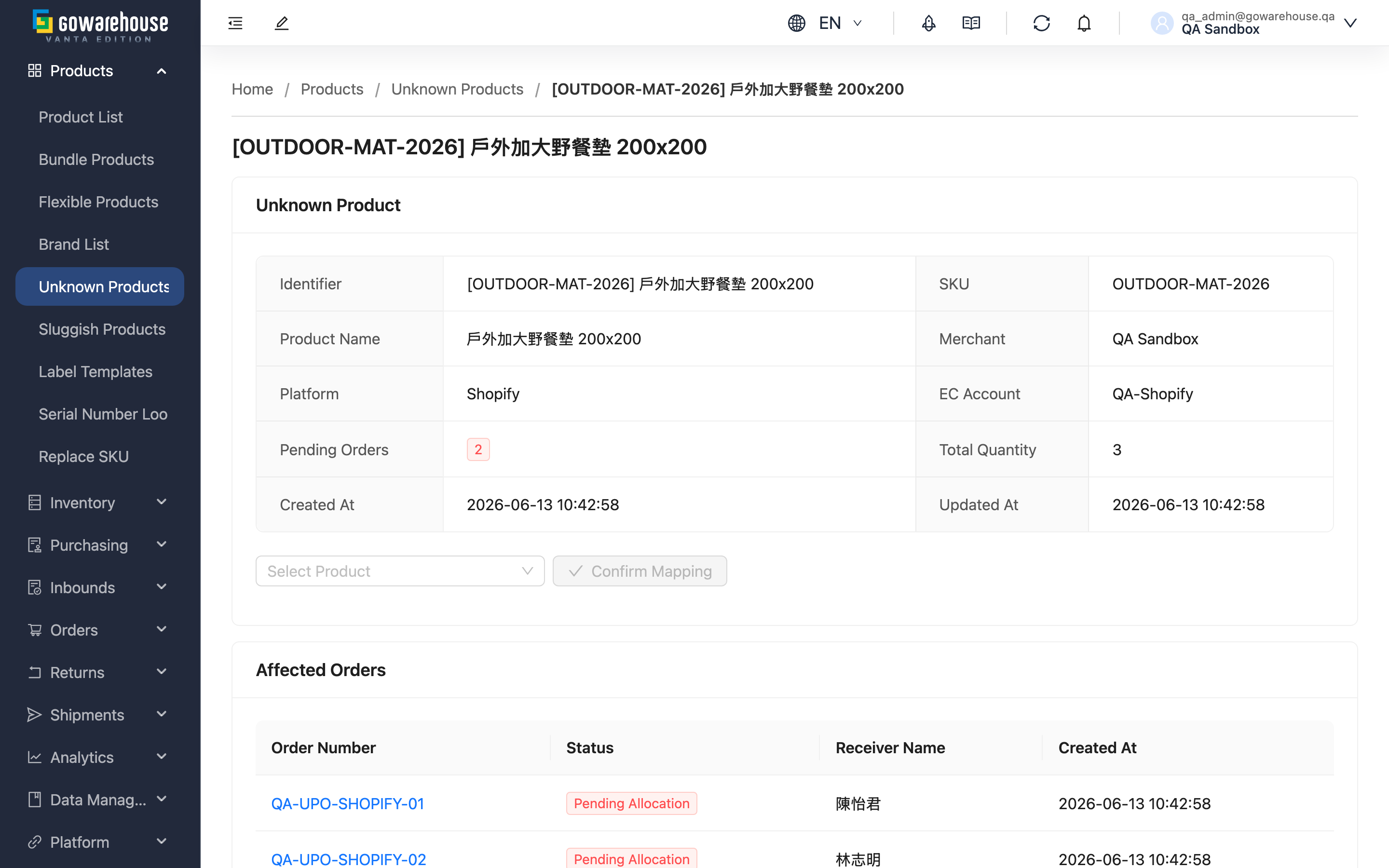
Quick Links: Basic Info | Map to Real Product | Affected Orders
1.1 Basic Info
The info card at the top shows the source and impact of this Unknown Product, helping you judge what it is and how many orders it blocks before mapping:
| Field | Description |
|---|---|
| Platform, EC Account | Which platform and shop this record was synced from; manual orders show "-" |
| Pending Orders | How many not-yet-shipped orders are blocked on this unknown product — also the number of orders that get updated when you map it |
| Total Quantity | The total quantity those orders demand for this unknown product |
The remaining fields (Identifier, SKU, Product Name, Merchant, Created At, Updated At) display by name.
1.2 Map to Real Product
This is the most important operation on the detail page. Mapping tells the system "this Unknown Product is actually this system product," and the system then swaps every blocked order to the correct product and reallocates inventory.
▸ Steps
- Type a SKU or product name in the product search box and pick the correct system product. The search only lists products under the current merchant, so the product must already exist in the system. The results also include Bundle Products, so if this record actually represents a bundled set you can map it straight to a bundle; a bundle with no component products cannot be mapped.
- Click "Confirm Mapping".
- The system shows a confirmation dialog reading "This will affect {{count}} orders"; confirm to proceed.
- If this record comes from a platform that supports backfill (currently Shopee), it then asks once more, "Also push the new SKU back to the e-commerce platform?" — see the FAQ below.
▸ What happens after mapping
- Every order item blocked on this Unknown Product is swapped to the real product you selected; if you picked a Bundle Products, that item is expanded into each of the bundle's component products.
- The system reallocates inventory for those orders and re-checks order status, so the previously frozen orders return to the normal flow.
- Each affected order gets a mapping entry recorded in its order history.
- This Unknown Product record is deleted, so it no longer appears in the list.
- Once the record is deleted this detail page's address no longer exists, so you are taken straight back to the Unknown Product list, with the result (how many orders were affected) shown as a notification.
⚠️ Mapping cannot be undone
Once mapping completes it cannot be reverted. If you pick the wrong product, you can only go into each affected order and change the product back by hand. Always double-check the product before clicking confirm.
1.3 Affected Orders
The section at the bottom lists every order blocked on this Unknown Product, including Order Number, Status, Receiver Name, and Created At. Clicking the Order Number opens that order in a new tab. Scan this list before you map, to confirm the products in these orders really are the same item.
II. FAQ
Quick Links: FAQ | Important Notes
2.1 FAQ
▪ What if I mapped to the wrong product?
Mapping cannot be undone. If you picked the wrong product, you can only go into each affected order and change the product back by hand. So double-check before confirming.
▪ Why can't I find the product in the product search box?
The search only lists products under the current merchant. If it's missing, usually it's because: the product isn't created in the system yet (add it in the Product List first), the product is deactivated, or the search keyword is off (try the SKU or full product name).
▪ Can one unknown product map to multiple real products?
No, only one. If different products in a batch of orders were grouped under the same Unknown Product, it means the source orders share the same SKU/name — you need to fix the order data first to map them separately. But if the record represents a bundled set to begin with, you can map it to a Bundle Products instead, and the order items are expanded into the bundle's component products (see Map to Real Product).
▪ Which option should I choose for "Backfill this SKU to the platform?"
Choosing "Yes" updates the platform product's SKU to your internal SKU, so future orders for the same product match automatically and no longer become Unknown Product; choosing "No" only completes this mapping and leaves the platform untouched. This prompt only appears when the record comes from a platform that supports backfill (currently Shopee); manual orders and other platforms won't show it.
▪ What happens if the platform backfill fails?
A failed backfill does not affect this mapping — the orders are already swapped to the correct product and inventory is allocated; only the SKU wasn't written back to the platform. Back on the list you get a separate notice explaining the cause (e.g., platform not supported, platform rejected it, connection failed); that notice stays on screen until you close it. You can try again later, or change the product's SKU to the internal SKU manually in the platform's seller portal.
▪ After mapping, do order inventory and status update automatically?
Yes. During mapping the system reallocates inventory for the affected orders and re-checks order status — you don't need to do anything more on the order page. See "What happens after mapping" for the full impact.
2.2 Important Notes
⚠️ Important Reminders
- Mapping cannot be undone; confirm the correct product before running it.
- After a successful mapping, this Unknown Product record is deleted and cannot be recovered.
- Backfilling to the platform only changes the SKU on the platform — it's separate from this mapping; a failed backfill does not invalidate the mapping.
III. Related Features
| Feature | Description | Link |
|---|---|---|
| Unknown Product List | Return to the list to see all pending unknown products | Go |
| Product List | Confirm the target product exists before mapping | Go |
| Order List | View or fix orders blocked by unknown products | Go |