
Edit Product
Table of Contents
I. Features
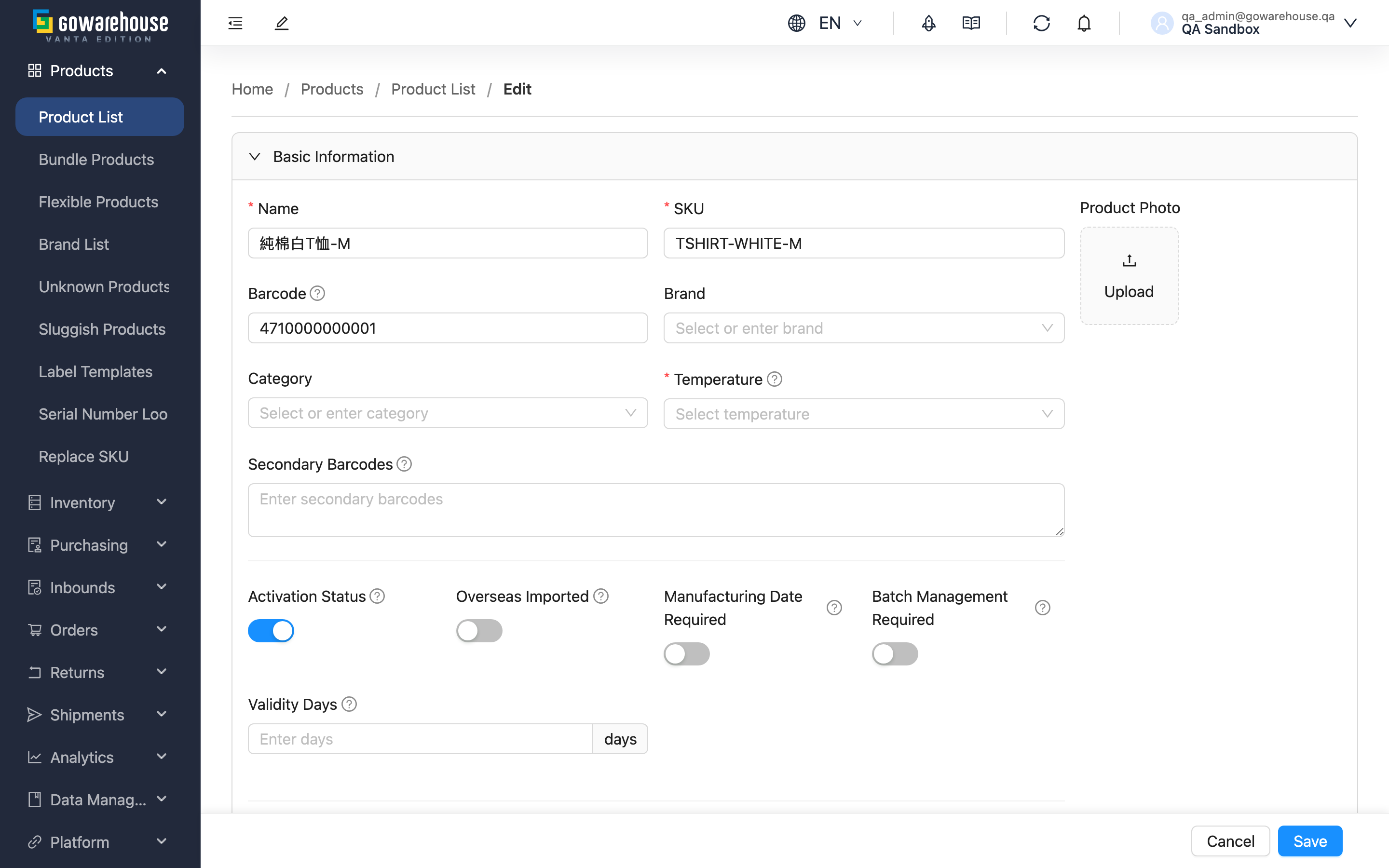
Product data has to stay accurate for orders to ship smoothly. Whenever you spot a wrongly registered barcode, need to adjust a product name, or want to add a barcode for new packaging, the Edit Product page is where you make the change. Updates take effect immediately and the warehouse works from the latest settings, so double-check before saving.
Quick Jump: Form Fields | Steps
1.1 Form Fields
Fields marked with * are required. Fields are grouped by form section; click a section header to expand or collapse it.
1. Basic Information
| Field Name | How to Fill | Notes |
|---|---|---|
| *Name | Enter the full product name; suggested format: brand + name + spec | Orders, reports, and warehouse operations all display this name |
| *SKU | Enter your internal product code | Must be unique; the system checks availability as you type. After a change, orders and reports show the new SKU |
| Barcode | Enter or scan the barcode on the product packaging | Used for scanning during inbound and picking; keep it consistent with the physical packaging |
| Secondary Barcodes | Enter one barcode per line | Use when the same product has multiple packaging or channel barcodes; scanning any of them identifies the same product |
| Brand | Select from the dropdown or type directly | Optional; if the brand is missing, add it in "Brand List" first |
| Category | Select from the dropdown or type directly | Optional; used for product list filtering and report grouping |
| *Temperature | Select from the dropdown: Ambient / Controlled / Refrigerated / Frozen / Air Conditioned | Determines which temperature zone of the warehouse the product is stored in |
2. Product Settings
| Field Name | How to Fill | Notes |
|---|---|---|
| Activation Status | Toggle enabled or disabled | Disabled products are hidden from document menus and cannot be used on new documents; historical data is unaffected |
| Overseas Imported | Turn on for imported products | Affects customs declaration and report classification |
| Manufacturing Date Required | Turn on for products that need expiry tracking | When on, warehouse staff must enter the manufacturing date at receiving, supporting expiry control and first-expired-first-out |
| Batch Management Required | Turn on for products that need batch tracking | When on, warehouse staff must enter the batch number at receiving; stock is stored per batch for precise tracing and recalls |
| Validity Days | Enter the shelf life in days | Once set, staff only need to enter either the manufacturing date or the expiry date at receiving — the system calculates the other |
Why are these "required at receiving" switches set on the product? Warehouse staff cannot tell at receiving time which products need expiry or batch tracking. Setting it on the product makes the system require the data during receiving, preventing gaps that would make later tracing impossible.
3. Serial Number Settings
| Field Name | How to Fill | Notes |
|---|---|---|
| Track Serial Numbers | Turn on for products tracked piece by piece | When on, serial numbers must be scanned at both inbound and outbound |
| Required Serial Numbers | Enter how many serial numbers are recorded per unit | Defaults to 1; minimum 1 |
| Box Serial Number Delimiter | Enter the separator between serial numbers in a carton barcode (e.g. ",") | When a carton barcode is scanned, the system splits it into individual serial numbers using this separator |
| Serial Number Pattern | Enter a serial number format rule (optional) | Once set, scans that do not match the format are rejected, preventing mis-scans |
4. E-commerce Stock Sync
| Field Name | How to Fill | Notes |
|---|---|---|
| E-commerce Stock Sync | Turn on to sync this product's stock to e-commerce platforms | Stock only syncs when this is on; actual timing and rules follow each e-commerce account's settings |
| Exceptions (optional) | To disable specific accounts or adjust ratios, click "Add exception" | If the ratios across accounts add up to more than 100%, the system warns you to prevent overselling |
5. Other Information
| Field Name | How to Fill | Notes |
|---|---|---|
| Product Photo | Upload a product photo | Used by warehouse staff for visual identification |
| Product Custom Attributes | Fill in according to the attributes your company has defined | Attributes are maintained in "Product Custom Attributes"; attributes marked required must be filled |
| Note | Enter remarks | Optional |
6. Unit Information
Define the product's small / middle / large packaging units (e.g. piece → box → carton). The warehouse uses them for stock counting, volume, and pallet planning. Stock is always counted in the smallest unit.
| Field Name | How to Fill | Notes |
|---|---|---|
| Base Unit Name | Enter the smallest counting unit (e.g. piece, bottle, pack) | The base unit for stock calculation; unit names cannot start with a digit |
| Length / Width / Height / Weight (kg) | Enter the dimensions and weight of a single unit | Used for volume and shipping cost calculation |
| Mid Unit Name, Items Per Mid Unit | Enter the middle packaging name (e.g. box) and how many small units it contains | Only needed when products are grouped inside the large packaging; you may also enter Mid Unit Barcode |
| Large Unit Name, Items Per Large Unit (Box Quantity) | Enter the large packaging name (e.g. carton) and how many small units it contains | You may also enter Large Unit Barcode and the carton's dimensions and weight |
| Total Large Units Per Pallet | Enter how many large units fit on one pallet | The basis for billing and pallet planning; can be auto-filled from the stacking setup (Large Units Per Layer × Layers Per Pallet) or entered directly |
7. Substitute Information
When the main product is out of stock, the system automatically ships a substitute with sufficient stock, following the priority order of this list, so orders can still be fulfilled. Click "Add Substitute" to add products and adjust their order.
8. Export Information
Only needed for products shipped across borders.
| Field Name | How to Fill | Notes |
|---|---|---|
| Customs Declaration Name | Enter the product name used for customs declaration | Customs documents declare this name |
| Manufacturer Country (2-letter code) | Enter the country-of-origin code (e.g. TW) | — |
| HS Code | Enter the international commodity classification code | Ask your customs broker if unsure |
| Material | Enter the product material | Required by customs in some countries |
Action Buttons
| Button | Location | Description |
|---|---|---|
| Save | Bottom | Saves the changes and returns to the detail page |
| Cancel | Bottom | Discards the changes and returns |
1.2 Steps
▸ Edit basic data
- Find the field to change
- Enter the new value
- Click "Save"
- The system validates the data and saves
▸ Add another barcode
- Find the "Secondary Barcodes" field
- Add the new barcode on a new line (one barcode per line)
- Click "Save" to finish
▸ Remove another barcode
- Delete the line with the barcode to remove in the "Secondary Barcodes" field
- Click "Save" to confirm
II. FAQ
2.1 FAQ
▪ Can I change a product's "SKU"?
Yes. Edit the "SKU" field directly; the system checks that the new code does not duplicate another product's. Keep in mind the "SKU" is how you, the warehouse and external platforms identify the product, so update your integrations after changing it. To change the codes of many products at once, use "Products" → "Replace SKU" instead.
▪ Can I edit several products at the same time?
The edit page handles one product at a time. To change the same field on many products, tick them on the product list and use the "Edit" batch edit feature.
▪ Does editing a product affect orders that already exist?
Yes. The product name, barcode and other details shown on existing orders are read live from the product's current data, so after the change, existing order pages and newly generated documents show the new values; only the price recorded when the order was placed stays unchanged. Before renaming a product or changing its barcode, make sure this will not confuse orders currently being processed.
▪ How do I undo a saved change?
There is no automatic undo. To restore a value, check the previous value in the "Edit History" on the product detail page and change the data back manually.
▪ What if the system says the "SKU" is already in use?
The code you entered belongs to another product; the message shows which product is using it. Please:
- Check the code was entered correctly
- Search the product list for that code to see which product uses it
- Choose a different, unique code
▪ What if saving fails with "This field is required"?
Check the fields highlighted with a red border on the page, fill them in, and save again.
▪ Does changing the storage temperature affect existing stock?
After the change, the warehouse stores future inbound stock according to the new temperature requirement. For stock already in the warehouse, the warehouse staff will relocate it as needed.
2.2 Notices
⚠️ Important
- Changes take effect immediately and are also reflected in the product details shown on existing orders (see FAQ); double-check before saving
- After changing a barcode, scanning the old barcode no longer identifies the product, which may affect inbound/outbound work in progress
- Changing the storage temperature affects where future inbound stock is stored
- Deactivating a product does not delete its data, but it can no longer be used in new orders
💡 Tip: If you are worried about disrupting warehouse work, change barcodes outside peak shipping hours; the before/after values of every change are recorded in the "Edit History" for comparison.
III. Related Features
| Feature | Description | Link |
|---|---|---|
| Product List | Browse and search all products | Go |
| Product Detail | View the product's full information | Go |
| Create Product | Create a new product | Go |
| Replace SKU | Change product SKUs in bulk | Go |