
New Purchase Order
Table of Contents
1. Features
Create a purchase order recording one procurement with a supplier: the supplier, which products to buy, and the quantity and unit price of each. On submit, the PO is created in "Draft" status; you can keep editing it and submit for approval once everything is correct. A PO can contain multiple items, plus adjustments such as discounts or surcharges.
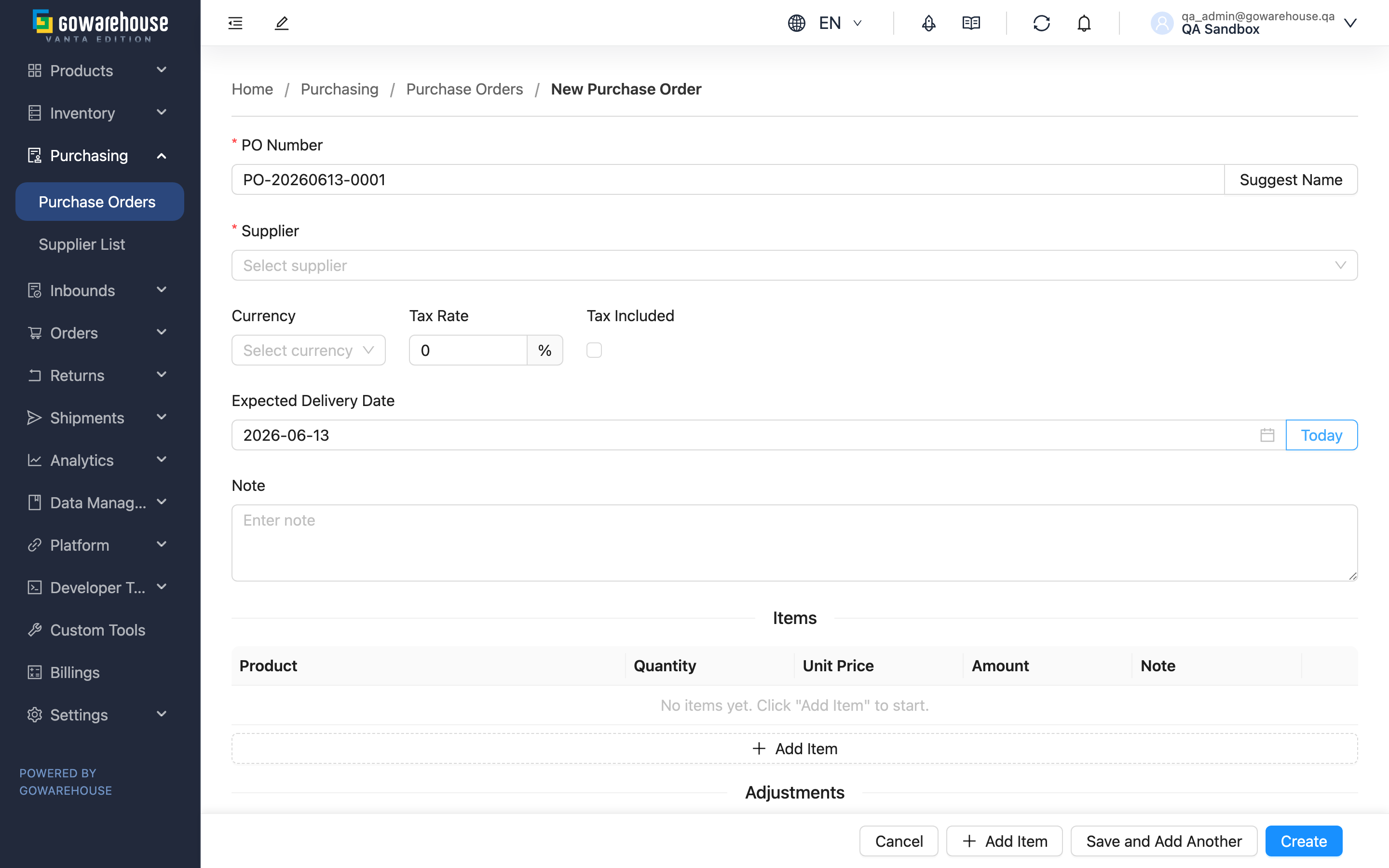
Quick links: Basic Info | Items | Adjustments | Amount Summary | Submit
1.1 Basic Info
Fields marked with * are required
| Field | How to fill | Notes |
|---|---|---|
| *PO Number | Enter the PO number | Must be unique within a merchant; click "Suggest Name" to have the system generate a unique number |
| *Supplier | Choose a supplier from the list | Selecting one auto-fills that supplier's default currency and tax rate; if no supplier is found, the hint links you to create one |
| Currency | Choose the purchase currency | Defaults to the supplier's default currency; can be changed manually |
| Tax Rate | Enter the tax rate percentage (e.g. 5 for 5%) | Defaults to the supplier's default tax rate; affects tax and total |
| Tax Included | Check if the unit prices entered are tax-inclusive | Affects how tax is calculated, see Amount Summary |
| Expected Delivery Date | Pick the delivery date agreed with the supplier | Optional; click "Today" to fill today quickly |
| Note | Add a note for this PO | Optional |
1.2 Items
In the "Items" section, add the products to purchase — at least one item is required. Each item needs:
Fields marked with * are required
| Field | How to fill | Notes |
|---|---|---|
| *Product | Search by product SKU or name, then select | Required |
| *Quantity | Enter the purchase quantity | Must be greater than 0 |
| *Unit Price | Enter the unit price | Cannot be negative |
| Amount | Calculated automatically as quantity × unit price | Read-only |
| Note | Add a note for this item | Optional |
Click "Add Item" to add another row and buy multiple products.
1.3 Adjustments
"Adjustments" records amounts beyond the item lines, such as shipping or an order-level discount. Each entry needs a "Description" and "Amount" — enter discounts as negative and surcharges as positive. This section is optional; leave it empty if there are no adjustments.
1.4 Amount Summary
As you fill in items and adjustments, the "Amount Summary" below updates in real time:
| Item | Description |
|---|---|
| Items Subtotal | Sum of all items' (quantity × unit price) |
| Adjustments Total | Sum of adjustments (discounts negative, surcharges positive) |
| Subtotal | Pre-tax subtotal = item subtotal + adjustments total |
| Tax | Tax calculated per the tax-included setting |
| Total | The PO total |
Tax is calculated differently based on the "Tax Included" setting:
- Tax-inclusive (checked): tax = subtotal − subtotal ÷ (1 + rate), total = subtotal
- Tax-exclusive (unchecked): tax = subtotal × rate, total = subtotal + tax
1.5 Submit
When done, you can submit in two ways:
- Create: Create the PO and go to its Purchase Order Detail.
- Save and Add Another: Create it and clear the form, handy for creating several POs in a row.
After submitting, the PO is created in "Draft" status — it hasn't entered the approval flow yet, and you can keep editing or submit it.
2. FAQ
Quick links: FAQ | Important Notes
2.1 FAQ
▪ Does creating a PO notify the supplier or deduct stock?
No. Creating a PO only records what you intend to buy from the supplier; it's in draft status, doesn't notify the supplier, and doesn't affect stock. Stock only increases once goods actually arrive and you receive them via a linked inbound.
▪ What if no supplier appears in the dropdown?
It means no supplier has been created under this merchant yet. The supplier field's hint provides a "Create Supplier" link — create a supplier first, then come back to place the order.
▪ Why are currency and tax rate filled in automatically?
When you select a supplier, the system applies that supplier's default currency and default tax rate, saving you from typing them each time. Both can be adjusted manually for this PO.
▪ Should adjustment amounts be positive or negative?
Discounts (which lower the total) are negative; surcharges / shipping (which raise the total) are positive. The adjustments total is merged into the pre-tax subtotal when calculating tax and the total.
▪ What's the difference between checking "Tax Included" or not?
Checked means the unit prices you entered already include tax, so the system derives tax from the tax-inclusive amount (total = subtotal); unchecked means prices are pre-tax, so the system adds tax on top (total = subtotal + tax). See Amount Summary.
▪ Is the expected delivery date required?
No, it's optional. But filling it in is recommended so you can later filter by delivery date on the Purchase Order List and track overdue deliveries.
2.2 Important Notes
⚠️ Important reminders
- PO numbers must be unique within a merchant; duplicates cannot be saved
- At least one item is required to create a PO
- After creation it remains a draft and can be edited; entering the approval flow requires submitting it manually on the detail page
💡 Tip: To create several POs at once, use "Save and Add Another" to clear the form after saving and keep going without re-entering this page.
3. Related Features
| Feature | Description | Link |
|---|---|---|
| Purchase Order List | View and track all purchase orders | Go |
| Purchase Order Detail | Submit, approve, create inbounds, and close | Go |
| Edit Purchase Order | Modify a PO still in draft status | Go |