
Flexible Product List
Table of Contents
1. Use Cases
Quick links: Scenario 1: Random-style shipping | Scenario 2: Packaging transition | Scenario 3: Gift pool for promotions
Scenario 1: Random-style shipping
Situation: You sell socks in three colors on Shopee with "color shipped at random" on the product page. Customers don't pick a color, but someone still has to decide which color ships for every order.
Use this feature: Create each color as a regular product, then create one flexible product containing all three (see Create Flexible Product) with the "Equal Distribution" mechanism.
Result: List the flexible product's SKU on your channel. The system picks the color for each incoming order, the three colors sell down evenly, and no one has to decide manually.
Scenario 2: Packaging transition
Situation: A product moved to new packaging, but a batch of old packaging is still left. You want to sell out the old stock first without watching inventory and swapping channel SKUs by hand.
Use this feature: Create the old and new packaging as separate products, then create a flexible product containing both with the "Least Stock First" mechanism.
Result: The old packaging (lower stock) ships first; once it's gone, orders automatically switch to the new packaging. The channel SKU never changes.
Scenario 3: Gift pool for promotions
Situation: A campaign offers a free gift over a spending threshold. There are several gift options with uneven stock, and you want to use up the largest pile first.
Use this feature: Create a flexible product containing all gift options with the "Most Stock First" mechanism, and place every gift line under this SKU.
Result: Each gift automatically ships from the option with the most stock, so the biggest pile clears first and no gift sits unused.
2. Features
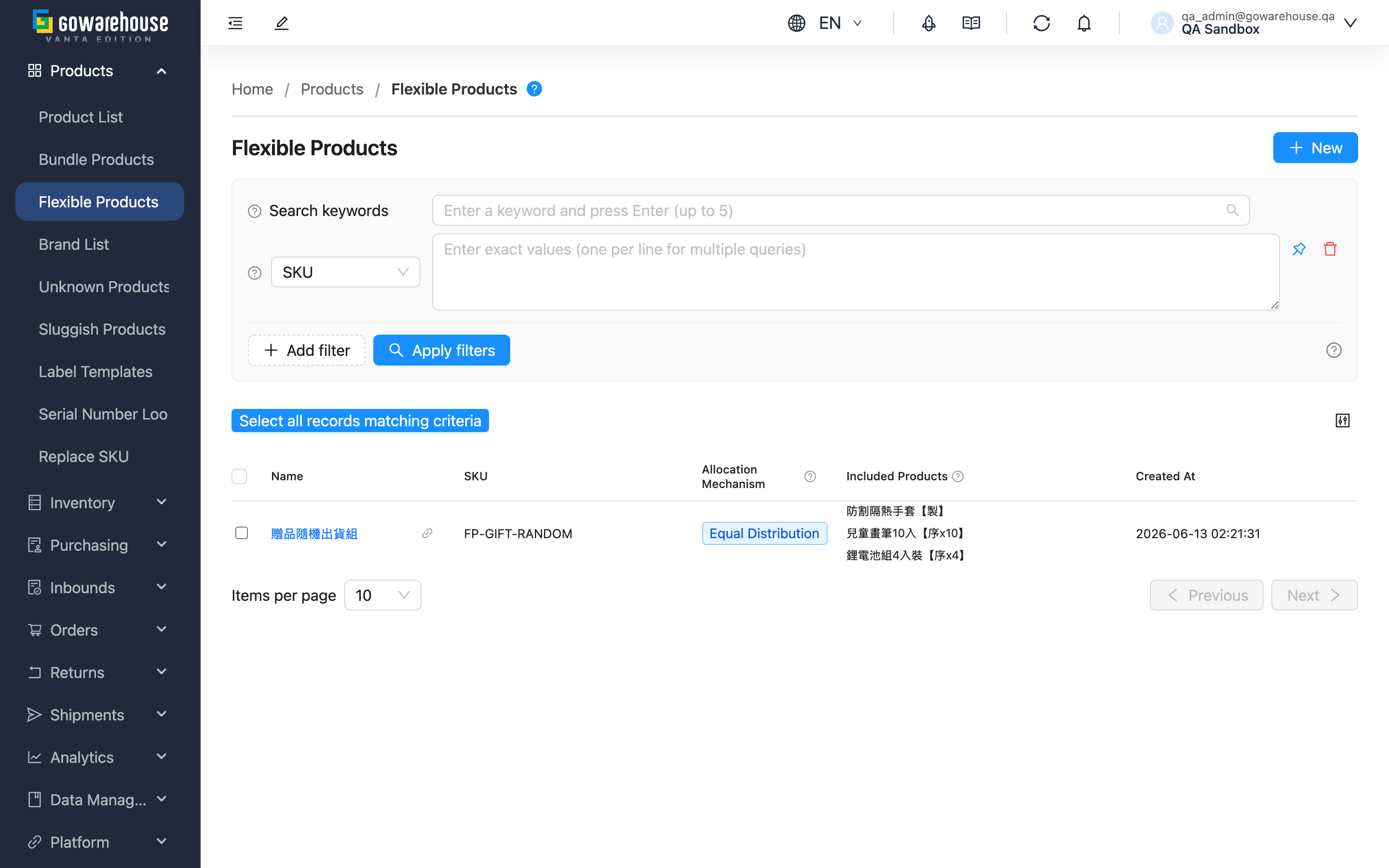
A flexible product wraps several interchangeable products under one selling SKU: when a customer orders that SKU, the system picks the actual product to ship based on the allocation mechanism you set. It fits "no specific style" selling — random color, mystery bags, gift pools. This page is the overview of your flexible products, where you can search, create, delete, and open each one's details.
Quick jump: Search & Filter | List Columns | Allocation Mechanism | Create & Delete
2.1 Search & Filter
- Search box: Type the beginning of a flexible product's "Name" or "SKU". You can also type a contained product's name or SKU to find which flexible products include it.
- Filters: Filter by "SKU" or "Name" exactly; multiple values are supported, one per line.
2.2 List Columns
| Column | Description |
|---|---|
| Name | Click to open the detail page; click the link icon next to it to open in a new window |
| Allocation Mechanism | The shipping selection rule, see Allocation Mechanism |
| Included Products | All interchangeable products; hover over a product name to see its SKU |
The remaining columns (SKU, Created At) show what their names say; both are sortable by clicking the column header.
2.3 Allocation Mechanism
When a customer orders the flexible product's SKU, the swap happens the moment the order is created — order items show the selected actual product, never the flexible product itself. Selection works as follows:
| Mechanism | How it ships | Best for |
|---|---|---|
| Equal Distribution | Distributes the order's quantity across products one unit at a time; a single-unit order goes to the product with the most stock, keeping stock levels even over time | Random-style shipping, balancing multiple suppliers |
| Most Stock First | Ships from the product with the most stock first, then the next | Clearing the largest pile first |
| Least Stock First | Ships from the product with the least stock first, then the next | Selling out old packaging or remnant stock |
Common to all three mechanisms:
- Stock is counted as available, non-expired quantity under the order's inventory type; products with no stock are skipped.
- The swap triggers when the order item's SKU matches the flexible product's SKU and the sales channel's "Product Mapping Rule" is set to "By SKU".
- If the combined stock of all contained products is still not enough, the order is still created; the shortfall is recorded on the product with the most stock, which shows as out of stock until restocked.
2.4 Create & Delete
- New: Top right of the page, see Create Flexible Product.
- Delete: Select one or more rows and this button appears above the list; confirm to delete them at once. For the impact and irreversibility of deletion, see the detail page's action buttons.
💡 Tip: The question-mark icon next to the page title opens a guided introduction to flexible products — handy the first time you use them.
3. FAQ
Quick jump: FAQ | Important Notes
3.1 FAQ
▪ How is a flexible product different from a bundle?
A flexible product ships one of its products; a bundle ships all of them. Use a flexible product for "ship a random one" and a bundle for "ship the whole set".
▪ An order used the flexible product's SKU, but no swap happened?
Check two things: the order item's SKU matches the flexible product's SKU exactly, and the sales channel's "Product Mapping Rule" is set to "By SKU". If the channel maps products by barcode, flexible products never trigger.
▪ What happens when some contained products are out of stock?
Products with no stock are skipped automatically; the system selects among the in-stock products following the allocation mechanism.
▪ What if all contained products are out of stock?
The order is still created. The shortfall is recorded on the product with the most stock, and that item shows as out of stock; it ships normally once restocked.
▪ How do I know which product actually shipped for an order?
The order detail shows the selected actual product directly (its own name and SKU) — the flexible product itself never appears on the order.
▪ Does changing the mechanism later affect existing orders?
No. The swap is finalized when each order is created; changes only affect orders created afterwards. See Edit Flexible Product.
▪ Why can't I find Flexible Products in the menu?
If you can't see this feature, please contact your administrator to check your permissions.
3.2 Important Notes
⚠️ Important
- Any one of the contained products may ship to the customer — make sure they are truly interchangeable
- Deleting a flexible product cannot be undone; if its SKU is still listed on a channel, later orders won't map to any product
4. Related Features
| Feature | Description | Link |
|---|---|---|
| Flexible Product Detail | View settings and contained products | Go |
| Create Flexible Product | Set up a new substitution rule | Go |
| Edit Flexible Product | Adjust mechanism and products | Go |
| Bundle List | Ship multiple products together instead | Go |
| Product List | Manage regular products | Go |