
Create Flexible Product
Table of Contents
1. Features
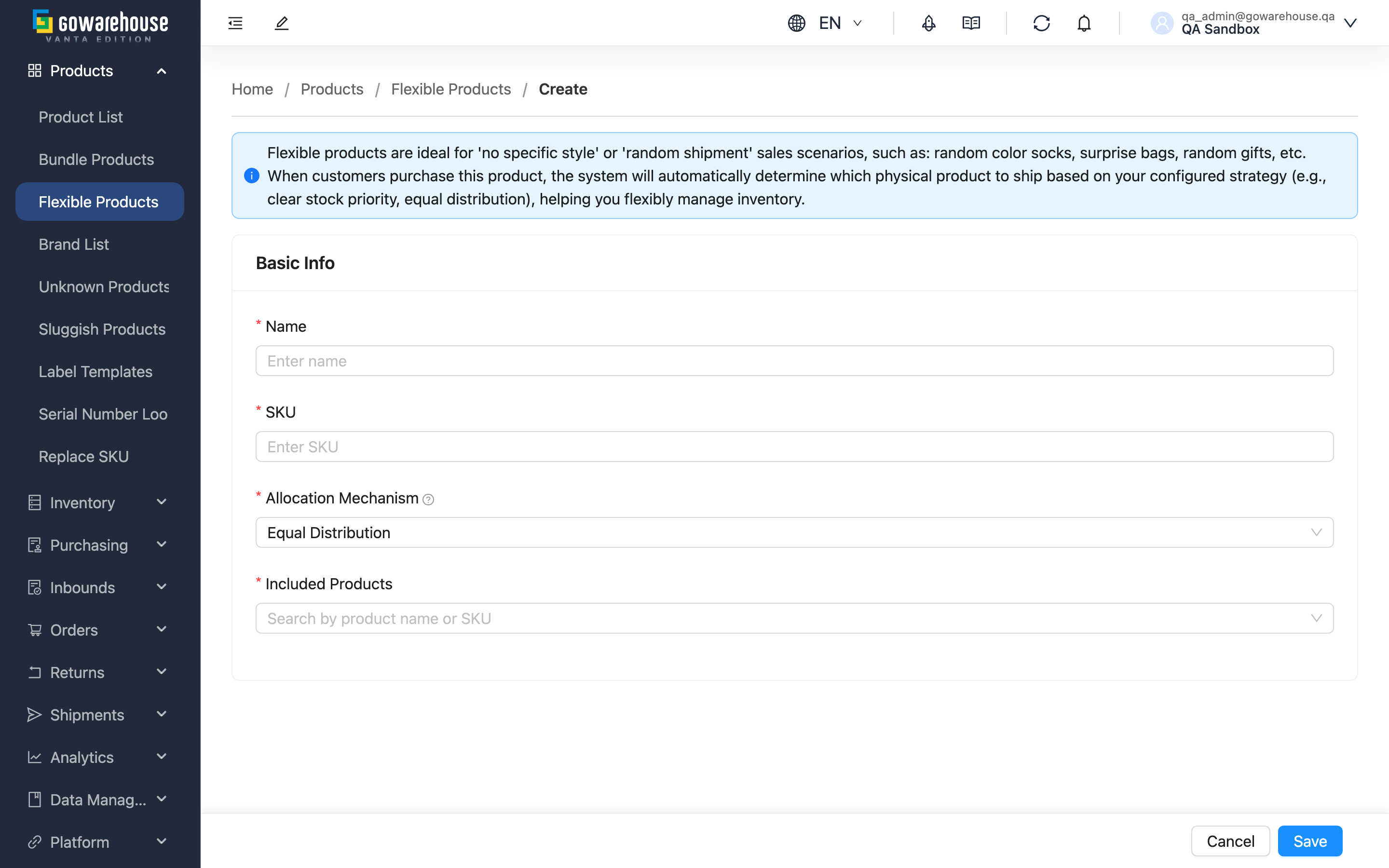
Shipping a random style, or auto-assigning gifts from a pool? Create a flexible product here: set one selling SKU, choose an allocation mechanism, and add the interchangeable products. Once created, orders placed with this SKU are automatically swapped to an actual product — no manual picking per order.
Quick jump: Form Fields | Steps
1.1 Form Fields
Fields marked with * are required
| Field | How to fill | Notes |
|---|---|---|
| *Name | A name you and your team can recognize, e.g. "Socks random color" | - |
| *SKU | The selling SKU; channel orders must use this SKU to trigger the swap | Must be unique among products, bundles and flexible products under the same merchant |
| *Allocation Mechanism | Pick from the dropdown; defaults to "Equal Distribution" | See Allocation Mechanism for the differences; the question-mark icon next to the field has a summary |
| *Included Products | Search by product name or SKU and click to add to the list below | At least 1 required; only regular products can be added — bundles and other flexible products cannot |
💡 Tip: A SKU prefix makes flexible products easy to spot, e.g. start them all with FP-.
1.2 Steps
▸ Step 1: Fill in basic info
- Enter the Name
- Enter the SKU
- Choose the Allocation Mechanism
▸ Step 2: Add contained products
- Type a product name or SKU in the search box
- Click a product in the dropdown to add it to the list below; products already added no longer appear in search results
- Repeat for the rest; added one by mistake? Click the delete icon on that row
▸ Step 3: Save
- Double-check everything
- Click "Save"; on success you return to the previous page
2. FAQ
Quick jump: FAQ | Important Notes
2.1 FAQ
▪ Can't find the product you want to add?
It hasn't been created yet. Go to "Products" → "Product List" to create it first, then come back.
▪ Can I add a bundle or another flexible product?
No. Only regular products can be contained; nesting is not supported.
▪ Can I add a product that has no stock?
Yes, it saves fine. Allocation skips products with no stock, and the product joins the rotation automatically once restocked.
▪ When does it take effect?
Immediately after saving — every order created afterwards applies it.
▪ Can one product belong to several flexible products at once?
Yes. Each flexible product allocates based on the actual stock at the moment an order comes in; they share the same stock.
▪ How many products do I need at minimum?
At least 1 — you can't save with none. There's no upper limit. With only 1 product it always ships that product; you need 2 or more for substitution to do anything.
2.2 Important Notes
⚠️ Important
- The SKU must be unique among products, bundles and flexible products under the same merchant
- Any one of the contained products may ship to the customer — make sure they are truly interchangeable
- Unsaved changes are lost when you leave the page
3. Related Features
| Feature | Description | Link |
|---|---|---|
| Flexible Product List | Overview and allocation mechanism | Go |
| Flexible Product Detail | View settings and contained products | Go |
| Edit Flexible Product | Adjust mechanism and products | Go |
| Product List | Manage regular products | Go |