
Edit Import Template
Table of Contents
1. Features
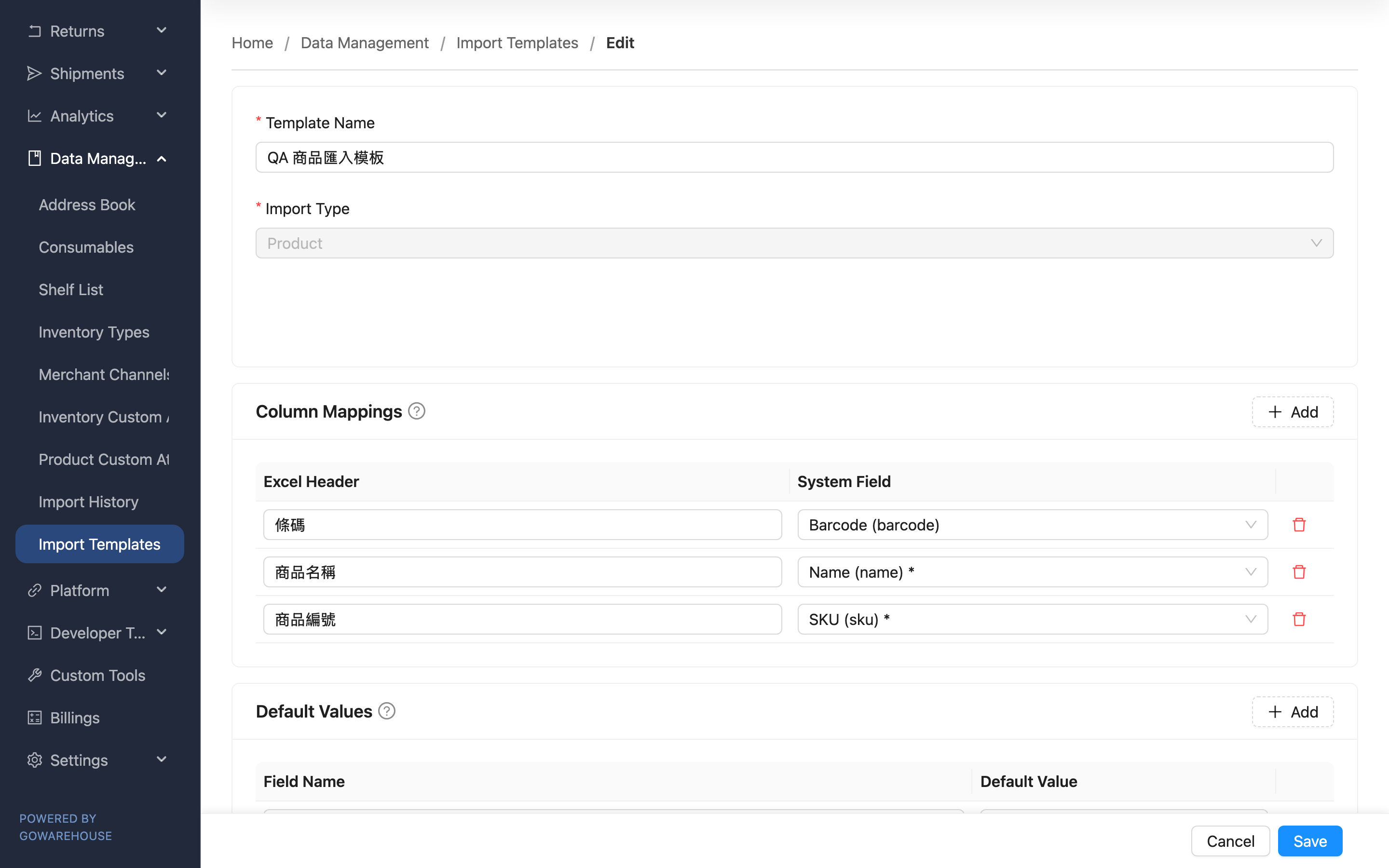
Editing an import template adjusts the settings of an existing template — for example when the source file changes its header names, or you want to fill in a few more fixed fields. You can change the template name, add or remove column mappings, and adjust default values; only the import type is fixed at creation and cannot be changed here.
Quick jump: What You Can Change | Column Mappings | Default Values | Saving
1.1 What You Can Change
Fields marked with * are required.
| Field | How to fill in | Notes |
|---|---|---|
| *Template Name | Change the template name | Required |
| Import Type | Shows this template's import type | This field cannot be edited |
1.2 Column Mappings
Adjust the mapping between file headers and system fields.
- Edit the header text on the left, or re-select the matching system field on the right.
- Click "Add" to add a mapping; the delete button removes a row you don't need.
- Each system field can only be mapped once; every required field must have a header mapping or a default value.
1.3 Default Values
Adjust which fields are filled with a fixed value automatically.
- Add, change, or remove default values.
- When you set a field as a default value, the system automatically removes its row from the column mappings; after you delete a default value, if that field is required, it is automatically put back into the column mappings.
1.4 Saving
After saving successfully, the page shows a success message and returns to the template's detail page. Changes only affect future imports that apply this template and do not alter completed import records.
2. FAQ
2.1 FAQ
▪ Why can't the import type be changed?
Because the column mappings are designed against that import type's fields, and changing the type would invalidate the existing mappings. To switch types, create a new template instead.
▪ If I edit the template, will it change data imported with it before?
No. Editing only affects future imports that apply this template; completed import results and records do not change retroactively.
▪ What do I do about a "missing required fields" message?
It means a required field has neither a header mapping nor a default value. Add a mapping or default value for the fields listed in the message, then save.
▪ After I removed a field's default value, it moved into the column mappings?
Yes. If that field is required, deleting its default value makes the system automatically put it back into the column mappings, prompting you to use a header mapping instead so the required field isn't missed.
2.2 Notes
⚠️ Important
- The import type cannot be changed.
- At least one column mapping is required to save.
💡 Tip: If the source file's format changes substantially, rather than repeatedly editing the old template, create a new one and keep the old template for other sources.
3. Related Features
| Feature | Description | Link |
|---|---|---|
| Template Detail | Return to the template detail to verify the full column mappings and default values | Go |
| Import Templates | Return to the list of all import templates | Go |
| Import History | Upload a file to run an import and apply a template | Go |