
Merge Fulfillments
Table of Contents
Section 1: Use Cases
Quick Links: Combine multiple orders for one customer | Tidy up all mergeable fulfillments before shipping
Scenario 1: One customer placed several orders in a short time and you want to ship them in one box
Situation: During a promotion, the same customer placed three orders across your own site and a marketplace, all with identical recipient name, phone, and address. Shipping each separately means three trips to the same address, three sets of shipping fees and packaging, and the customer receives three parcels.
Use this feature: On the Merge Fulfillments page, the system automatically gathers this customer's fulfillments into one group card. After you confirm, you can combine them into a single fulfillment shipped as one parcel. A fulfillment is the work order the warehouse creates from your orders; merging combines several fulfillments into one and does not alter the original orders.
Result: What would have been three boxes becomes one, saving two rounds of shipping fees and packaging, and the customer receives a single parcel.
Scenario 2: Tidy up everything that can be combined before the daily shipping run
Situation: The warehouse is about to start the day's picking and shipping. Before the warehouse generates picking work, you want to consolidate all the scattered fulfillments going to the "same recipient, same shipping type" into combined shipments, so the warehouse picks and packs once instead of making multiple trips to the same address.
Use this feature: The statistics at the top of the page tell you how many groups can be merged today. You can confirm and merge them group by group, or use batch merge to process all groups at once.
Result: All mergeable fulfillments for the day are consolidated in one pass, improving picking and shipping efficiency while lowering shipping costs.
Section 2: Features
The Merge Fulfillments feature automatically finds multiple fulfillments going to the "same recipient via the same shipping type" so you can combine them into one parcel, saving shipping fees and packaging. The system groups them automatically by recipient and shipping conditions, and you can merge group by group or batch-merge all groups at once. This is a tool for tidying up fulfillments before the warehouse starts picking; what gets merged is the fulfillment, and the original order contents are untouched.
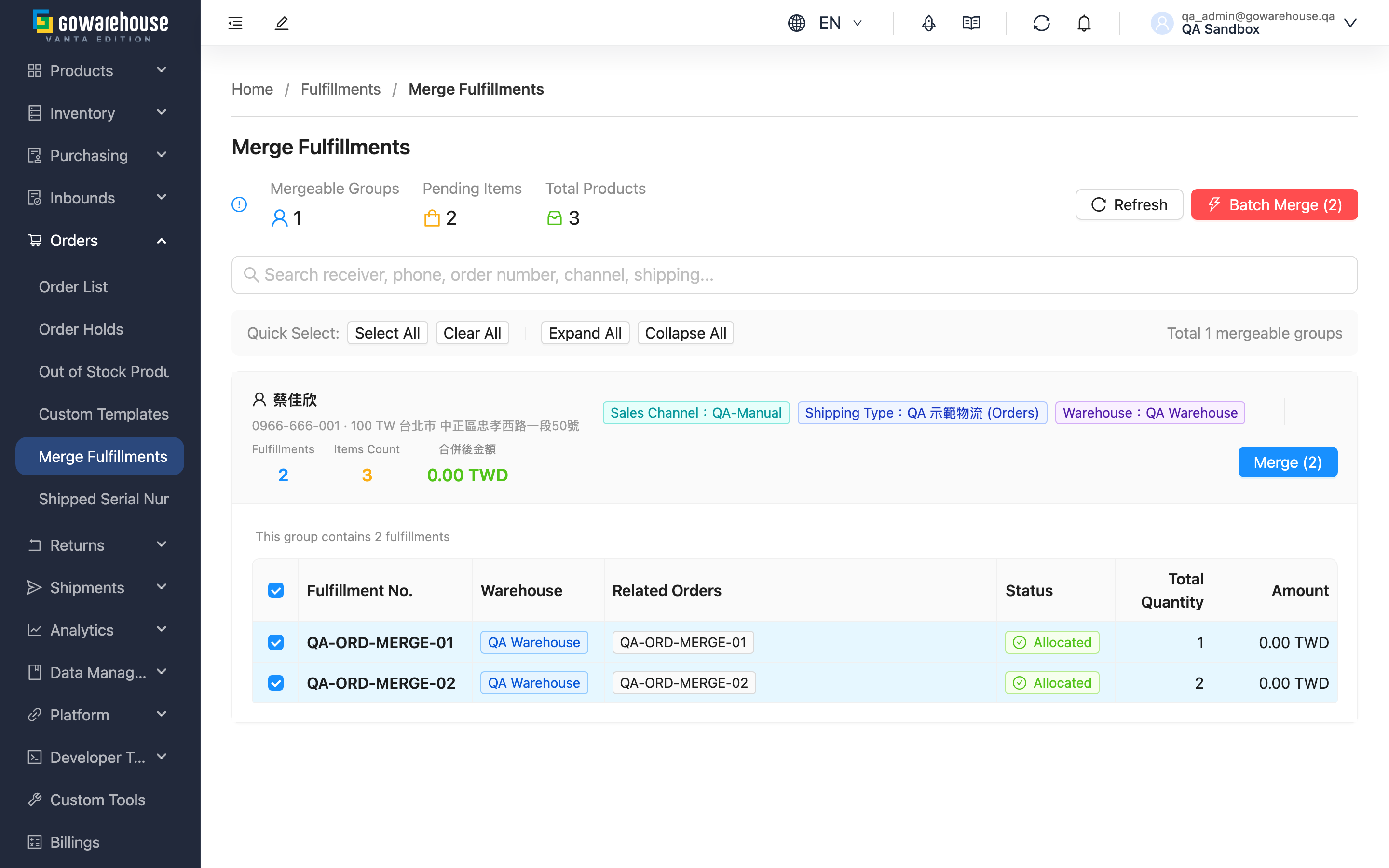
Quick Links: Merge Rules | Statistics | Group Cards | Merge Operations
2.1 Merge Rules
Only fulfillments that meet all of the following conditions are grouped together as mergeable:
| Condition | Description |
|---|---|
| Identical Receiver Name | Name, Phone, and Address must all match |
| Same Warehouse | Must ship from the same warehouse |
| Same Shipping Type | Must use the same delivery method |
| Same Sales Channel | Must come from the same sales channel |
| Same Currency and store | Currency and Convenience Store Code must match |
| Non-COD orders | Cash-on-delivery (COD) fulfillments can never be merged |
| Same Status | Only "Allocated" or "Out of Stock" fulfillments can merge, and the two statuses cannot be mixed |
| Recipient info not masked | Name, Phone, and Address contain no masking symbol (*, *, O, ○, ●, X); a masked recipient (e.g. "Wang○○", "0912***678") cannot be confirmed to be the same person, so it is never merged |
| Order status also mergeable | Besides the fulfillment itself, the status of the order it belongs to must also be "Allocated" or "Out of Stock" |
⚠️ Watch out when one order is split into several fulfillments: if the same order has both an "Allocated" and an "Out of Stock" fulfillment, that order's status becomes "Partial Allocated" and none of its fulfillments are listed for merge — even the one that shows "Allocated" on screen. This is the least intuitive reason for a fulfillment to go missing: its own status looks fine, yet it never appears in a group. Once the out-of-stock part is restocked and the order returns to "Allocated", it can be merged normally.
📌 Note: Fulfillments using e-commerce platform logistics (where the platform assigns the tracking number) are excluded from merging. Platform logistics report shipping per individual order, so merging would break the link between tracking number and order. If an order comes from a platform but you switch to your own logistics, it can still be merged.
2.2 Statistics
The page header shows overall statistics so you can see at a glance how much is worth tidying up today:
| Statistic | Description |
|---|---|
| Mergeable Groups | Total number of groups that can be merged |
| Pending Items | Total number of fulfillments across these groups that can be merged |
| Total Products | Total item quantity across all mergeable fulfillments |
The system lists at most 20 mergeable groups at a time. If you have more to process, finish this batch and click "Refresh" to load the next batch.
2.3 Group Cards
Each mergeable group is shown as a card. The card header lists the recipient, Phone, and Address, with tags for the Sales Channel, Shipping Type, and Warehouse, and the Fulfillments and Items Count on the right.
Click a card to expand the fulfillment details for that group. Each fulfillment lists:
| Field | Description |
|---|---|
| Fulfillment No. | Click to open the fulfillment in a new tab |
| Related Orders | The order numbers this fulfillment corresponds to |
| Status | The current fulfillment status |
| Total Quantity | Total item quantity for this fulfillment |
Each fulfillment has a checkbox, with the whole group selected by default. Once two or more fulfillments are selected, the card shows a live "merged amount" preview (the sum of the selected fulfillments' amounts), so you can verify before acting.
2.4 Merge Operations
This is a modifying operation. Before merging, confirm that the fulfillments in the group really should ship together.
▸ Single Group Merge
- Find the group to merge and click to expand its fulfillment details
- Confirm the fulfillments to combine are checked (at least 2)
- Click the "Merge" button on the right of the card
- Review the list in the confirmation dialog and confirm
After a successful merge, the selected fulfillments become one new fulfillment with item quantities summed automatically. If you select only some fulfillments in the group, the remaining unselected ones and the new merged fulfillment may still be mergeable, and the system refreshes the list automatically.
▸ Batch Merge
- Use "Select All" at the top and the per-group checkboxes to confirm the scope
- Click the "Batch Merge" button at the top right
- Review the number of groups in the confirmation dialog and confirm
- The system merges group by group and shows progress; you can click "Cancel Merge" at any time to stop the groups not yet processed
Batch merge processes groups sequentially. If a group fails midway, the system lists the failed group and reason, the successfully merged groups are unaffected, and the failed ones can be processed individually later.
▸ Search Groups
Type a keyword in the search box to filter groups instantly. You can search by Receiver Name, Phone, Fulfillment No., Sales Channel, or Shipping Type.
Section 3: FAQ
3.1 FAQ
▪ Why don't some fulfillments appear in the mergeable list?
A fulfillment must meet all the conditions in the merge rules to be grouped together. Common reasons one is left out:
- Any difference in recipient name, Phone, or Address
- Different Shipping Type, Sales Channel, Currency, or Warehouse
- It is a COD order, or it uses e-commerce platform logistics
- Its status is not mergeable (only "Allocated" and "Out of Stock" can merge), or the two statuses for the same recipient were split into different groups
- The receiver name, Phone, or Address was masked by the channel (e.g. "Wang○○", "0912***678") — with the data masked there is no way to confirm it is the same person, so the system never merges it; restore the full receiver information on the order first if you need to merge
- The status of the order it belongs to is not mergeable — as soon as any one fulfillment under that order is out of stock, the whole order becomes "Partial Allocated" and none of its fulfillments are listed for merge (even one that shows "Allocated" itself)
▪ Why can't cash-on-delivery (COD) orders be merged?
COD payment settlement is handled per individual order, so merging would make the collected amount impossible to attribute correctly. The system therefore never allows COD fulfillments to merge. Such fulfillments will not appear in the mergeable list even if the recipient is identical.
▪ How are item quantities calculated after merging?
The merged fulfillment includes all items from the original fulfillments, with quantities of the same item summed automatically. For example, if fulfillment A has 3 of item X and fulfillment B has 2 of item X, the merged result is 5 of item X.
▪ Can a merge be split apart or undone afterward?
A merged fulfillment cannot be split back into the original separate fulfillments directly in the merchant portal, so confirm before merging. If you later cancel one of the orders in a merged fulfillment, the system splits the merged fulfillment back into separate fulfillments per order, then cancels the order you specified; the other orders are unaffected.
▪ What if batch merge fails partway through?
Batch merge processes groups sequentially and is not all-or-nothing:
- The progress dialog lists the failed groups and the reasons
- Already-merged groups are complete and are not rolled back
- Failed groups can be processed individually later, or retried after adjusting the selection
▪ How many groups can I tidy up at once?
The system lists at most 20 mergeable groups at a time. After finishing this batch, click "Refresh" to recalculate and load the next batch of mergeable fulfillments.
3.2 Notes
⚠️ Important Reminders
- A merge cannot be automatically split back into the original separate fulfillments in the portal. Confirm before merging that the fulfillments in the group really should ship together.
- Once the warehouse has created picking work for a fulfillment, that fulfillment can no longer be merged. Finish consolidating before picking begins.
- If the same recipient has both "Allocated" and "Out of Stock" fulfillments, these two statuses cannot merge with each other and the system places them in different groups.
💡 Tip: Merging saves shipping fees and packaging, but don't ignore parcel weight and size limits before combining—if too many items exceed the carrier's per-parcel limit, you'll have to repack and reship.
Section 4: Related Features
| Feature | Description | Link |
|---|---|---|
| Order List | View all orders and their fulfillment status | Go |
| Order Details | View the fulfillment composition of a single order | Go |
| Shipment List | View the delivery documents handed to carriers | Go |