
Add Bundle
Table of Contents
1. Features
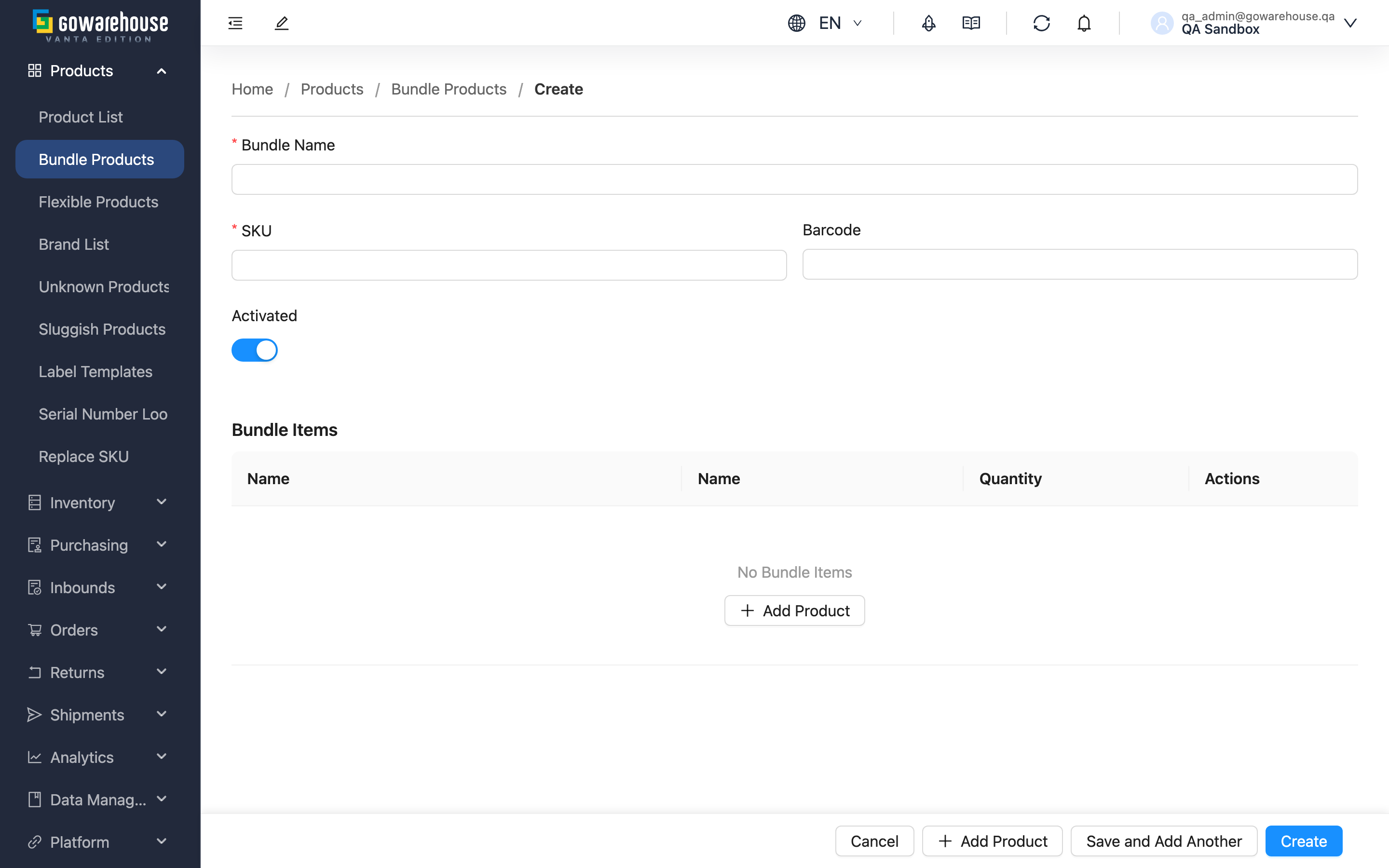
Need to sell multiple products together as gift sets or product kits? Create one bundle item here, define which products it contains and in what quantities, and the warehouse automatically gathers every component for shipping when a customer orders — no need to place separate orders for each product.
Quick links: Form Fields | Step-by-step
1.1 Form Fields
Basic Information
Fields marked * are required
| Field | How to fill | Notes |
|---|---|---|
| *Bundle Name | Enter a name that you and your team can easily recognize, e.g. "Christmas Gift Set A" | - |
| *SKU | Enter the bundle's SKU, e.g. GIFT-XMAS-2024 | Must not duplicate any product, flexible product, or other bundle under the same merchant |
| Barcode | Type or scan the barcode | Optional; used for warehouse scanning |
| *Status | Toggle enabled or disabled | Enabled by default |
💡 Tip: A type prefix makes SKUs easier to recognize, e.g. GIFT- for gift sets, PROMO- for promotional bundles, SET- for kits.
Bundle Products
| Field | How to fill | Notes |
|---|---|---|
| *Product Name | Search by product name or SKU and select | If the same product with the same inventory type is added on multiple rows, they are automatically merged into one row with quantities summed on save |
| *Quantity | Enter the quantity needed per set | Must be greater than 0 |
| Inventory Type | Select from the dropdown (optional) | When specified, shipping only uses that inventory type (e.g. sellable stock never ships defective items); when left unspecified, shipping follows the inventory type set on the order or sales channel |
1.2 Step-by-step
▸ Step 1: Fill in basic information
- Enter the Bundle Name
- Enter the SKU
- (Optional) Enter the Barcode
- Confirm the Activated
▸ Step 2: Add component products
- Click "Add Product"
- Search for and select a product
- Enter the Quantity
- (Optional) Select the Inventory Type
- Repeat until all products are added
▸ Step 3: Create
- Review all the data
- Click "Create"; on success you'll return to the list page
- 💡 Tip: To create several bundles in a row, click "Save and Add Another" instead — the form clears after saving so you can enter the next one right away.
2. FAQ
Quick links: FAQ | Important Notes
2.1 FAQ
▪ How many products must a bundle contain?
At least one — a bundle cannot be created without any products. You can add or remove products any time on the edit page afterwards.
▪ Can a bundle contain another bundle?
No. Bundles can only contain regular products, not other bundles.
▪ What's the difference between SKU and barcode?
The SKU is the unique code the system uses to identify the bundle — required and must be unique. The Barcode is for scanning and is optional.
▪ Can't find the product you want to add?
The product hasn't been created yet. Go to "Products" → "Product List" to create it first, then come back and add it to the bundle.
▪ What happens if I add the same product on two rows?
If the inventory type is the same, the rows are automatically merged into one with quantities summed when you save. To configure the same product separately, choose different inventory types.
▪ What is an inventory type?
When a product has multiple kinds of stock (e.g. sellable, defective), you can restrict the bundle to ship a specific type. When left unspecified, shipping follows the inventory type set on the order or sales channel — in most cases no special setting is needed.
▪ Can I change the SKU after creating the bundle?
Yes. But if your sales channels match orders to this bundle by SKU (platform orders expand into bundle contents based on the SKU), orders carrying the old SKU will no longer match this bundle after the change — remember to update the SKU on your channels as well.
2.2 Important Notes
⚠️ Important
- The SKU must not duplicate any product, flexible product, or other bundle under the same merchant
- The Quantity must be greater than 0
- Unsaved data is lost when you leave the page
3. Related Features
| Feature | Description | Link |
|---|---|---|
| Bundle List | Browse and search bundles | Go |
| Bundle Details | View a bundle's full information | Go |
| Edit Bundle | Modify bundle settings | Go |
| Product List | Manage regular products | Go |