
Edit Order
Table of Contents
1. Features
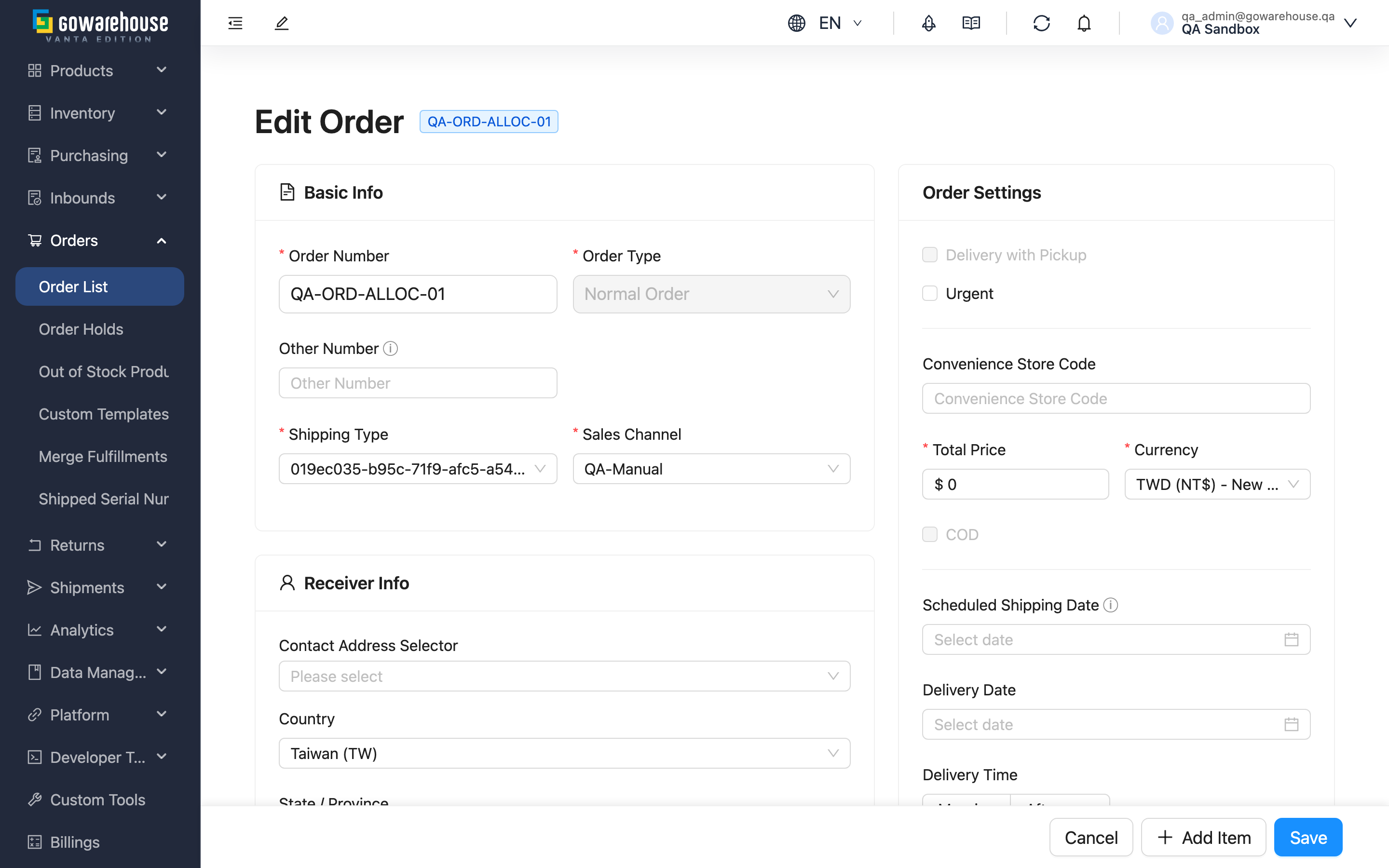
When a customer changes their address at the last minute, adds or removes an item, or order info was entered wrong, you can modify the order before it ships. The edit page has the same layout as Add Order; the difference is that here you're modifying an existing order, and only orders that haven't truly shipped can be edited.
Quick jump: What Can Be Edited | Impact of Editing | Reminders for Platform Orders
1.1 What Can Be Edited
After entering the edit page, you can adjust receiver info, shipping method, sales channel, amount options, and the items list, with field entry the same as Add Order.
If you change the "Shipping Type" here, the required fields in the receiver section change with it: switch to a convenience-store pickup method and "Convenience Store Code" becomes required while "Address" becomes optional; switch back to home delivery and it is the other way round. The address and store code you already had are kept as they are, so switching shipping methods back and forth never loses data you entered.
SF Express shipping methods (home delivery and store pickup alike) add one more rule: Postal Code is required and the order will not save without it — SF issues no tracking number when the postal code is missing.
Switching to a convenience-store pickup method adds one more check on "Phone": it must be a 10-digit mobile number starting with 09. The carrier texts the receiver once the parcel reaches the store, and a landline cannot receive that notice. So if the order was home delivery and the receiver left a landline, saving after the switch reports an error on the phone field — enter a mobile number instead. Type the digits as one unbroken run; 0912-345-678 and +886912345678 are rejected. SF store pickup does not notify by text and is exempt.
Orders imported from an e-commerce platform are the exception: even when they use that platform's own convenience-store pickup method, the receiver section keeps "Address" required and "Convenience Store Code" optional. Each platform hands over store details in its own shape (some write the store name and address into the address field, others put the store name rather than the store code into the store field), so applying the switch above would stop existing orders from saving.
Not every order can be edited. Editable cases include: cancelable orders, canceled orders, and "Partial Shipped" orders. When the order has entered warehouse picking (fulfillment is "Processing") or is fully shipped, the page shows a "cannot edit" notice and editing is not allowed.
A "Partial Shipped" order can only adjust the not-yet-shipped portion: shipped items cannot be deleted, the quantity cannot be reduced below the shipped quantity, and the remaining fields stay locked. You can still freely add items or modify unshipped products.
1.2 Impact of Editing
Before you submit an edit, the system pops up a confirmation, because editing an order does more than change a few words:
Whether you change only one receiver field or substantially add or remove products, the system voids this order's unshipped fulfillments (along with their shipments) and reallocates inventory, rebuilding the shipping work. This means the original fulfillments and any generated shipping labels become invalid and need reprocessing. The change is applied only after you click confirm in the dialog.
After a successful save, you're redirected to the order details page, where you can confirm the rebuilt fulfillments and inventory allocation.
1.3 Reminders for Platform Orders
If this order was imported from an e-commerce platform (the page shows a source-platform tag), an extra notice pops up before submission: your changes here only update the order in this system and will not sync back to the original e-commerce platform. So if the platform-side data also needs to match, remember to adjust it separately in the platform's backend.
2. FAQ
2.1 FAQ
▪ Why do I see "cannot edit" when I enter?
It means the order has entered warehouse picking or is fully shipped, so to avoid changing content in process or already shipped, editing is not allowed. If you only need to change receiver info such as the address or phone, use the hold-then-"Correct Information" approach instead (see Order Details).
▪ I only changed one address — why the warning about rebuilding fulfillments?
Because any order edit makes the system reallocate inventory and rebuild the unshipped fulfillments, and the generated shipments and shipping labels are voided too. This ensures inventory and shipping content stay consistent after the change, so even a single-field change prompts you to confirm.
▪ For a "Partial Shipped" order, can I delete an already-shipped item?
No. Shipped items cannot be deleted, and the quantity cannot drop below the shipped quantity, otherwise the shipping history wouldn't reconcile. You can only adjust the not-yet-shipped portion or add items.
▪ If I edit a platform order, will the platform backend update too?
No. Editing only updates the order content in this system and does not sync back to the original e-commerce platform. If the platform side also needs updating, adjust it separately in the platform's backend.
▪ After editing an order, can I change a product's inventory batch or expiration date?
Yes, provided the item hasn't shipped. Adjust the batch, expiration date, custom attributes, etc. in the items list; shipped items stay locked and cannot be changed.
2.2 Notices
⚠️ Important reminders
- Editing an order voids the unshipped fulfillments and their shipments and reallocates inventory; generated shipping labels must be reprocessed
- A "Partial Shipped" order's shipped items cannot be deleted, and the quantity cannot be below the shipped quantity
- Changes to platform orders do not sync back to the source e-commerce platform
💡 Tip: If the order has entered picking and can't be edited as a whole but you only need a small fix to receiver info, the hold-then-"Correct Information" approach is simpler and doesn't rebuild fulfillments.
3. Related Features
| Feature | Description | Link |
|---|---|---|
| Order Details | View the full content and shipping progress of the order | Go |
| Order List | View and manage all orders | Go |
| Add Order | Create a new order manually | Go |