
Inventory Snapshots
Table of Contents
1. Use Cases
Quick Links: Month-End Reconciliation | Tracing Back for Customers and Accounting | Analyzing Stock Changes Over Time
"Current Inventory" only shows you the numbers as of this very moment, but many business questions are about "a specific day in the past": exactly how much stock was in the warehouse that day? Do the books add up? Inventory Snapshots automatically saves a copy of every product's stock in the warehouse each day, so you can look it up later without relying on memory or guesswork.
Scenario 1: Month-End Reconciliation — Verifying Stock Value on a Specific Day
Situation: At month-end closing, your accountant needs to know exactly how much stock was physically in the warehouse on a given day (e.g. the first or last day of the month) to verify the inventory value on the financial statements.
Use this feature: In Search & Filter, set "Date" to the day you need to verify, and the list shows every product and every batch with its stock for that day. When you need to calculate values further in a spreadsheet, use Export to extract the data.
Result: You get a complete inventory list for the warehouse on that day, ready to reconcile against the books and financial statements—without digging through documents to reconstruct that day's state.
Scenario 2: A Customer or Support Asks About "Stock on That Day" and You Need to Trace It
Situation: A customer reports "your system clearly showed stock that day but I couldn't buy it," or support needs to confirm exactly how much of a product was left on a promotion day in order to reply.
Use this feature: Use "Product SKU" to pin down the product and set "Date" to the day of the event. The list shows that day's "Stock", "Locked Stock", and "Available Quantity" together.
Result: You see how many units were sellable that day and how many were already reserved by orders, so you can explain to the customer or support "why it showed stock but couldn't be bought"—usually because a large portion of that day's stock was already locked by other orders.
Scenario 3: Analyzing How a Product's Stock Changes Over Time
Situation: You want to understand how fast a product's stock was consumed over a period to decide how much to reorder next, or you need stock evidence for a span of time during an annual stocktake or accounting audit.
Use this feature: Use "Product SKU" to pin down the product, set "Date" to a date range, then Export to a file and build trend charts in a spreadsheet or keep it as audit evidence.
Result: You get the product's stock figures for each day, revealing the consumption rate so you can plan reorders—and providing written evidence for stocktakes and audits.
2. Feature Guide
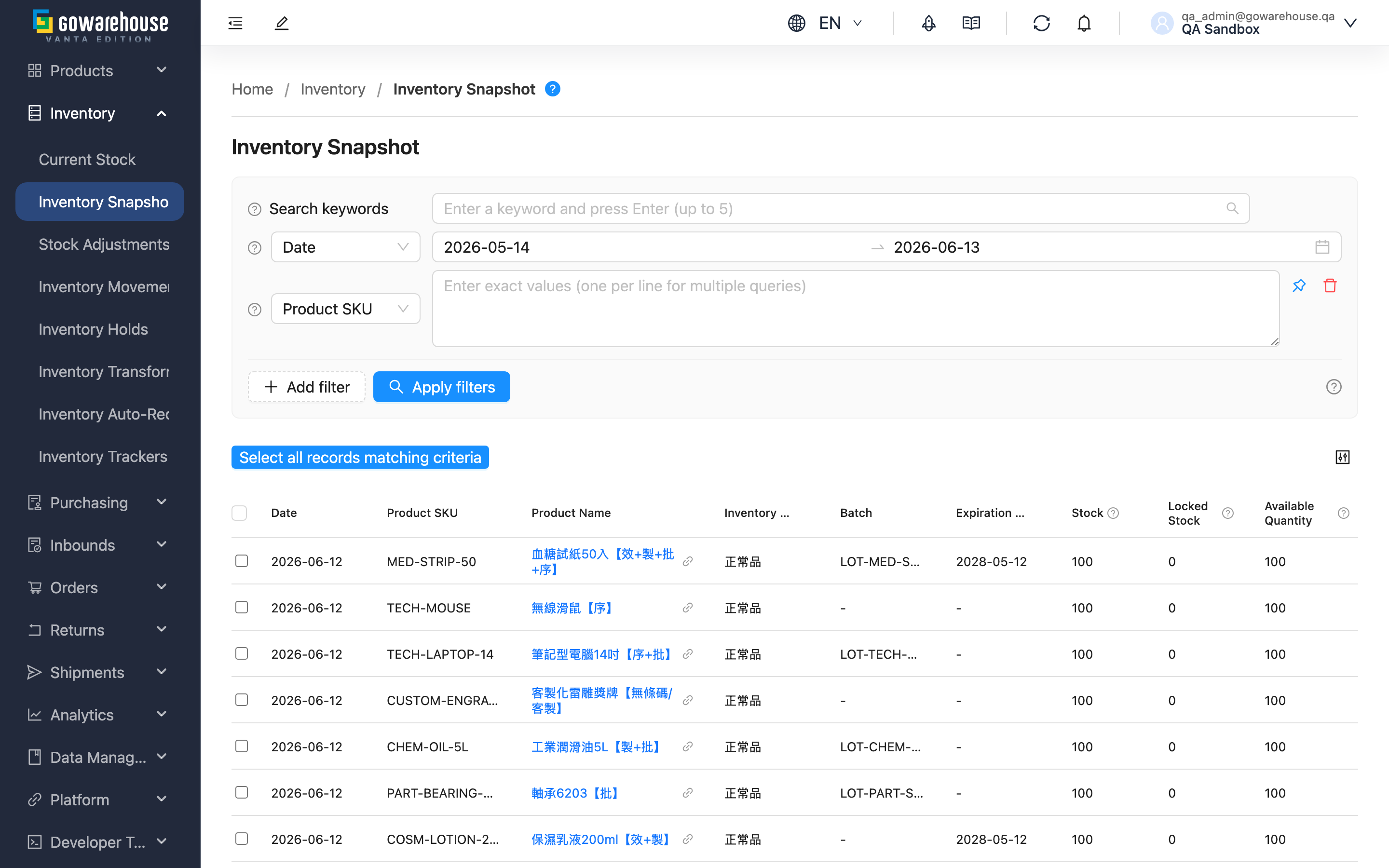
Inventory Snapshots is a "daily archive" of all your product stock. Each day the system automatically records the quantity of every inventory entry in the warehouse as of the end of the previous day, kept by date. Whenever you need to verify stock on a specific day, trace back past stock levels, or export data for analysis, you query it here. The key difference from "Current Stock" is: Current Inventory shows "now," while Inventory Snapshots shows "each day in the past."
Quick Jump: Search & Filter | List Columns | Export
2.1 Search & Filter
Type a keyword in the search box at the top to match "Product SKU", "Product Name", and "Batch" at once, matching from the start of the value.
For more precise conditions, click "Add filter" to expand the filter area:
| Filter | How to Fill | Notes |
|---|---|---|
| Date | Set the date or date range to query | This field is always shown and required, defaulting to the last 30 days; you can only go back about 25 months, earlier dates cannot be selected |
| Inventory Type | Filter by inventory type, e.g. normal goods, defective goods | Options come from the inventory types you have set up |
| Expiration Date | Set a date range for expiration dates | — |
For the remaining fields (Product SKU, Product Name, Batch), simply type or select by name.
2.2 List Columns
Each row represents one stock record for "a product on a given day." The same product may have multiple rows on the same day, because the system records different inventory "identities" separately by inventory type, batch, expiration date, and attributes (see FAQ). Among the columns, only the following three quantities need to be told apart:
| Column | What It Means |
|---|---|
| Stock | The total quantity physically in the warehouse that day (sum across all shelves) |
| Locked Stock | The quantity already reserved by orders that day and no longer sellable |
| Available Quantity | The quantity still sellable that day, equal to stock minus allocated stock |
The remaining columns (Date, Product SKU, Product Name, Inventory Type, Batch, Expiration Date, Inventory Custom Attributes, Created At) are self-explanatory by name. Click "Product Name" to open that product's details; click a column header with a sort arrow to change the sort order.
2.3 Export
When you need to analyze further in a spreadsheet or keep records, export the query results:
- First set "Date" and any other filters
- Select the records to export (or select all)
- Click "Export"
Once the export finishes, open "Background Jobs" at the top right to check progress and download the file.
3. FAQ
3.1 FAQ
▪ What's the difference between Inventory Snapshots and "Current Stock"?
"Current Stock" shows the live numbers right now, changing instantly with inbound and outbound activity; Inventory Snapshots shows the numbers archived at the end of each past day—the "factual record" of that day, which does not change in real time. In short: Current Inventory shows "now," Inventory Snapshots shows "the past."
▪ Which day does the most recent record cover?
The system automatically takes a snapshot of "the previous day's" stock each day, based on your company's local time zone. So the most recent record you see today is the stock state as of the end of yesterday; for changes within today, check "Current Stock".
▪ Why are there no records for a product on certain dates?
Possible reasons: the product was sold out and reached zero stock that day (products with no stock do not appear in that day's snapshot); the date is beyond the queryable range (about 25 months back at most); or the system had not started recording on that date.
▪ How is "Available Quantity" calculated?
Available quantity equals "Stock" minus "Locked Stock". For example, if a product had 100 units in stock that day and 30 were already reserved by orders, the available quantity is 70. When a customer reports "it showed stock but I couldn't buy," it is usually because allocated stock was high.
▪ Why does the same product have multiple records on the same day?
The system records different inventory "identities" separately: a different "Inventory Type" (e.g. normal vs. defective goods), a different "Batch" or "Expiration Date", or different attributes (Inventory Custom Attributes) each becomes its own row. This lets you clearly see which batch is about to expire and how much of each type remains, rather than just a single combined total.
▪ Can the numbers in Inventory Snapshots be edited?
No. Inventory Snapshots is the "factual record" of that day's stock and is not editable. To correct your current stock quantity, use "Stock Adjustments" or a stocktake to adjust today's stock; past snapshots remain as the original record of that day.
3.2 Notes
⚠️ Important Reminders
- Inventory Snapshots are daily snapshots recording stock as of the end of the previous day; they do not reflect real-time changes within the current day.
- You can only query back about 25 months; earlier data cannot be queried, so export and keep important reconciliation or audit reports regularly.
- Products that are sold out with zero stock do not appear in that day's snapshot.
💡 Tip: To check live stock right now, use "Current Stock"; to see the reason and source of each stock change, use "Inventory Movements".
4. Related Features
| Feature | Description | Link |
|---|---|---|
| Current Stock | View live stock quantities right now | Go |
| Inventory Movements | View the reason and source of each stock change | Go |
| Inventory Trackers | Set low-stock alerts to avoid running out of best-sellers | Go |
| Product List | View product information | Go |