
Inventory Transformations
Table of Contents
1. Use Cases
Quick links: Scenario 1: Reclassify normal stock as near-expiry | Scenario 2: Correct a wrong batch or expiry | Scenario 3: Reallocate stock to a different purpose
Scenario 1: Reclassify near-expiry normal stock as near-expiry stock
Situation: A batch in your warehouse is approaching its expiry date. Sold under its current "normal" identity, it gets mixed in with fresh stock and isn't picked first when shipping. You want to reclassify this batch as "near-expiry stock" so it goes through the clearance channel and ships out first, avoiding it expiring and being written off.
Use this feature: An inventory transformation is the document that gives a batch of stock a new "identity" — it doesn't change quantity or move the goods, it only converts stock from one inventory type to another. Go to New Inventory Transformation, pick this batch, and set the target inventory type to "near-expiry".
Result: Once submitted, the system moves the specified quantity from normal stock to near-expiry stock. The goods stay on the same shelf and the total stays the same — only the classification changes. The batch then appears under near-expiry stock in Current Inventory, ready to be handled per your clearance strategy.
Scenario 2: Correct a wrong batch or expiry date
Situation: A batch had its batch number or expiry date entered incorrectly at inbound, so it carries a wrong identity in the system — it may be in the wrong ship-out order, or its expiry alerts may be miscalculated. You need to set it back to the correct batch/expiry.
Use this feature: This kind of "attribute" transformation is created by warehouse staff on the warehouse side (attribute change type), which can change batch, expiry, manufacturing date, and so on. From this list you can see the progress and outcome of such documents; because attribute changes affect actual inventory classification, they take effect only after an authorized person on the warehouse side approves them.
Result: Once approved and applied, the batch lands back on the correct inventory identity with the right batch/expiry, with the total unchanged. The list shows you what each document converted and which stage it is at.
Scenario 3: Reallocate a type of stock to a different purpose
Situation: A promotion is about to launch and you want to set aside part of your normal stock as "promotional stock" to manage separately, deciding what to do with the rest after the event. You need to reallocate part of your stock from one inventory type to another.
Use this feature: You can create a "purpose reallocation" transformation yourself in the admin — this only changes the inventory type, leaving batch and expiry untouched. Go to New Inventory Transformation, select the stock and quantity to set aside, and specify the target inventory type. It takes effect immediately on submit, with no warehouse approval needed.
Result: The specified quantity moves from the source type to the target type, with the goods in place and the total conserved. Your promotional stock is now separated out, so you can set its own channel, pricing, or ship-out strategy.
2. Feature Overview
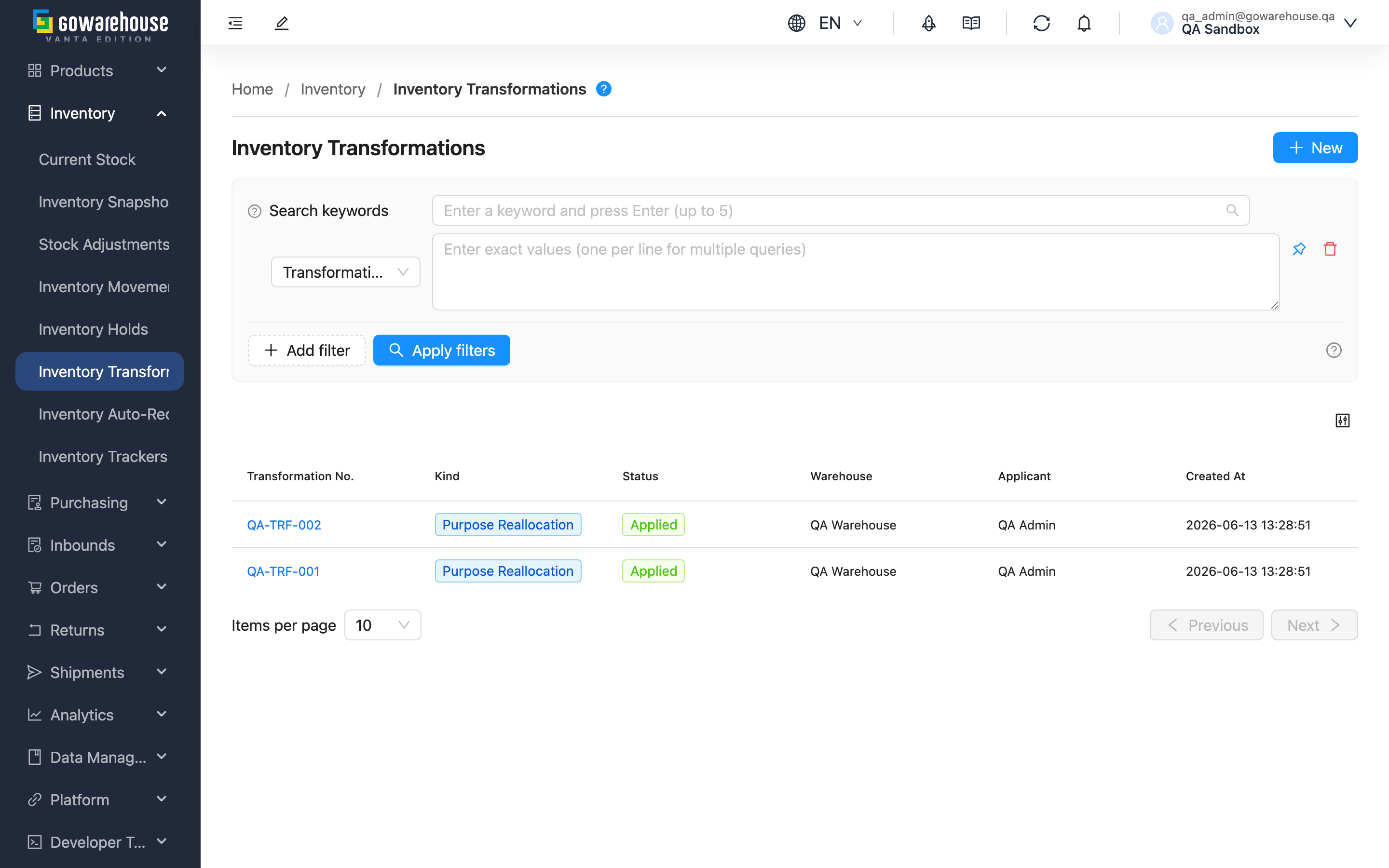
An inventory transformation gives a batch of stock a new "identity". Stock for the same product often carries different identities: which inventory type it belongs to (normal, near-expiry, pending-inspection), which batch, its expiry, its manufacturing date, and any custom tags. A transformation only changes these identity attributes — it does not change the quantity or move the goods. To change quantity use stock adjustment; to change shelf use a transfer; to change identity, use this feature. This list gathers transformations from all sources, so you can see at a glance who created each one, what was converted, and which stage it is at.
Jump to: Search & filter | List columns | Three sources
2.1 Search & Filter
The search box at the top searches by Transformation No. or Note. Once filters are expanded, the available conditions are:
| Filter | Description |
|---|---|
| Status | Filter by current stage, multi-select (status descriptions in List columns) |
| Kind | Filter by source type: Attribute Change, Purpose Reallocation, System auto reclassify (see Three sources) |
| Created At | Filter by creation date range |
Other fields (Transformation No.) are entered by name.
2.2 List Columns
Click a Transformation No. to open its detail page and view each transformation line and its outcome.
| Column | Description |
|---|---|
| Transformation No. | The document number, auto-generated (format: TRF plus date and sequence) or named at creation |
| Kind | The source type of this document, one of three (see below) |
| Status | Current stage, one of six: Pending (awaiting warehouse approval), Processing (executing), Applied (all converted successfully), Partially Applied (some succeeded, some failed), Failed (all failed), Rejected (returned by warehouse, not executed) |
| Warehouse | The warehouse where this stock is located |
| Applicant | The person who created this document |
| Created At | Creation time |
2.3 Three Sources & Types
A transformation can come from three sources, shown as different Kind tags in the list. Whether a source needs approval depends on whether it actually touches the goods in the warehouse:
| Source type | Who creates it, what changes | Approval |
|---|---|---|
| Attribute Change | Created manually by warehouse staff; can change batch, expiry, manufacturing date, custom attributes, or inventory type | Affects actual inventory classification, so it takes effect only after warehouse approval; a Pending document can be edited or returned |
| Purpose Reallocation | Created by you in the admin, reallocating stock of one inventory type to another (type only, batch/expiry unchanged) | Only the classification changes and the goods aren't touched, so it takes effect immediately on submit |
| System auto reclassify | The system scans daily per the "auto-reclassify inventory type" rule, automatically converting near-expiry stock to the near-expiry type and opening a document for the record | Runs automatically, no manual approval |
3. FAQ
3.1 FAQ
▪ Does a transformation change the stock quantity?
No. A transformation changes "identity": the system deducts the specified quantity from the source identity and adds the same quantity to the target identity. The quantity is conserved throughout and the goods stay on the same shelf. To change the actual quantity, use stock adjustment instead.
▪ Which type of transformation can I create myself?
What you create yourself in the admin is a "Purpose Reallocation", which can only change the inventory type (e.g. normal stock to promotional stock) and won't touch batch or expiry. An "Attribute Change", which changes attributes like batch and expiry, is created by warehouse staff.
▪ Why does my transformation take effect immediately on submit, with no approval?
Because a purpose reallocation only changes the stock classification and the goods aren't actually moved or changed in quantity, it takes effect right away. Only the attribute changes created by warehouse staff affect actual inventory classification and require approval.
▪ What does the "Partially Applied" status mean?
A single document can process many lines at once, and the system executes them one by one independently — it won't get stuck on the whole document because of one problem line. Partially Applied means some lines succeeded and some failed. Open the detail page to see the failure reason on each failed line.
▪ Why did a line fail to convert?
The most common reason is "the quantity to convert exceeds the currently available amount" — some goods are reserved by unshipped orders, or the available amount on that shelf is insufficient, so that line is blocked and marked as failed, without affecting the other successful lines. The failure reason is shown on that line on the detail page.
▪ Can I retry the failed lines?
The same document won't automatically re-run failed lines. Confirm the failure reason (e.g. wait for reserved stock to be released), then go to New Inventory Transformation and open a new document to handle only the unsuccessful part.
3.2 Notes
⚠️ Important
- Once a transformation has taken effect, it cannot be reversed within the system; if you converted in the wrong direction, open a new transformation to convert the goods back.
- The source and target inventory types must differ; converting goods to the same type is meaningless and the system will block it.
- An attribute change (created by warehouse staff) can only be edited or returned while in the "Pending" stage; it can no longer be changed once execution has started.
💡 Tip: If situations like promotions or near-expiry clearance happen regularly, you can set up an "auto-reclassify inventory type" rule on the warehouse side so the system automatically converts qualifying stock to the corresponding type every day, saving you from creating documents by hand each time.
4. Related Features
| Feature | Description | Link |
|---|---|---|
| New Inventory Transformation | Pick stock and specify a target inventory type to create a transformation | Go |
| Inventory Transformations Detail | View each line of a single transformation and its success/failure results | Go |
| Current Stock | View the live quantity under each inventory type after conversion | Go |
| Inventory Movements | View the reason and source of each stock increase or decrease | Go |