
Bundle List
Table of Contents
1. Use Cases
Quick links: Scenario 1: Selling gift sets for the holiday season | Scenario 2: Buy-one-get-one promotions | Scenario 3: Tracking bundle readiness during a campaign
Scenario 1: Selling gift sets for the holiday season
Situation: For the Christmas season you want to sell wine, chocolate, and a greeting card together as a gift set — without stocking a separate gift-set item, and without entering three products on every order.
With this feature: Combine the three products into one "Christmas Gift Set" bundle (see Create Bundle); orders simply select that single item.
Result: At shipping time the system expands it into the three products and deducts stock for each — no extra assembly or stocking in the warehouse.
Scenario 2: Buy-one-get-one promotions
Situation: Marketing plans a buy-one-get-one campaign where the main product and the gift must ship together; adding gifts to orders by hand is easy to miss.
With this feature: Build the main product and the gift into one bundle, and have all campaign orders use that bundle SKU.
Result: Every campaign order is guaranteed to include the gift. When the campaign ends, just disable the bundle — existing orders are unaffected.
Scenario 3: Tracking bundle readiness during a campaign
Situation: Mid-campaign, you want to know how many more orders each bundle can take and which product is about to block the whole set.
With this feature: Check "Available Set Quantity" on this page; when it shows 0, expand "Bundle Items" — red tags mark the products short on stock.
Result: Replenish early or adjust the campaign before you start taking orders you can't ship.
2. Features
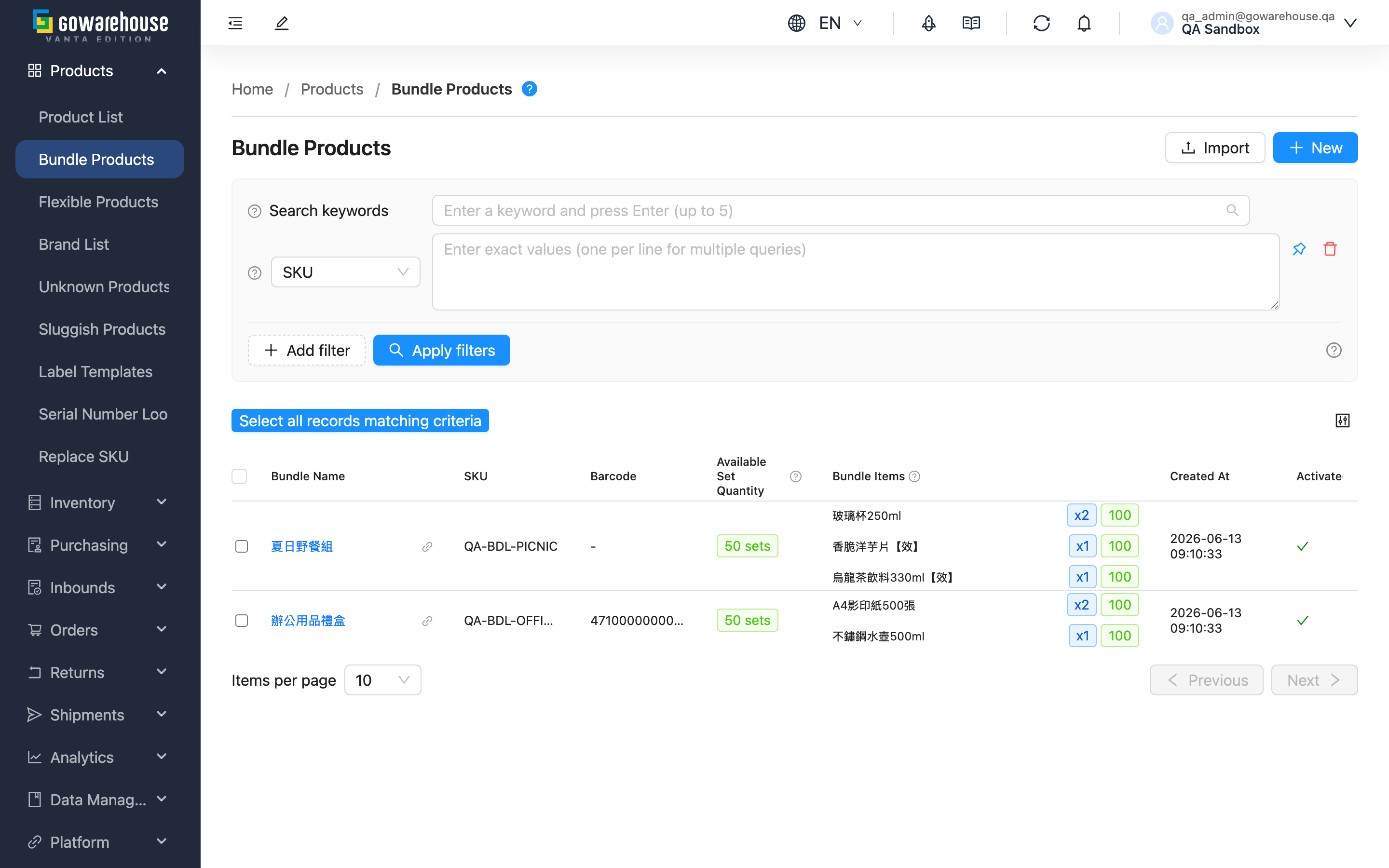
Bundles let you sell multiple products as a single item: an order selects one bundle, and at shipping time the system automatically expands it into the individual products and deducts stock for each — no extra assembly or stocking in the warehouse. This page is the home of the bundle feature — see in real time how many sets each bundle can still ship and which bundles are blocked by an out-of-stock product, and create, import, or drill into bundles from here.
Quick links: Search & Filter | List Columns | Import & Export
2.1 Search & Filter
- Search box: At the top of the page; search by "Bundle Name", "SKU", or "Barcode".
- Activated: Filter by enabled or disabled bundles.
2.2 List Columns
| Column | Description |
|---|---|
| Bundle Name | Click to open the detail page; click the link icon next to it to open in a new window |
| Available Set Quantity | The number of complete sets currently shippable; see the calculation below. "—" means a product in the bundle has no inventory type specified |
| Bundle Items | Expand to see the products in the bundle: blue tags show the quantity needed per set, green/red tags show each product's current available stock; "—" means that product has no inventory type specified |
| Activated | Only enabled bundles can be selected on new orders; disabling a bundle hides it from new orders but does not affect existing orders |
The remaining columns (SKU, Barcode, Created At) are self-explanatory; name, SKU, barcode, and created time can all be sorted by clicking the column header.
How available sets are calculated: It is limited by the component product with the least stock. The system divides each product's available stock by the quantity needed per set, and takes the smallest result.
"Available stock" here only counts stock meeting both conditions:
- Restricted to the inventory type the bundle assigns to that product. If a product is set to Good, stock held as Damaged or any other type is excluded — because order allocation only draws from Good as well.
- Passing the expiration rule you set for that inventory type. If you configured "Days Before Expiration" or "Expiration Ratio", batches with insufficient remaining shelf life are excluded; products without an expiration date always count. With no expiration mechanism configured, expiration is not filtered at all — same as during allocation.
Example:
- Bundle contents: Product A x2, Product B x1
- Product A has 10 Good in stock → enough for 5 sets; Product B has 5 Good in stock → enough for 5 sets
- Available sets = 5 (limited by whichever is lower)
These two are the most common reasons a bundle looks available but comes up short at order time, so excluding them brings the figure much closer to reality — but it still is not the exact amount an order will allocate. It is calculated across all your warehouses, and when an order is placed it is narrowed by the shipping warehouse, batch conditions, and sales channel rules. Conversely, if a sales channel defines a secondary inventory type, allocation can draw from that type as well, so the actual amount may be higher than shown here.
When "—" is shown: If the bundle does not assign an inventory type to a product, which type gets deducted depends on the sales channel the order comes from, so no single answer exists at the list level — that product's available stock shows "—". If any product shows "—", the bundle's available sets shows "—" too: the set count is a minimum, and if one component is uncertain the whole figure is uncertain.
2.3 Import & Export
- New: In the top-right corner; create bundles one at a time — see Create Bundle.
- Import: In the top-right corner; download the template and use an Excel file to create or update bundles in batches. After importing, check the result under "Data Management" → "Import Records".
- Export: Appears above the list after you select bundles. When the export finishes, download the file from "Background Jobs" in the top-right corner.
3. FAQ
Quick links: FAQ | Important Notes
3.1 FAQ
▪ Why do some bundles show 0 available sets?
A product in the bundle has insufficient available stock. Expand the "Bundle Items" column — products with a red tag are the ones holding the bundle back. Besides genuinely having no stock, two common causes: the stock sits under a different inventory type (the bundle asks for Good but the stock is booked as Damaged), or the batches fail the expiration rule you configured. See List Columns for how the number is calculated.
▪ Why does the available set quantity show "—" instead of a number?
A product in the bundle has no inventory type specified. Which inventory type such a product draws from is decided by the sales channel the order comes from, so no single answer exists at the list level, and the system will not fill in a number that might be wrong. Assign an inventory type to that product on the Edit Bundle page and the number will appear.
▪ How is a bundle different from a regular product?
A bundle holds no stock of its own and needs no extra stocking or packaging in the warehouse. When an order is placed, the system automatically expands the bundle into its component products, deducting stock and shipping each one.
▪ What happens when a bundle is disabled?
A disabled bundle can no longer be selected on new orders, but existing orders are not affected and will ship as usual. You can re-enable it any time from the edit page.
▪ Can a bundle's SKU duplicate a product's SKU?
No. Within the same merchant, products, flexible products, and bundles share one SKU namespace — no duplicates are allowed.
▪ Can I edit a bundle directly from the list?
No. Click the "Bundle Name" to open the detail page, then click "Edit".
3.2 Important Notes
⚠️ Important
- A bundle cannot contain another bundle (no nesting)
- Editing a bundle only affects future orders; existing orders ship with the original contents
💡 Tip: Available sets are calculated in real time when the page loads — refresh the page to get the latest numbers.
4. Related Features
| Feature | Description | Link |
|---|---|---|
| Bundle Details | View a bundle's full information | Go |
| Create Bundle | Create a new bundle | Go |
| Edit Bundle | Modify bundle settings | Go |
| Product List | Manage regular products | Go |