
Stock Adjustments
Table of Contents
1. Features
The adjustment detail page shows the full contents of a single stock adjustment: the top section holds the document's basic info (number, warehouse, applicant, approver, status), while the bottom lists item by item which products this document adjusted, by how much, and for what reason. Here you can verify what changes the warehouse made to your stock — the basis for reconciliation and clarifying discrepancies.
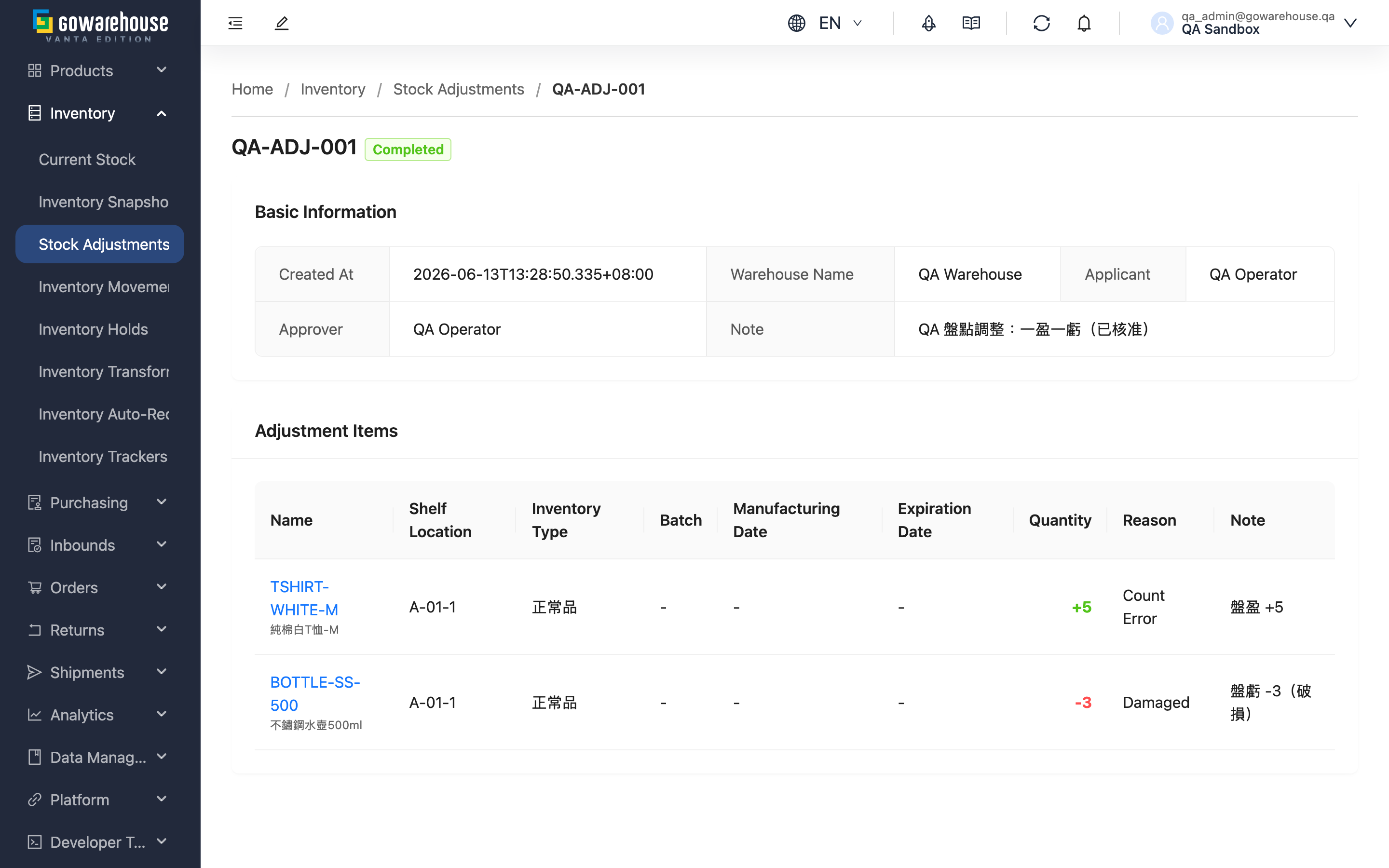
Quick jump: Basic Info | Adjustment Items
1.1 Basic Info
The top of the page shows the overall info of this adjustment; the tag next to the title is the current approval status.
| Field | Description |
|---|---|
| Created At | When the document was created |
| Warehouse Name | The warehouse this adjustment belongs to |
| Applicant | The warehouse staff who created this adjustment |
| Approver | The warehouse staff who approved it; empty until reviewed |
| Note | The note for the whole document |
Document status is one of "Draft", "Pending", "Completed", "Rejected"; only "Completed" means stock has actually changed.
1.2 Adjustment Items
The table below lists, item by item, what this document adjusts. Each row represents one adjustment for "a given product, a given shelf, a given stock identity":
| Column | Description |
|---|---|
| Name | The product's SKU and name; click to open the product detail |
| Shelf Location | The shelf location this adjustment applies to |
| Inventory Type | The inventory type, distinguishing stock in different states such as good, pending inspection, or defective |
| Batch | The receiving batch identifier |
| Manufacturing Date | The product's manufacturing date |
| Expiration Date | The product's expiration date |
| Quantity | Change quantity; a green positive number is a gain (stock increase), a red negative number is a loss (stock decrease) |
| Reason | The reason code for this adjustment |
| Note | The note for this adjustment item |
💡 Tip: Inventory type, batch, manufacturing date, and expiration date together determine which specific stock this adjustment touches — the same product is counted separately across different batches or types, so one document may have several adjustment rows for the same product.
2. FAQ
2.1 FAQ
▪ What do the plus and minus signs on "Quantity" mean?
A positive number (green) is a gain — actual is more than book, so stock increases after approval; a negative number (red) is a loss — actual is less than book, so stock decreases after approval. The system computes this difference by subtracting the "book quantity" from the "actual quantity."
▪ Why does the same product appear in several rows in this document?
Because stock is counted separately by "shelf + batch + inventory type + manufacturing/expiration date." If a product is spread across different shelves or batches, each portion must be adjusted separately, so it appears as multiple rows.
▪ The "Approver" on this document is empty — what does that mean?
It means the document has not been reviewed yet (status "Draft" or "Pending") and stock has not changed. The approver is filled in only after approval.
▪ Can I edit the adjustment quantity or reason on this page?
No. This page is read-only for verification; creating and approving adjustments is done by warehouse staff. If you have questions about the contents, please contact the warehouse.
▪ What does it mean when the inventory type (Inventory Type) shows "-"?
It means this adjustment item is not bound to a specific stock identity — usually an overall adjustment for that product at that shelf. When an inventory type is specified, the corresponding name (e.g. good, pending inspection) is shown.
2.2 Notes
⚠️ Important
- When status is "Completed", the change quantities in the table are already reflected in stock and can no longer be modified.
- Gains (positive) automatically sync the sellable quantity to e-commerce platforms; losses (negative) do not — after a loss, confirm platform stock yourself.
- This page is read-only; you cannot edit or delete the document here.
3. Related Features
| Feature | Description | Link |
|---|---|---|
| Stock Adjustments | Return to the stock adjustments list to view all adjustments | Go |
| Current Stock | View the current real-time stock quantity | Go |
| Inventory Movements | Trace the reason and source of each stock increase or decrease | Go |