
Inventory Transformations Detail
Table of Contents
1. Feature Overview
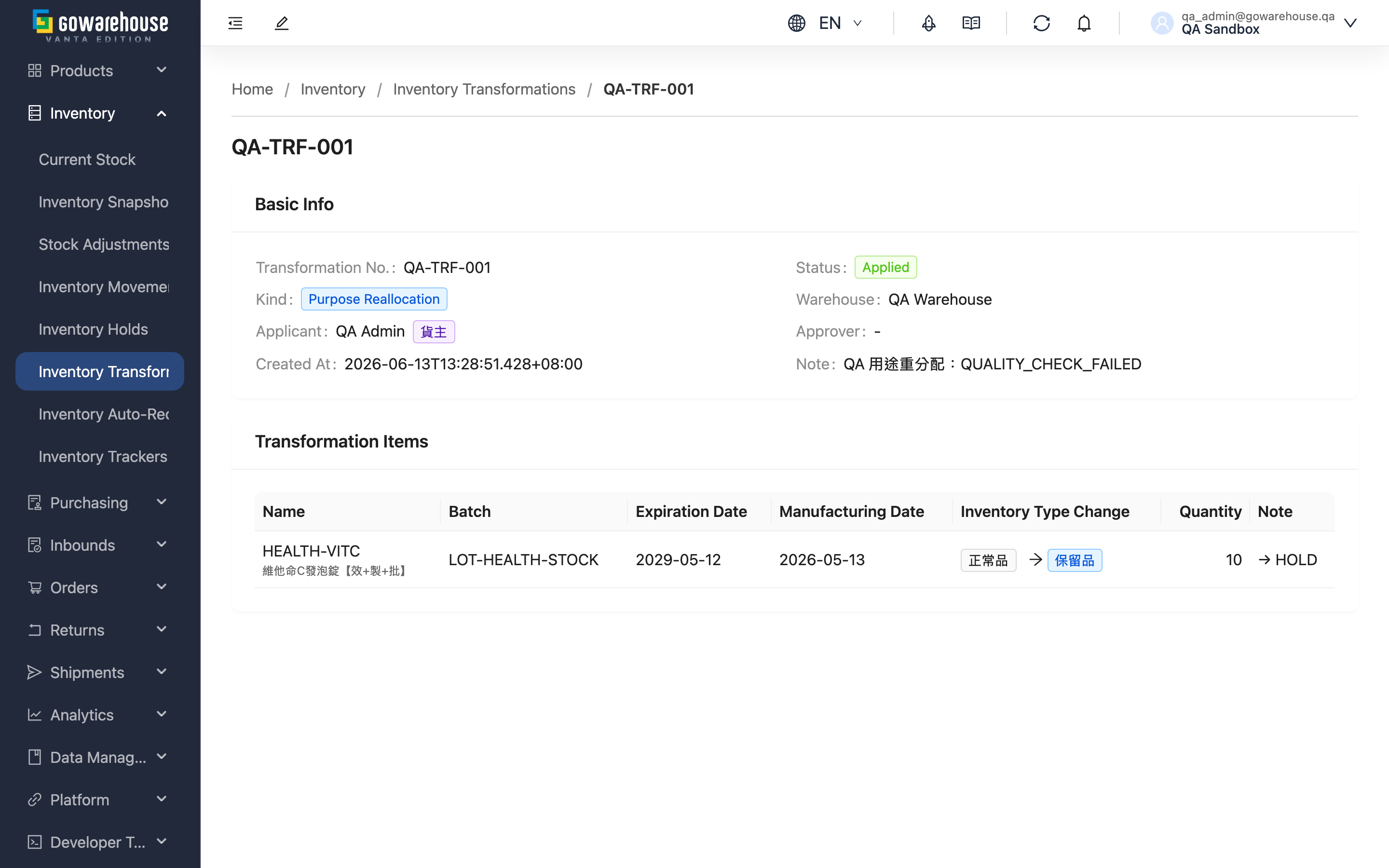
The detail page lets you view the full contents of a single inventory transformation — its basic info, source type, and the before/after identity and execution result of every transformation line. When a document has failed lines, this page lists each failure reason, so you can decide whether to open a new document to handle the unsuccessful part.
Jump to: Basic info | Transformation lines | Partial-failure banner
1.1 Basic Info
The top of the page shows the document's overall information:
| Field | Description |
|---|---|
| Transformation No. | The document number |
| Status | Current stage (full descriptions of the six statuses are on the list page) |
| Kind | The document's source type: Attribute Change, Purpose Reallocation, or System auto reclassify |
| Warehouse | The warehouse where this stock is located |
| Applicant | The person who created this document; shown with "Merchant" when created by the merchant |
| Approver | The warehouse staff who approved this document; auto-generated documents show "Auto-approved by system" |
| Created At | Creation time |
| Note | The description entered at creation |
If this document was generated by an "auto-reclassify inventory type" rule (System auto reclassify), an extra card appears below the basic info showing which rule triggered this auto-conversion, under what condition (days before expiry or expiry ratio), and the rule's source and target types.
1.2 Transformation Lines
The table below lists each line of the document, showing the "before" and "after" identity:
| Column | Description |
|---|---|
| Name | The line's product SKU and name |
| Batch | The source stock's batch |
| Expiration Date | The source stock's expiry date |
| Manufacturing Date | The source stock's manufacturing date |
| Inventory Type Change | The mapping from source inventory type to target inventory type (source on the left, target on the right) |
| Quantity | The quantity of this conversion |
| Note | The note for this line; if the conversion failed, the failure reason is shown here in red |
For a successful line, the system has deducted that quantity from the source identity and added it to the target identity, with the goods staying on the same shelf and the total unchanged; if the target identity didn't exist before, the system creates one automatically and merges into it.
1.3 Partial-Failure Banner
When the document's status is Partially Applied or Failed, a warning banner appears at the top of the page indicating how many lines failed out of the total. The banner provides a button to open a new transformation directly to handle the unsuccessful part. Failed lines are highlighted with a red background in the line table, along with their failure reasons.
2. FAQ
2.1 FAQ
▪ What does "before → after" on a line mean?
The left is the goods' original inventory type (source) and the right is the inventory type after conversion (target). A conversion changes identity, not quantity; the goods stay on the same shelf, and only which type they belong to changes.
▪ A line shows red text — what does that mean?
It means that line failed to convert, and the red text is the failure reason. The most common one is the quantity to convert exceeding the currently available amount — some goods are reserved by unshipped orders. A failed line doesn't affect the other successful lines in the same document.
▪ What does "Auto-approved by system" mean?
It means this document was automatically generated and executed by the system per an "auto-reclassify inventory type" rule, without manual approval, so the approver shows as system-auto. The rule card below explains which rule triggered it and under what condition.
▪ Can I edit or cancel this document here?
The detail page is for viewing and offers no editing. An attribute change created by warehouse staff can only be edited or returned on the warehouse side while not yet approved (Pending); a document that has been executed can't be changed.
▪ How do I remediate failed lines?
The same document won't automatically re-run failed lines. Confirm the failure reason (e.g. wait for stock reserved by orders to be released), then use the button on the banner or go to New Inventory Transformation to open a new document handling only the unsuccessful part.
2.2 Notes
⚠️ Important
- An applied transformation cannot be reversed within the system; to convert back, open a new reverse transformation.
- The same document won't automatically re-run failed lines; you must open a new document to handle them.
3. Related Features
| Feature | Description | Link |
|---|---|---|
| Inventory Transformations | Back to the transformation list to view all documents' progress and results | Go |
| New Inventory Transformation | Open a new transformation to handle failures or new conversion needs | Go |
| Current Stock | Confirm the live quantity under each inventory type after conversion | Go |