
Edit Inbound
Table of Contents
1. Features
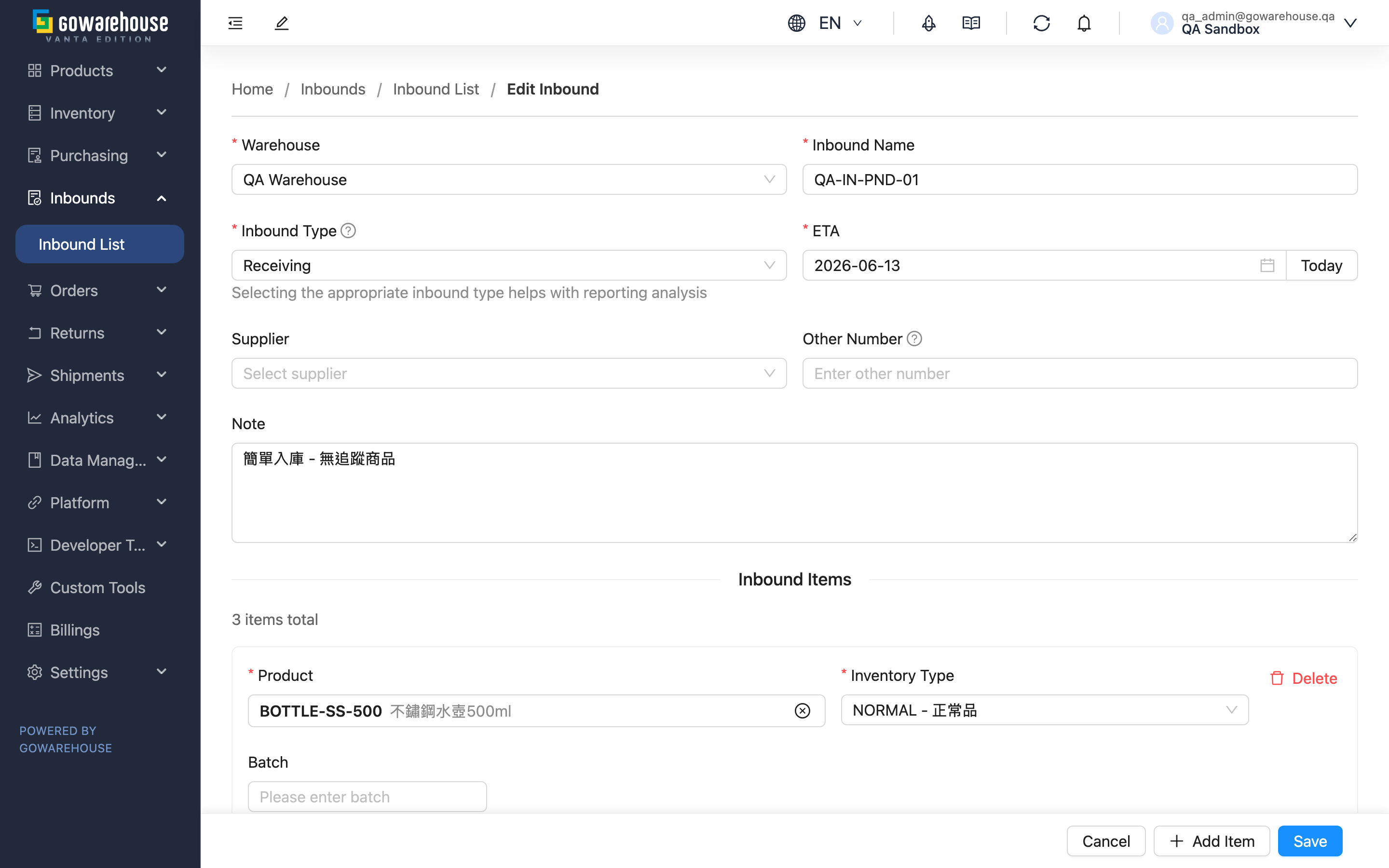
Editing an inbound order is for changing a delivery plan that has not yet been received. Because the warehouse counts goods item by item against your inbound order, only orders in "Pending" status can be edited; once the warehouse starts receiving and the status leaves "Pending", the content is locked so that a mid-count change cannot make discrepancies impossible to attribute. Any changes are recorded in the history on the details page.
Quick Navigation: What You Can Edit | Submit
1.1 What You Can Edit
The edit page has the same fields as New Inbound. You can:
- Change basic info: inbound name, inbound type, expected arrival date, supplier, other number, and note.
- Adjust the item list: add products, remove products, and change each item's quantity, batch, expiration date, manufacturing date and inventory type.
The only thing you cannot change is the inbound warehouse — it is fixed when the order is created, and even though the edit page shows the warehouse field, changes to it have no effect. To change the warehouse, cancel this order and create a new one.
1.2 Submit
After confirming the content, click "Save" in the action bar to save; you will then go to the order's details page. To discard your changes, click "Cancel" to return.
2. FAQ
Quick Navigation: FAQ | Important Notes
2.1 FAQ
▪ Why is there no edit option for this inbound order?
Only "Pending" status can be edited. Once the warehouse starts receiving (status becomes "Receiving" or later), the order is locked; if the content is wrong at that point, handle it through the relevant actions on the details page — it can no longer be edited directly.
▪ What happens if I change an item's quantity?
You are changing the planned quantity (Total Quantity). After saving, the warehouse will count and compare against the new planned amount; since this order hasn't started receiving, the change does not affect any received or inventory figures.
▪ Can I change the inbound warehouse?
No. The warehouse is fixed when the inbound order is created and cannot be changed when editing. If you picked the wrong warehouse, cancel and create a new order.
▪ If I remove one item and submit, is it really gone?
Yes. Once you remove an item from the list and save, it is removed from this inbound order. Because it is still in "Pending" status and not yet received, removing it does not affect any inventory.
▪ Can I see what was changed?
Yes. Every edit is recorded in the history on the details page, including the before-and-after differences (see Inbound Details).
▪ Why is there no "Suggest Name" button on the edit page?
"Suggest Name" is only offered when creating. The name already exists, so on the edit page you can simply change the text without generating a new number.
2.2 Important Notes
⚠️ Important Reminders
- Only "Pending" status can be edited; the order cannot be modified once the warehouse starts receiving.
- The inbound warehouse cannot be changed; a wrong choice can only be fixed by canceling and recreating.
- All changes leave a history entry, viewable on the details page.
3. Related Features
| Feature | Description | Link |
|---|---|---|
| Inbound List | View and track the progress of all incoming stock | Go |
| Inbound Details | View the counting, putaway and discrepancy details of a shipment | Go |
| New Inbound | Notify the warehouse of an incoming shipment | Go |
| Inbound Process | Complete inbound process guide | Go |