
Merchant Channel Details
Table of Contents
1. Feature Guide
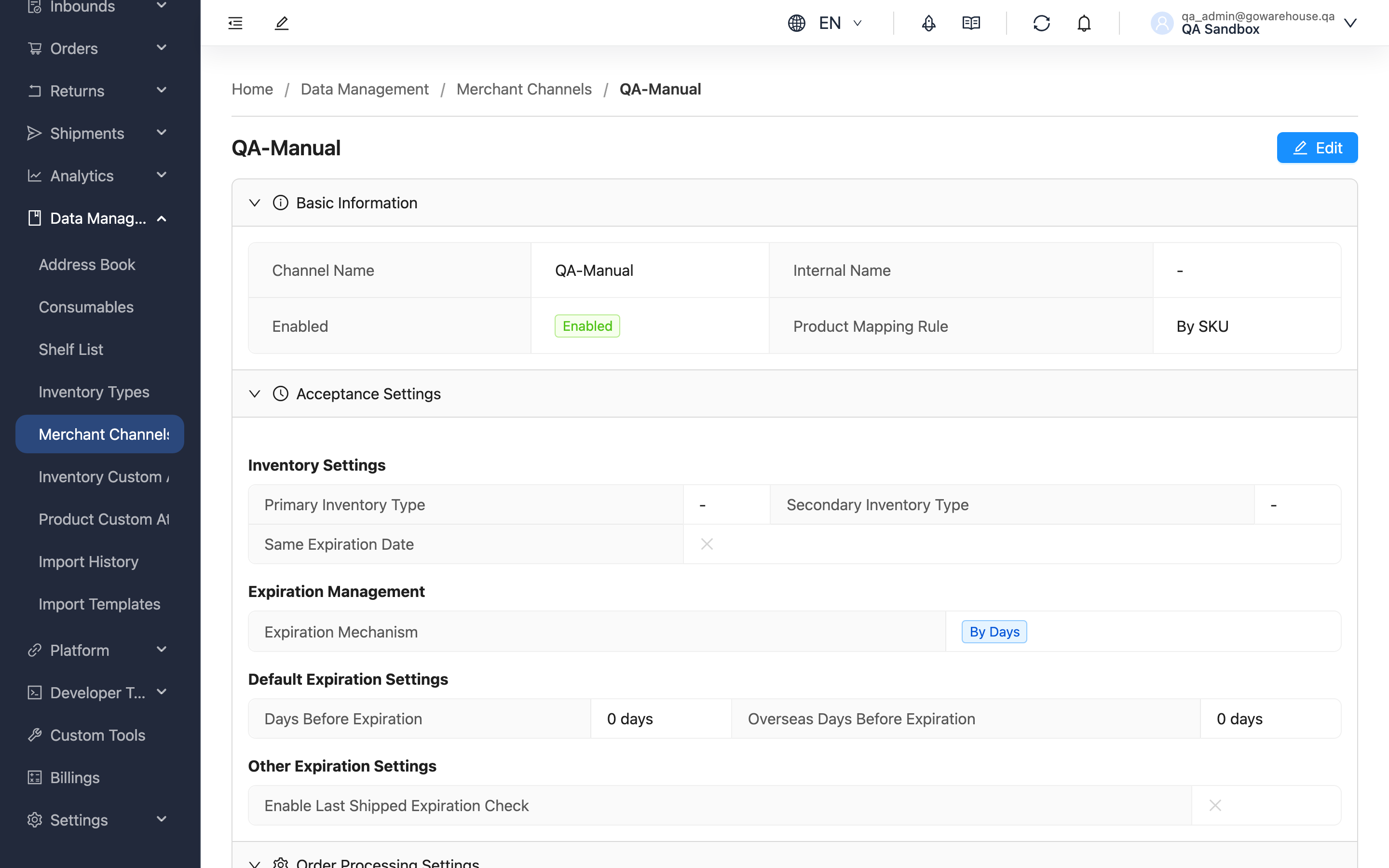
This page lists all of a channel's shipping rules in one place — basic info, which inventory type to ship from, expiration requirements, order automation settings, and fees. When you suspect a channel's order allocation isn't behaving as expected, or want to confirm the current state before making changes, you can review everything here, then proceed to edit once verified. Fees are maintained by the warehouse and are view-only for you.
Quick Jump: Basic Info | Acceptance Settings | Order Processing Settings | Fee Settings | Action Buttons
1.1 Basic Info
| Field | Description |
|---|---|
| Channel Name | The channel's name |
| Channel Code | The channel code used with external systems; both import and export rely on it |
| Enabled Status | Whether the channel is currently enabled |
| Product Mapping Rule | How order items map to inventory (By SKU / By Barcode) |
1.2 Acceptance Settings
Inventory Settings
| Field | Description |
|---|---|
| Primary Inventory Type | The inventory type used first when shipping |
| Secondary Inventory Type | The backup inventory type used when the primary is insufficient |
| Same Expiration Date | Whether identical products in the same order must come from the same expiration batch |
Expiration Management
| Field | Description |
|---|---|
| Expiration Mechanism | No Expiration Control / By Days / By Ratio |
| Days Before Expiration | Minimum remaining shelf life in days for domestic shipment (shown when mechanism is By Days) |
| Overseas Days Before Expiration | Minimum remaining shelf life in days for overseas shipment |
| Expiration Ratio | Minimum remaining shelf life ratio for domestic shipment (shown when mechanism is By Ratio) |
| Overseas Expiration Ratio | Minimum remaining shelf life ratio for overseas shipment |
| Tiered expiration rules | Tiered acceptance standards applied by the product's original shelf life, split into domestic and overseas columns |
| Enable Last Shipped Expiration Check | When on, the same product shipped to this channel can only have equal or longer shelf life |
1.3 Order Processing Settings
| Field | Description |
|---|---|
| Allow Partial Allocation | Whether to allocate items that have stock first when inventory is insufficient; "Use merchant default" means it follows the account-level setting |
| Fulfillment Lot Policy | How to handle shipment when batch attributes are unspecified; inherits the merchant setting if unset |
| Auto Complete Fulfillment | Whether the fulfillment order auto-completes after picking |
| Auto Recheck Inventory | Whether out-of-stock orders are automatically rechecked when inventory changes |
| Recheck Inventory Priority | Smaller number = higher priority; determines the order in which out-of-stock orders are reallocated |
1.4 Fee Settings
Displays this channel's Inspection Fee and picking fees (Picking Fee (per item) / Picking Fee (box) / Picking Fee (pallet)). Fees are maintained by the warehouse and are view-only here; you cannot modify them. The bottom of the page also shows the channel's creation and last update times.
1.5 Action Buttons
| Button | Description |
|---|---|
| Back | Return to the Sales Channels List |
| Edit | Open Edit Sales Channel to modify settings |
2. FAQ
Quick Jump: FAQ | Important Notes
2.1 FAQ
▪ Why isn't this channel's order allocation behaving as expected?
It's usually related to the acceptance settings. Review the expiration mechanism and the primary/secondary inventory types to check whether an overly strict expiration threshold is filtering out stock, or whether the primary inventory type is empty with no secondary inventory type set. Once confirmed, you can edit to adjust.
▪ What does "Use merchant default" mean for "Allow Partial Allocation"?
It means this channel hasn't set its own rule and follows your account-level default; the current default value is shown alongside so you can confirm the setting actually in effect.
▪ Why can't fees (inspection fee, picking fee) be changed?
Fees are maintained by the warehouse and are view-only in the brand portal. To adjust the rates, contact the warehouse.
▪ Why don't I see the "Edit" button?
You may not have permission to edit this channel; contact your administrator to confirm.
▪ When do changes take effect after saving?
Changes take effect immediately and apply to subsequent orders; existing orders keep their original allocation results. You can create a test order to confirm allocation matches expectations.
2.2 Important Notes
⚠️ Important Reminders
- Expiration and inventory type settings directly affect allocation results; assess the impact on shipping before adjusting.
- Tiered expiration rules take precedence over the default expiration days/ratio above.
3. Related Features
| Feature | Description | Link |
|---|---|---|
| Sales Channels List | View all channels | Go |
| Edit Sales Channel | Modify channel settings | Go |
| Order List | View order allocation and shipping results | Go |