
Shelf List
Table of Contents
1. Use Cases
Quick links: Audit where your stock physically sits | Trace which locations hold a product
Scenario 1: Audit where your products are physically stored
Situation: After shipping your products to a managed warehouse, you usually only see the "total inventory quantity" — not which physical locations the goods actually sit in. When you need to reconcile with the warehouse at month-end, or want to understand how much space your products occupy, you need a list of shelf locations — an overview of where your goods are stored in the warehouse.
Use this feature: Browse the list columns to see each location's number, warehouse, temperature zone, and how much stock it currently holds (capacity); use filters to narrow down by warehouse or temperature zone.
Result: You can see which locations your products are spread across and how much each currently holds, giving you a basis for reconciliation and space auditing.
Scenario 2: Confirm which locations hold a specific product
Situation: A best-selling product is about to ship in volume, and you want to confirm whether it sits in one place or is scattered across several locations; or a batch of near-expiry stock is approaching its date and you want to know where it is, so you can ask the warehouse to handle it first.
Use this feature: In the filters, enter the product's code under the "SKU" condition to list every location holding that product; click into any location to see that product's batch, expiration date, and quantity at that spot (see Shelf Details).
Result: You gain a clear view of how the product is distributed in the warehouse, helping you decide whether to expedite shipping, clear near-expiry stock, or adjust restocking.
2. Features
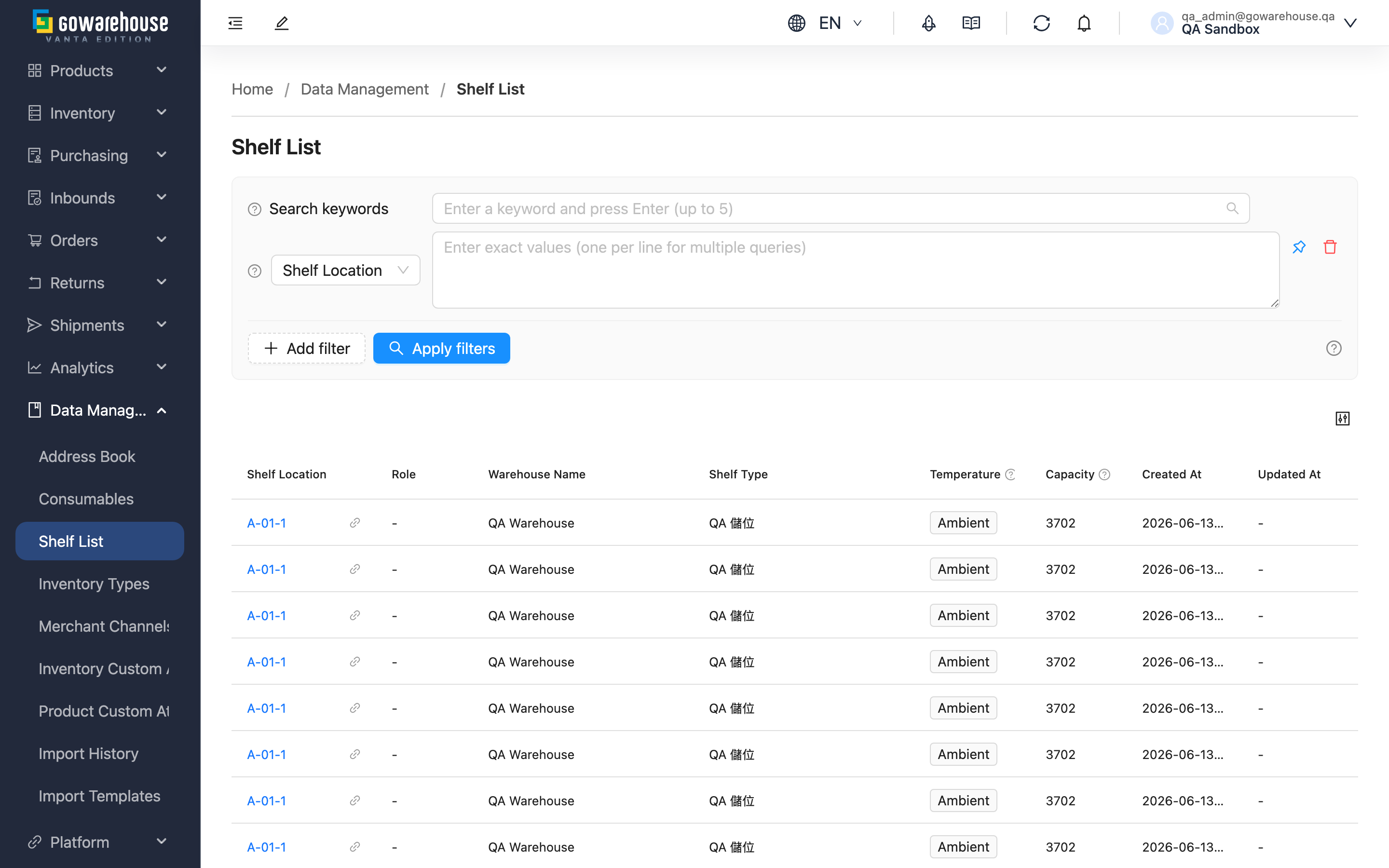
A shelf is the physical location where your products are stored in the warehouse. After receiving goods, warehouse staff put them away into individual shelf locations. This page lets you (the brand owner) see which locations hold your products and how much stock each one currently holds. It is a read-only query page — the creation, numbering, and adjustment of locations are managed by the warehouse, while you focus here on "knowing where my inventory is."
Quick jump: Search & Filter | List Columns
2.1 Search & Filter
The search box at the top supports a prefix match on "Shelf Location". Expand the filters to stack multiple conditions; the most useful ones are:
| Filter | How to use |
|---|---|
| Shelf Location | Enter a shelf location (prefix match) to find locations in a specific area |
| SKU | Enter a product code to list every location holding that product — the most direct way to ask "where is this product" |
| Inventory Status | Choose "Has Inventory" to see only occupied locations, or "No Inventory" to find empty ones |
For the remaining conditions — "Warehouse Name", "Shelf Type", "Temperature" — simply pick from the list by name.
2.2 List Columns
Fields marked with * are the primary identifiers.
| Column | Description |
|---|---|
| *Shelf Location | The location's identifier; click to open Shelf Details and view the inventory at that spot |
| Warehouse Name | The warehouse this location belongs to |
| Shelf Type | The type category the warehouse assigned to the location (e.g., pallet area, racking area) |
| Temperature | The temperature condition of the location: Ambient, Controlled, Refrigerated, Frozen, Air Conditioned |
| Current Stock | How much stock the location currently holds (sum of all inventory quantities), not a limit |
| Created At | When the location was created |
3. FAQ
3.1 FAQ
▪ Why don't I see the "Shelf List" menu?
Whether the shelf feature is available to you is set by the warehouse. If the warehouse has not enabled it for you, the menu will not appear. If you need to see where your products are stored, contact your warehouse representative to confirm whether it can be enabled.
▪ Does the "Current Stock" column show the maximum the location can hold?
No. This column shows how much stock the location "currently holds" — the sum of all inventory quantities at that spot. It changes in real time as goods are received and shipped, and is not an upper limit of the location.
▪ Can I add, edit, or delete shelves?
No. The creation, numbering rules, and adjustment of shelves are all managed by the warehouse; here you can only view, not edit or delete. This is because shelves reflect the warehouse's physical layout and must be maintained by the people actually operating the warehouse to stay consistent with the floor.
▪ Why can't I find locations like staging areas or carriers?
This list only shows the general storage locations that hold your products. Staging areas, picking carts, and other system locations used in warehouse operations belong to internal warehouse processes and do not appear in your list.
▪ Where do I see which products are at a location and how much of each?
Click the location's "Shelf Location" to open Shelf Details; the lower section lists each piece of inventory at that location, including product, batch, expiration date, and quantity.
3.2 Notes
⚠️ Important
- "Current Stock" is the real-time on-hand quantity and changes as goods are received and shipped. Do not treat it as a fixed location limit when planning restocking.
💡 Tip: To find "which locations a product is spread across," use the "SKU" filter — far faster than paging through manually.
4. Related Features
| Feature | Description | Link |
|---|---|---|
| Shelf Details | View which products, batches, expiration dates, and quantities are on a single shelf | Go |
| Current Stock | View total and available quantity for each product | Go |
| Product List | View and manage your product data | Go |