
Product List
Table of Contents
I. Use Cases
The product master — every product in this list — is where the whole warehouse system starts. The warehouse doesn't recognize physical boxes; it only recognizes "product records": receiving, put-away, order fulfillment, picking, and stocktaking each have to map to an already-created product before the system knows what it's handling. So before you ship goods to the warehouse or connect an e-commerce platform, the first step is always to set up the product master (see New Product or Import Products).
Quick Links: Why products must exist before the warehouse can run | Product master vs. inventory
Why products must exist before the warehouse can run
Every warehouse operation matches on the product's "SKU" and "Barcode"; the product master is the common reference that inbounds, orders, and shipments all point to:
- Inbound: when goods are scanned in, the system must first find the matching "SKU" in the master to know what arrived and which product to record it under.
- Orders & fulfillment: order line items point to products, so pickers know which item to pull and which stock to deduct.
- Stock attribution: every inventory quantity hangs off a product — with no product, there's nowhere to record the number.
Conversely, if a product hasn't been created yet, any order imported from an e-commerce platform whose "SKU" or barcode can't be matched gets flagged as "Unknown Products", and that order is frozen before picking and can't ship until you map it back to the correct product. Setting up the master first prevents these stuck orders at the source.
Product master vs. inventory
This list shows two kinds of information that are fundamentally different — the product master is the "container", and inventory is the "ever-changing number inside it". Keep them apart to avoid confusion:
| Aspect | Product master | Inventory |
|---|---|---|
| Question it answers | "What" the product is | "How much" actually exists right now, and in what state |
| Content | SKU, name, barcode, brand, category, and other identity/spec data | Quantity, inventory type (e.g. good / defective), batch, expiration, shelf location |
| When it changes | Only when you create or edit it | Automatically, with inbound, outbound, stocktaking, and adjustments |
| Relationship | A product is created once | One product can have many inventory records of different types/batches |
The "Available Stock" and "Total Stock" columns on the right are the sum of all inventory under that product; for how they differ and are calculated, see the FAQ.
II. Features
Want to quickly grasp the real-time stock status of every product? Need to update a large batch of product data at once? The Product List gives you a single-page overview of available stock and total stock for all products. With multi-condition filters and batch editing, daily stock tracking, low-stock checks, and bulk data maintenance can all be done with ease.
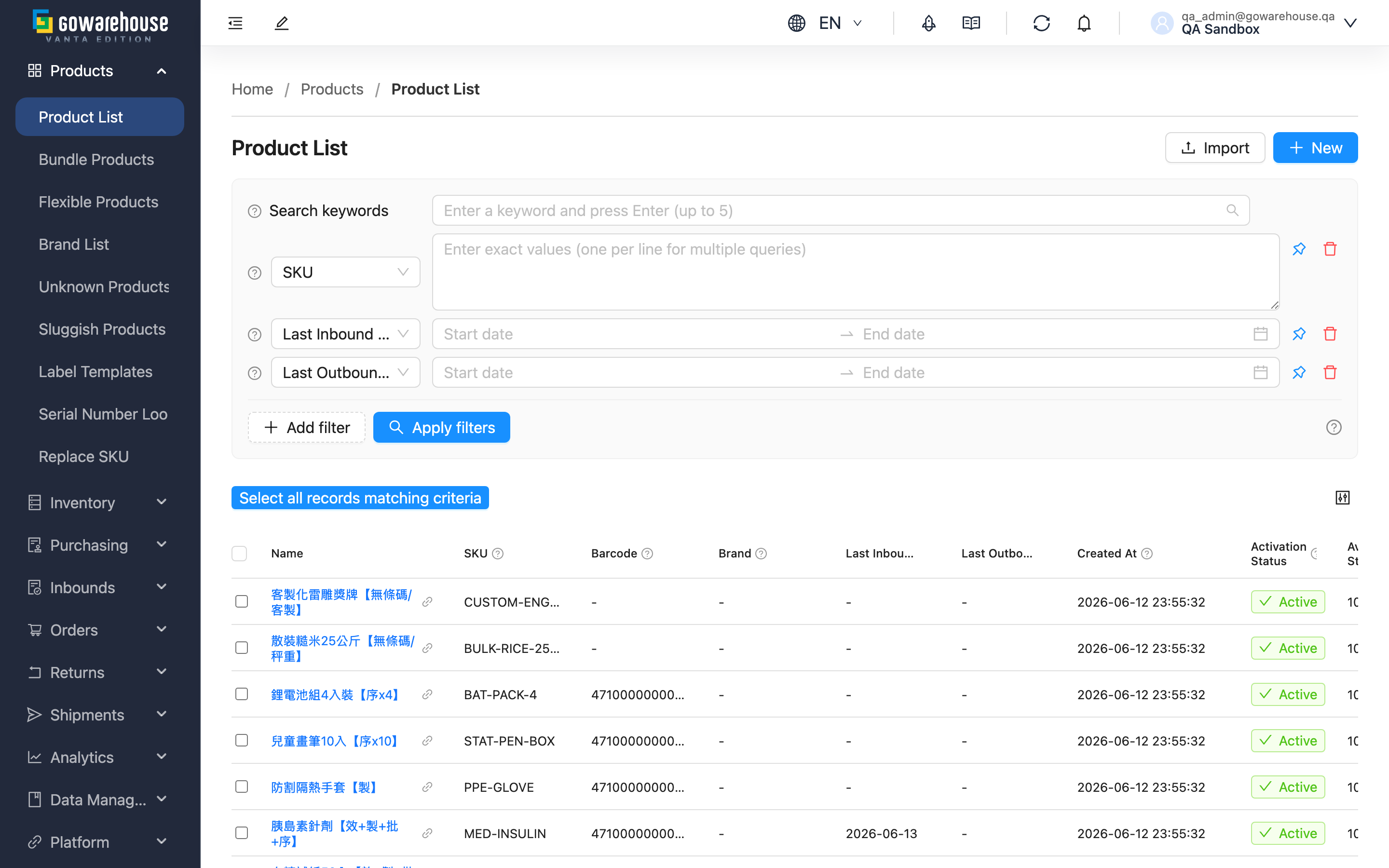
Quick Jump: Search & Filters | List Fields | Batch Operations | Import Products
2.1 Search & Filters
- Search box: At the top of the page; enter "Name", "SKU", "Barcode" or "Other Barcode" to find products.
- Filters:
- Click "Add filter" to add conditions and combine them:
- Product info: SKU, Barcode, Other Barcode, Name, Brand, Category.
- Dates: Last Inbound Date, Last Outbound Date.
- Status: Activation Status (Enabled/Disabled).
- Custom attributes: Attributes you created under "Data Management" → "Product Custom Attributes" can also be used as filters.
- When multiple filters are set, only products matching all of them are shown. After setting the conditions, click "Apply filters" to see the results.
- Pin frequently used filters with the pin icon "Pin this filter" so they are ready every time you open the page.
- Click "Add filter" to add conditions and combine them:
2.2 List Fields
Some columns can be sorted by clicking the header.
| Field | Description |
|---|---|
| Name | Click to open the product's detail page. The link icon next to it opens the page in a new window. |
| SKU | The unique code identifying each product; can be copied for search or import jobs. |
| Barcode | The product's main barcode, matched when scanning during inbound or outbound. |
| Last Inbound Date | Helps you judge replenishment frequency; products with no inbound for a long time may need clearance. |
| Last Outbound Date | Helps you judge sales activity; products with no shipment for a long time may need promotion. |
| Activation Status | "Active" means the product can be used in all stock operations; "Inactive" means it cannot be added to orders or inbounds, but still appears in the list. |
| Available Stock | The quantity that can be allocated to orders right now — the stock you can freely sell. |
| Total Stock | The physical total quantity in the warehouse (including stock allocated but not yet shipped). To see the breakdown by inventory type, open the product detail page and click "Inventory". |
The remaining columns (Brand, Category, Created At, etc.) show the corresponding data by name and can be combined with sorting and filters.
2.3 Batch Operations
- New: At the top right of the page; opens the new product page.
- Import: At the top right of the page; opens the import dialog for creating or updating products in bulk (see Import Products).
- Batch operations: After ticking at least one product, the following buttons appear above the list:
- Edit: Opens the "Batch Edit Products" side panel to change one field for multiple products at once (Brand, Category or Activation Status). The change applies directly to every selected product; to revert, select the same products and run another batch edit.
- Export: Exports the selected products to a file; download it from "Background Jobs" when done.
2.4 Import Products
- Click the "Import" button at the top right of the page.
- In the dialog, click "Download Template" to get the latest Excel template.
- Fill in the products to create or update, following the field descriptions in the template.
- 💡 Tip: To update existing products, make sure the "SKU" is filled in correctly.
- Drag the completed file into the upload area, or click to choose the file.
- To update products that already exist in the system, tick "Override existing data"; if left unticked, rows whose "SKU" duplicates an existing product are reported as errors and no data is changed.
- Click "Upload", then check the progress and results in "Background Jobs" at the top right.
III. FAQ
3.1 FAQ
▪ What is the difference between "available stock" and "total stock"?
"Total stock" is the actual quantity of the product in the warehouse. "Available stock" is the quantity not yet reserved (allocated) by any order — the amount you can freely sell. For example, with a total stock of 10 and 2 units allocated to orders but not yet shipped, the available stock is 8.
▪ Why can't I find a product with my filters?
Check that your filter conditions are correct, especially:
- Keyword spelling: Make sure the product name or "SKU" has no typos.
- Multiple conditions: When several filters are set, only products matching all of them are shown.
- Activation status: Try the "Activation Status" filter to find deactivated products.
▪ How do I see the stock breakdown by inventory type?
Click the product's "Name" to open the detail page, then click "Inventory" at the top right. You will see each stock record's inventory type (e.g., good / defective), batch and quantity, plus in-transit stock that has not yet arrived.
▪ The import says the SKU already exists — what should I do?
The "SKU" you are trying to create already exists in the system. If you want to update that product, tick "Override existing data" when importing. If you want to create a different product, give it a unique "SKU".
▪ Which fields can batch edit change?
Batch edit changes one field at a time; the available fields are "Brand", "Category" and "Activation Status". For product-specific fields like the name or "SKU", edit each product individually.
3.2 Notices
⚠️ Important
- Deactivating products: After setting a product to "Inactive", it can no longer be added to new orders or inbound operations. Existing stock and history are preserved.
- Import override: When "Override existing data" is ticked, the file contents directly overwrite products with the same "SKU" in the system. There is no automatic undo, so double-check the file before uploading.
IV. Related Features
| Feature | Description | Link |
|---|---|---|
| Product Detail | View a product's full data, including specs, stock and history. | Go |
| Create Product | Create a brand-new product. | Go |
| Brands | Create and manage product brands for filtering and grouping. | Go |