
Platform API Logs
Table of Contents
Section 1: Use Cases
Quick Links: Find out why orders didn't come in | Find out why label generation failed
Scenario 1: A platform's orders seem to be missing and you suspect an integration error
Situation: Customer service reports a Shopee order that can't be found in the system, or platform stock figures don't match the system. You suspect a fetch or stock push didn't succeed, but aren't sure which one or what went wrong.
How to Do It: Under "Platform" → "Platform API Logs", filter by date range plus "EC Integration" to narrow to that account's calls, then check the "Status" column for the failed one (see Expand to View Request & Response).
Result: You can pinpoint exactly which fetch or push failed and what the platform reported, judging whether it's an expired credential, a platform-side error, or a product-mapping issue, then go back to the account to fix it.
Scenario 2: A shipping label keeps failing and you want to see what the carrier said
Situation: A shipment's tracking number isn't generating, and the label status shows failed. You need to know whether it's an address issue, a contract credential issue, or a carrier-side error at the moment.
How to Do It: Filter by "Shipping Integration" to narrow to that account's calls, find the failed label-generation record, and expand it to see the error the carrier returned.
Result: You see the carrier's specific error message directly, skipping guesswork, and can quickly judge whether to add an address, change credentials, or retry later.
Section 2: Features
Platform API Logs record every integration call the system makes on your behalf to e-commerce and logistics platforms — order fetching, stock push, product mapping sync, label generation, tracking lookups, platform-initiated notifications (webhooks), and more. Each entry keeps the request and response content, the response status, and the processing time. This is a read-only audit log, and when orders or stock look wrong, it's the first stop for figuring out "whether the integration failed, and where".
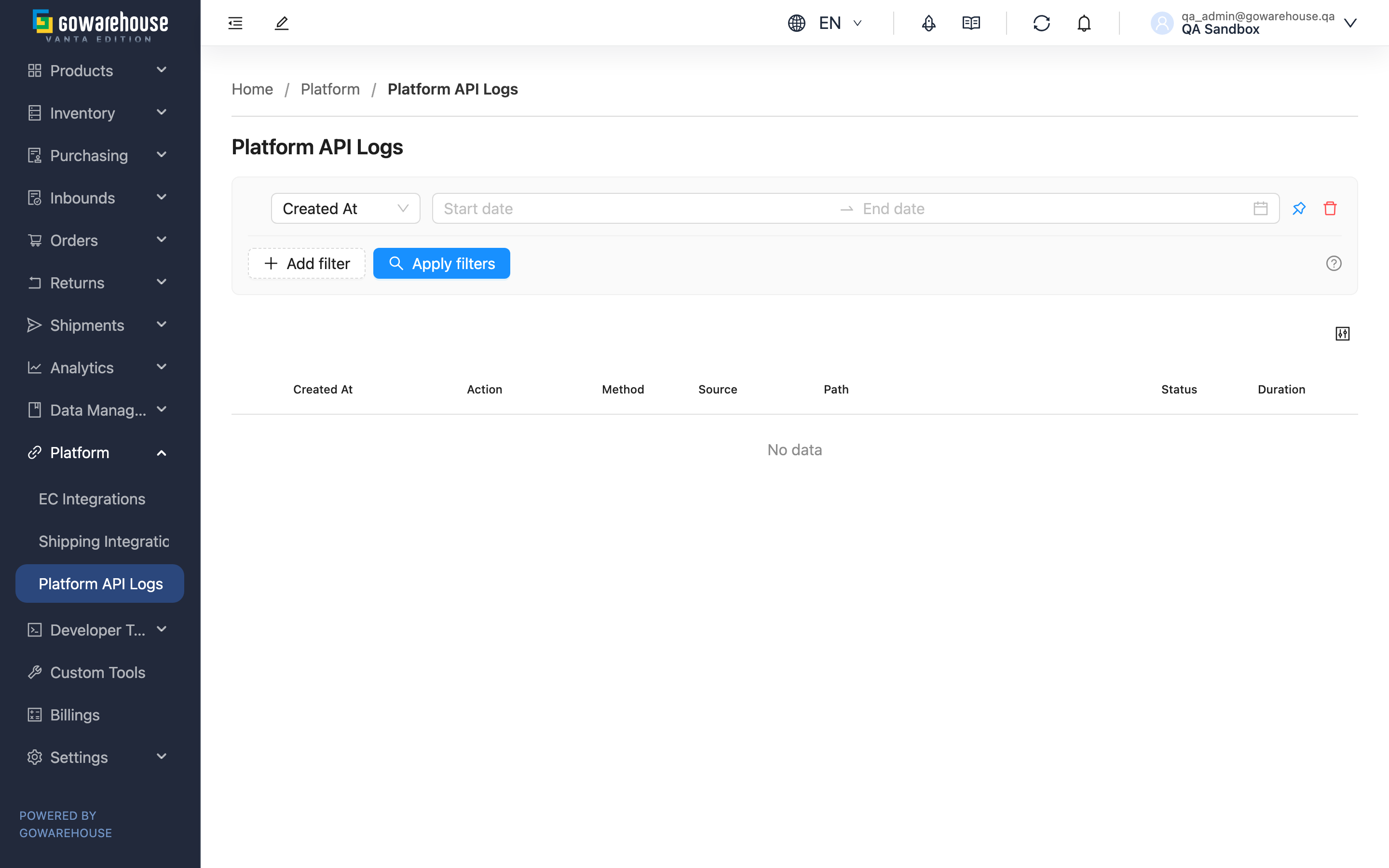
Quick Jump: Search & Filter | List Columns | Expand to View Request & Response
2.1 Search & Filter
The volume is large, so use filters to locate things fast:
| Filter | Purpose |
|---|---|
| Created At | The expanded-by-default date range; first narrow to the period in question |
| Action | Show only a specific action (e.g. only fetching or only stock push) |
| EC Integration | Show only one EC account's calls |
| Shipping Integration | Show only one shipping account's calls |
2.2 List Columns
| Column | Description |
|---|---|
| Created At | When this call occurred |
| Action | What this call did (fetch, stock push, label generation, tracking, etc.) |
| Method | The request method |
| Source | The object this call relates to (EC account, order, merchant, shipment, etc.) |
| Path | The request path |
| Status | The response status: green for success, orange for a bad request, red for a platform-side error |
| Duration | How long this call took |
To judge success or failure, the fastest check is the color of "Status": green is success, while orange or red are the ones to expand and inspect.
2.3 Expand to View Request & Response
Click any entry to expand the full "Request Body" and "Response Body" content of that call. For failed calls, the platform's error reason is right there in the response — the most critical information for pinpointing the root cause of a failure.
Section 3: FAQ
3.1 FAQ
▪ What integration actions are recorded here?
Both e-commerce and logistics: on the e-commerce side, fetching orders, fetching store settings, product mapping sync, stock push, etc.; on the logistics side, generating tracking labels, querying delivery status, reporting shipping status, etc.; plus platform-initiated notifications.
▪ How do I quickly find failed calls?
First narrow with the date range, then check the color in the "Status" column — orange or red is abnormal. To target a specific account, add the "EC Integration" or "Shipping Integration" filter.
▪ What's the difference between orange and red status?
Orange means the request itself had a problem (e.g. wrong credentials, mismatched parameters — usually a setup or data issue); red means a platform-side error occurred (e.g. the platform system was down at the moment). Orange usually requires a fix on your side; red can often just be retried later.
▪ Can I re-trigger a failed call from this page?
No. This is a read-only log page for querying only. To re-fetch orders, go to the corresponding EC account's Detail page and use "Fetch Orders Now"; to regenerate a label, follow the shipping process.
▪ What if I can't understand the response after expanding?
The response is the data the platform returned as-is; focus on the error description within it. If you still can't tell, provide the entry's time, action, and response content to your warehouse or customer service for help.
▪ I can't find a certain action in the options?
The "Action" filter only lists actions that are written to the log. A few actions that only appear on failure notifications and aren't persisted won't appear in the options, which is normal.
3.2 Notes
⚠️ Important
- This is a read-only log page; you cannot retry or modify any integration call here
- The root cause of a failure is the platform's message in the response content — don't conclude from the status color alone
💡 Tip: When troubleshooting, first lock the time with the date range, then narrow by account and action step by step — far faster than scrolling entry by entry.
Section 4: Related Features
| Feature | Description | Link |
|---|---|---|
| EC Integrations | EC accounts' connection status and fetch/push settings | Go |
| Shipping Integrations | Shipping accounts' contract credentials and enable settings | Go |
| Shipment List | View tracking numbers and delivery status | Go |