
Inbound List
Table of Contents
1. Use Cases
Quick Links: Scenario 1: Give the Warehouse a Delivery Plan After Ordering | Scenario 2: Track a Supplier's Split Deliveries | Scenario 3: Confirm When Stock Is Sellable Before a Promotion
Scenario 1: Give the Warehouse a Delivery Plan After Ordering
Situation: You placed a restock order with a factory or supplier, and the goods will arrive at the warehouse in a few days. The warehouse does not know "what products and how many" this shipment should contain — without a plan, it has no way to check the goods item by item on arrival.
Use this feature: Click "New" at the top right of the list to create an inbound order, and fill in the expected products, quantities, supplier and expected arrival date (see New Inbound). An inbound order records the contents of one arrival; once created it appears in this list with the status "Pending", waiting for the warehouse to receive it.
Result: When the goods arrive, the warehouse counts them item by item against your inbound order, and every discrepancy between the actual receipt and your plan is recorded. Both sides have matching, traceable records — no more "the goods went in but nobody can account for them".
Scenario 2: Track a Supplier's Split Deliveries
Situation: For a large order, the supplier cannot deliver everything at once and ships it in several batches over time. You want to know at any moment how much has been received in total, how much is still outstanding, and whether any batch is short or has a mismatched batch number.
Use this feature: A single inbound order can be received in multiple arrivals, each counted independently. Use the "Status" and "ETA" filters to find this shipment, and read the cumulative progress from the number and percentage in the "Received Qty" column (Data List); click the number to see the detail and discrepancies of each batch.
Result: Without calling the warehouse repeatedly, you can follow the real progress of split deliveries; when you spot a shortage or batch-number mismatch, you can raise it with the supplier or warehouse immediately, rather than discovering the mismatch only after everything has arrived.
Scenario 3: Confirm When Stock Is Sellable Before a Promotion
Situation: A promotion is about to start, and the stock you shipped to the warehouse earlier must be confirmed "truly ready to ship" before the sale opens — not merely "arrived at the warehouse". After goods arrive, they still need to be counted and put away before the inventory is officially booked.
Use this feature: Use the "Product SKU" filter or the order number to find that stock, and check whether the status has reached "Completed" and whether the "Putaway Qty" column has reached 100% (Data List).
Result: Only products whose status is "Completed" with the putaway quantity in place are officially shippable; plan your promotion go-live around this so the sale never opens with no stock to ship.
2. Features
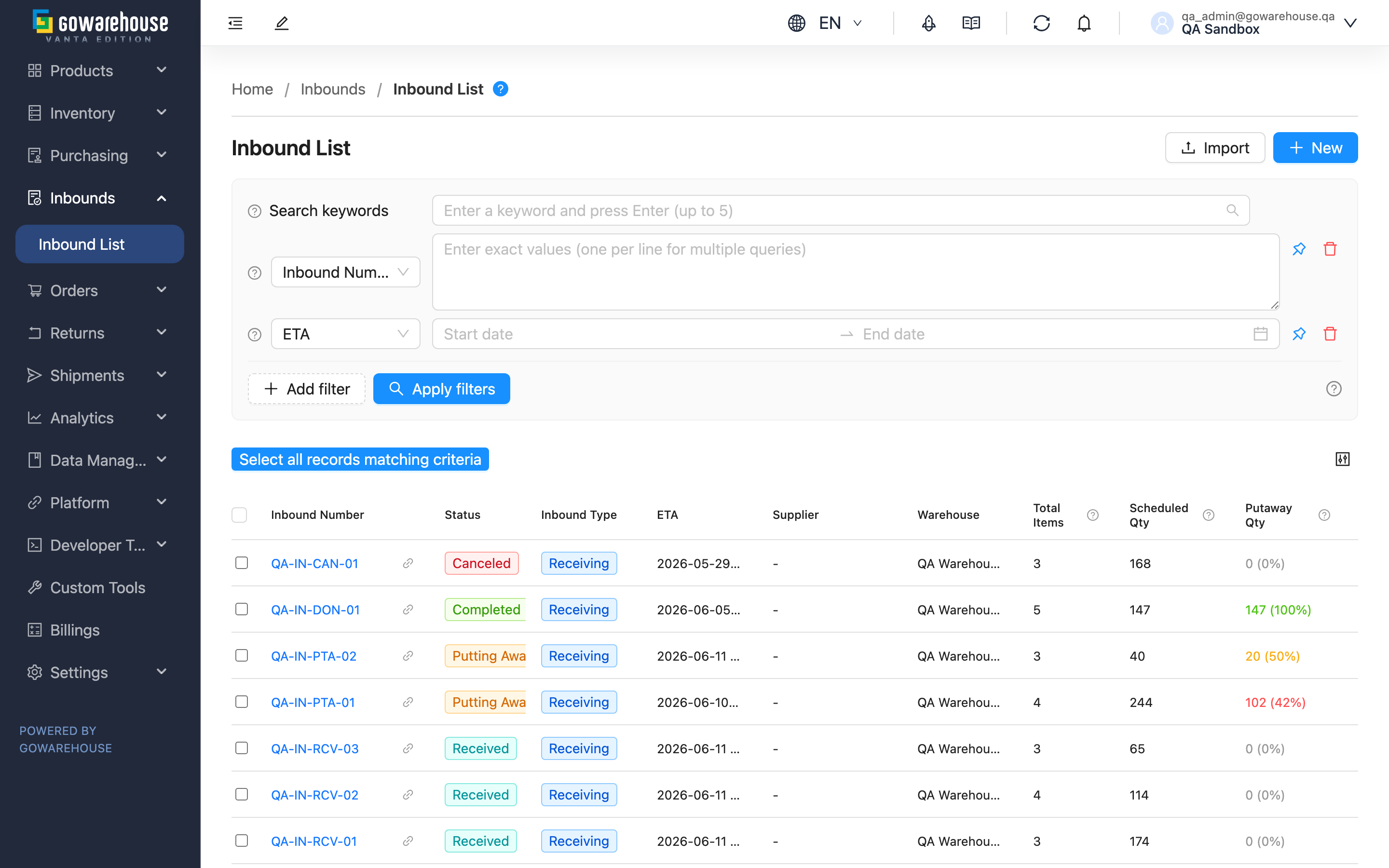
When you send products to the warehouse for storage, every arrival starts with an inbound order — it records what products you plan to send, how many, from which supplier, and when they arrive, so the warehouse can count them against the plan. The Inbound List is the entry point for the whole receiving workflow: one screen to track the status of all incoming stock — whether it has arrived, how much the warehouse has counted, and how much is on the shelves ready to sell — so you can follow each shipment's progress without contacting the warehouse one by one.
Quick Navigation: Search & Filter | Data List | Action Buttons
2.1 Search & Filter
The top of the page offers a keyword search and several filter conditions.
Search box: Type the first few characters to search; the match covers the inbound number, barcode, other number, product SKU and product barcode.
Filter conditions: Text-input filters (inbound number, product serial number, product SKU) accept multiple values, one per line; date filters (expected arrival date, received time, creation time) take a start–end range; supplier is chosen from a multi-select dropdown. Two of the filters have a fixed set of values:
| Filter | Available values |
|---|---|
| Status | Pending, Receiving, Received, Putting Away, Completed, Canceled |
| Inbound Type | Receiving, Sales Return, Production |
💡 Tip: Click "Pin this filter" to keep frequently used filters pinned above the list, so you do not have to select them again next time.
2.2 Data List
The list is sorted newest first by default. Click a column header to change the sorting; sortable columns are "Inbound Number", "ETA", "Received At" and "Created At".
The core of this list is three quantity columns, each matching one stage of receiving:
| Column | What it means |
|---|---|
| Scheduled Qty | Total quantity you plan to send (the planned amount entered when creating the order) |
| Received Qty | Quantity the warehouse has counted and confirmed as actually received |
| Putaway Qty | Quantity already on the shelves and ready to sell |
The warehouse always counts first, then puts away, so "Received Qty" rises first and "Putaway Qty" follows; when both equal "Scheduled Qty", the shipment is fully processed. These two columns show a number plus a percentage, with color indicating completion:
- Green: 100% complete
- Orange: 50% or above, not yet complete
- Red: below 50%, possible shortage or processing delay
- Gray: not started (0%)
Among the other columns, "Total Items" is the number of product types in this order (not the total units); "Inbound Number" can be clicked to open the details page; "Status" and "Inbound Type" are shown as colored tags. The meaning of each status is:
| Status | Meaning |
|---|---|
| Pending | Order created, waiting for the warehouse to receive |
| Receiving | Warehouse is counting the shipment |
| Received | Warehouse has finished counting |
| Putting Away | Products are being placed on shelves |
| Completed | All done, products ready to sell |
| Canceled | Order canceled |
The rightmost Actions column shows the "Edit" button only when the status is "Pending"; other statuses show "-".
2.3 Action Buttons
There are three buttons at the top right of the page:
- New: Create a single inbound order to notify the warehouse of an incoming shipment (see New Inbound).
- Import: Create multiple inbound orders at once via Excel. Download the system template first and fill it in; you can pick one of your pre-configured import templates when importing. The product SKUs in the file must already exist in your product data, otherwise those rows fail; check results and failure reasons in "Import History".
- Export: After selecting inbound orders in the list, click to export the selected orders to an Excel file, downloaded automatically when complete. Each item is one row in the file, with three quantity columns — "Scheduled Inbound Quantity", "Received Quantity" and "Putaway Quantity" — so you can check shortages, overages and whatever is not yet put away.
3. FAQ
Quick Navigation: FAQ | Important Notes
3.1 FAQ
▪ Why don't some inbound orders have an "Edit" button?
Only orders in "Pending" status can be edited. The warehouse counts a shipment item by item against your inbound order; if the content could still change mid-count, discrepancies could not be attributed. So once the warehouse starts receiving (the status leaves "Pending"), the order is locked and can no longer be modified.
▪ What's the difference between "Received Qty" and "Putaway Qty"?
"Received Qty" is the quantity the warehouse has counted and confirmed received; "Putaway Qty" is the quantity already on the shelves and ready to sell. The warehouse counts first, then puts away — their relationship and the completion-color legend are in Data List.
▪ How can I tell at a glance which shipment might have a problem?
Look at the colors of the "Received Qty" and "Putaway Qty" columns: red means completion is below 50%, with a possible shortage or processing delay; orange means in progress; green means fully complete. Click the order number to open the details page and see the planned-vs-received discrepancy for each product.
▪ What if I can't find a specific inbound order?
You can type the inbound number, other number or product SKU directly in the search box; you can also narrow down with the "Supplier" filter, date filters, or the "Serial Number" filter (if you know the product serial number). See Search & Filter for how each filter works.
▪ What do the inbound types mean?
The inbound type indicates the source of the shipment: "Receiving" is regular purchasing from a supplier; "Sales Return" is products a customer returned to the warehouse; "Production" is goods received after processing or assembly. Different types are handled slightly differently in later counting and billing; use the "Inbound Type" filter to view each separately.
▪ What should I do if import fails?
Go to "Import History" to check the failure reason for that import, and verify: whether the file is the latest system template (.xlsx), whether the data matches the template format, whether the product SKUs already exist in the system, and whether all required fields are filled in. Fix and re-import.
▪ Can I delete an inbound order I created by mistake?
Inbound orders cannot be deleted. If the order is still in "Pending" status, click "Edit" to correct its content; to void it, open the order and cancel it on the details page (the conditions for canceling and whether it can be resumed are in Inbound Details).
▪ Can filter conditions be saved?
Yes. Click "Pin this filter" next to a filter to pin it above the list, so you do not have to re-select it the next time you open the page.
3.2 Important Notes
⚠️ Important Reminders
- Once the warehouse starts receiving and the status leaves "Pending", the inbound order is locked and cannot be edited. Confirm the products and quantities are correct before the warehouse receives the goods.
- The product SKUs in an import file must already exist in your product data, otherwise those rows are skipped. After importing, always check in "Import History" that every row succeeded.
- Inbound orders cannot be deleted. To fix a mistake, edit it while in "Pending" status, or cancel it on the details page.
💡 Tip: Regularly review orders that stay in "Pending" status for a long time — no change over a long period means the warehouse has not started receiving, and you may want to contact them.
4. Related Features
| Feature | Description | Link |
|---|---|---|
| New Inbound | Notify the warehouse of an incoming shipment | Go |
| Inbound Details | View the counting, putaway and discrepancy details of a shipment | Go |
| Edit Inbound | Modify an inbound order before the goods are received | Go |
| Inbound Process | Complete inbound process guide | Go |