
Import Templates
Table of Contents
1. Use Cases
Quick links: Importing the same format repeatedly without re-mapping | Files missing a fixed column you fill in every time
Scenario 1: Importing the same format repeatedly without re-mapping
Situation: Every week you receive a spreadsheet from the same source to import orders, but the file uses that party's own header names (for example "Customer Order No." or "Item Code") that differ from the system's field names. Mapping each header to a system field by hand on every import is repetitive and error-prone.
Use this feature: Create an import template dedicated to this source, fixing this file's headers to the matching system fields (see Column Mappings). On future imports, simply apply this template and the system will recognize the headers accordingly.
Result: Files in the same format can be applied with one click from then on, with no need to re-map fields each time, avoiding mis-mapped columns that import data incorrectly.
Scenario 2: Files missing a fixed column you fill in every time
Situation: In the data you import, some fields always hold the same value for every row (for example everything goes to the same warehouse, or belongs to the same category), but the source file has no such column, so before every import you have to add a whole column of repeated values yourself.
Use this feature: Set a "default value" for these fields in the template (see Default Values). Fields with a default value are filled in automatically at import, so that column no longer needs to appear in the file.
Result: The source file can be imported as-is, saving the work of adding columns each time, and fixed fields won't be entered incorrectly by hand.
2. Features
An import template is a set of reusable field-mapping settings. When the system imports data such as orders, products, or inbounds, it needs to know which system field each header in your file maps to; if your import files share a fixed format, you can save this mapping as a template and apply it directly on future imports instead of re-mapping each time. A template serves a single import type and can also set default values for fixed fields.
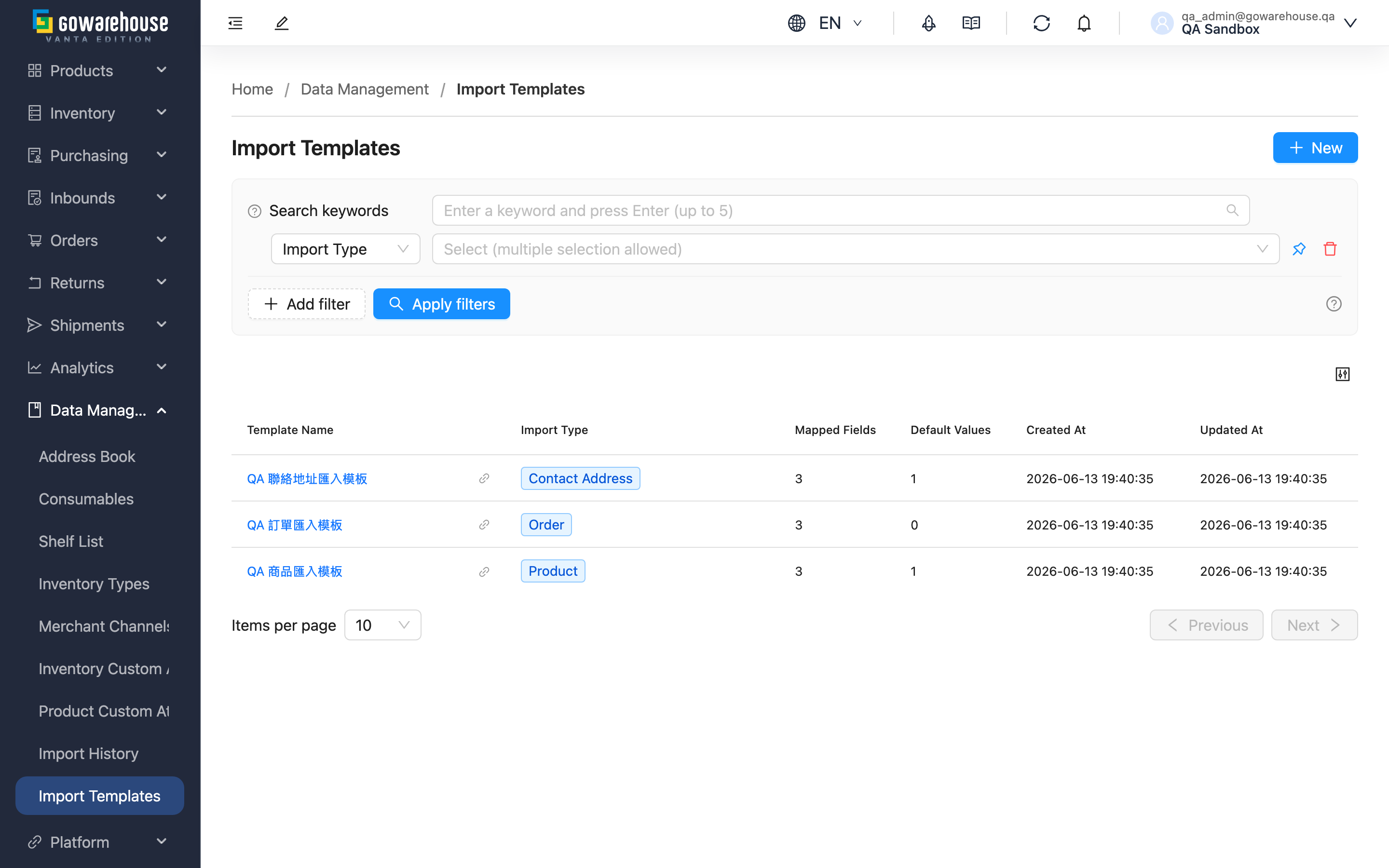
Quick jump: Search & Filter | List Columns | Column Mappings | Default Values
2.1 Search & Filter
For other fields, simply enter values as named.
| Filter | How to use |
|---|---|
| Import Type | Select an import type (Order, Product, Inbound, Return Order, Contact Address, Bundle) to list only templates of that type. A template maps to a single type, so filtering by type quickly finds the one to apply |
| Template Name | Enter a template name keyword to list templates whose name contains it |
2.2 List Columns
| Column | Description |
|---|---|
| Template Name | The name you gave the template; using one that identifies the source (e.g. "Shopee Order Export Format") makes it easier to recognize later |
| Import Type | Which kind of data import this template is for |
| Mapped Fields | How many "header-to-system-field" mappings this template defines |
| Default Values | How many fields in this template carry a default value |
Click any row to open the template's detail page and view the full column mappings and default values.
2.3 Column Mappings
Column mapping is the core of a template: it maps the headers in your file to the fields the system actually stores.
- On the left, enter the actual header text in your file (e.g. "Customer Order No."); on the right, select the matching system field (e.g. Order Number).
- The system lists every mappable field for that import type, with required fields marked with *.
- Each system field can only be mapped once; duplicate mappings are not allowed.
For how to set this up, see New Import Template.
2.4 Default Values
If a field always holds the same value, you can set a default value for it so it is filled in automatically at import and the column no longer needs to be in the file.
- A field set as a default value no longer appears in the column-mapping field list — the default value takes precedence and is filled in automatically at import, so no header mapping is needed or possible.
- When you change a field to use a default value, the system automatically removes its row from the column mappings.
For how to set this up, see New Import Template.
3. FAQ
3.1 FAQ
▪ How is a template applied to an actual import?
A template is not applied automatically. When you actually import data, select the template to apply on the import screen, and the system then uses the template's column mappings to recognize your file's headers and fill in default values. For import operations and result viewing, see Import History.
▪ Which import types can have templates?
Order, Product, Inbound, Return Order, Contact Address, and Bundle. Choose from the import type dropdown when creating a template.
▪ Can I change the import type of an existing template?
No. The import type is fixed at creation and cannot be changed when editing, because the column mappings are designed against that type's fields. To switch types, create a new template instead.
▪ Why did a field disappear from the column mappings after I set a default value?
Because the default value takes precedence. Once a field has a default value, the system fills it in automatically at import, so it no longer needs (or can) be mapped from a file header, and it is removed from the column-mapping field list. Delete the default value and the field reappears as mappable.
▪ If I delete a template, are past imports that used it affected?
No. An import record stores the name of the template used at the time of import, so deleting a template does not erase completed import history. However, a deleted template cannot be restored, and future imports can no longer apply it.
▪ Can I save a template with no name or no column mappings?
No. Template name, import type, and at least one column mapping are all required; missing any of them prevents saving. Even if all required fields use default values, you still need to keep at least one column mapping.
3.2 Notes
⚠️ Important
- The import type cannot be changed after creation; confirm which kind of data import it is for before creating.
- A deleted template cannot be restored.
- When applying a template at import, if that template has been deleted, the import fails with a "template not found" message and you must select a template again.
💡 Tip: Name templates after their source or purpose (e.g. "Shopee Order Format", "Supplier A Inbound") to quickly recognize which one to apply in the list.
4. Related Features
| Feature | Description | Link |
|---|---|---|
| Import History | Upload a file to run an import, apply a template, and view per-row results | Go |
| New Import Template | Create a new set of field-mapping settings | Go |