
Return List
Table of Contents
1. Use Cases
Quick Links: Confirm Returns Back in Stock | Trace a Return to Its Order | Batch-Create During a Return Surge
Scenario 1: Confirm a Customer's Returned Goods Are Back in Sellable Stock
Situation: A customer returns an item that didn't fit or was defective, and the goods are making their way back to the warehouse. What matters to you isn't "did the customer ship it" but "have the goods actually arrived and has my inventory been restored" — until stock is restored, those items can't go back on sale, which is sales you quietly lose.
Use this feature: Every return is a return order in the system, recording which items are coming back and how many of each. The Return List gathers all of them in one place, and the status column shows where each one stands: not yet received, partially received, or fully restocked. When a customer wants to return goods, start at Create Return Order to notify the warehouse to expect the delivery.
Result: When a return order reaches "Done", the returned items have been restocked and your inventory is replenished — you can confidently put those items back on sale.
Scenario 2: Trace Which Order a Return Belongs To for Refund and Return-Rate Reconciliation
Situation: At month-end reconciliation, or when handling a refund dispute, you need to know which order each return came from — the refund amount has to match the original order, and the return rate has to trace back to the original sale.
Use this feature: When creating a return order you can link it to the original order, and the Return List shows the original order number with a link back to the order detail. To trace how much a given order had returned, search by its original order number to surface the linked return orders; to check the original sales lines, look them up in the Order List.
Result: Every return maps back to its original order, giving refund reconciliation and return-rate analysis a traceable basis — no more "a batch came back but I don't know which order it was" reconciliation gap.
Scenario 3: Batch-Create Return Orders During a Post-Promotion or End-of-Season Surge
Situation: A large promotion or the end of a season often brings a wave of returns in a short window. Creating return orders one by one is too slow, and the warehouse is left waiting for receiving notices.
Use this feature: Use Import Return Orders to organize the whole batch into the Excel template and import them all at once, creating many return orders without entering each one by hand.
Result: A large volume of returns can all be created and the warehouse notified to expect them in a short time, so a return surge no longer gets stuck at the prep stage.
2. Features
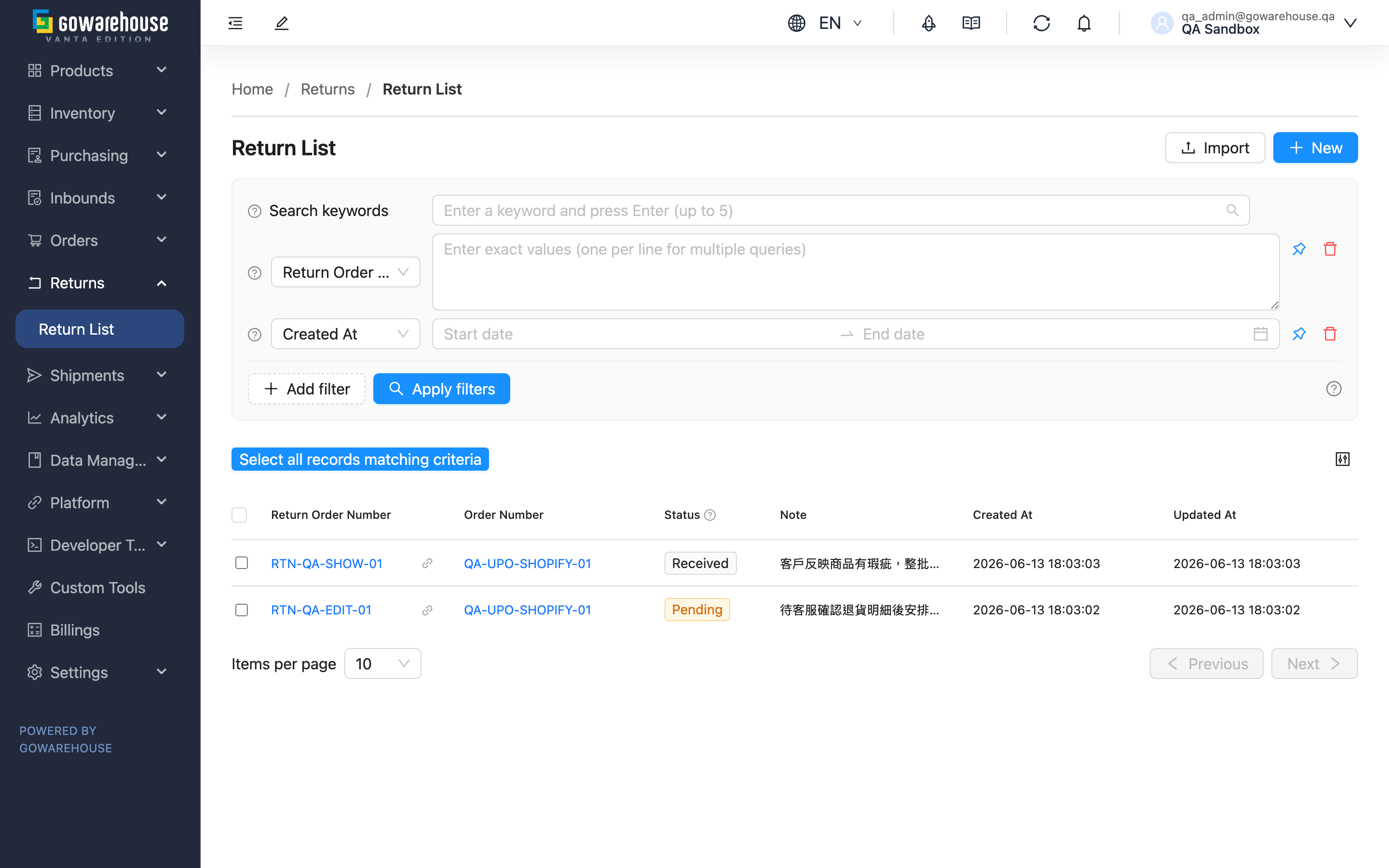
After a customer returns goods, you need to confirm whether the items have reached the warehouse and whether your inventory has been restored. The Return List lets you track every return order's progress in one place — from creating the return order, through warehouse receiving and verification, to restocking — and also supports batch import and export of return data.
Quick Jump: Search & Filter | List Columns | Statuses | Return Orders Created Automatically from Your Store | Import Return Orders | Export Return Data
2.1 Search & Filter
- Search box: type the beginning of a Return Order Number or Order Number for a quick search
- Filters: click "Add filter" to add conditions, then click "Apply filters" to view results
- Return Order Number: filter by return order number, multiple values supported
- Order Number: filter by the original order number, multiple values supported
- Status: filter by return order status, multiple selection supported
- Created At: filter by date range
- To drop a condition, click "Remove filter" next to it
2.2 List Columns
| Column | Description |
|---|---|
| Return Order Number | Click to open the detail page |
| Order Number | Click to jump to the original order's detail page |
| Status | Current progress; hover over the question mark next to the column header for a description of each status |
| Note | Notes for quick reference |
| Created At | Sortable |
| Updated At | Sortable |
2.3 Statuses
| Status | Description |
|---|---|
| Pending | The return order has been created and the items have not yet arrived at the warehouse |
| Partial Received | The warehouse has received and verified part of the items; more packages may still arrive |
| Received | The warehouse has confirmed no more packages are coming and has closed the receiving process |
| Done | All returned items have been restocked and your inventory has been updated |
| Canceled | The return order has been canceled and will not be processed |
📌 Note: Returns often arrive in multiple packages over several days, so one return order may be verified several times. These statuses tell you clearly "how much has arrived" and "whether receiving is finished", so a partial delivery is never mistaken for the full return.
2.4 Return Orders Created Automatically from Your Store
For a Shopline account that is connected and has order fetching turned on, return orders usually arrive in real time: when a buyer raises a return on Shopline, or the platform completes or cancels one, Shopline notifies the system immediately, and the system reads that return order back from the platform (the platform's current data is always authoritative — the notification itself is never trusted) and turns it into a return order here, with the returned items and requested quantities filled in; a return already canceled on the platform is canceled here instead. Notifications can still be missed, so the system additionally checks the platform every 30 minutes and creates any recently updated return order in the requested or confirmed state. Neither path needs any setup from you, and neither you nor the warehouse has to create these by hand. Shopline is currently the only platform that creates return orders automatically; other platforms still rely on manual creation or import.
| Item | What happens on automatic creation |
|---|---|
| Return Order Number | Reuses the platform's own return order number so you can look it up in the Shopline admin; a number is generated by the system only when the platform does not provide one |
| Order Number | Linked automatically when the original platform order is found, and the receiving warehouse follows that order; when no order is found this column shows "-" and your default warehouse is used |
| The platform cancels the return | When the return is canceled on the platform, the return order here becomes "Canceled" automatically; return orders that already have restocked items are left untouched |
| The platform edits the return | Once created, a return order is never overwritten by the platform — items and quantities follow what the warehouse actually counts |
📌 Note: Verification results are not written back to Shopline. After the warehouse finishes receiving and the goods are restocked, nothing changes on Shopline — refunds, store credit and loyalty points still have to be handled by you in the Shopline admin. See Will Shopline refund automatically once verification is done.
When a returned item cannot be matched to one of your products, that return order is not created. The reason is recorded under "Sync History" on the EC account detail page — see A return order exists on the platform but not here.
2.5 Import Return Orders
When you have many returns, you can import them at once with Excel:
- Click the "Import" button to open the "Import Return Orders" window
- Click "Download Template" to get the Excel template
- Fill it in following the template: the first row of each return order must contain the Return Order Number, and every item row must have the SKU and quantity
- Choose the completed file and click "Upload" to start the import
- Go to "Import History" to check the import result
💡 Tip: "Override existing data" is checked by default — when an existing return order has the same number and is still "Pending", it will be updated with the imported content. If unchecked, a duplicate number is reported as an error and the original data stays untouched.
2.6 Export Return Data
- Check the return orders to export; to export everything, click "Select all records matching criteria"
- Click the "Export" button
- Go to "Import History" to check the export result and download the file
3. FAQ
Quick Jump: FAQ | Important Notes
3.1 FAQ
▪ How do I find the return orders for a specific order?
Type the original order number (the first few characters are enough) into the search box. The list will show all return orders linked to that order.
▪ What do the return order statuses mean?
See Statuses for the full description of each. In short: after creation it is "Pending" waiting for arrival; as the warehouse receives goods it passes through "Partial Received" and "Received"; once everything is restocked it becomes "Done".
▪ When can a return order be modified?
Only return orders in "Pending" status can be edited. Once the warehouse starts verification, the return order is locked so the checklist the warehouse works from never changes mid-way.
▪ Can a return order be canceled, and can it be undone afterwards?
A return order can be canceled as long as none of its items have been restocked yet; after canceling, its status becomes "Canceled" and it is no longer processed. If you canceled it by mistake, a canceled return order can be resumed and returns to "Pending" to wait for receiving again. However, once the warehouse has restocked any of the returned items, that return order can no longer be canceled.
▪ Can I export multiple return orders at once?
Yes. Check the return orders you want, or click "Select all records matching criteria" to select everything matching your filters, then click "Export" to export them in one batch.
▪ What format does the import require?
Click "Download Template" to get the standard Excel template and fill it in before uploading. The first row of each return order must contain the return order number, and the SKU and quantity are required on every item row.
▪ A return order exists on the platform but not here — why?
First check that the EC account is Shopline, is connected, and has order fetching turned on — if any of the three is missing, return orders will not come in. If all three are fine and a return is still missing, the usual cause is that a returned item could not be matched to one of your products, so the whole return order was not created: open "Sync History" on the EC account detail page, expand the "Return Order Sync" rows, and you will see which platform item could not be matched. Once the product mapping is in place there is nothing else to do — any return order updated on the platform within the last 7 days is created on the next 30-minute catch-up sync.
▪ Will Shopline refund automatically once verification is done?
No. The system only pulls Shopline return orders in; verification and restocking results are never written back. The return order status, refund, store credit and loyalty points on Shopline stay exactly as they were and still have to be handled by you in the Shopline admin. Use the received quantities shown here as the basis for the refund you issue on the platform.
▪ The import says the return order number already exists — what should I do?
A return order with the same number already exists in the system. If you intend to update it, check "Override existing data" in the import window; if it is a new return, use a different number. Return orders that have already started verification cannot be updated via import.
3.2 Important Notes
⚠️ Important Reminders
- After creating a return order, keep an eye on the receiving progress — one that stays "Pending" long after creation may mean the package has not been delivered
- Once the warehouse starts verification (the status is no longer "Pending"), the return order can no longer be modified
- Once any of the returned items have been restocked, the return order can no longer be canceled
- After the returned items are restocked, you can confirm the inventory update under "Inventory Movements"
- For return orders created automatically, verification results are not written back to Shopline — handle refunds and store credit yourself in the Shopline admin
- When the platform cancels a return, only return orders with nothing restocked yet are canceled here; those already restocked stay as they are and need an inventory adjustment instead
4. Related Features
| Feature | Description | Link |
|---|---|---|
| Create Return Order | Create a return order to notify the warehouse when a customer wants to return goods | Go |
| Return Order Details | View a single return order's items and verification results | Go |
| Order List | Look up the original order a return belongs to | Go |
| EC Integrations | Check the results and failure reasons of Shopline return order syncing | Go |
| Inventory Movements | Confirm inventory was updated correctly after restocking | Go |