
Add Order
Table of Contents
1. Features
When an order doesn't come in automatically from an e-commerce platform — for phone orders, offline transactions, or manual entries — you can create one here. After filling in the receiver info and items and submitting, the system checks inventory automatically, reserves stock, and the order then enters the shipping flow just like a platform-imported order.
Quick jump: Basic Info | Receiver & Options | Items & Submit
Fields marked with * are required
1.1 Basic Info
| Field | How to fill | Notes |
|---|---|---|
| *Order Number | Enter the order number; click the suggest button beside it to have the system generate one | The system checks for duplicates in real time; a duplicate blocks submission |
| Other Number | Enter a secondary reference number (e.g. platform order number) for internal reconciliation | Optional |
| *Shipping Type | Select a shipping method from the list | If the option is missing, set up shipping methods under "Data Management" first |
| *Sales Channel | Select the order's source channel from the list | If the option is missing, click the link in the dropdown to add one |
| Warehouse | Select the shipping warehouse | Only appears when you have multiple warehouses; a single warehouse is filled in automatically |
1.2 Receiver & Options
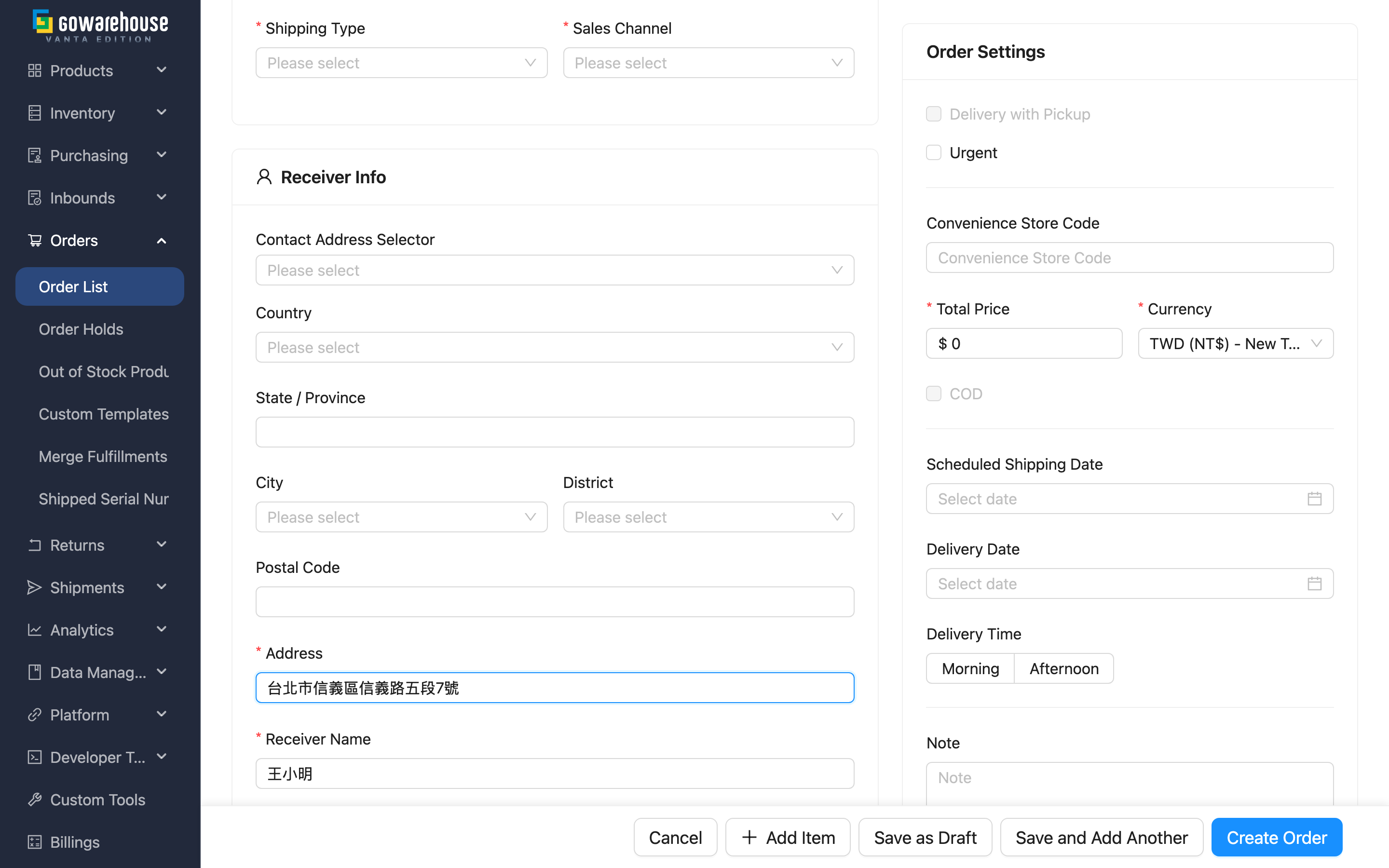
The receiver information section records who the package goes to and where:
Fields marked with * are required
| Field | How to fill |
|---|---|
| *Receiver Name | Enter the receiver's name |
| *Phone | Enter the receiver's contact phone; convenience-store pickup methods (SF store pickup excepted) require a mobile number formatted as 10 digits starting with 09 |
| Address | Enter the full delivery address; can be combined with the city and postal code fields above. Required for home-delivery shipping methods, optional for convenience-store pickup |
| Receiver's email, optional | |
| Convenience Store Code | Enter the pickup store's code; required for convenience-store pickup shipping methods, optional for all others |
Address and Convenience Store Code sit one after the other in the receiver section and are always both visible; only whether they are required changes, switching live with the Shipping Type selected above, and values you already typed are never cleared when you change the shipping method.
When you pick an SF Express shipping method (home delivery and store pickup alike), Postal Code becomes required as well: SF treats the postal code as a mandatory field of its own when it issues the waybill, so without it no tracking number comes back, however complete the address is. For Taiwan addresses it fills in automatically once you have selected City and District.
The options section on the right sets amounts and shipping conditions:
| Field | How to fill |
|---|---|
| *Total Price | Enter the order amount; defaults to 0 if left blank |
| *Currency | Select the currency; the merchant's default currency is filled in |
| COD | Check for cash on delivery; once checked, "*COD Amount" is required and cannot exceed the order amount |
| Urgent | Check to mark as urgent, prompting the warehouse to prioritize |
| Scheduled Shipping Date | Specify the desired ship date |
| Delivery Date / Delivery Time | The customer's specified delivery date and time slot |
1.3 Items & Submit
The items section requires at least one product before you can submit. Click "Add Item" to add items one by one, choose a product, enter its "Expected Quantity", and optionally fill in batch, expiration date, and other details.
Once complete, choose one of three submit options:
| Button | Result |
|---|---|
| Create Order | Creates a formal order; the system immediately checks inventory and enters the shipping flow, then jumps to the order details |
| Save as Draft | Saves as a draft order, processed later, with inventory not yet checked (good for awaiting payment confirmation or pre-orders) |
| Save and Add Another | Creates it and clears the form to stay on this page, convenient for creating multiple in a row |
2. FAQ
2.1 FAQ
▪ It says the order number is a duplicate and won't submit?
Each order number must be unique. The system checks as you type; if it shows a duplicate, change the number, or click the suggest button to have the system generate a unique one.
▪ What's the difference between "Create Order" and "Save as Draft"?
"Create Order" immediately checks inventory and starts the shipping flow; "Save as Draft" saves as a draft order without checking inventory, suitable when payment isn't confirmed yet or a pre-order needs delayed shipping. A draft only starts processing after it's converted to a formal order from the list later.
▪ What if I can't find the shipping method or sales channel to select?
That means the option isn't set up yet. Set up shipping methods under "Data Management" first; for sales channels, click the link in the dropdown to add one, then return to this page and refresh the dropdown.
▪ I checked cash on delivery but can't submit?
After checking "COD", "COD Amount" becomes required and cannot exceed "Total Price". Confirm the amounts are correct.
▪ For a convenience-store pickup order, do I fill the address or the store code?
When you pick a convenience-store pickup shipping method (7-ELEVEN, FamilyMart, Hi-Life, Myship B2C, SF store pickup, and the like), "Convenience Store Code" becomes required and "Address" becomes optional — the parcel goes to a store, so there is no delivery address. Home delivery and every other shipping method are the opposite: address required, store code optional. Both fields stay on screen the whole time, and you may fill in both.
▪ Why does Postal Code become required for SF Express?
SF treats the recipient's postal code as a mandatory field of its own when it issues the waybill: leave it empty and the request is rejected and no tracking number comes back, however complete the address is. So whenever you pick SF Express (including SF store pickup at 7-ELEVEN or FamilyMart), the form asks you to fill in Postal Code first. For Taiwan addresses it fills in automatically once you select City and District.
▪ Why won't a convenience-store pickup order accept a landline?
Once the parcel reaches the store the carrier texts the receiver to come and collect it. A landline cannot receive that text, so the parcel sits at the store until it expires and is returned. That is why "Phone" must be a 10-digit mobile number starting with 09 whenever you pick 7-ELEVEN, FamilyMart, Hi-Life, Myship B2C or a similar convenience-store pickup method; a landline is rejected right under the field and the order cannot be submitted. Even when the form is bypassed (platform imports, API-created orders), the same check runs again on save. SF store pickup does not notify by text and is exempt.
Type the digits as one unbroken run: 0912-345-678 and +886912345678 are both rejected — what gets saved has to be a format the carrier accepts. Among home-delivery methods only PAYUNi T-Cat (including chilled and frozen) demands a 09 mobile as well; the form gives no warning up front, but saving with a landline fails. Every other home-delivery method checks no format at all, so a landline is still fine there.
▪ Do I have to add items to create an order?
Yes. An order must contain at least one product before it can be submitted, otherwise the system prompts that products cannot be empty.
2.2 Notices
⚠️ Important reminders
- The order number, once created, is the order's identifier and must stay unique
- A formally created order reserves inventory immediately; if you don't want to occupy stock yet, save it as a draft instead
💡 Tip: When creating multiple orders in a row, use "Save and Add Another" to skip returning to the list and re-entering the add page each time.
3. Related Features
| Feature | Description | Link |
|---|---|---|
| Order List | View and manage all orders | Go |
| Order Details | View the full content of the order you just created | Go |
| Edit Order | Modify the content of an unshipped order | Go |