
Label Template Details
Contents
1. Features
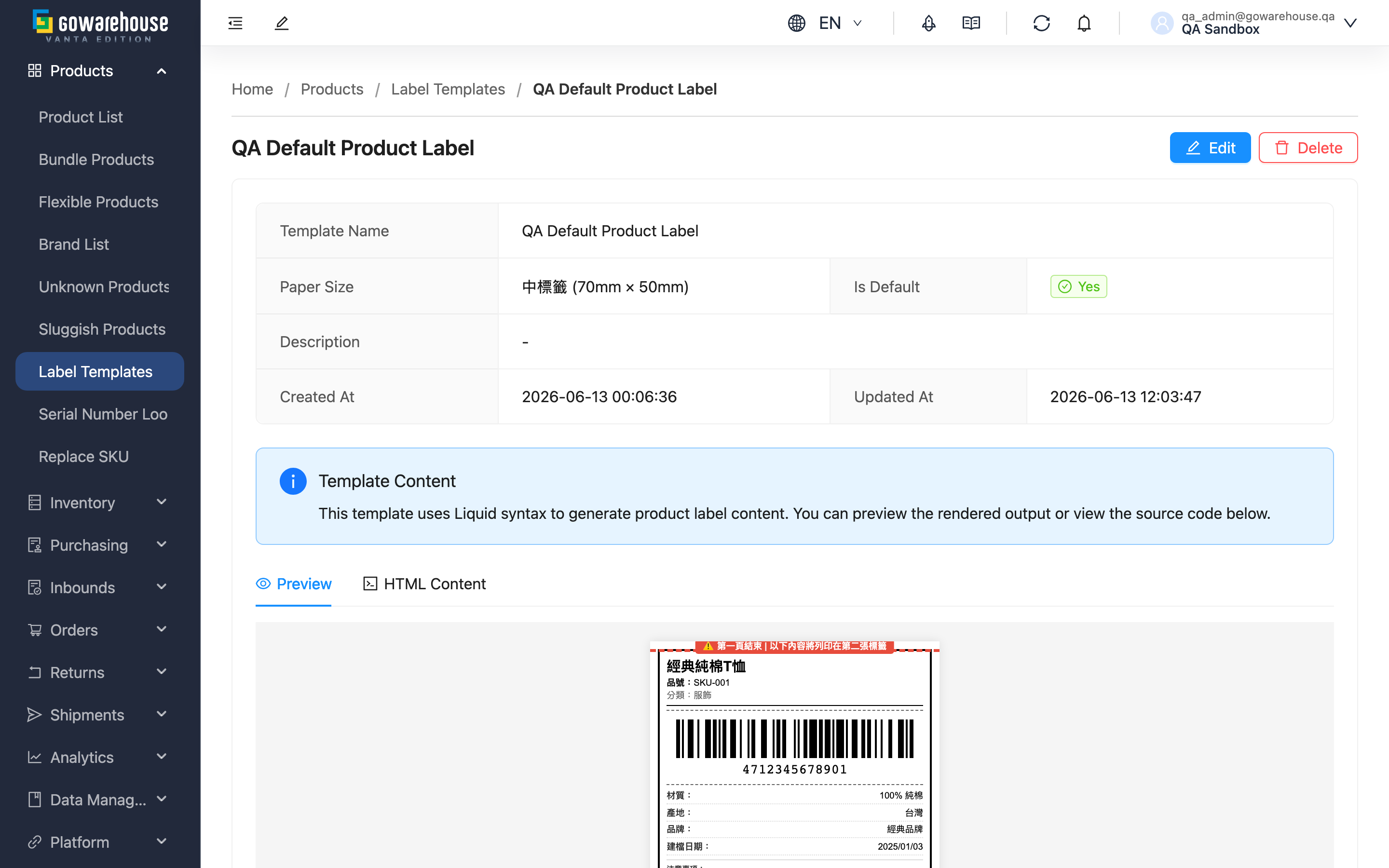
This page shows a single label template's full settings, so you can confirm its paper size, whether it's the default, and what the layout content will print. From here you can go straight to editing or deleting the template. When you want to check what a template looks like before printing product labels, come here to view it.
Quick links: Basic info | Content & preview | Actions
1.1 Basic Info
| Field | Description |
|---|---|
| Template Name | The template's name |
| Paper Size | The actual printed label size, e.g. 70mm × 50mm |
| Default | A green mark indicates the default template, applied automatically when printing |
| Description | A note on the template's purpose |
| Created At / Updated At | When the template was created and last modified |
1.2 Content & Preview
Below the basic info you can view this template's layout content and a print preview using one sample product, helping you confirm which fields the label prints and whether the layout is correct before printing for real.
1.3 Actions
Two actions sit at the top-right of the page:
- "Edit": go to the edit page to change the name, paper size, layout content, or default status.
- "Delete": delete this template — a confirmation dialog appears, and on confirm it's removed from the list.
Both actions require product management permission; the buttons don't show if you lack it.
2. FAQ
2.1 FAQ
▪ What happens if I delete this template?
After clicking "Delete" and confirming in the dialog, the template is removed from the list and cannot be recovered. If it's the default template, printing will no longer pre-select a default and will fall back to one of the remaining templates; designate another template as default. If this is the last template, you won't be able to print product labels after deleting it until you create one again.
▪ How do I set this template as the default?
Click "Edit" to open the edit page, tick "Is Default", and save. The previous default is then cleared automatically, because each merchant can have only one default.
▪ Will the preview match the actual print?
The detail-page preview uses one sample product to show the layout. Actual printing uses that product's real data, so field content varies by product, but the layout and paper size stay the same.
▪ Why can't I see the "Edit" or "Delete" button?
Both actions require product management permission. If you can't see the buttons, contact your administrator to confirm your permissions.
▪ Where is this template used for printing?
Go to "Product List", open a product's detail page, and use the print-label action to choose the template and quantity. If this template is set as default, the print dialog pre-selects it.
2.2 Notes
⚠️ Important
- Deleting a template cannot be undone; deleting the default template or the last template affects product-label printing.
3. Related Features
| Feature | Description | Link |
|---|---|---|
| Label Templates list | Manage all label templates | Go |
| Products | Manage product data; also the entry point for printing product labels | Go |