
Create Product
Table of Contents
I. Features
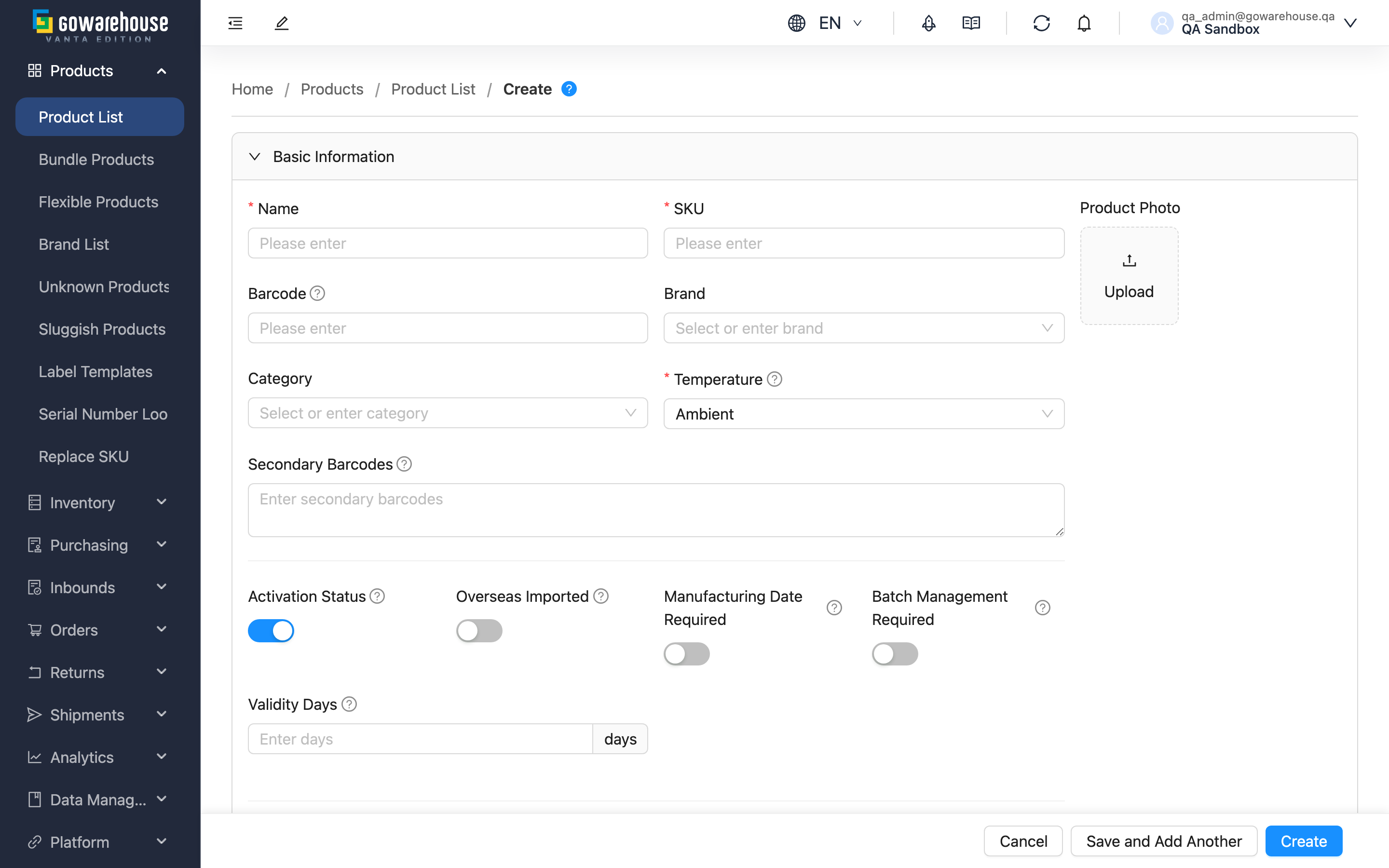
When you have a new product to sell, the first step is creating its record in the system — the warehouse relies on this data to receive, store and ship your goods. Just fill in the name, SKU and temperature (defaults to ambient) to create a product quickly; details like barcodes, units and photos can be added later by editing.
Quick Jump: Form Fields | Steps
1.1 Form Fields
Fields marked with * are required
| Field | How to fill in | Notes |
|---|---|---|
| *Name | Enter the full name; suggested format: brand + name + spec (e.g., Uni Black Tea 600ml) | Shown on orders and reports |
| *SKU | Enter your internal product code (e.g., DRINK-001) | Must be unique; the system checks automatically |
| Barcode | Enter or scan the barcode on the packaging | Matched when the warehouse scans during inbound and shipping; make sure it matches the actual packaging |
| Brand | Choose from the dropdown | If the brand is missing, create it first under "Brand List" |
| *Temperature | Choose ambient/refrigerated/frozen, etc. | Defaults to ambient; determines where the product is stored in the warehouse |
| Items Per Large Unit (Box Quantity) | Enter how many base units one box contains | Once set, you can order by box and the system converts automatically |
| Product Photo | Click the upload area or drag an image in | Common image formats supported (e.g., JPG, PNG) |
1.2 Steps
- Click the "New" button on the product list
- Fill in the required fields (Name, SKU; Temperature defaults to ambient)
- Fill in other fields as needed
- Click "Create" to finish
- 💡 Tip: To create several products in a row, click "Save and Add Another" instead; the form clears after saving so you can enter the next one.
II. FAQ
2.1 FAQ
▪ How should I design my SKUs?
Use meaningful codes that are easy to recognize later, for example:
- DRINK-001 (drink category, no. 1)
- FOOD-001 (food category, no. 1)
A combination of letters, digits and hyphens is recommended; avoid special characters.
▪ What if a product has multiple barcodes?
Put the main barcode in "Barcode" and the rest in "Secondary Barcodes" (one per line). The system links all barcodes to the same product, so the warehouse can scan any of them.
▪ Is the large-unit quantity (units per box) required?
No, but it is worth filling in. Once set, you can order by box and the system converts to base units automatically, which makes shipping easier.
▪ Should I fill in Validity Days?
It depends on the product type:
- Food, drinks, supplements and other perishables: recommended. At inbound, registering either the manufacturing date or the expiry date lets the system calculate the other one from the validity days
- Daily goods, stationery and other non-perishables: can be left empty
▪ Can I create a product first and add details later?
Yes. Only "Name" and "SKU" are needed to create it (Temperature is set to ambient automatically); everything else can be edited in later.
▪ Can a product be modified after creation?
Yes. Open the product detail page and click "Edit", including the "SKU" (the system checks for duplicates). To change the codes of many products at once, use the "Replace SKU" feature.
▪ Can products be imported in bulk?
Yes. For a large number of products, use the "Import" feature on the product list page to import them from an Excel file.
2.2 Notices
⚠️ Important
- The SKU must not duplicate another product's; the system checks automatically
- The barcode must match the one on the actual packaging, otherwise the warehouse cannot identify the product when scanning
- A wrong temperature setting causes the product to be stored in an unsuitable warehouse zone
💡 Tip: The SKU is how you, the warehouse and external platforms identify the product — settle on a coding scheme before you start creating products.
III. Related Features
| Feature | Description | Link |
|---|---|---|
| Product List | Browse and search all products | Go |
| Edit Product | Modify product data | Go |
| Brands | Create and manage brands | Go |
| Replace SKU | Change product SKUs in bulk | Go |