
Out of Stock Products
Table of Contents
1. Use Cases
Quick Links: An order is stuck — find which SKU is out of stock | Assess how much is short and whether replenishment is already on the way | Tell customers which orders a product is holding up
Scenario 1: An Order Is Stuck — Find Which SKU Is Out of Stock
Situation: After a promotion, customers report their orders haven't shipped. An order often contains several items, and if just one of them has insufficient stock, the warehouse cannot allocate that item, leaving the whole order stuck. You need to know exactly which products are short before you can replenish the right ones.
Use This Feature: This page rolls up every order item that cannot be allocated, grouped by product, telling you directly "which SKUs are short" without going through orders one by one. It sorts by shortage quantity from high to low by default, putting the most severely short products at the top.
Result: See at a glance which products are blocking orders, and pin down the replenishment targets to handle first.
Scenario 2: Assess How Much to Replenish and Whether It's Already on the Way
Situation: Once you know a product is out of stock, you need to decide how much to order from the supplier. If you already created an inbound and the goods are on their way to the warehouse, ordering again would pile up excess stock.
Use This Feature: The in-transit quantity column tells you how much of this product has an inbound created but not yet put away. By comparing shortage quantity with in-transit quantity, you can judge whether the existing replenishment is enough and how much more you still need.
Result: Work out the true amount you need to add, avoiding under-replenishment that keeps orders stuck, and avoiding duplicate orders that build up excess stock.
Scenario 3: A Best-Seller Is Out of Stock — Account for the Affected Orders to Customers
Situation: A best-selling product is out of stock and you want to proactively contact affected customers about the expected restock date, rather than waiting for them to chase you one by one.
Use This Feature: Click the order count for that product to expand all out-of-stock orders for it, showing each order's number, shortage quantity, and order time. The earlier an order was placed, the longer the customer has waited, so handle those first.
Result: Get the full list of affected orders and their wait times, respond to customers one by one, or prioritize shipping after replenishment.
2. Features
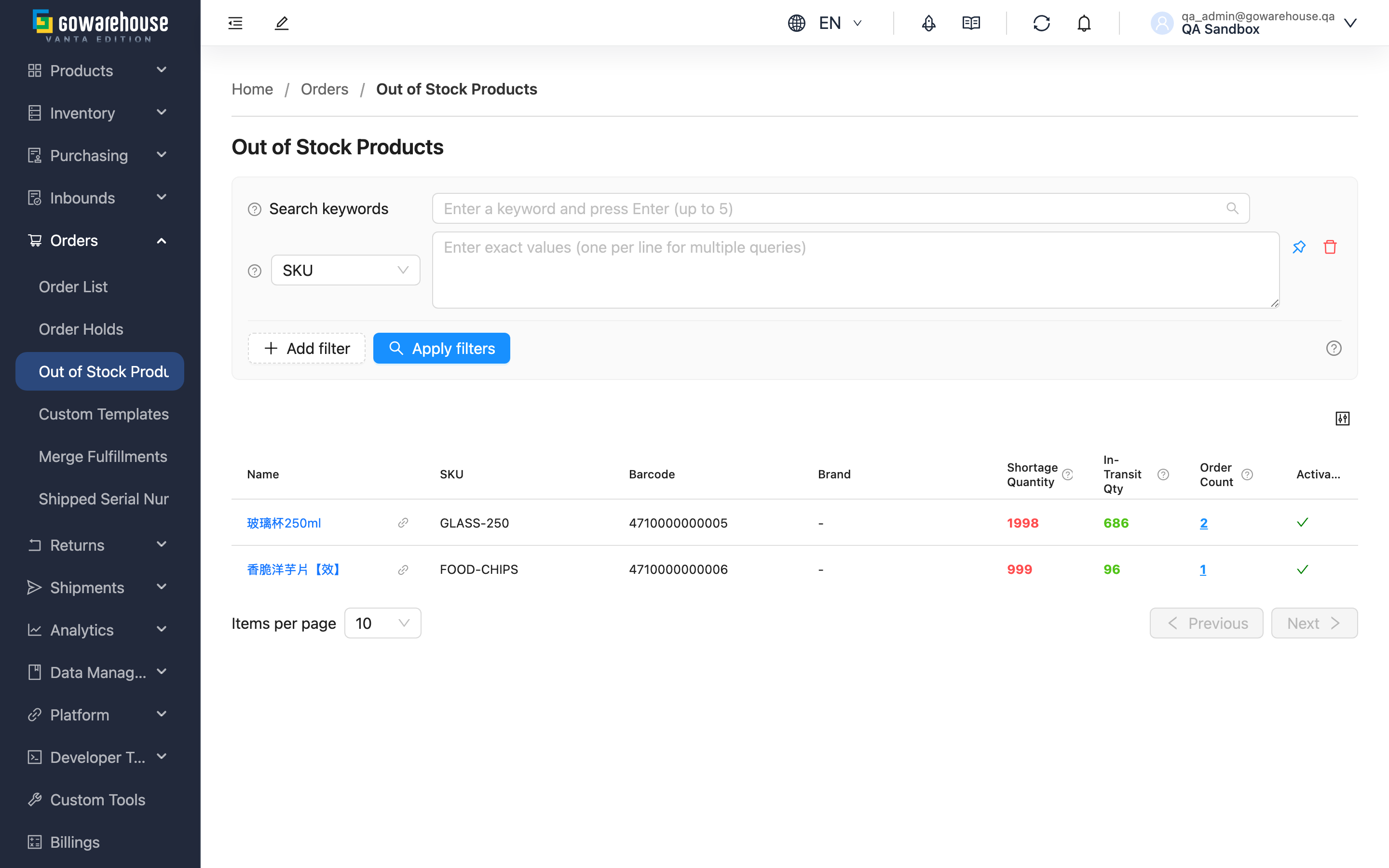
When an order contains a product that cannot be allocated due to insufficient stock, that item becomes out of stock, which in turn prevents the order from shipping completely. The Out of Stock Products page rolls up every out-of-stock order item, grouped by product, so you can quickly see which products need replenishment, the total shortage, and how many orders are affected — and set your purchasing priorities accordingly.
Quick Jump: Out of Stock Product List | Search & Filter | Out of Stock Order Details | Export the Shortage List
2.1 Out of Stock Product List
The list only shows products that currently have actual order demand and cannot be allocated due to insufficient stock. Each row aggregates one product across all of its out-of-stock orders:
| Column | Description |
|---|---|
| Shortage Quantity | The total shortage for this product across all out-of-stock orders — the customer-ordered quantity minus shipped quantity that still cannot be fulfilled. A larger number means more demand is stuck. Sorted by this column from high to low by default |
| In-Transit Qty | The quantity of this product that has an inbound created but not yet put away (covering inbounds that are pending, receiving, received, or putting away). Compare it with shortage quantity to judge whether replenishment is already on the way and whether more is needed |
| Order Count | The number of orders containing this product in an out-of-stock state. Click the number to expand the out of stock order details |
| Activation Status | Whether the product is currently active. Inactive means the product has been discontinued, but older orders are still stuck out of stock |
The remaining columns (Name, SKU, Barcode, Brand) are self-explanatory; click the product name to open the product details.
2.2 Search & Filter
The search box at the top supports prefix search by product SKU, name, or barcode. Click "Add filter" to expand more filters. Only filters that add information beyond their own name are listed below:
| Filter | How to Use |
|---|---|
| Order Number | Enter a complete order number to focus on out-of-stock products within a specific order |
| Order Date | Filter by the time range the order was created, e.g. to look only at this week's new, not-yet-replenished demand |
| Order Placed At | Filter by the time the customer actually placed the order on the channel, which is not necessarily the same as when the system created the order |
| Channel | Filter by sales channel, multi-select; use it to assess shortage impact per channel (e.g. view your website and Shopee separately) |
| Activation Status | Filter by product active status to single out discontinued products that are still stuck |
The remaining filters (SKU, Name, Barcode, Other Barcode, Brand, Item Note, Order Note) take complete values entered by name; most support entering multiple values at once.
2.3 Out of Stock Order Details
Click the "Order Count" number for any product to open a window listing all of that product's out-of-stock orders. The details carry over the filters you applied on the list and are sorted by order time from newest to oldest:
| Column | Description |
|---|---|
| Order Number | Click to open the order details in a new tab |
| Shortage Quantity | The shortage quantity of this product in this order |
| Created At | The time the system created this order, to judge how long it has been waiting |
| Order Placed At | The time the customer placed the order on the channel |
Within the window you can further search by order number or merchant name, and click column headers to sort, to quickly find the orders to handle first.
2.4 Export the Shortage List
Select products and the "Export" action appears above the list, turning the shortage list into an Excel file; download it from "Background Jobs" when done. The checkbox in the header row selects every product under the current conditions, up to 50,000 at a time.
The file has a single "Out of Stock Products" worksheet: one row per product, with the same columns as the out of stock product list (SKU, Name, Barcode, Brand, shortage quantity, out-of-stock order count, in-transit quantity, Activation Status) — ready to turn into a purchase request for your supplier.
Two things decide what lands in the file: the search and filters you currently have applied, and the products you selected. So filter first, then export, and the file contains only the matching data instead of everything. If you cannot see this feature, contact your administrator to confirm your permissions.
3. FAQ
3.1 FAQ
▪ How is the shortage quantity calculated?
Shortage quantity = the customer-ordered quantity minus the shipped quantity that still cannot be fulfilled. The system sums up the shortfall of the same product across all out-of-stock orders, so you can assess how much to replenish for this product in one go.
▪ How does "in-transit quantity" relate to replenishment?
In-transit quantity is the amount of this product that has an inbound created but not yet put away, covering inbounds that are pending, receiving, received, or putting away. Stock that has already been put away is reflected in current stock and is not counted as in transit; cancelled inbounds are also excluded. Comparing shortage quantity with in-transit quantity lets you judge whether the existing replenishment is enough and how much more is needed, avoiding duplicate orders.
▪ After replenishment is put away, will the out-of-stock orders recover automatically?
It depends on whether the sales channel has "auto re-allocate stock" enabled. When enabled, the system automatically re-checks waiting orders when replenishment is put away and stock changes; if stock is sufficient, the order is allocated and moves to the "Allocated" status (meaning the system has reserved stock and is ready to ship). If not enabled, you need to trigger it manually (see the next question).
▪ How do I manually re-check stock for out-of-stock orders?
Go to the "Order List" page, select the orders you want to re-check, and use the "Check Stock" feature to manually trigger re-allocation.
▪ Why are some out-of-stock products shown as inactive?
It means the product has been discontinued, but earlier orders still contain it in an out-of-stock state. Depending on your needs you can: re-activate the product and replenish it, edit the related orders to remove or replace the product, or cancel the related orders.
▪ If only one item in an order is out of stock, will it appear here?
Yes. As long as any item in an order is out of stock, that item is listed, even if the other items in the same order already have stock to ship. Replenish the short item first and the whole order can continue shipping.
▪ Why does the export say there is no data?
The export recalculates the shortage using the filters you currently have applied. If you changed the filters after selecting products, or the product has been replenished and is no longer short, nothing matches and the system does not produce an empty file. Refresh the list, confirm the product is still there, and export again.
▪ Why does a product with stock on hand still appear in the out-of-stock list?
The list looks at "whether an order item has been allocated," not whether the warehouse currently has stock on the books. The stock may have just been received but not yet re-allocated to these waiting orders, or it may have been reserved by other orders. Try the manual stock re-check mentioned above to re-allocate.
3.2 Notes
⚠️ Important Reminders
- The list only shows out-of-stock products that have actual order demand; low-stock products with no waiting orders will not appear here.
- Cancelled and closed orders do not appear in the out-of-stock order details.
- Draft orders do not reserve stock, so they do not appear in the out-of-stock list or details.
💡 Tip: To stock up before orders go out of stock, use "Current Stock" together with inventory monitoring to track stock levels; the Out of Stock Products page is for prioritizing replenishment of orders that are already stuck.
4. Related Features
| Feature | Description | Link |
|---|---|---|
| Order List | Manage all orders and manually re-check stock | Go |
| Inbound List | Arrange inbound replenishment | Go |
| Current Stock | View current stock quantities per product | Go |
| Product List | Manage product data and active status | Go |