
Billing Detail
Table of Contents
1. Features
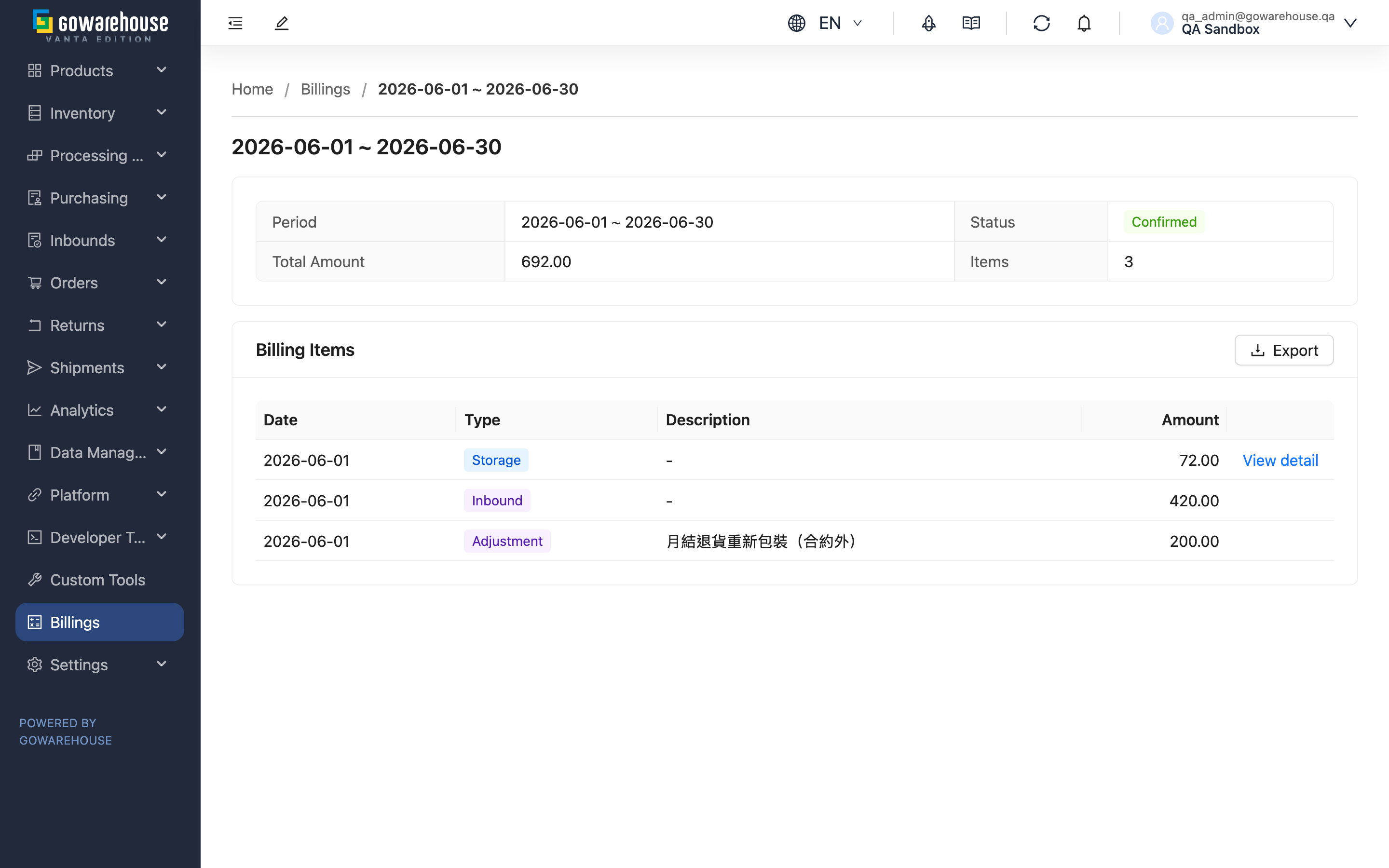
The billing detail page breaks down what the warehouse charged you this period. The top of the page summarises the billing; below it every day and every fee type is listed with its amount. Charges assembled from several documents or products can be expanded one level further to show which document or which product contributed. Checking an invoice, tracing a cost increase, or exporting fulfilment cost for margin analysis all happen on this page.
Quick jump: Billing summary | Charge items | Calculation detail | Exporting
1.1 Billing summary
The card at the top shows Period, Status, Total Amount and Items. Total Amount is the amount the warehouse invoices you for this period and equals the sum of every item below.
1.2 Charge items
Each row is the total for one day and one fee type, not one document — a hundred orders shipped on the same day still produce a single Outbound row.
| Column | Description |
|---|---|
| Date | The date the charge is billed on. It does not have to fall inside this billing's period — see the FAQ |
| Type | The fee type; there are nine, listed below |
| Description | Only Storage and Adjustment carry a description; if no item in the billing has one, the column is hidden entirely |
The nine fee types:
| Type | What it charges for |
|---|---|
| Storage | Rent for the space your goods occupy in the warehouse, calculated daily |
| Inbound | The work of counting the goods you sent in and putting them away, plus the inbound document fee (an inbound records the contents of one delivery) |
| Outbound | The work of picking, checking and packing your orders, plus the fulfilment document fee (a fulfilment is the warehouse's work order created from your order) |
| Return | The work of counting goods your customers sent back, plus the document fee |
| Value-added | Extra services you requested, such as labelling or bagging, attached to an inbound or an order |
| Processing | Processing work you commissioned from the warehouse |
| Consumable | Packing materials used when shipping, such as cartons and bubble wrap |
| Shipping Fee | Carriage handed to the courier, priced per parcel on the shipment (a shipment is the consignment document given to the courier) |
| Adjustment | A charge the warehouse added by hand — either a service outside the contract or a refund |
1.3 Calculation detail
Items made up of several documents, products or shelves have a "View detail" button on the right showing where the amount came from.
- Storage: Lists each Product or Shelf Type with that day's Quantity, the converted Billable Units, Unit Price and Subtotal. With many products, use the search box to find a specific one.
- Every other type: Lists Document No., Fee Type, what was priced, Quantity, Unit Price and Subtotal, with rows for the same document merged. This is where you trace a charge back to one of your own orders or deliveries.
Adjustments the warehouse added by hand are a single amount with no detail to expand; the reason is in that row's Description.
1.4 Exporting
"Export" at the top right of the "Billing Items" card exports the whole billing to Excel. The first sheet is an overview with the subtotal per fee type and the billing's basic information; after it comes one sheet per fee type actually present in the period, with Storage getting an extra detail sheet; last are the rate settings that applied, plus shelf and product settings when there is data for them. Fee types with no charges produce no sheet.
After clicking, collect the download link from the notification area. If you do not see the export button, your account does not have permission to export billing data.
2. FAQ
Quick jump: FAQ | Important notes
2.1 FAQ
▪ A charge's Date falls outside this billing's period — is that wrong?
No. When the period a charge belongs to has already been closed, the warehouse's late entry is attached to the current period while keeping its original operation date. Late Processing and Value-added charges are where you see this most.
▪ Why do some items have no "View detail" button?
Only items assembled from several documents, products or shelves have a layer underneath. Adjustments added by hand are a single amount with nothing to expand.
▪ There is one row for a whole day of one fee type — how do I find which documents it covers?
Expand that row's "View detail"; it lists each Document No. with its own amount.
▪ I have a question about a specific charge — what should I do?
Expand the calculation detail first, note the Date, Type and the relevant Document No., then contact your warehouse. The billing is read-only on your side and cannot be corrected here.
▪ A row shows an amount of 0 — is that wrong?
Not necessarily. A rate of 0 in the contract, or a genuine activity quantity of 0, both still produce a row. The warehouse keeps these rows deliberately so that "this is not charged for" and "this did not happen" stay distinguishable on the bill.
▪ Why does Shipping Fee differ from the courier rates I looked up?
Shipping on the bill is priced from the rate card you agreed with the warehouse, per parcel by weight and volume, which need not match what the courier charges the warehouse. If the gap looks wrong, check the applicable rate card with your warehouse contact.
▪ A sheet is missing from the exported Excel file
When the billing has no items under a given fee type, that sheet is skipped, so the file only contains the types that actually incurred charges.
2.2 Important notes
⚠️ Important
- The billing is read-only on your side. If the warehouse sends it back for another review it temporarily disappears from your list, and the amount may differ when it reappears.
💡 Tip: When checking an invoice, compare the per-type subtotals on the overview sheet first and only drill into the type where the difference sits — far faster than reading every row.
3. Related Features
| Feature | Description | Link |
|---|---|---|
| Billings | Back to the list of billings for all periods | Go |
| Current Stock | What you currently hold in the warehouse, the basis for Storage | Go |
| Orders | Shipment records behind Outbound and Shipping Fee | Go |
| Inbounds | Arrival records behind Inbound | Go |