
Billings
Table of Contents
1. Use Cases
Quick links: Checking the warehouse's invoice | Why is this month higher | Allocating storage cost back to products
Case 1: An invoice arrives from the warehouse and you need to check it
Situation: Your warehouse partner has sent this month's invoice. The amount looks plausible, but all you received is a total — there is no way to tell what was charged, whether anything was charged twice, or whether something was charged that should not have been.
Use this feature: Once the warehouse confirms a billing, the same content appears in your billing list. Open the billing detail to see each day and each fee type separately, and expand the calculation detail when you need to trace a charge to an individual document.
Result: You are checking the same data the warehouse billed from, not a transcribed summary. When something looks wrong, you can point at the exact day and the exact charge.
Case 2: This period costs noticeably more than the last one
Situation: You notice this billing is thirty percent higher than the previous one, but you cannot tell whether business is simply better (more shipments) or something is drifting (slow-moving stock sitting in the warehouse). The answer changes what you do next about clearing stock and about replenishment pacing.
Use this feature: Charges in the billing detail are broken out by type. Put this period's billing detail next to the previous one and see which type grew — storage growing points at stock piling up, outbound and shipping growing point at higher volume.
Result: You can tell whether the increase was bought by revenue or caused by inventory management, and decide about slow-moving stock on that basis.
Case 3: Allocating storage cost back to products for true margin
Situation: In the quarterly review you want the real profit of a product line. You already have selling price and cost of goods; what is missing is the fulfilment side — storage, outbound handling, packing materials and shipping, all of which currently exist only as one lump sum.
Use this feature: Export to Excel from the billing detail to get the charges itemised, ready to fold into your own cost model.
Result: Your margin table includes fulfilment cost rather than purchase cost alone, and the products that sell well without making money surface at this step.
2. Features
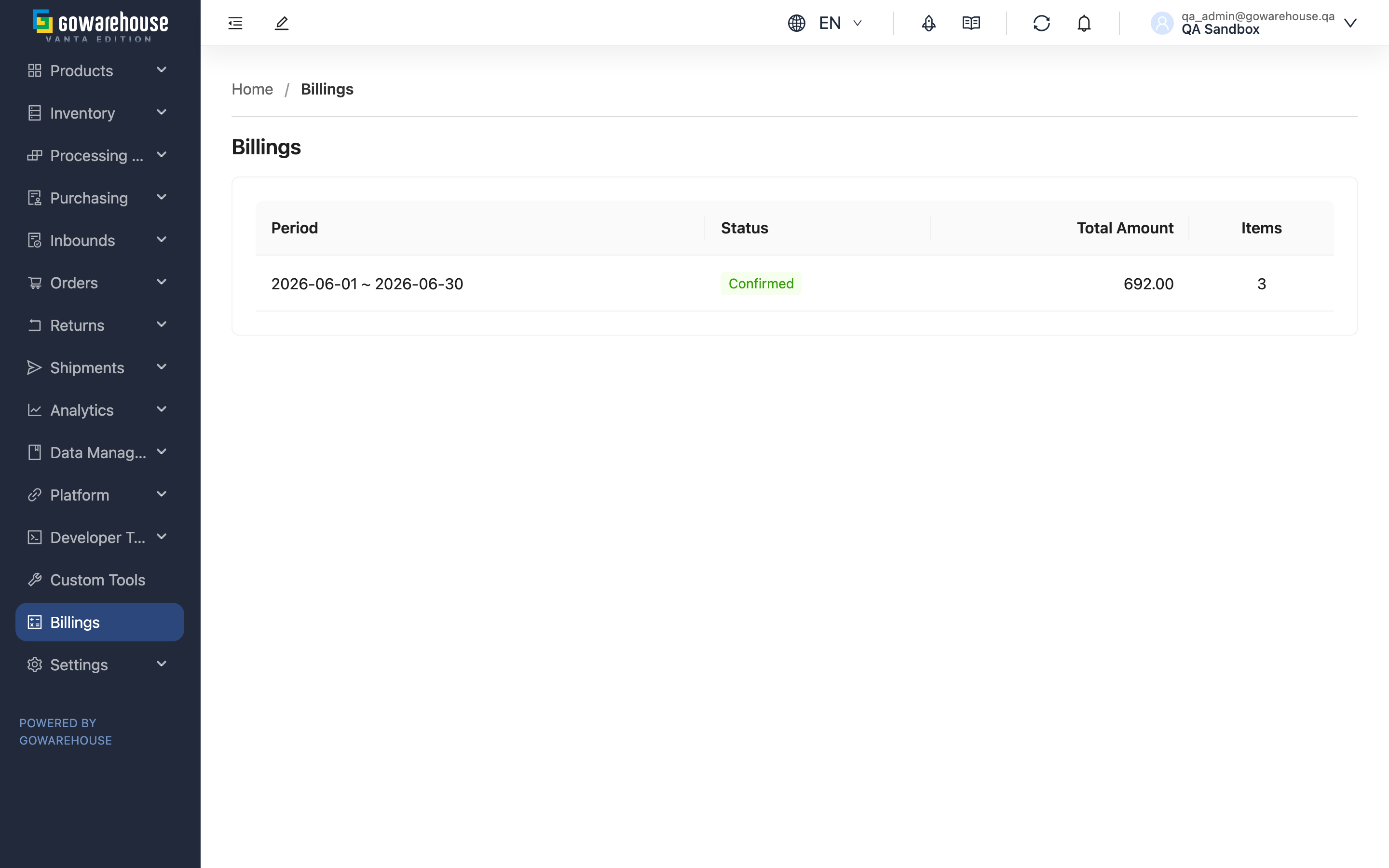
Billings is where you see what your warehouse partner charges you for their services. The warehouse issues one billing per billing period, accumulating day by day the rent for the space your stock occupies plus the operational charges for receiving, shipping, returns, processing, packing materials and carriage. A billing only appears here after the warehouse has confirmed the amount, so everything you see is already finalised on their side and can be used directly to check invoices and to export for cost analysis.
Quick jump: List columns | Billing status
2.1 List columns
The list shows every billing at once, ordered by Period with the newest first, without paging. Click any row to open the billing detail.
| Column | Description |
|---|---|
| Period | The start and end dates this billing covers |
| Total Amount | The sum of every charge in the period, that is, the amount the warehouse invoices you |
| Items | How many charge items the period contains. Charges of the same type on the same day are merged into one item, so this is not a document count |
2.2 Billing status
Every billing here shows Status as Confirmed, meaning the warehouse has finished checking the amount and finalised it. Billings that are not yet confirmed do not appear on your side, because the amount can still change.
If a period's billing never appears, or one you could see has disappeared, the warehouse is still reviewing it or has sent it back for another review — check with your warehouse contact.
3. FAQ
Quick jump: FAQ | Important notes
3.1 FAQ
▪ Why hasn't this month's billing appeared yet?
A billing is only shown to you after the warehouse confirms the amount. They need time to review it once the period ends, and during that time your side stays empty. If a reasonable number of days have passed, check with your warehouse contact.
▪ Can I change the amounts myself?
No. This is a read-only view; billings are produced and confirmed by the warehouse. If an amount looks wrong, take the date and fee type to your warehouse contact rather than keeping a separate figure in your own system.
▪ A billing I could see has disappeared
The warehouse has sent it back for another review. It will reappear once they confirm it again, possibly with a different amount — treat the version that reappears as the current one.
▪ Who decides the billing period?
The billing cycle you agreed with the warehouse, which they configure in the system. No stretch of time appears in two billings.
▪ What fee types appear in a billing?
Nine: storage, inbound, outbound, return, value-added, processing, consumable, shipping and adjustment. What each one covers is described in the billing detail.
▪ Why is there no search or filter on the list?
You have one billing per period, listed newest first, so the list is short by nature — reading it straight through is faster than filtering it.
▪ I can't see the "Billings" menu item
Your account has not been granted permission to view billing information. Ask whoever administers your company's accounts in the system to adjust it.
3.2 Important notes
⚠️ Important
- A billing disappearing or its amount changing both mean the warehouse has re-reviewed it. Treat what is displayed now as current and check the difference with your warehouse contact.
💡 Tip: Export and file each billing as it appears; later cost analysis and invoice checks then no longer depend on what the system happens to show at the time.
4. Related Features
| Feature | Description | Link |
|---|---|---|
| Billing Detail | Review charges line by line, expand the calculation detail and export to Excel | Go |
| Current Stock | What you currently hold in the warehouse, which is what storage is charged on | Go |
| Orders | Shipment records behind the outbound and shipping charges | Go |
| Inbounds | Arrival records behind the inbound charges | Go |