
Edit User
Table of Contents
1. Features
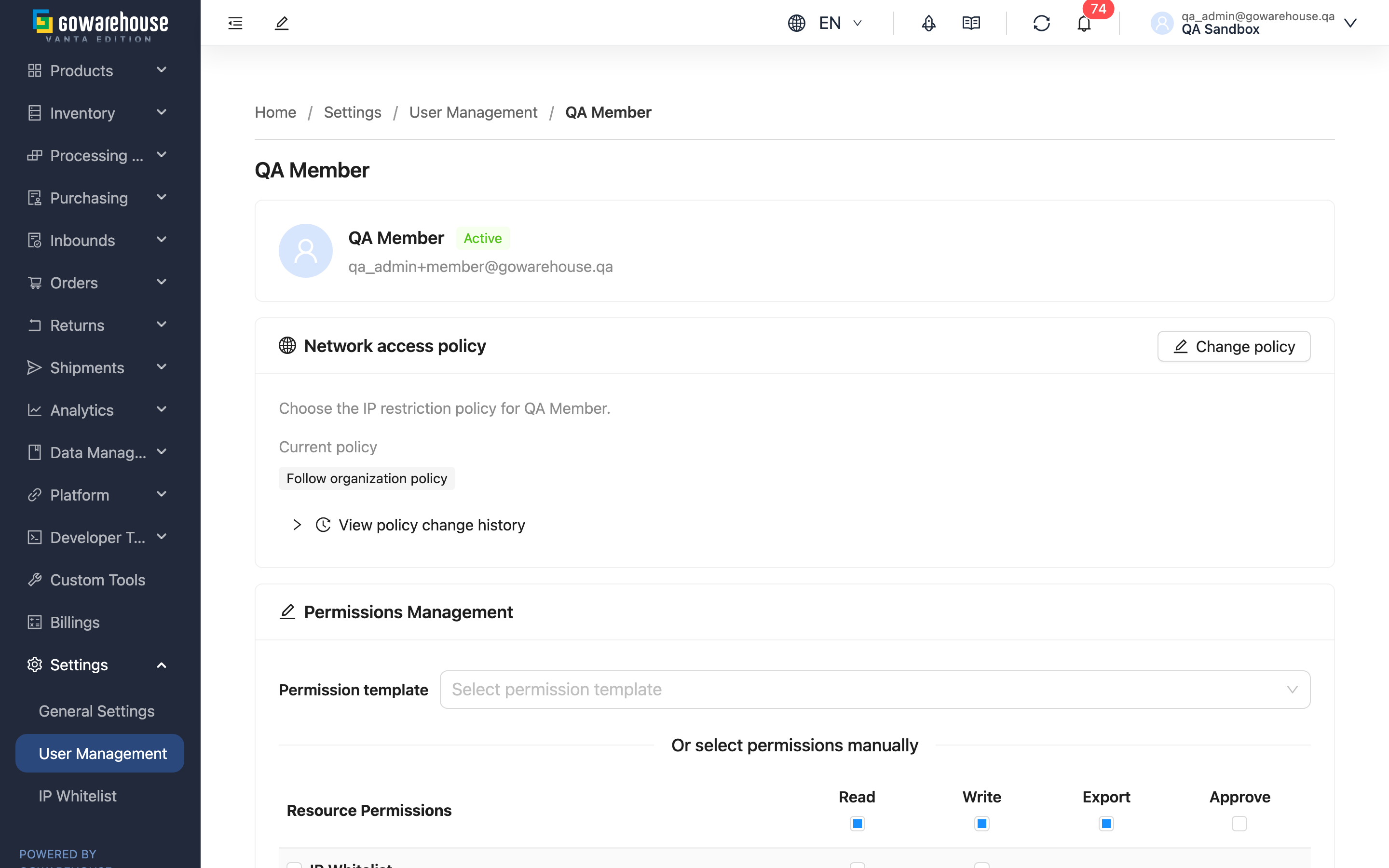
Edit User is where you adjust a single user's permissions: what they can see and do after logging in to the back office. The top of the page shows the user's name, email, account status, and invitation/modification records; below are the network access policy and permissions sections. Only people with the user-management write permission can modify others' permissions; opening your own account redirects you to the profile page — you cannot modify your own permissions.
Quick Jump: Account info | Network access policy | Permissions | Permission reference
1.1 Account info
The card at the top shows: name, email, whether the account is "Active" or "Disabled", who invited them and when they joined, the last modifier, and the disabled time (if disabled). Name and email are maintained by the user on their own profile page and are not editable here.
1.2 Network access policy
If you have configured a sign-in source restriction under "Settings" → "IP Whitelist", the "Network access policy" card decides whether this user follows that restriction. The card shows the Current policy, with two policies to choose from:
| Policy | Effect |
|---|---|
| Follow organization policy | Default. Sign-in sources are matched against the configured IP whitelist; an empty list means no restriction |
| Allow access from any network | This user is exempt from the IP whitelist and can sign in to the back office from any network |
Click "Change policy" to open the dialog and choose a policy; clicking "Apply policy" makes it take effect immediately, with no re-login needed. Switching to "Allow access from any network" requires a Business justification (up to 500 characters) explaining why the exception is needed; the reason stays visible on the card and is cleared automatically when you later switch back to "Follow organization policy". Every change is recorded — expand "View policy change history" to see who changed what and when.
Changing the policy requires the user-management write permission; without it you only see the current policy. The user list also has a "Network access" column so you can spot exceptions at a glance.
1.3 Permissions
The "Permissions Management" section offers two ways to grant permissions, and they can be combined:
- Apply a Permission template: pick a saved permission set from the dropdown and click "Apply"; the matrix loads the whole set and you fine-tune from there. Templates are shared by all managers under the same account.
- Custom selection: check items in the permission matrix. Rows are functions (such as orders, products) and columns are actions (read, write…); the checkboxes at the row and column heads select a whole row or column. See the permission reference for what each item means.
When you are done:
- Save: takes effect after a confirmation dialog. All of the user's logged-in devices are invalidated immediately; the new permissions apply after they log in again.
- Save as template: save the current selection as a template for later use; a template with the same name is overwritten, and a template cannot contain permissions beyond your own.
- Clear All Permissions: clears every checkbox. After saving, the user will see no function pages at all — normally only used as a step before disabling.
1.4 Permission reference
The four actions mean:
| Action | Meaning |
|---|---|
| Read | Open the function's list and detail pages to view data |
| Write | Create and modify the function's data (including status operations such as cancel and void) |
| Export | Export the function's data as downloadable files |
| Approve | Approve or reject submitted documents |
What each permission item controls (actions outside "Available actions" do not appear in the matrix):
| Permission item | Available actions | What it controls |
|---|---|---|
| Orders | Read, Write, Export | Orders, shipments, merge fulfillments, order holds, automation rules, sales and SLA analytics |
| Products | Read, Write, Export | Products, bundles, flexible products, BOM management, label templates, unknown products, serial number lookup, plus viewing the brand list |
| Inventories | Read, Write, Export | Current inventory, historical inventory, inventory movements, stock adjustments, inventory holds, inventory monitors, plus viewing the inventory transformation pages |
| Inbound Orders | Read, Write, Export | Inbounds (reporting what you send to the warehouse) |
| Purchase Orders | Read, Write, Export, Approve | Purchase orders; Approve = approve or reject submitted purchase orders |
| Return Orders | Read, Write, Export | Return orders |
| Suppliers | Read, Write | Supplier list |
| Brands | Write | Creating and modifying brands (viewing the brand list follows the Read permission of Products) |
| Inventory Transformation | Write | Creating inventory transformations (viewing follows the Read permission of Inventories) |
| Inventory Auto-Reclassify Rules | Write | Creating and modifying inventory auto-reclassify rules (viewing follows the Read permission of Inventories) |
| Contact Addresses | Read, Write, Export | Address book (recipient and sender addresses) |
| Consumables | Read | Consumables (items and usage of warehouse-managed packing materials) |
| Shelves | Read | Shelf lookup (where your products are stored in the warehouse) |
| Billings | Read, Write, Export | Billing (the bills the warehouse charges you) |
| Governance | Read, Write | Subscription and platform billing (bills, payment methods, usage records, AI center) |
| EC Accounts | Read, Write | E-commerce integrations (connecting and configuring sales platform accounts) |
| Shipping Accounts | Read, Write | Carrier integrations (carrier account settings) |
| Integrations | Read, Write | Integration management in developer tools |
| Webhooks | Read, Write | Webhooks (outbound notifications of system events) |
| Logs | Read | Integration logs (platform API logs, webhook logs, partner API logs) |
| Work Orders | Read, Write | Work orders (assembly, labeling and other processing you commission the warehouse to do) |
| Merchants | Write | Modifying account-level settings (general settings, sales channels, inventory type settings, import templates, custom attributes) |
| Users | Read, Write | User management (this page) and user invitations |
| IP Whitelist | Read, Write | IP whitelist (restricts the network locations that can sign in) |
2. FAQ
2.1 FAQ
▪ I changed the permissions — why does the person see no difference?
Saving permissions invalidates their existing logins; the new permissions apply only after they log in again. Ask them to log out and back in (or wait for the system to sign them out automatically).
▪ Why can't I modify my own permissions?
The system does not let anyone adjust their own permissions, to prevent self-escalation or accidentally locking yourself out. Ask another person with the user-management write permission to make the change.
▪ Can I grant Write without Read?
Not recommended. Access to a function's pages is controlled by the Read permission — with Write but no Read, the person cannot open that function's pages, so the Write permission is effectively unusable. Grant Read together with Write.
▪ Are permission templates personal or shared?
Shared under the same account: anyone with the user-management write permission can apply, overwrite, or delete them. When saving a template, its content cannot exceed your own permissions.
▪ I checked the permission but the person still can't see a page?
First make sure they logged in again. If it still doesn't show, the page may belong to a different permission item — use the permission reference to check which item the function actually falls under; some pages are also gated by plan features, which no permission can unlock if the plan doesn't include them.
▪ I set up an IP whitelist — why can a user still sign in from any network?
First check whether their network access policy is set to "Allow access from any network" — this exception exempts them from the whitelist entirely. The "Network access" column in the user list helps you spot it quickly, and "View policy change history" on the card shows who set it and when.
2.2 Notices
⚠️ Important
- "Allow access from any network" lets the user bypass the IP whitelist entirely — an elevated exception. Enable it only when necessary and review the exceptions on the list regularly.
- Saving permissions signs the user out of all devices immediately — avoid times when they are in the middle of work.
- Saving after "Clear All Permissions" leaves the person unable to do anything.
- Overwriting or deleting a template affects every manager who uses it — check that nobody else relies on it first.
💡 Tip: Apply a template first and then fine-tune; the matrix color-codes differences from the current settings, so you can see exactly what changed before saving.
3. Related Features
| Feature | Description | Link |
|---|---|---|
| User Management | Back to the user list to invite users or disable accounts | Go |
| Welcome | Overview of back-office features, to cross-check the pages each permission controls | Go |