
Partner API Logs
Contents
1. Use Cases
Quick links: The ERP says orders were sent, but the warehouse doesn't have them | Check what the old vendor did before switching
Case 1: The ERP says the orders were sent, but the warehouse can't find them
Situation: You sent today's orders to the warehouse from your ERP and it shows success, but the warehouse says it never received several of them, and customers are waiting.
Using this feature: Filter by integration source and time for the ERP integration's create-order calls, check the status code, and expand a row to see the error the system returned.
Result: You can tell whether the ERP never reached the warehouse, reached it with bad data (for example a SKU that doesn't exist), or was blocked by integration settings (disabled, IP not on the allowlist). Hand the error to the ERP vendor, fix it, and resend.
Case 2: Before switching integration vendors, confirm what the old one did
Situation: You're moving to a new ERP vendor and want to know what the old system actually did with the warehouse, so the new one doesn't miss anything.
Using this feature: Filter by the old vendor's integration source, then use the action filter to see which write actions occur (create order, create inbound, cancel order, and so on).
Result: You get a list of actions the new system must support, based on real records, so nothing is missed in the handover.
2. Features
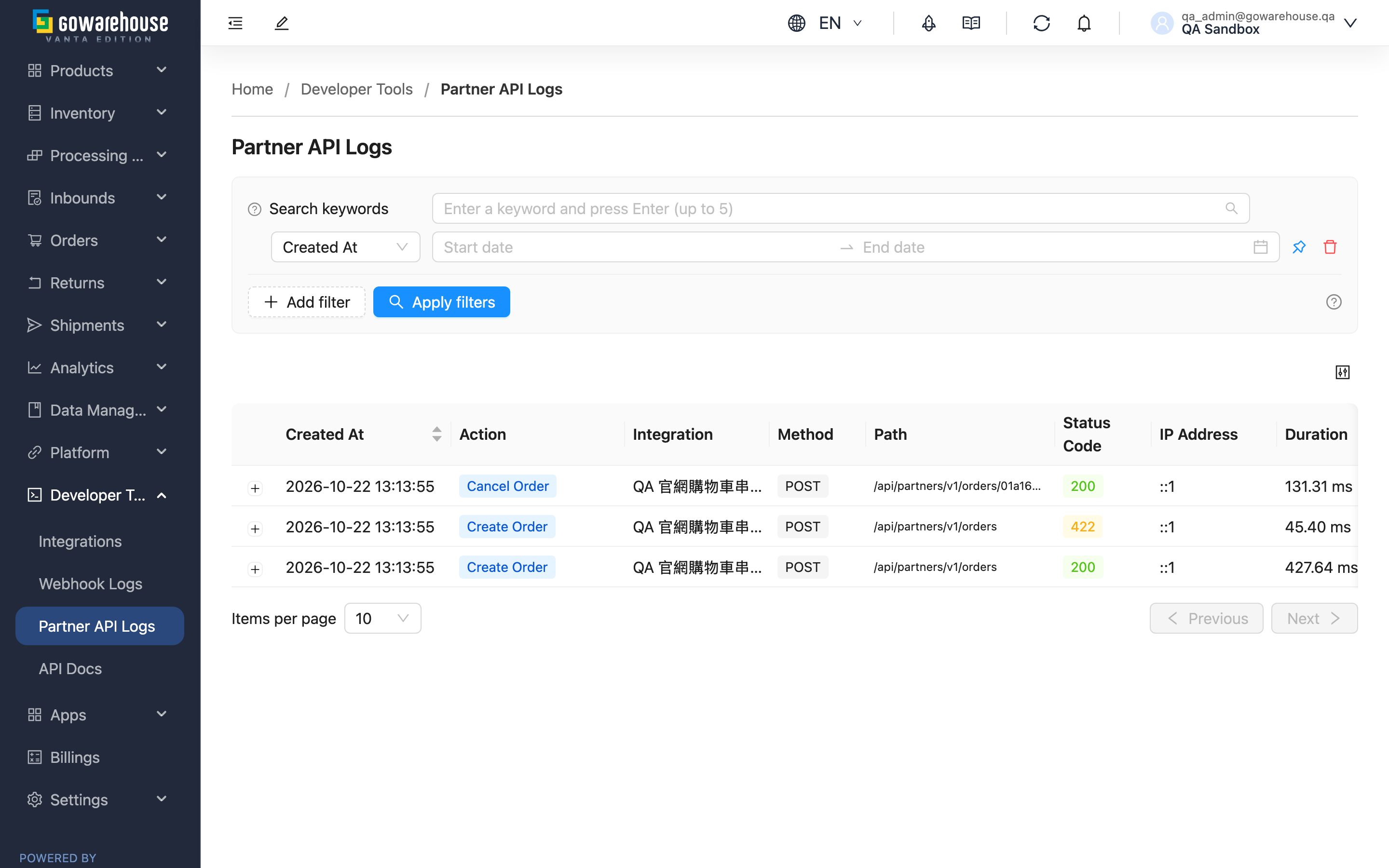
When your ERP, shopping cart, or other systems call the warehouse with an API credential from Integrations, every write (creating or changing orders, creating inbounds, and so on) and every failed call is recorded here. When the other system says "we sent it" but the warehouse has nothing, this page shows what they sent and what the system replied.
Quick jump: Search and filters | List columns
2.1 Search and filters
The list only shows records left by your brand's integrations. The search box matches part of the request path or the action code (for example create_order), not the translated action name shown on screen; to find calls by action, use the "Action" filter below.
| Filter | How to use it |
|---|---|
| Created At | Pinned by default |
| Integration | Show only one integration's calls; options include integrations that have no records yet |
| Action | Show only one kind of action, such as create order |
| Status Code | Enter full HTTP status codes such as 422; one per line to search several at once |
2.2 List columns
| Column | Description |
|---|---|
| Created At | When the call came in; click the header to switch between newest and oldest first |
| Status Code | Green for success (2xx), orange when the data sent or permissions were the problem (4xx), red for system errors (5xx) |
| IP Address | The IP the caller connected from — useful for checking which address belongs on the integration's IP allowlist |
Click the "+" on the left of a row to expand it: what the caller sent is on the left and the system's response on the right. Failed responses contain an error code you can pass straight to the vendor. Sensitive fields such as passwords and tokens are masked when the record is saved.
3. FAQ
Quick jump: FAQ | Important notes
3.1 FAQ
▪ The vendor says they looked up orders or products, so why is there no record?
Successful reads aren't recorded; only write actions and failed calls appear here.
▪ The vendor can't connect at all, but there are no records?
Calls with a wrong token or no token can't be matched to an integration, so nothing is recorded. Ask the vendor to confirm they're using the token currently valid in Integrations.
▪ The vendor was told they exceeded the call limit — why can't I find those calls?
Calls rejected for exceeding the daily call limit aren't recorded, so a vendor retrying over and over can't flood the records. The limit resets the next day; ask the vendor to call less often or resend the next day.
▪ How do I check the integration history of one order?
Open that order's detail page and go to the "Logs" tab. It lists the calls related to that order.
▪ How long are records kept?
About 2 months; older records are removed.
3.2 Important notes
⚠️ Important
- Records are removed after about 2 months and can't be recovered; save the details of any issue you need to keep longer.
💡 Tip: When troubleshooting one vendor, filter by "Integration" plus "Status Code" to list only failed calls, then expand each to read the error code.
4. Related Features
| Feature | Description | Link |
|---|---|---|
| Integrations | Create and manage API credentials and set the IP allowlist | Go |
| Order details | See one order's integration history in the "Logs" tab | Go |