
Edit Print Template
Table of Contents
1. Features
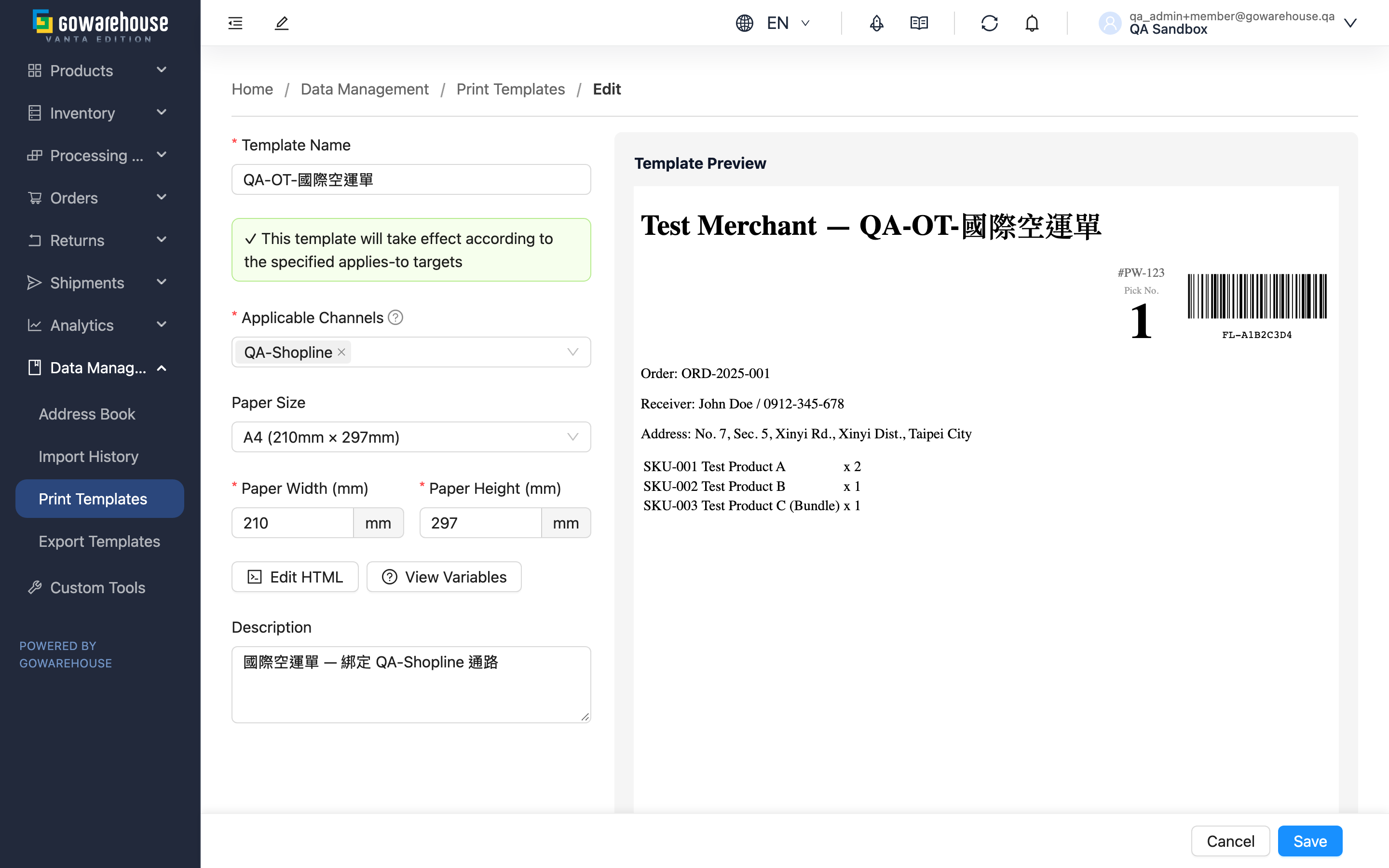
The edit page has the same fields as the add page, except all fields are shown at once instead of split into two steps, and the template type is already fixed and can't be changed. Changes take effect immediately after saving — the next shipment printed uses the new layout, while files already printed are unaffected.
Quick jump: What You Can Change | Layout Content | Save
1.1 What You Can Change
| Field | How to Fill In | Notes |
|---|---|---|
| *Template Name | Can be changed anytime | Parcel Slip can't share a name with another of your parcel slip templates |
| Set as default | Toggle on or off | Turning it on automatically un-sets the previous default |
| Applicable Channels | Re-choose which channels it applies to | Both Fulfillment Detail and Parcel Slip have this field. What's selected on screen at submission is what takes effect: unchecking a channel removes that binding, and it falls back to the default or the system's built-in layout |
| *Paper Size | Switch to a different paper size or change the width/height directly | Changing the size doesn't automatically adjust the layout content — always check the preview on the right for broken layout after resizing |
| Description | Purpose notes |
The template type doesn't appear among the editable fields. If you picked the wrong type, the only option is to delete it and create a new one (see Print Template Detail).
1.2 Layout Content
The same tools as the add page are available: Edit HTML to modify the layout, View Variables to check available fields, and Load Product Data (only for Product Label) to preview with a real product. See Step 2: Layout Content for what each tool does.
1.3 Save
The checks before saving are the same as when adding a template: Fulfillment Detail must keep the picking barcode variable, Parcel Slip must include a <head> tag, and the layout syntax must be correct. After a successful save, you're taken back to that template's detail page.
2. FAQ
2.1 FAQ
▪ Will orders that have already been created change after I make an edit?
The layout is applied at the moment of printing, so documents not yet printed will use the new layout, while files already generated stay as they were.
▪ It says I can't set this as the default when I turn on the switch?
That means this template already has a target specified. A template only takes effect one way — to switch it to a default, first clear Applicable Channels. For Product Label, remove the assignment on the product side first.
▪ I only wanted to change the name — why am I blocked by a layout content error?
The picking-barcode check for Fulfillment Detail runs on every submit, whether or not you touched the layout. An older template that is missing that variable therefore gets blocked even when you only rename it — follow the hint to add the picking-barcode variable to the layout and it saves together with the rename.
The <head> check for Parcel Slip does only run when the layout content actually changed, so renaming alone is never blocked by it.
▪ Why is the Applicable Channels dropdown empty?
That means you haven't created any sales channels yet — create one first under Sales Channels.
▪ I changed the size and now the preview looks broken?
Size and layout content are two separate things — shrinking the paper doesn't automatically shrink the layout. Adjust the layout to match, or change the size back.
▪ Can I change a template to a different type?
No. The type is fixed at creation — if you need a different type, create a new template instead.
2.2 Notes
⚠️ Important
- Changes take effect immediately after saving — the next print uses the new layout.
- Unchecking a channel removes that binding the moment you save, and those orders will fall back to the default or the system's built-in layout.
- Turning on the default switch causes the previous default template to lose its default status.
💡 Tip: For big changes, copy the template on the add page first and edit the copy, then delete the old one once you've confirmed everything looks right — shipment printing won't be interrupted in the meantime.
3. Related Features
| Feature | Description | Link |
|---|---|---|
| Print Templates | Return to the list | Go |
| Print Template Detail | Check the result after saving | Go |
| Add Print Template | Create another template | Go |