
Sign-in and account security
Contents
1. Features
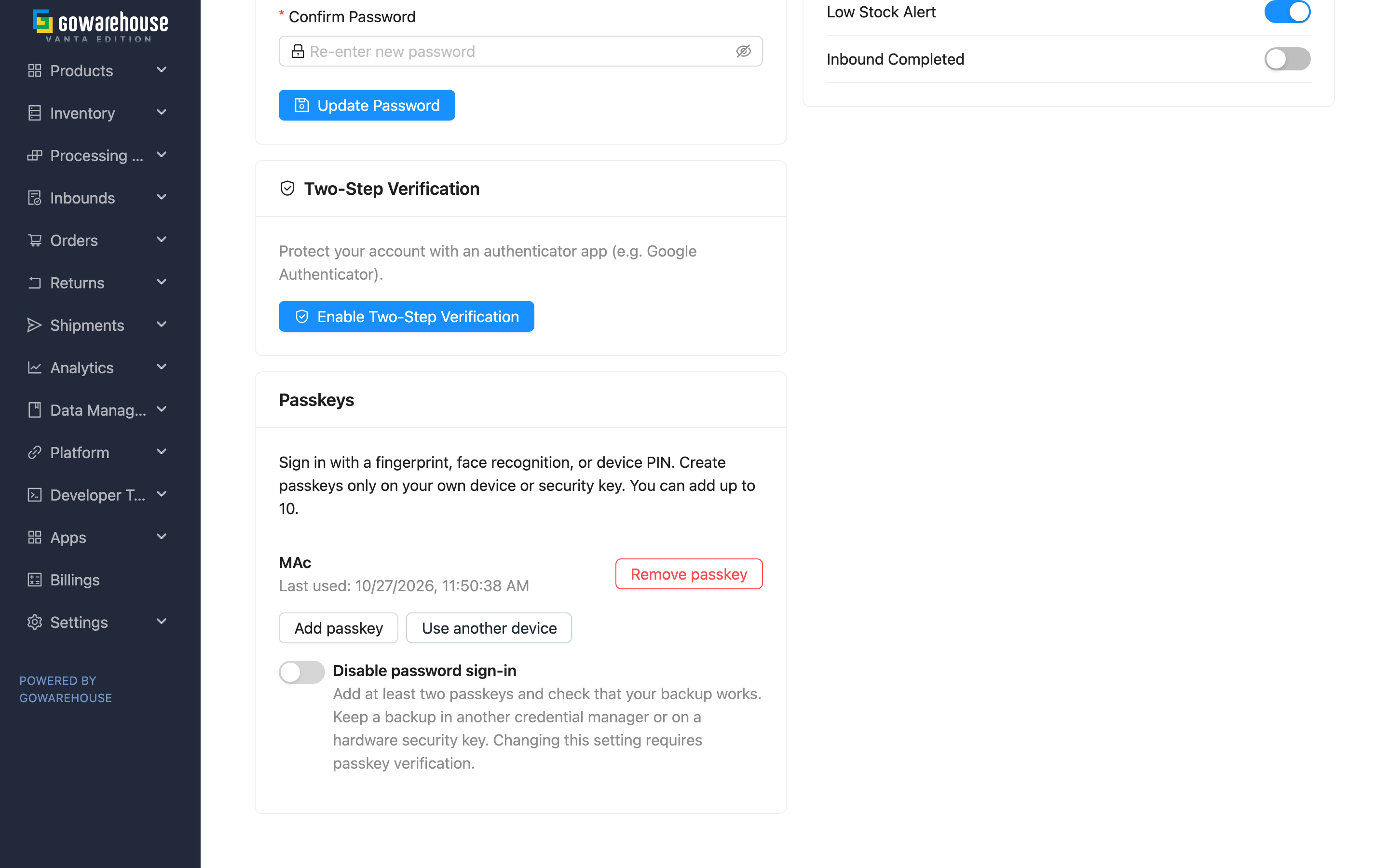
Personal security settings protect your account in the client portal. Passkeys let you sign in with a fingerprint, face recognition, or a device PIN, reducing the need to type a password. Adding or removing a key requires fresh identity verification. Password sign-in remains available by default. One active key is enough to disable password sign-in; your account email provides a recovery path if you lose the key.
1.1 Add a passkey
Before you start: sign in to your own account and use a supported browser over a secure connection. Passkeys are enabled by default.
- Open “Profile” from the account menu in the top right. Find “Passkeys” and click “Add passkey”.
- Enter a “Key name”, such as “Personal laptop”. The name is required and accepts up to 100 characters. It helps you identify which key to remove later.
- Verify with an existing passkey. If password sign-in is still enabled, you can also enter your current password. When two-step verification is enabled, the password method also requires a verification or backup code.
- Click “Confirm”, select your own device or security key in the browser prompt, and complete fingerprint, face, or PIN verification. The new key then appears in the list.
Each account can have up to 10 active keys on the same site. Do not create your passkey on a shared warehouse computer or in someone else's password manager. The same client account can use its passkeys across the brands it is authorized to access.
▸ Add a passkey on your phone
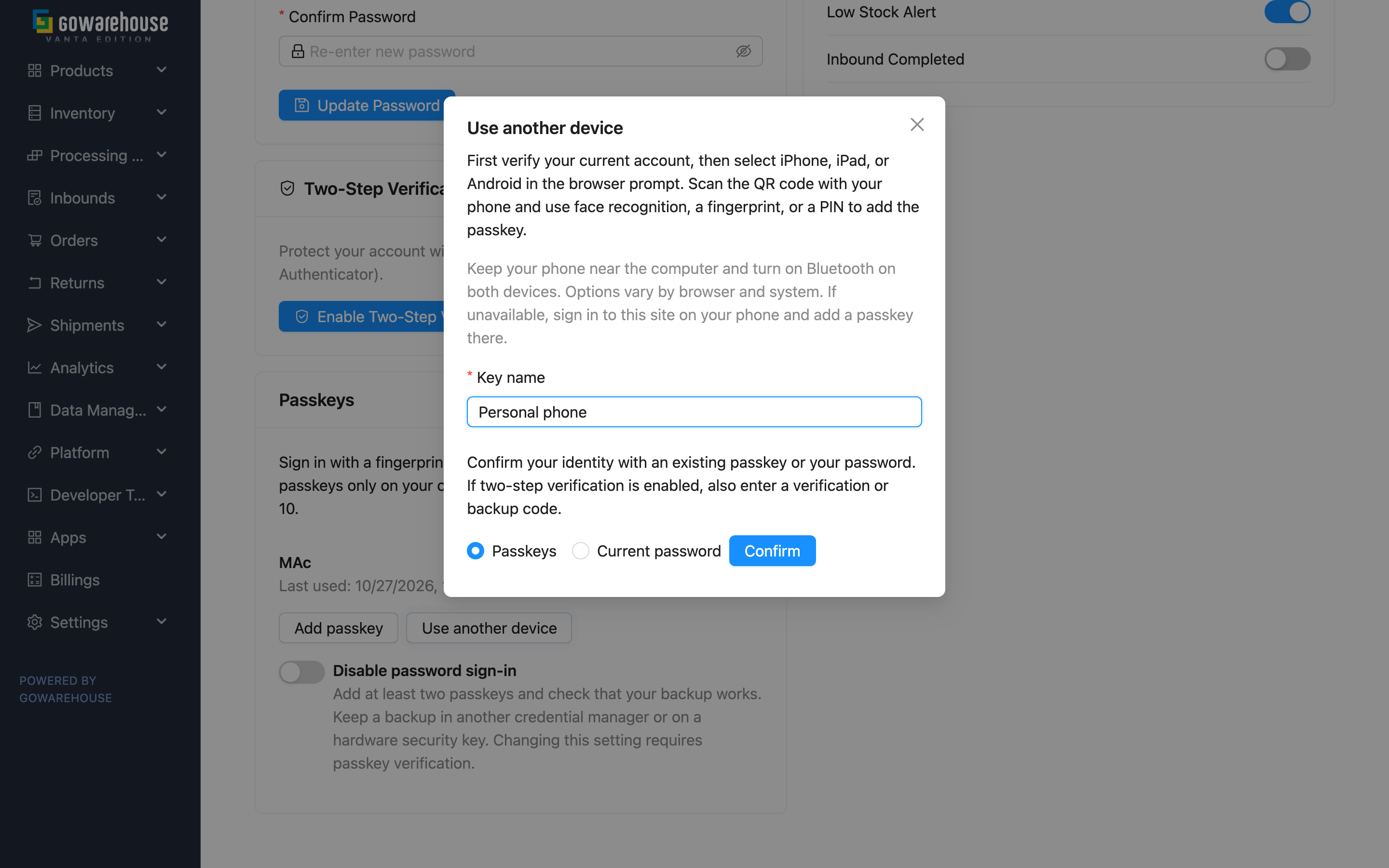
You can add your phone as another verification device even if you have only one computer:
- Click “Use another device”, enter a name such as “Personal phone”, and follow the prompt to verify your current account.
- In the browser prompt that follows, select another device, iPhone, iPad, or Android. Scan the browser's QR code with your phone, then use the phone's face recognition, fingerprint, or PIN to add the passkey.
- Return to the computer and check that the new key appears in the list. Keep your phone near the computer and enable Bluetooth on both devices. The options and their order depend on your browser and system.
If there is no phone option or QR code, sign in to the same site and account on your phone and click “Add passkey” there. A passkey already synced to your phone still counts as the same key, even when available on two devices. An independent backup requires a separately registered key.
1.2 Sign in with a passkey
On the sign-in page, click “Sign in with a passkey”. Select a registered key and complete device verification. Cancelling or failing verification does not automatically switch to another sign-in method. You can retry, or choose password sign-in if you have not disabled it.
If your passkey is on your phone, choose another device or the phone option in the computer’s browser prompt to display a QR code. Scan it with your phone and complete face, fingerprint, or PIN verification to sign in on the computer. Enable Bluetooth on both devices and keep them nearby; availability depends on your browser and phone. This uses an existing key to sign in, so you do not need to add it again and the key count does not increase.
If your organization requires stronger sign-in security, password sign-in may first take you to the security setup page. Set up two-step verification, or add a passkey on that page and click “Sign in with a passkey”. Business operations remain unavailable until you complete this step.
1.3 Remove a key
Find the key by its name and last-used time, then click “Remove passkey”. Verify your identity again. After removal, the key can no longer sign you in, and existing sign-ins on your other devices also end. You must sign in again. Removal cannot be undone; to use the same device again, add a new key.
1.4 Disable or restore password sign-in
Before you start: have one working passkey and check that your account has an email address you can access for recovery. A backup key is optional, not a requirement for disabling passwords.
- In “Passkeys”, turn on “Disable password sign-in”. It is unavailable without a registered key or on an unsupported browser.
- Read the effects and email recovery steps, click “Confirm”, and verify again with an existing passkey. This action does not accept a password.
- All existing sign-ins end. Sign in again with a passkey.
The setting affects only your current personal account, not colleagues or your other identity. To restore your existing password, turn off the same switch, verify with a passkey, and sign in again. Your existing two-step verification rules still apply. You cannot remove your last passkey while passwords are disabled. If you lose the last key, restore password sign-in through email recovery before removing it.
1.5 New devices and lost keys
| Situation | What you can do |
|---|---|
| New computer, credential manager still accessible | Use a synced passkey from the same manager on the new device; availability depends on the manager |
| No key on the new computer, but you still have your phone | Choose another device in the browser prompt, scan with your phone, and verify; device support may require Bluetooth and proximity |
| One key lost | Sign in with another key, remove the lost one, sign in again, and add a replacement backup |
| All keys unavailable, passwords still enabled | Sign in with your password and existing two-step verification, then add a key |
| All keys unavailable, passwords disabled | Use the password reset link sent to your account email to set a new password and restore password sign-in, then manage your keys |
Email recovery steps
- Click “Forgot password?” on the sign-in page and enter your account email.
- Open the latest password reset email. The link lasts six hours and can be used successfully only once. Changing the password sign-in setting also invalidates earlier reset links; request a new email if needed. If nothing arrives within a few minutes, the page will not tell you whether the email is wrong (it shows the same message whether or not the account exists): check that your email is correct and request again, or contact your administrator.
- Follow the link to set a new password. Completing the reset restores password sign-in and ends all existing sessions. Requesting or receiving the email alone does not change the setting.
- Return to the sign-in page and use the new password. Existing two-step verification still applies: email recovery does not clear TOTP settings. Use your authenticator or two-step backup code when required.
- Remove the lost passkey, add a working key, and disable password sign-in again if you wish.
The system cannot export or restore your private key, and dedicated passkey recovery codes are not currently available. If you cannot access your account email, contact support to discuss possible identity verification; recovery is not guaranteed.
2. Frequently asked questions
2.1 FAQ
▪ Why is the passkey sign-in button missing?
Passkeys are enabled by default, but your browser must support them over a secure connection. An unsupported browser shows a notice in personal settings and hides the passkey sign-in button. Use a supported browser. Password sign-in is an alternative only while it remains enabled.
▪ Why does scanning with my phone say the passkey already exists?
The selected device or credential manager already has a key for this account, so it cannot be added again. For example, a computer and phone using the same synced credential manager may hold the same passkey. Use it directly for cross-device sign-in. To prepare an optional independent backup, select another credential manager or a hardware security key and add a new key there.
▪ What if I replace my phone or lose a security key?
Follow new devices and lost keys to find an available method. Check that another key or password fallback works before removing old keys.
▪ Can I still use my password after adding a passkey?
Yes, by default. It stops working only if you separately turn on “Disable password sign-in”. See disable or restore password sign-in.
▪ What should I do if verification fails or expires?
Click the sign-in or add button again to start a new verification. Each verification is valid for five minutes; resubmitting an old result cannot sign you in. Too many attempts in a short period temporarily limits further attempts. Stop retrying and try again after five minutes.
▪ Can I manage a colleague's passkeys?
No. This area manages only your own account's keys and requires fresh identity verification. A disabled account cannot regain access through a passkey.
▪ Can the same device store passkeys for both a client and a warehouse account?
Yes. Add a separate key within each account. Client passkeys belong to your personal account and use your existing access to brands. Warehouse passkeys belong to your personal account within that company. The two identities have separate key lists and sign-ins. They can coexist but cannot substitute for each other.
▪ Why can I not change my password or turn off two-step verification with the correct password?
While password sign-in is disabled, actions requiring your current password also reject it. First use a passkey to restore password sign-in, then perform those actions.
2.2 Important notes
⚠️ Important
- Check that you can access your account email before disabling passwords. Email recovery is available if you lose your key. Protect your mailbox and two-step verification information.
- Passkeys do not grant additional permissions. Company, brand, network access, and account suspension restrictions still apply.
3. Related features
| Feature | Description | Link |
|---|---|---|
| Welcome | Find your way around the client portal | Open |
| People | View company accounts and their access | Open |