
Add Print Template
Table of Contents
1. Features
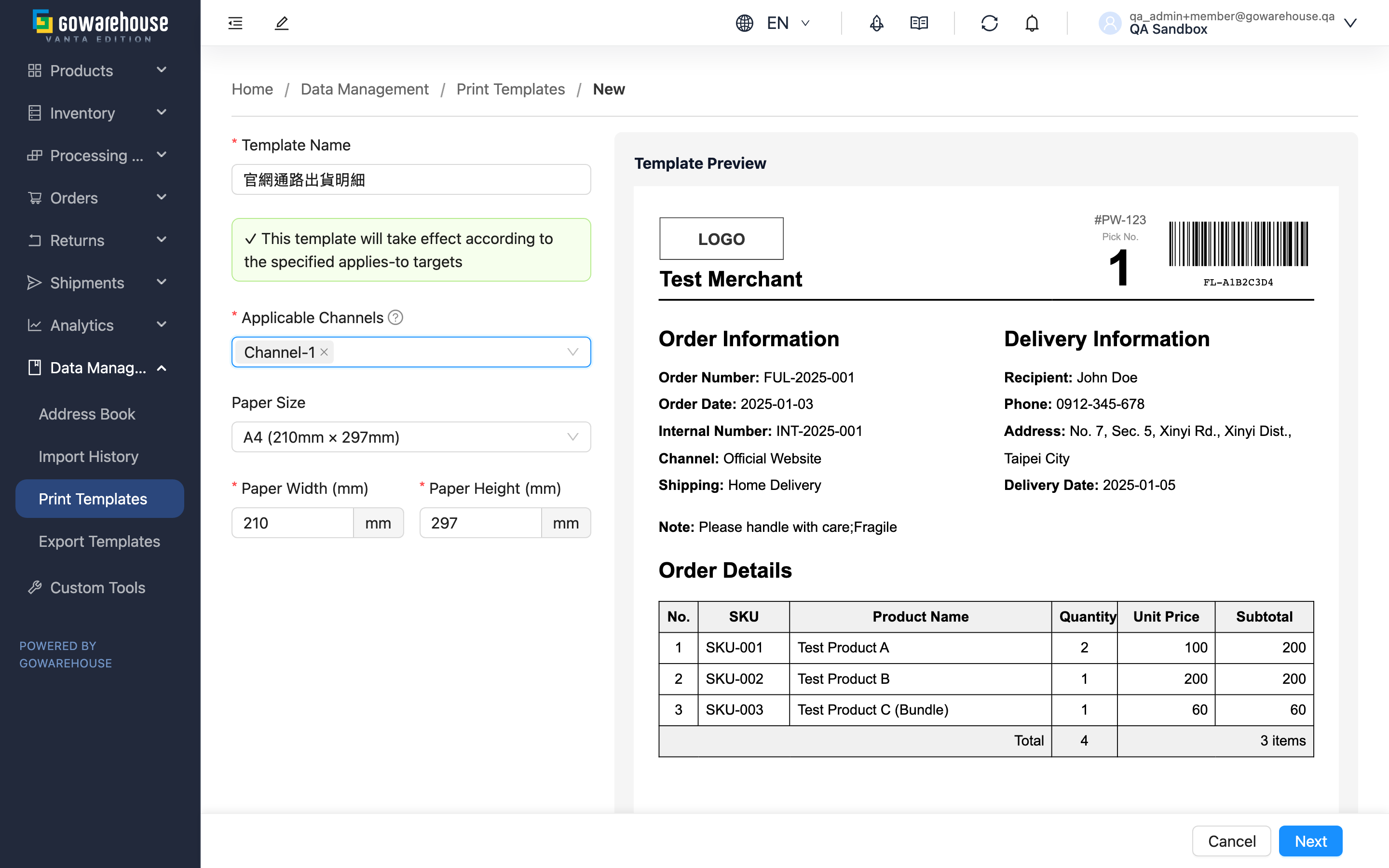
Creating a template happens in two steps: first decide what the template is, what size paper it prints on, and when it gets used, then edit the actual layout content. A preview stays visible on the right the whole time, so you see the result the moment you change a line — no need to actually print a copy just to check. You don't have to start from a blank page either — the system pre-fills the default layout for that type, and you edit from there.
Quick jump: Choose a Template Type | Step 1: Basic Info | Step 2: Layout Content | Save
1.1 Choose a Template Type
Clicking New on the list page first shows Select Template Type. Only after you choose one do you reach the form, because the fields you can fill in differ by type — and the type can't be changed once chosen. If you pick the wrong type, the only option is to delete it and create a new one. See Template Types for what each type is for.
1.2 Step 1: Basic Info
Fields marked with * are required
| Field | How to Fill In | Notes |
|---|---|---|
| *Template Name | Give it a name you can recognize at print time, for example "Website Order Packing Slip" | Parcel Slip allows up to 255 characters, and can't share a name with another of your parcel slip templates |
| Set as default | Turning this on means documents with no specified template will use it | Fulfillment Detail has no concept of a default, so this switch won't appear |
| Applicable Channels | Choose which channels' documents should use this template | Required only when specifying channels is the type's single way of taking effect automatically — Fulfillment Detail has no default to fall back on, so it is required; Parcel Slip can take effect through a default instead, so it is optional |
| *Paper Size | Pick a common paper size, or enter the width and height in millimeters directly | You can still adjust the numbers by hand after picking a paper size; width and height must be greater than 0, and the inputs accept 1mm at the lowest |
This page has no owner level option: templates created in the merchant console always belong to you, so there is nothing to choose, and Merchant is filled in automatically. Organization-wide templates are maintained by the warehouse and are not visible or manageable from the merchant console.
Product Label doesn't specify what it applies to here — that's done one by one on each product's record instead (see Edit Product), so this page only shows a single line explaining that.
The hint below the fields tells you in real time under what conditions this template will be used once it's created. When it shows the yellow hint about not being set as a default and having no applies-to target, it won't take effect automatically once created. Only Product Label can be picked manually at print time; fulfillment detail and parcel slip templates will never be printed while in this state.
Click Next once you're done to move to the next step; if a required field is missing, you'll stay on this step with that field flagged.
1.3 Step 2: Layout Content
| Tool | Purpose |
|---|---|
| Edit HTML | Opens the editor to modify the layout. The preview on the right updates as you go |
| View Variables | View which fields are available for this type (such as order number, recipient, product name) and the correct way to write them |
| Load Product Data | For Product Label only: pick a real product as the preview sample, to confirm long names and long specs don't break the layout. Click Reset to Sample Data to switch back to the sample data |
| Description | Enter a note about the purpose, for example "For website channel only, includes reorder discount code", to help you tell apart similar-looking templates in the list later |
Until you pick a real product, the preview uses the sample data the system provides — not your real order or product.
1.4 Save
Clicking Save and Add Another saves the template and clears the form, keeping you on this page to create the next one — handy when you need to build several at once. Submitting normally saves the template and takes you to its detail page.
Before submitting, the system checks the layout content: Fulfillment Detail must keep the picking barcode variable, or the warehouse won't be able to scan the barcode; Parcel Slip must include a <head> tag, or printing will fail. If there's a syntax error in the layout, submission is also blocked and the error is pointed out.
2. FAQ
2.1 FAQ
▪ I picked the wrong template type — can I change it?
No. The type determines which fields you can fill in and which layout fields are available, and it can't be changed after creation — delete it and create a new one instead.
▪ Why doesn't Fulfillment Detail have a default switch?
Packing slips only take effect by specifying a channel, so there's no default switch, and Applicable Channels is required instead.
▪ I already chose Applicable Channels — can I also set this as the default?
No. A template only takes effect one way — once you specify what it applies to, you can't also set it as the default.
▪ I picked A4 for the paper size, but I want it slightly narrower?
The paper size menu is just a shortcut to fill in width and height — after picking one, you can edit the numbers directly, no need to switch to a different mode. On the list page, the size column shows the paper name when the numbers exactly match a common size, otherwise it shows the dimensions in millimeters.
▪ It says the name is already in use after I submit?
Parcel Slip doesn't allow duplicate names — just choose a different name. The other two types have no such restriction.
▪ The Applicable Channels dropdown has no options?
That means you haven't created any sales channels yet — create one first under Sales Channels.
2.2 Notes
⚠️ Important
- The template type can't be changed once created.
- Turning on the default switch and saving immediately un-sets the previous default template — your documents will then print with the new layout.
💡 Tip: Product Label layouts are most likely to break on long product names or long specs. Before saving, use Load Product Data to check with the product that has the longest name — it's the safest way to be sure.
3. Related Features
| Feature | Description | Link |
|---|---|---|
| Print Templates | Return to the list to view all templates | Go |
| Print Template Detail | View the layout of the template you just created | Go |
| Edit Print Template | Modify an existing template | Go |