
Print Templates
Table of Contents
1. Use Cases
Quick links: Print your own brand on documents that ship with your orders | Use different layouts by channel or by product
Scenario 1: Print your own brand on documents that ship with your orders
Situation: Your products are stored and fulfilled by the warehouse on your behalf, and the packing slip that ships with your orders uses the warehouse's generic layout — no logo, no return policy, no customer service contact. Customers who receive a package can't find a way to reach you, so complaints go straight to the platform instead.
Use this feature: Create a Fulfillment Detail template, put your logo, return policy, and customer service info into the layout, and specify which Applicable Channels it applies to (see Template Types, Add Print Template).
Result: Every document the warehouse prints for you afterward automatically uses the layout you set — no need to check with the warehouse each time about which one to use.
Scenario 2: Use different layouts by channel or by product
Situation: You sell through both your own website and an ecommerce platform, and the platform requires specific wording on the documents that ship with orders, while your website orders should carry a member reorder discount code instead. Separately, you have a batch of gift-box products whose labels need to print larger than your regular products.
Use this feature: Create a separate Fulfillment Detail template for each channel with its own Applicable Channels; for Product Label, assign a template on the product record for that batch of gift-box products (see Edit Product) — every other product keeps using the default.
Result: The same shipment automatically switches to the right layout by channel and by product, without changing every document's settings just to handle a few exceptions.
2. Features
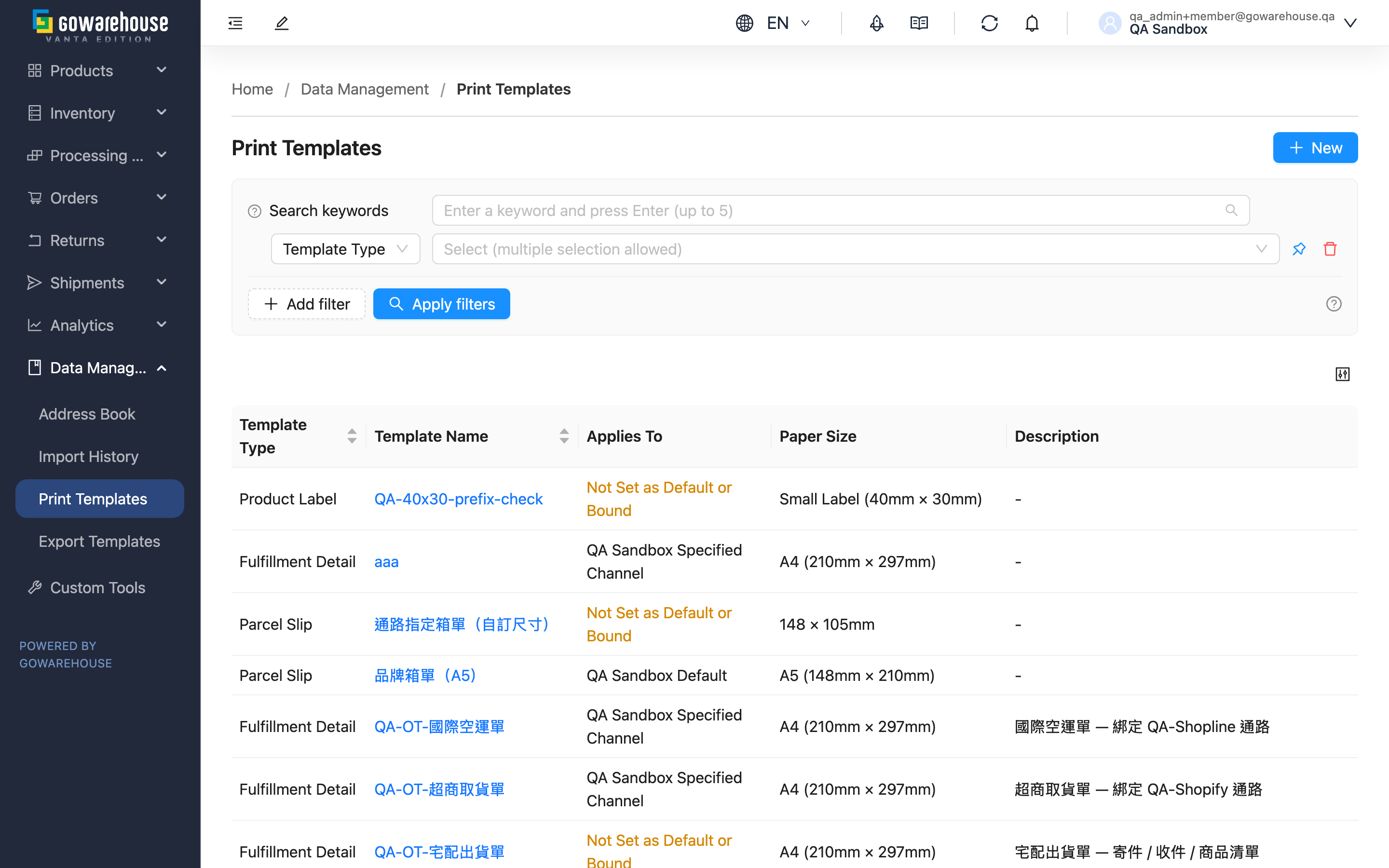
The packing slips, parcel slips, and product labels the warehouse prints when fulfilling your orders all follow a layout decided by a template. This page lets you maintain those layouts yourself — add your brand elements, adjust the fields and paper size, and decide under what conditions each one is used. Once it's set up, the system automatically picks the right template when the warehouse ships your orders, without you having to specify it order by order.
Quick jump: Template Types | Which Template Gets Used When Printing | Search & Filter | List Columns
2.1 Template Types
| Template Type | What It Prints | How It Takes Effect Automatically |
|---|---|---|
| Fulfillment Detail | The packing slip that ships with the order | Can only be scoped by Applicable Channels; has no default |
| Parcel Slip | Parcel/box contents slip, listing what's inside the box | Set as the default, or specify Applicable Channels |
| Product Label | The label attached to a product | Set as the default; can also be assigned to individual products on the product record |
Shelf labels and custom shipping labels belong to the warehouse's own print settings and don't appear in the merchant console.
2.2 Which Template Gets Used When Printing
The same type of document may have several templates at once. When printing, the system searches from the narrowest to the widest scope and stops at the first match:
- The template manually chosen at print time — for example, picking one yourself when printing a label from the product detail page.
- The specified target it applies to — Fulfillment Detail and Parcel Slip look at which channel the order came in through, and the product label looks at the template assigned on the product. A Parcel Slip is printed for a whole fulfillment, so it looks at the channel of the earliest-placed order in that fulfillment.
- Your default template.
- The warehouse's organization default template — used when you have no default of your own.
- The system's built-in default layout — used when none of the above exist, so there is never a case where nothing can be printed.
The Applies To column in the list shows which of steps 2 through 4 this template falls under. When it shows "Not Set as Default or Bound" in yellow text, this template won't be picked automatically. Of the three types, only Product Label can be picked manually at print time; the fulfillment detail and parcel slip print screens have no selection entry point, so for them the yellow text means "it will never be printed".
2.3 Search & Filter
The search box above matches by Template Name or Description keyword; the filters let you narrow down by Template Type and Template Name.
2.4 List Columns
| Column | Description |
|---|---|
| Template Type | Which type of document this template prints (see Template Types) |
| Template Name | Click to open the detail page and view the layout and content |
| Applies To | Under what conditions this template is picked automatically (see Which Template Gets Used When Printing) |
| Paper Size | The actual output size. Shows the paper name when it exactly matches a common paper size, otherwise shows the dimensions in millimeters |
| Description | The notes entered when the template was created, used to tell apart templates with similar layouts |
The New button in the top right leads to Add Print Template; clicking a template name opens Print Template Detail, where editing and deleting are both done. The New button won't appear if you don't have edit permission.
3. FAQ
3.1 FAQ
▪ I created a template, so why does my shipment still print the old layout?
First check the Applies To column in the list. If it shows "Not Set as Default or Bound", it has no way of taking effect automatically, and printing will follow Which Template Gets Used When Printing to find a different one. Set it as the default, or specify which channel it applies to.
▪ Why doesn't Fulfillment Detail have a "set as default" switch?
Packing slips currently only take effect through Applicable Channels, so there's no default switch, and Applicable Channels is required instead. If no template matches the channel, the system's built-in default layout is printed.
▪ Can a template that's already scoped to a channel also be set as the default?
No. A template only takes effect one way — once you specify what it applies to, you can't also set it as the default, and vice versa.
▪ I haven't created any templates — what will the warehouse print?
It depends on the type. Parcel Slip first looks for the organization default the warehouse has set up and only then falls back to the system's built-in default layout; Fulfillment Detail and Product Label have no organization-default step and go straight to the built-in layout. None of the three ever fails to print.
▪ Why can't I find shelf label or shipping label templates in the list?
Those two belong to the warehouse's own print settings and aren't available in the merchant console.
▪ What happens to my shipments after I delete a template?
First check whether it specifies Applicable Channels: a template still bound to channels cannot be deleted — you get "This template is still bound to a sales channel and cannot be deleted", and you have to unselect those channels first.
Otherwise it deletes, and the Product Label assignment on the products is cleared automatically. After deletion, printing follows Which Template Gets Used When Printing down to the next step, eventually falling back to the system's built-in default layout. Files already printed are unaffected, but the deletion itself can't be undone.
▪ I can't see Print Templates, or I can see it but can't create a template?
Viewing and editing are two separate permissions. If you can see the list but not the New button or the edit/delete buttons, your account only has view permission — contact your administrator.
3.2 Notes
⚠️ Important
- Deleting a template cannot be undone. A template still bound to channels is blocked and cannot be deleted; one bound to products can be deleted, but those products lose their assignment and fall back to the default.
- Setting a template as the default also un-sets the previous default — your documents will immediately switch to the new layout afterward.
💡 Tip: Yellow text in the Applies To column is a signal that "this template won't be picked automatically." After creating a template, glance back at the list to catch any template you forgot to configure.
4. Related Features
| Feature | Description | Link |
|---|---|---|
| Add Print Template | Create a new print template | Go |
| Print Template Detail | View the layout, preview, and delete | Go |
| Edit Product | Assign Label template to an individual product | Go |
| Sales Channels | View which channels are available to specify | Go |