
Manage apps
Contents
1. Scenarios
Scenario 1: Use an order tool provided by your team
Situation: Your team has provided an additional order tool for daily operations. You need to use it with the correct merchant’s data.
Use this feature: Open an installed tool, or select orders from the order list for a bulk operation.
Result: The tool uses the selected merchant’s context without asking you to choose the account again.
2. Features
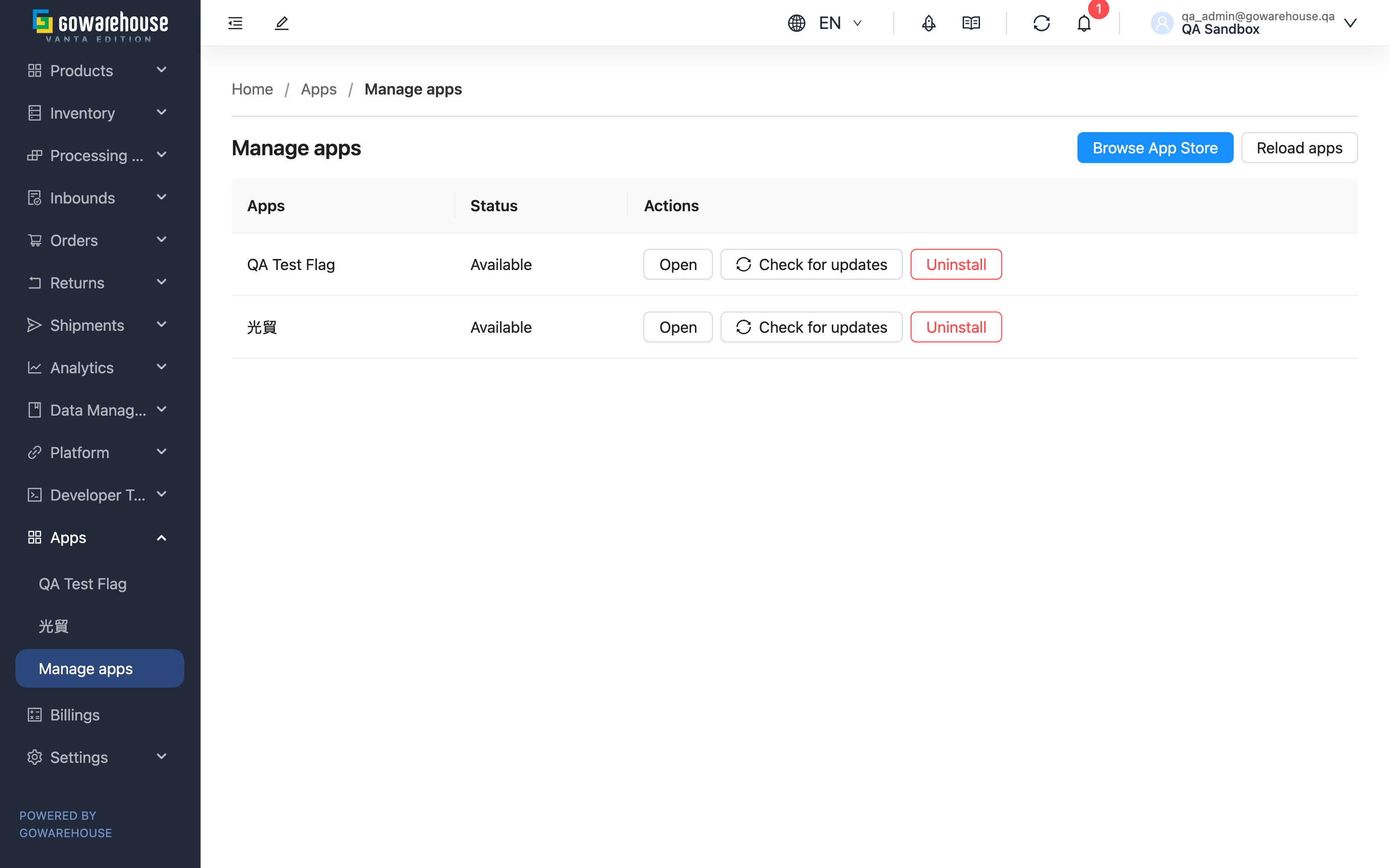
This page lists apps installed for the selected merchant. You can open a tool or stop its access. Users with integration management permission can browse and install apps after reviewing their permissions. Switching merchants loads that merchant’s installation list.
2.1 Open an app and check availability
Opening an app requires integration viewing permission. In the default sidebar order, “Apps” appears immediately after “Developer Tools” at the same level. Your saved custom order is retained. Expand “Apps” in the sidebar and select an installed app by name. Select “Manage apps” to return to the installation list. You can also select “Open” from the list.
The app fills the console’s content area, with the sidebar retained. Use “Manage apps” in the sidebar or your browser’s Back button to return. You can bookmark this page or open it in a new tab; reloading checks your current access again. App actions on orders still open in an action dialog.
“Available” allows opening; “Suspended” does not. An empty list means this merchant has no installed apps. Contact the team that provides the tool.
Merchant apps can access only the merchant data covered by installation consent. Online operations also require the current user’s permission. If the app version declares event notifications and you grant subscription permission, installation creates the subscription automatically. Notifications start after the app completes its receiver setup. One app can receive multiple subscribed event types. Events before activation are not replayed; uninstalling stops notifications.
2.2 Uninstall
Integration management permission is required. Select “Uninstall” and confirm to remove the app from the list and sidebar and invalidate its existing access. Uninstalling does not cancel orders or change inventory, and order flags the app already wrote are kept. Follow the installation flow to install it again.
2.3 Install from App Store
- Select “Browse App Store” to open App Store in the same tab with the current installation owner.
- Open an app’s details and select Install to return to this page. In the confirmation dialog, review the app icon and name, publisher, “Install for” and requested permissions. Expand “Details” to view the version and app domains.
- Enable “I agree to grant these permissions.”, then select “Agree and install”. After installation, the page reloads and the app appears in the installed list and sidebar.
Admin installations belong only to the merchant selected when starting the flow. Do not switch merchants during confirmation.
Selecting a version does not install it. Cancelling grants no permissions and does not affect existing tools. If the app already has an active installation, choosing another version does not overwrite it.
2.4 Check for updates and upgrade
- Users with integration management permission can select “Check for updates” beside an app.
- Compare “Current version” and “Latest version”. When an update is available, review the owner, publisher, all requested permissions and app domains. New permissions are marked.
- Enable “I agree to the permissions for this version and confirm the upgrade” at the bottom of the dialog, then select “Confirm upgrade”. The consent switch and action buttons stay visible while you scroll through the details. The page reloads afterward; you will be guided through connection authorization if needed.
Checking does not modify the installation. Upgrading preserves the installation and integration settings, applies the new permissions and event subscriptions, and invalidates existing windows and authorizations. Reopen the app afterward. If there is no update or the destination platform does not support it, the dialog explains the result without offering upgrade confirmation.
Confirmation expires after five minutes. If the release is withdrawn, the installation or permissions change, or the login session expires, check again and review before confirming. A failed check never triggers an automatic upgrade. Ask an administrator for help with legacy installations that have no App Store version mapping.
3. FAQ
3.1 Questions
▪ Why is an app missing?
Check the selected merchant first. Warehouse staff can only use tools for authorized merchants. If the merchant is correct and the list remains empty, ask the team to check the installation. If the menu is missing, ask an administrator to check integration viewing permission.
▪ What should I do when the app expires?
Reload the page in your browser, or return to the list and open the app again. For order action dialogs, close and reopen the dialog. Switching merchants, signing out, changing permissions or uninstalling can invalidate an existing window. Closing it does not undo completed operations; check saved results before retrying.
▪ What if an app does not load?
If the installation list does not load, select “Reload apps” to reload it. A loading indicator appears while the app connects. If it has not connected within 15 seconds, an error screen offers “Reload apps” to open it again. If it still cannot open, share the app name and error message with the team that provides it.
▪ Why can’t I select Browse App Store?
Select a merchant first, then ask an administrator to check that you have integration management permission.
▪ What if confirmation expires or installation fails?
After signing out, changing accounts or losing permission, select the app and version again. Retry temporary connection failures; if a version has been withdrawn, select another available version. If the store cannot open, ask an administrator to check the App Store connection settings. Share persistent errors with an administrator.
▪ Does an installed app automatically move to its new website?
It does not change automatically. Later store edits or publications do not change the version or website origin of your existing installation. Use Check for updates and upgrade, review the new domains and permissions, and explicitly confirm. Upgrading invalidates old windows and authorizations; reopen the app afterward.
▪ Why is an app name or action button in another language?
App names and action buttons use translations included with the installed app. When no matching translation is available, the app’s default language is shown. Traditional and Simplified Chinese do not automatically substitute for each other; either may still appear if the app uses it as its default language.
3.2 Notices
⚠️ Important
- Uninstalling stops the app’s access immediately. Reinstalling does not restore access for old windows.
4. Related Features
| Feature | Purpose | Link |
|---|---|---|
| Order list | Select orders for a bulk tool | Open |
| Order details | Check order progress | Open |