
IP Allowlist
Table of Contents
1. Use Cases
Quick links: Scenario 1 | Scenario 2
Scenario 1: Allow sign-in only from your warehouse network
Situation: As the warehouse supervisor responsible for your organization's security, you know the warehouse operations system holds your full inventory, order, and fulfillment data. You don't want anyone signing in from a café, from home, or over public Wi-Fi — only from your company warehouse network.
Use this feature: Add your warehouse's fixed public IP to the IP Allowlist. You can use CIDR notation to cover an entire office subnet in one entry. Once set, only sources on the list can reach this warehouse's system; everything else is blocked.
Result: Access to the warehouse system is narrowed to the network ranges you specify. Outside sources cannot sign in, reducing the risk of a leaked account being used from an unknown location.
Scenario 2: Open access for a specific VPN or remote site
Situation: Beyond the warehouse floor, a few staff need to reach the system from a second site or through the company VPN — but you still don't want to open access to the whole world.
Use this feature: Add the VPN exit IP or the second site's public IP to the IP Allowlist, and note its purpose in the description field (e.g. "Taipei office VPN") so each rule's source stays easy to identify later.
Result: Legitimate remote sources can work normally while any network off the list stays locked out, and the description makes it clear who each rule was opened for.
2. Features
The IP Whitelist is a list of "network sources allowed to access the system." Once you set at least one rule for this warehouse, the system checks the source IP of every connection: only sources within the listed ranges can enter the warehouse operations system, and anything else is blocked with an access-denied message. When the list is completely empty, no restriction applies and all sources can access — so this is a defense you actively turn on and can remove at any time.
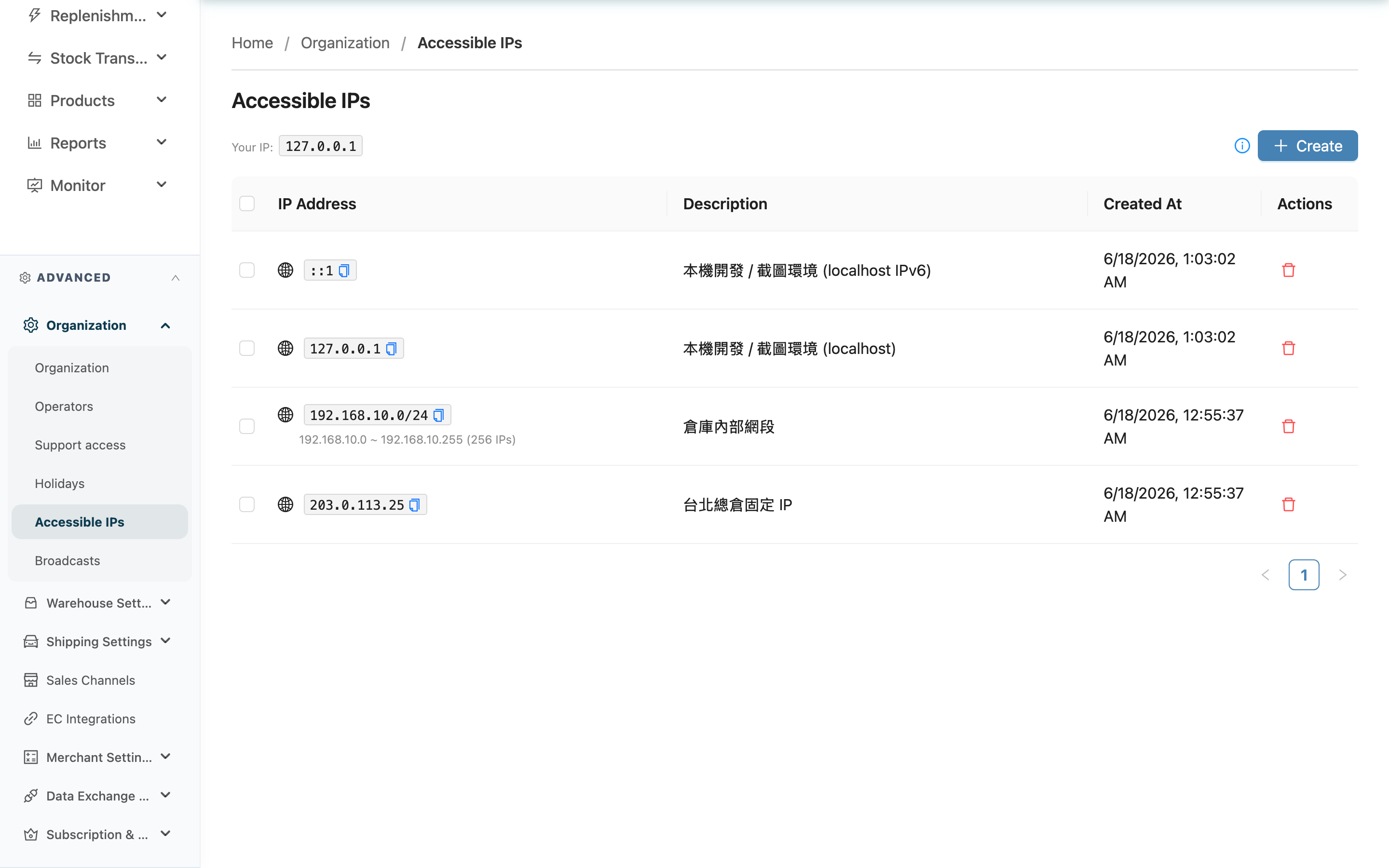
Quick jump: Allowlist | Add a rule | Delete a rule
2.1 Allowlist
At the top of the page, Your IP shows the public IP of the computer you are using right now, so you can confirm whether you fall within the list. Each configured rule appears in a table:
| Column | Description |
|---|---|
| IP Address | The source this rule allows. For a CIDR range, the covered start/end IPs and total count are calculated below it, so you can see at a glance how many addresses the rule admits |
| Description | The purpose note you entered for the rule; shows "-" when left blank |
| Created At | When the rule was created |
This feature only supports adding and deleting rules — there is no "enable / disable" toggle. To temporarily admit a source, add a rule; when it's no longer needed, delete it. Every rule on the list is in effect.
2.2 Add a rule
Click Create to open the dialog and fill in:
Fields marked with * are required
| Field | How to fill | Notes |
|---|---|---|
| *IP Address | Enter a single IP (e.g. 203.0.113.50) or a CIDR range (e.g. 203.0.113.0/24) | Required. An invalid format is rejected and cannot be saved. The dialog has a "Use my IP" button that fills in your current IP with one click |
| Description | Note the rule's purpose, e.g. "Warehouse office fixed IP" or "Taipei office VPN" | Optional, but recommended so you can tell later who each rule was opened for |
When you enter a CIDR range, the dialog calculates the covered start/end IPs and total count in real time, helping you confirm you haven't admitted too large a range. The system also checks your current IP live: if this rule (or any existing rule) already covers your IP, a green confirmation appears; if none cover it, a red warning is shown.
Preconditions and side effects: A rule takes effect immediately once created — the next connection is matched against the new list. Adding a rule only affects "who can access the system"; it never changes any inventory, order, or fulfillment data.
2.3 Delete a rule
Each row has a delete button to remove a single rule; you can also select multiple rows and use "Batch delete" to remove several at once. A confirmation appears before deletion.
Preconditions and side effects: Deletion takes effect immediately and cannot be undone. After removal, a source not covered by any other rule is locked out of the system. If you delete a rule that includes your current IP, and after deletion the list is still non-empty yet no remaining rule covers your IP, the system requires you to type "confirm" before continuing, so you don't lock yourself out (see FAQ). Deleting the list down to completely empty returns to the "no restriction, allow all" state.
3. FAQ
3.1 FAQ
▪ Exactly who does this allowlist restrict?
It restricts "who can enter this warehouse's operations system." Once set, the system checks the source IP of every connection; a source off the list is blocked during operations and sees the message "Your current IP is not on the allowed list." It governs the access source, not account permissions. A few members can be configured as exceptions not subject to the list — see the next question.
▪ After setting up the allowlist, why can someone still sign in from a network off the list?
There are two kinds of exceptions. One: the member's "Network access policy" is set to "Allow access from any network" — you can set and review each member's policy in Edit Operator, the "Network access" column in the operator list helps you spot exceptions quickly, and every change leaves a reviewable history. Two: support staff authorized through Support Access are not subject to the allowlist during the authorized period; once the authorization is revoked, they can no longer enter your organization.
▪ When the list is empty, does that mean nobody can get in?
The opposite. When the list is completely empty, no restriction applies and all sources can access. The restriction only begins once you add at least one rule — then only listed sources get in and others are blocked.
▪ Could I lock myself out of the system?
There are multiple safeguards. When adding, if neither your new rule nor any existing rule covers your current IP, the dialog shows a red warning and blocks you, asking you to first add a rule that includes your own IP. When deleting, if it would leave the list non-empty yet with no rule covering your IP, the system requires you to manually type "confirm" as a second confirmation before proceeding. The "Use my IP" button in the dialog also lets you quickly add your own IP to the list.
▪ My IP keeps changing — can I still use this?
If your network has a dynamic IP (a different address each time you connect), use a CIDR range that covers the whole subnet, or ask your network provider for a fixed IP. With a single-IP entry, the next connection may fall off the list and be blocked when your address changes. The page top always shows your current IP for reference.
▪ Is each warehouse's allowlist separate?
Yes. The allowlist is bound to the warehouse you are currently in — you configure the list of whichever warehouse you are working in. Switching to another warehouse shows and edits that warehouse's own list; they do not affect one another.
▪ How many IPs does my CIDR range admit?
The add dialog calculates it in real time as you type and shows the covered start/end IPs and total count; each CIDR rule on the list also shows its range and count below it. Check the number before saving to avoid accidentally admitting too large a subnet.
▪ Why doesn't the allowlist block me on this very page after I add a rule?
The IP Allowlist management page is intentionally exempt from the allowlist. This is so that if you set a rule wrong, you can still get back in to fix the list; the restriction is only applied on the other operation pages.
3.2 Notes
⚠️ Important reminders
- The moment you add the first rule, the restriction takes effect immediately: sources off the list are blocked right away, so first confirm your own IP — and those of every colleague who needs to work — are all covered.
- Deleting a rule cannot be undone and takes effect immediately; after removal, a source not covered by any other rule is locked out of the system.
- When setting a CIDR range, check the calculated "total covered" carefully so one rule doesn't accidentally admit an overly large subnet.
- The allowlist cannot block members set to "Allow access from any network" (see FAQ) — when tightening the list, review those exceptions as well.
💡 Tip: Before adding a rule, glance at the "Your IP" shown at the top of the page and use the "Use my IP" button to make sure your own source is on the list, then start tightening the other restrictions.
4. Related Features
| Feature | Description | Link |
|---|---|---|
| Organization Settings | Set organization-level security policies (such as two-factor authentication), a defense line alongside the IP Allowlist | Go |
| Operators | Manage warehouse staff accounts and permissions, paired with the IP Allowlist to narrow access sources | Go |
| Support Access | Authorize support staff for temporary access and manage the scope of external help | Go |