
Inbound Details
Table of Contents
1. Features
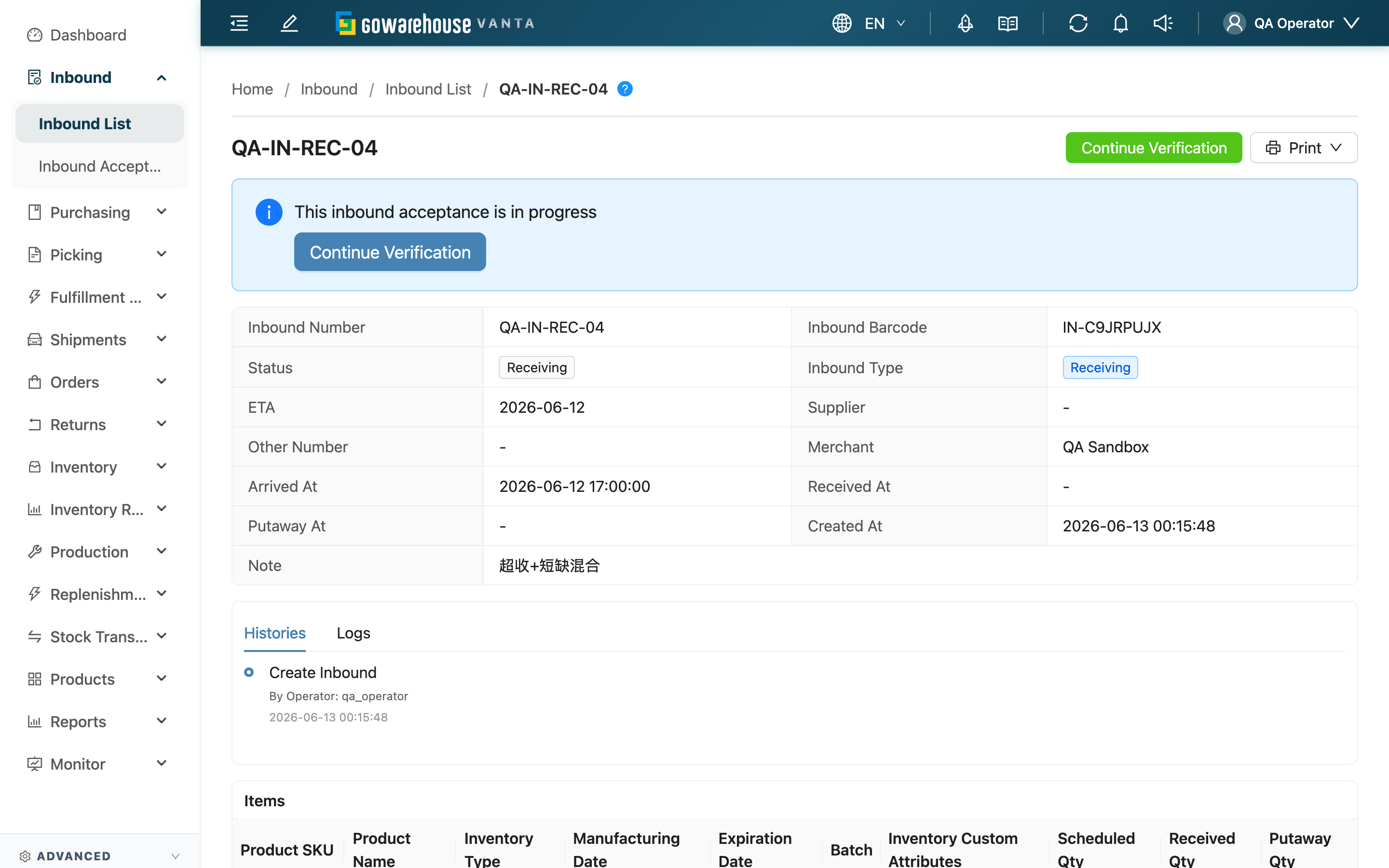
The inbound details page is your hub for handling one delivery from start to finish. When the supplier drops off the goods, you first confirm the expected items and quantities here, press "Start Acceptance" to start receiving, put the goods away based on the warehouse setup, and come back here to track how far "Received Qty" and "Putaway Qty" have progressed. The full history, every receipt batch, serial numbers, and putaway locations are all gathered on this page; if the data is wrong and still in "Pending", you can fix or cancel it here.
Quick Jump: Basic Info | Action Buttons | Content Sections | Statuses & Transitions | Receive, Putaway, Post to Stock | Cancel / Resume / Reopen | Reassign Purchase Order
1.1 Basic Info
The top of the page lists this inbound's core data at a glance:
| Field | Description |
|---|---|
| Inbound Number | The main number that identifies this inbound |
| Inbound Barcode | The inbound barcode; you can scan it to pull up this inbound during receiving |
| Status | Current progress; all six statuses are in 1.4 Statuses & Transitions |
| Inbound Type | Receiving / Sales Return / Production |
| ETA | The date the goods are expected to arrive at the warehouse |
| Supplier | Where the goods come from |
| Other Number | A reference number from a third-party system, e.g. a PO or shipping number |
| Merchant | The merchant this delivery belongs to |
| Arrived At | When the goods actually arrived at the warehouse |
| Received At | When receiving was completed |
| Putaway At | When everything was put away and the whole inbound was completed |
| Created At | When this inbound was created |
| Note | Any additional notes |
📌 Note: For a "Sales Return" inbound, an extra row shows the linked return order; click it to view the return source.
1.2 Action Buttons
The buttons in the top-right show or hide based on the current status and your permissions. If you don't see a button, it usually means the current status doesn't allow that action (see 1.4 Statuses & Transitions), or you lack the permission.
| Button | When It Appears | What It Does |
|---|---|---|
| Verify Items | "Pending" status | Goes to the inbound acceptance page to start receiving item by item; the top of the page also has a large prompt card with a "Start Acceptance" button |
| Continue Verification | "Receiving" status | Resumes unfinished receiving after you left partway through |
| Manual Putaway | When there are receipts pending putaway and this is a dynamic-location warehouse | Performs manual putaway, scanning each item plus location (see 1.5 Receive, Putaway, Post to Stock) |
| Edit | Only "Pending" status | Opens the edit page to change items, quantities, etc. |
| Always shown (dropdown) | "Download PDF" downloads the inbound PDF, "Download Labels" downloads product labels; once generated, download from the background jobs notification | |
| More actions → "Resume" | Only "Canceled" status | Returns a canceled inbound to "Pending", with a confirmation dialog (see 1.6 Cancel / Resume / Reopen) |
| Exception Control → "Cancel" | Only "Pending" or "Receiving", and a receiving / return type | Voids this inbound, with a danger confirmation dialog (see 1.6 Cancel / Resume / Reopen) |
| Change purchase order | "Receiving" type, not canceled and the source purchase order isn't closed (including no-PO inbounds without a linked purchase order); requires inbound management permission | Moves this inbound (with its receipts) to another purchase order (see 1.7 Reassign Purchase Order) |
📌 Note: An inbound has no delete button. The only way to void it is "Cancel", and to bring it back use "Resume". The blue question-mark button next to the title explains what to do next based on the current status.
1.3 Content Sections
The details page is split into sections, top to bottom:
Histories / Logs (two tabs on the same card)
- Histories: A timeline of operations on this inbound (start receiving, receive, edit, putaway, cancel, etc.), with the operator and timestamp; edits also show before/after content with strikethrough-red and green markings.
- Logs: Transfer records for integration with external platforms; click to load when needed.
Items (the expected item plan for this inbound)
| Field | Description |
|---|---|
| Product SKU | Click to jump to product details; an item received outside the plan gets an "Unplanned" tag |
| Product Name | Full product name |
| Inventory Type | The inventory classification for this item |
| Manufacturing Date | The planned manufacturing date |
| Expiration Date | The planned expiration date |
| Batch | The planned batch number |
| Inventory Custom Attributes | Merchant-defined inventory attributes |
| Scheduled Qty | How many are expected |
| Received Qty | How many have actually been received, with the percentage of the plan; a "{{count}} receipts" marker appears when split into multiple receipts, and a "Mismatch with plan" warning appears when the actuals differ from the plan |
| Putaway Qty | How many have been put away, with the percentage |
Receipts (by Batch) (the actual contents of each receiving batch)
The same inbound can be received in multiple batches; each batch you receive creates one receipt, each as its own card with its own status (Receiving / Pending Putaway / Putting Away / Done). Each card lists row by row: product, Actual Batch, Actual Mfg Date, Actual Expiration, Inventory Custom Attributes, Received Qty, Putaway Qty, Verifier, Received At, Note. Cells where the actual batch, manufacturing date, or expiration differ from the plan are shown in red. In warehouses with system auto-location, a receipt pending putaway shows an "Auto Putaway" button in the top-right of its card.
Value Added Services
Lists the value-added services done for this inbound (Service Name, Quantity, Price); you can add or adjust them here as the basis for billing the merchant. This section is not limited by inbound status, so you can still record entries after completion.
Secondary Info (tabs below: Shelf Movements / Serial Numbers)
- Shelf Movements: The history of which location each item was put away to, including product, Batch, Expiration Date, 目的儲位, Quantity, Operator; searchable. Check here when finding goods on the floor or reconciling during a count.
- Serial Numbers: If the product is serial-tracked, this lists all serial numbers registered for this inbound (Serial Number, Product SKU, Product Name); searchable, so you can check here when a merchant asks whether a serial is in stock.
1.4 Statuses & Transitions
The "Status" tag at the top of the page shows where this inbound stands on the warehouse floor. There are six statuses:
| Status | What It Means on the Floor |
|---|---|
| Pending | Just created; receiving hasn't started. Editable and cancelable; press "Verify Items" to start receiving |
| Receiving | Receiving started but not yet complete. You can press "Continue Verification" to resume, and can still cancel |
| Received | All items received (or manually closed with 0-fill), but not all put away yet |
| Putting Away | Receiving done; items are being placed on locations |
| Completed | Everything put away and the whole inbound wrapped up. Stock is officially posted; this is a final state and cannot be reverted |
| Canceled | Voided. Use "Resume" to bring it back to "Pending" |
The normal flow is Pending → Receiving → Received → Putting Away → Completed. Virtual and fixed-location warehouses skip the middle putaway step automatically and go straight to "Completed" (see the next section).
1.5 Receive, Putaway, Post to Stock: When Does Stock Actually Arrive
Many people ask "I clearly finished receiving, so why hasn't stock gone up". The key is that receiving only records "what was actually received" — stock isn't posted yet at this point; stock is created at the "putaway" step. Receiving before putaway is how we confirm the records match reality before stock is posted — shortages, damage, and wrong batches are all caught and recorded during receiving, rather than after the numbers stop adding up.
How putaway is done depends on this warehouse's setup, in three modes:
| Warehouse Mode | After Receiving | What You Do |
|---|---|---|
| Virtual warehouse | The system auto puts away and auto-completes | No extra action; once received, the inbound goes to "Completed" |
| Fixed location | Each item has a dedicated location; the system places it there automatically | No extra action; auto-completes |
| Dynamic location | Items go to a staging area first, waiting for you to put them away | A "Manual Putaway" button appears on the details page; use a handheld app to scan the item plus the location (the system suggests a location, or you can pick one) |
After reaching "Completed": stock is officially posted and the product appears in the inventory list and on picking lists; this inbound is closed for billing, and the received quantities and value-added services count toward usage. Important: once completed, if you find the receiving was recorded wrong, you can no longer change this inbound — you must use a stock-count adjustment — which is exactly why you must record honestly during receiving.
1.6 Cancel / Resume / Reopen
These three change the document and stock state. Before acting, be clear on the preconditions and effects:
Cancel (Cancel)
- Allowed statuses: Only "Pending" or "Receiving", and a "Receiving" or "Sales Return" type; not cancelable if a return receipt record already exists.
- Effect: The whole inbound is marked void, and the linked PO status is rolled back.
- Reversible?: You can bring it back with "Resume", but a work record is kept. "Production" type is created by the processing flow and cannot be canceled here.
Resume (Resume)
- Allowed statuses: Only "Canceled", and only if the linked purchase order hasn't been canceled — an inbound canceled along with its purchase order cannot be resumed.
- Effect: Returns a canceled inbound to "Pending", re-entering the workflow so you can keep receiving normally.
- Reversible?: If you still want to void it after resuming, just run "Cancel" again.
Reopen (correcting missed receiving)
- Allowed statuses: Only "Received" can go back to "Receiving", used when you find after closing receiving that something was missed or over-received and needs correcting.
- Effect: Clears the recorded received-completion time so you can go back to the receiving page and fix quantities.
- Reversible?: Once items are put away (Putting Away) or the inbound is completed (Completed), it can no longer be reopened — the goods have left the dock, and forcing a change would break the record-vs-reality match; at that point errors can only be fixed via a stock-count adjustment.
1.7 Reassign Purchase Order
For a "Receiving" type inbound that isn't canceled, as long as its source purchase order isn't closed, a "Change purchase order" button appears in the top-right; a no-PO inbound without a linked purchase order can use it to attach one afterwards. Use it when the merchant reissues a purchase order, or when goods were received first and the purchase order came later.
The target purchase order must meet all of the following:
- The same supplier as this inbound (not required for no-PO inbounds; after attaching, the inbound takes on the target's supplier)
- Status "Approved" or "Partial Received"
- Every product on this inbound has a matching item on the target with enough remaining quantity to hold this inbound's quantities; if any single item doesn't fit, the whole reassignment is not performed
On confirmation, the receipt records and received quantities move to the target purchase order as a whole, and the received quantities and statuses of both purchase orders are recalculated automatically; the goods already received and the stock on this inbound are untouched, and "Histories" records a "Change purchase order" entry. If you picked the wrong target, you can reassign again as long as both sides still qualify.
2. FAQ
2.1 FAQ
▪ I finished receiving, so why hasn't stock gone up?
Because stock is posted at the "putaway" step — receiving only records what was actually received. Check this warehouse's mode: virtual and fixed-location warehouses auto put away and auto-complete; dynamic-location warehouses require you to finish putaway with a handheld app before stock goes in. Full explanation in 1.5 Receive, Putaway, Post to Stock.
▪ How do I put away items in a dynamic-location warehouse?
A "Manual Putaway" button appears on the details page. Received items go to a staging area first; you use a handheld app to scan the item then the location to finish putaway, and the system suggests a location that you can also override. See 1.5 Receive, Putaway, Post to Stock.
▪ What's the difference between "Received Qty" and "Putaway Qty"?
"Received Qty" is the quantity counted and confirmed during receiving; "Putaway Qty" is the quantity actually placed on a location. The normal order is receive first, then put away, so when receiving is done but putaway isn't, you'll see the received count full while the putaway count is still 0.
▪ What if what I received differs from the plan (quantity, batch, expiration)?
Just record what you actually received; the system automatically keeps the plan-vs-actual comparison: when received is below plan, "Received Qty" shows a percentage and color cue; cells where batch / expiration differ are marked red in "Receipts (by Batch)"; items received outside the plan get an "Unplanned" tag and the summary row gets a "Mismatch with plan" warning. Every difference is on record, making it easy to explain to the merchant.
▪ I found the receiving was recorded wrong after the inbound was completed — can I change it?
You can't change this inbound. After reaching "Completed", stock is officially posted and the document is closed for billing, so errors can only be corrected via a stock-count adjustment. If it hasn't been put away yet (still at "Received"), you can reopen receiving to correct it — see the difference in 1.6 Cancel / Resume / Reopen. This is also why you must record honestly during receiving.
▪ What's the difference between cancel and resume?
Cancel voids an inbound in "Pending" or "Receiving" and rolls back the PO; resume brings a "Canceled" inbound back to "Pending". Their preconditions and effects are laid out in 1.6 Cancel / Resume / Reopen.
▪ Nobody touched this inbound — how did it become "Canceled" by itself?
When the merchant cancels the linked purchase order, inbounds that haven't received anything are canceled along with it, and "Histories" shows "Cancelled by purchase order". While the purchase order stays canceled, such an inbound cannot be brought back with "Resume".
▪ Why doesn't this inbound have a "Cancel" button?
Only "Pending" or "Receiving" status, and a "Receiving" or "Sales Return" type, can be canceled. Inbounds that are already received, put away, or completed, or "Production" type, won't show the cancel button.
▪ Can an inbound be deleted?
No, an inbound has no delete function. The only way to void it is "Cancel" (which still keeps a record), and to bring it back use "Resume"; see 1.6 Cancel / Resume / Reopen.
▪ A no-PO inbound is fully received and the merchant added a purchase order afterwards — how do I attach it?
Click "Change purchase order" in the top-right and pick that purchase order; after attaching, this inbound takes on the purchase order's supplier and its received quantities count toward that purchase order. Target conditions are in 1.7 Reassign Purchase Order.
▪ Where do I download the inbound PDF and product labels?
Click "Print" in the top-right dropdown, choose "Download PDF" to download the inbound PDF or "Download Labels" to download product labels; once generated, click to download from the background jobs notification.
▪ How do I confirm which location an item went to, or whether a serial is in stock?
Switch to the secondary info tabs at the bottom: "Shelf Movements" shows which "目的儲位" each item was put away to; "Serial Numbers" lets you search a serial to confirm it's registered. Both tabs are searchable.
2.2 Notes
⚠️ Important Reminders
- Once an inbound reaches "Completed" it cannot be reverted, and errors can only be fixed via a stock-count adjustment; always record quantity, batch, and expiration honestly during receiving.
- Once items are put away or the inbound is completed, receiving cannot be reopened; finish any corrections before the goods are put away (while still at "Received").
- Cancel rolls back the linked PO; although you can "Resume" it, both cancel and resume leave a work record. An inbound canceled along with its purchase order cannot be resumed.
💡 Tip: It's fine to leave partway through receiving — return to this page and press "Continue Verification" to resume; when a supplier delivers in multiple batches, the same inbound can be received in several rounds and the system automatically totals and compares against the plan.
3. Related Features
| Feature | Description | Link |
|---|---|---|
| Inbound Acceptance | Receive this inbound's items one by one here | Go |
| Edit Inbound | Change items and quantities while in "Pending" status | Go |
| Inbound List | Back to the list of all inbounds | Go |
| Stock Inquiry | Look up posted stock after the inbound is complete | Go |