
Bundle Details
Table of Contents
1. Feature Overview
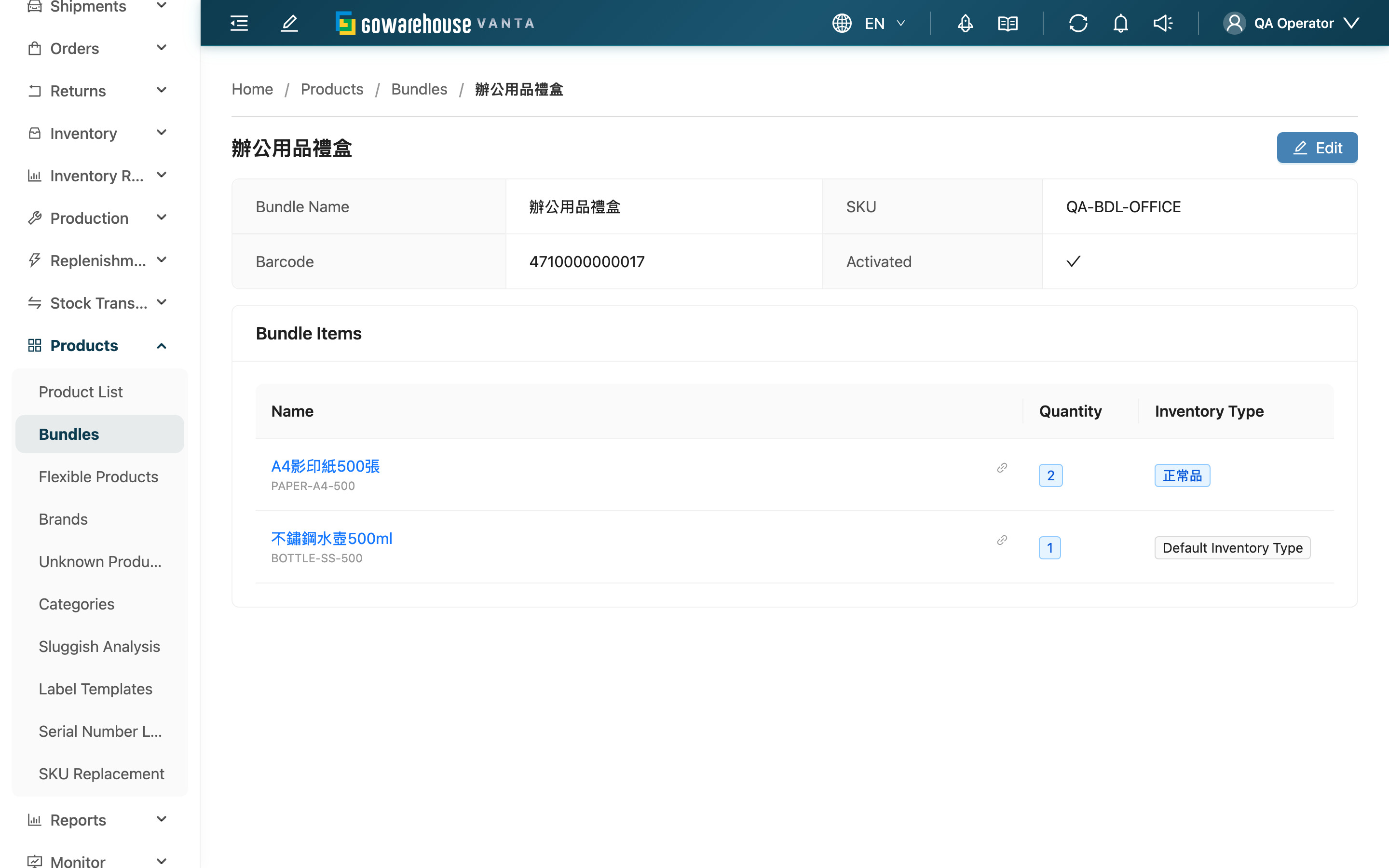
The bundle details page shows a bundle's full contents: the upper section holds the bundle's own basics (name, SKU, barcode, activation status), and the lower section lists each single item it contains, how many of each per set, and which inventory type each is assigned. To change the bundle's contents, go to the editing page via "Edit" in the top-right.
Jump to: Basics | Bundle contents
1.1 Basics
Only fields worth noting are described below; the rest (name, barcode) are clear from their names.
| Field | Description |
|---|---|
| SKU | The bundle's public SKU; orders rely on this SKU to match the bundle and auto-expand it into its single items |
| Activated | A check means enabled and able to be sold normally; a cross means disabled, with this bundle's operations suspended |
1.2 Bundle contents
The table in the lower section lists the single items in this bundle. Each row shows the item's name and SKU (click the name to open that item's product details), the quantity needed per set, and the assigned inventory type. If the inventory type shows as default, no specific inventory is assigned and it follows the normal picking flow.
2. FAQ
2.1 FAQ
▪ Why can't I see the available set quantity and each item's stock here?
The details page shows the bundle's "configured contents". To see how many sets can currently be made and each item's available stock, go back to the bundle list and check the "Available Set Quantity" and "Bundle Items" columns.
▪ How do I view a single item's own data?
Click the item name in the bundle contents table to open that item's product details directly.
▪ What does an inventory type of "default" mean?
It means this item in the bundle has no specific inventory type assigned and follows the normal flow when picking; if one is assigned (e.g. good stock, near-expiry), its name shows here instead.
▪ Where do I change the bundle's contents?
Click "Edit" in the top-right to open the Edit Bundle page. Changes only affect orders placed after the edit.
2.2 Notes
⚠️ Important reminders
- The details page only shows the bundle's configured contents, not its current actual stock; stock is tracked per single item.
💡 Tip: To confirm whether this bundle can still ship, the fastest way is to check "Available Set Quantity" back in the list.
3. Related Features
| Feature | Description | Link |
|---|---|---|
| Edit Bundle | Change this bundle's contents | Go |
| Bundles | Back to the list to check available set quantity | Go |
| Product List | View the data of each single item in the bundle | Go |