
Billings
Table of Contents
1. Use Cases
Quick links: Invoicing a merchant | A merchant disputes a charge | Charging for work outside the contract
Case 1: Month-end invoicing for every merchant
Situation: The billing date has arrived and finance needs to invoice each merchant you work with. Over the past month the warehouse received their goods, shipped orders, ran processing jobs, consumed packing materials, and held their stock in storage the whole time. All of it has to become a number, and that number has to be defensible.
Use this feature: Every night the system converts the day's operations into charges using each merchant's rate settings and accumulates them into that merchant's current billing. Find the billing by merchant and period in the billing list, open the billing detail to review it line by line, and confirm it once the amount is right.
Result: You hold a finalised billing where every charge can be traced back to its source. Finance can invoice directly from it, and the merchant sees the exact same content in their own portal — both sides are reading one bill.
Case 2: A merchant calls to ask why this month costs more
Situation: After receiving the bill, a merchant points out that storage went from 30,000 last month to 50,000 this month and asks you to explain the difference. "That's what the system calculated" is not an answer — you need something you can point at.
Use this feature: Every charge keeps the basis it was calculated from. Storage shows the billable quantity of each product or shelf on that day, operation fees show which document and which activity was charged, and each line records the rate card version that applied on the day the charge occurred. Expand the calculation detail in the billing detail to compare the two periods.
Result: You can state whether the increase came from stock sitting longer or from higher shipment volume, instead of talking around it. The dispute stays about facts and does not turn into a trust problem.
Case 3: You agreed to charge for work outside the contract
Situation: This month you repacked a batch of returns for a merchant as a one-off and agreed a fee for it. Work like this is not one of the priced items on the rate card, so the system will not pick it up.
Use this feature: Before the billing is confirmed, add an adjustment item manually in the billing detail with the date, description, quantity and unit price. Refunds go through the same entry point — enter a negative unit price.
Result: The amount is folded into that merchant's period total and appears in both reconciliation and export, with no separate bill or follow-up email needed.
2. Features
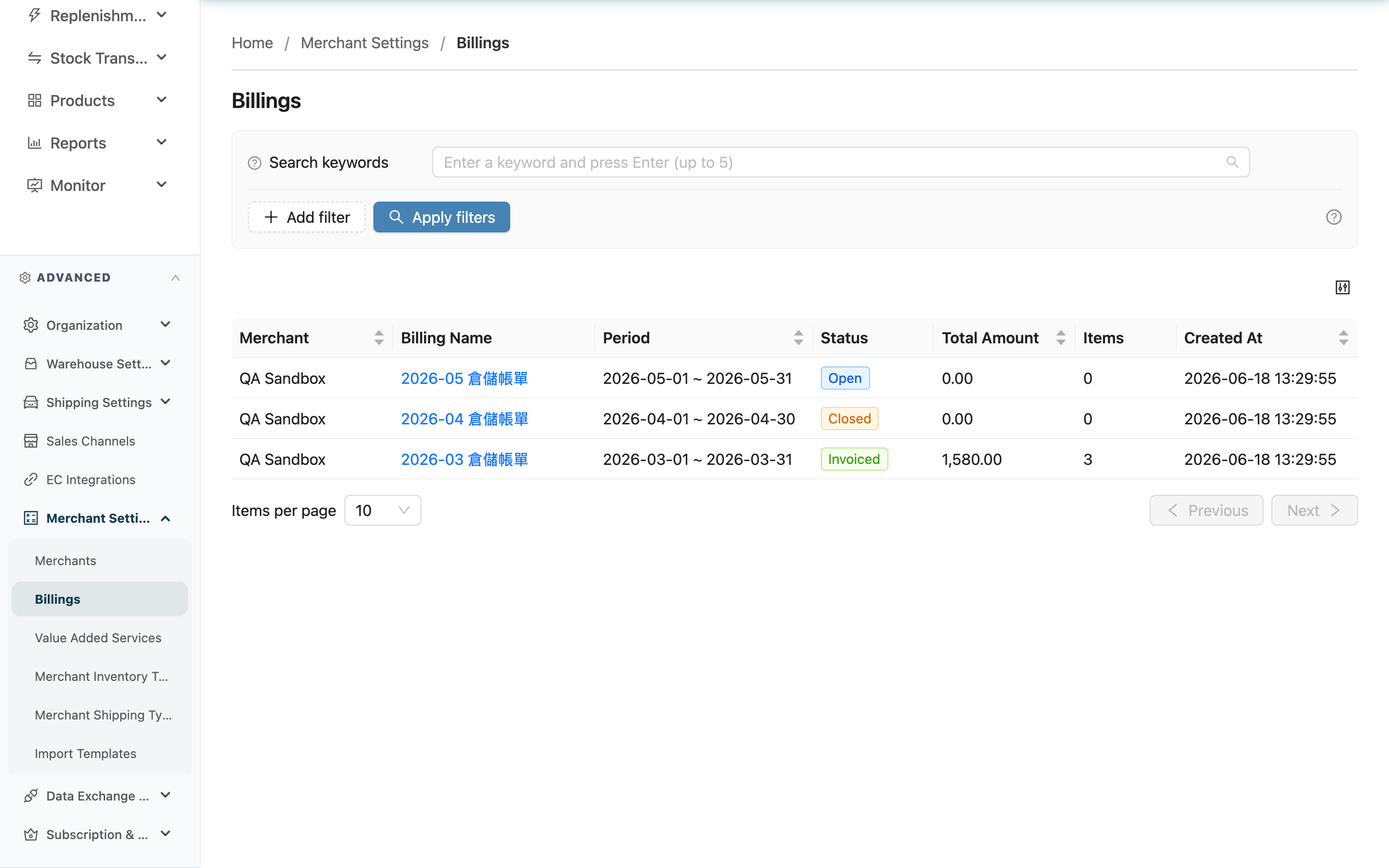
Billings is where you charge each merchant for storage and warehouse operations. Every night the system uses each merchant's rate settings to convert that day's storage, inbound, outbound, return, value-added, processing, consumable and shipping activity into amounts, accumulating them into the merchant's current billing. Here you locate a billing by merchant and period, review the amount, add charges agreed outside the contract, confirm it — only then does the merchant see it in their own portal — and export the detail as the basis for invoicing.
Quick jump: Search and filters | List columns | Billing status
2.1 Search and filters
- Search: Enter part of a Merchant name to find that merchant's billings. You can also type a year and month (for example
2026-08), but it matches the month the period starts in — if the merchant has a custom cut-off day and the period spans two months (say 08/29–09/28), searching2026-08finds it and2026-09returns nothing. - Merchant: Select several merchants at once to line up the customers you are reconciling together.
- Status: Multi-select, used to pull out the billings that still need work — filtering to Pending Confirmation alone gives you today's review queue.
The list is sorted by period, newest first. Period, Total Amount, Created At and Merchant can each be used to re-sort by clicking the column header.
2.2 List columns
| Column | Description |
|---|---|
| Merchant | The merchant this billing belongs to. If your plan serves a single merchant, this column and the merchant filter above are both hidden |
| Period | The billing's start and end dates, which also identify it; click to open the billing detail |
| Status | Determines whether the billing can still change and whether the merchant can see it — see billing status |
| Items | How many charge items the billing contains. Operation fees of the same type on the same day are merged into one item, so this is closer to "days × fee types" than to a document count |
The remaining columns are self-explanatory. Use the control at the top right of the table to choose which columns to show.
2.3 Billing status
| Status | What it means |
|---|---|
| Accumulating | The period has not been settled; nightly billing is still adding charges to it |
| Pending Confirmation | The period is settled and the amount no longer grows on its own, waiting for your review |
| Confirmed | You have confirmed the amount. Only from this point can the merchant see the billing in their own portal |
After the period ends, the system settles the billing to Pending Confirmation automatically during the night once the final day has been billed — you do not settle it by hand. Confirm, revert and close early are all done in the billing detail.
3. FAQ
Quick jump: FAQ | Important notes
3.1 FAQ
▪ Do I create billings myself?
No. The system creates a billing per billing period from each merchant's rate settings and accumulates charges into it daily. There is no "new billing" entry point in the list — what you do here is review, add adjustments and confirm.
▪ Can one merchant have two billings for the same period?
No. A merchant has exactly one billing per billing period; duplicates are not allowed.
▪ Why can't I see the "Merchant" column and filter?
When your plan serves a single merchant, the column and its filter are hidden automatically because every billing belongs to the same merchant.
▪ I can't find "Billings" in the menu
Billings requires an advanced plan and merchant management permission. If the menu item is missing, ask your plan administrator to check both.
▪ What kinds of charges appear in a billing?
Nine: storage, inbound, outbound, return, value-added, processing, consumable, shipping, and adjustments you add by hand. What each one covers and which date it is anchored to is described in the billing detail.
▪ Does Total Amount change on its own?
For an Accumulating billing it grows every night as new charges land. After settlement automatic billing no longer writes to it, but adding an adjustment item by hand still recalculates the total.
▪ A merchant says they can't see this month's billing
Merchants only see Confirmed billings. If this one is still Accumulating or Pending Confirmation, or it was reverted, their side is empty.
▪ Who decides the billing period?
The merchant's rate settings do; the system cuts non-overlapping periods from them. Two billings for the same merchant never overlap.
3.2 Important notes
⚠️ Important
- The merchant can only see a billing once it is confirmed, and reverting removes it from their view again. Repeated reverting while a merchant is reconciling makes the billing appear and disappear on their side.
- "Close Early" pulls the period end back to yesterday, and that period boundary cannot be undone — reverting only removes the confirmation.
💡 Tip: Filtering Status to Pending Confirmation gives you exactly the billings that need reviewing right now; confirm each one as you finish it and whatever remains is still outstanding.
4. Related Features
| Feature | Description | Link |
|---|---|---|
| Billing Detail | Review charges, add adjustment items, advance the status and export | Go |
| Merchants | Configure each merchant's billing method, rate card and period | Go |
| Value Added Services | Define chargeable services that attach to an inbound or an order | Go |
| Shipping Rate Cards | Define the shipping fee tiers charged to merchants | Go |