
Work Order Detail
Table of Contents
1. Features
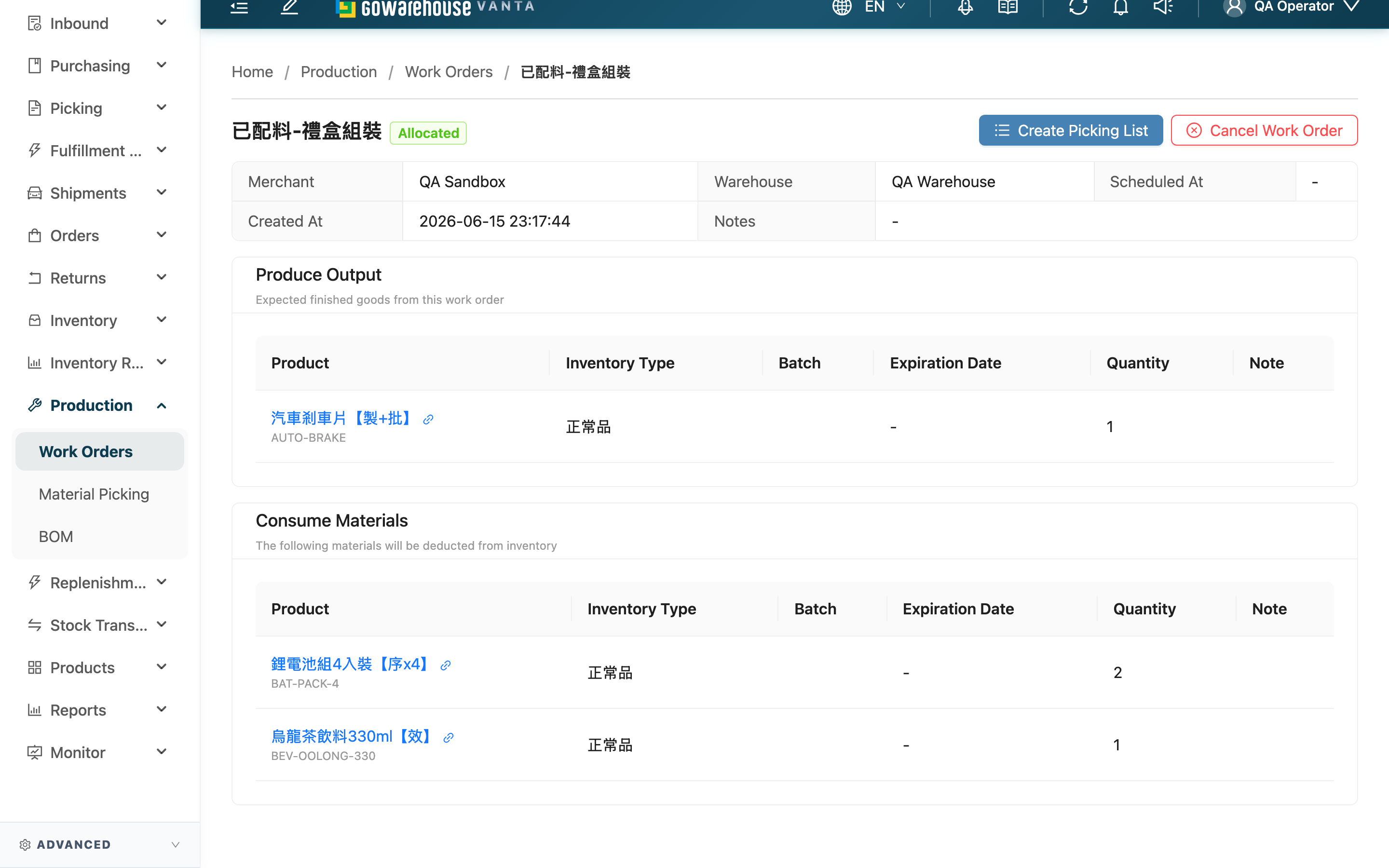
The Work Order Detail page is your workbench for moving a work order forward. A work order goes through confirm, pick, and complete in order from creation to completion, and the action button for each step is on this page, switching automatically with the order's current status. Here you can check the input and output line items, see picking list progress, and run confirm-and-allocate, create picking list, complete, or cancel.
Quick jump: Basic Info | Output & Input Items | Action Buttons
1.1 Basic Info & Picking List
The top of the page shows the work order's number, current status tag, and the following basic information:
| Field | Description |
|---|---|
| Merchant | The merchant this work order belongs to |
| Warehouse | The warehouse where the work is done |
| Scheduled At | The date the work is planned for |
| Created At | When the work order was created |
| Notes | The note entered at creation |
When this work order has a picking list, a "Picking List" section appears below the basic info, listing each picking list's name and status with a link straight to it. While picking is not yet done, a hint reminds you that the materials must be fully picked before you can complete.
1.2 Output & Input Items
The line items are split into two tables:
- "Produce Output": Expected finished goods from this work order — that is, the stock added to the warehouse after completion.
- "Consume Materials": The following materials will be deducted from inventory — that is, the stock consumed at completion.
Both tables share the same columns:
| Column | Description |
|---|---|
| Product | Product name and SKU; click to open the product in a new tab |
| Inventory Type | Which inventory type the item is consumed or received as |
| Batch | Batch (if the product manages batches) |
| Expiration Date | Expiration date (if the product manages expiration) |
| Quantity | The quantity to consume or produce |
| Note | The note for that item |
1.3 Action Buttons
The buttons at the top-right switch automatically with the work order's current status — you only see the action available right now:
| Button | When it shows | Precondition | Effect & reversibility |
|---|---|---|---|
| Edit | Draft, Out of Stock | Same as left | Edit the material / goods contents; a saved out-of-stock order is automatically re-allocated by the system |
| Confirm | Draft | Same as left | The system reserves all material stock. All in full → moves to "Allocated"; any item short → everything reserved is put back and the whole order lands in "Out of Stock". Still cancelable after allocation |
| Retry Allocation | Out of Stock | The short materials have been restocked | Tries to reserve the materials again; same result as Confirm |
| Create Picking List | Allocated and no picking list created yet | Same as left | The system creates a picking list, the order moves to "Processing", and pickers pull the materials into a tote |
| Complete | Processing and picking done | Picking list created and materials fully picked | Deducts the materials from the tote and automatically creates a production inbound for the finished goods. Irreversible |
| Cancel Work Order | Draft, Out of Stock, Allocated | Picking list not in progress; production inbound not yet received | Voids the whole order and puts back all reserved materials. Irreversible |
2. FAQ
2.1 FAQ
▪ What happens when I press "Confirm"?
The system tries to reserve all of this order's "Consume Materials" stock so other orders or work orders cannot grab it. As long as the materials are all in full, the order moves to "Allocated" and you can then create a picking list; if any material is short, the system does not reserve just part of it but puts everything reserved back, and the order lands in "Out of Stock". After allocation, you can still cancel if picking hasn't started.
▪ Why didn't anyone get sent to pick after a successful confirm?
After confirm, the work order stops at "Allocated", and you must press "Create Picking List" for a picking list to be generated. This is designed so you can bundle several work orders together and merge them into a single wave for picking, saving legwork.
▪ Why can't I see the "Complete" button?
The complete button only appears when the work order is "Processing" and picking is done. If no picking list has been created yet, press "Create Picking List" first; if the picking list is still in progress, wait until the picker has pulled the materials into a tote and the picking list is done — then the button appears.
▪ Where do the finished goods go after completion?
At completion, the system automatically creates a production inbound order for the "Produce Output", and the finished goods are placed onto locations through the normal inbound receive-and-putaway flow. In other words, the finished goods don't "appear" on some location the instant you complete — they enter the normal inbound flow, you receive and put them away as usual, and only then are the warehouse records aligned with the physical stock.
▪ Can I still change the materials on a confirmed, allocated work order?
"Draft" and "Out of Stock" work orders can be edited via "Edit"; for an out-of-stock order, saving automatically re-allocates by the new contents. Work orders that have entered picking or a later stage ("Processing", "Completed") can no longer have their materials changed.
▪ Where do I see the picking list and track picking progress?
When the work order has a picking list, a "Picking List" section appears below the basic info, showing each picking list's status with a link. Click the link to go to the picking list and check picking progress, or handle them in bulk at Material Picking.
2.2 Notes
⚠️ Important Reminders
- Completion is irreversible: once materials are deducted from the tote and the production inbound is created, the work order can no longer be canceled.
- If even one material is short, confirm-and-allocate puts back everything already reserved and the whole order lands in "Out of Stock" — it never holds half a set of materials.
- When canceling, if the picking list is still in progress you must first terminate the picking list and return the tote; and once the production inbound has actually been received into the warehouse, the order can no longer be canceled.
💡 Tip: Before completing, take one more look at the "Produce Output" and "Consume Materials" tables to confirm the quantities and inventory types, so you don't discover a wrong quantity only after the production inbound has been created.
3. Related Features
| Feature | Description | Link |
|---|---|---|
| Work Orders | Back to the list of all work orders | Go |
| Edit Work Order | Change the materials, goods, and contents of a draft or out-of-stock work order | Go |
| Material Picking | View and handle material-picking tasks from work orders in one place | Go |