
Workforce Analytics
Table of Contents
1. Use Cases
Quick links: Spot the bottleneck station slowing shipping | Monthly performance review
Case 1: Check each station's output daily to spot the bottleneck slowing shipping
Situation: Shipping has slowed, and the supervisor needs to know where it's stuck — is picking short-handed, or is packing backed up? Looking only at shipping results, you can't tell which link is dragging.
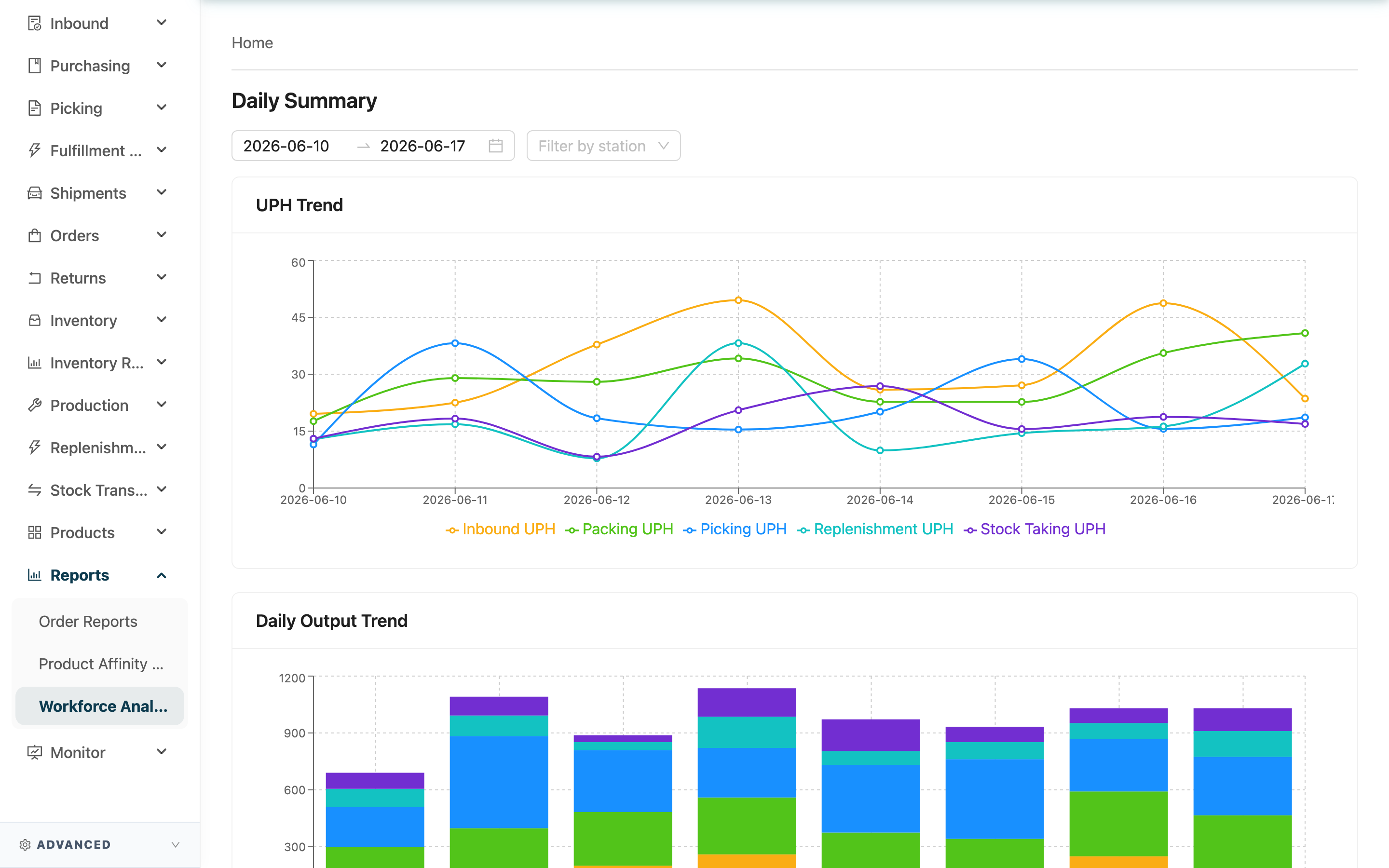
Use this feature: Look at the UPH Trend and the per-station cards in the Daily Summary (see Warehouse Daily Summary), comparing each station's Avg UPH and Items.
Result: You find the station whose output has dropped and move staff toward the bottleneck, getting overall shipping flowing again.
Case 2: Monthly performance review, looking at each person's output and consistency
Situation: At month-end the supervisor needs to do performance reviews and wants to know how much each person did this month, whether their UPH is steady, and which station they're strong at — as a basis for scheduling, recognition, or training.
Use this feature: In the Operators Overview, click a person's Details to open their Operator Performance and see their daily output and UPH trend over a period (see Individual Performance).
Result: You review performance with objective numbers, identify top performers and those needing help, and put the right people at the right stations.
2. Feature Guide
Workforce Analytics turns each warehouse worker's workload by station (Picking, Packing, Inbound, Stock Taking, Replenishment) into statistics, with UPH — units completed per work hour — as the core metric. A warehouse supervisor uses it to grasp each station's output, spot bottlenecks, review individual performance, and plan staffing. The page has two levels: the warehouse-wide Daily Summary and the single-person Operator Performance.
Jump to: Date & Station Filters | Warehouse Daily Summary | Individual Performance
2.1 Date & Station Filters
The filters at the top decide which period and station the whole page shows:
| Filter | How to use | Notes |
|---|---|---|
| Date range | Pick the start and end dates the trend charts should cover; defaults to the last 7 days | — |
| Selected date | The station cards and operator overview below the trend charts show only this one day's data; adjust it separately in the card's top-right | Can only pick a day within the date range |
| Filter by station | Show only one station in the operator overview | Leave empty to show all stations |
2.2 Warehouse Daily Summary
This is the warehouse-wide workforce overview, split top to bottom into three parts:
- UPH Trend and Daily Output Trend: Two trend charts broken down by station, showing each station's average UPH and completed items per day across the date range — revealing which station, and which days, output rose or fell.
- Selected-date station cards: Each card summarizes one station for that day — Operators, Total Hours, Tasks, Avg UPH, Items, Best UPH.
- Operators Overview: A table of everyone working on the selected date, listing each person's stations, Tasks, Lines, Items, Hours, and UPH; click Details to open that person's individual performance.
2.3 Individual Performance
Opened from the operator overview via Details, this shows a single person's performance over a period (defaults to the last 14 days):
- Four summary cards at the top: Days Worked, Total Tasks, Total Items, Period Avg UPH.
- UPH Trend and Daily Output Trend: This person's daily UPH and item counts by station.
- Daily Detail: A day-by-day list of station, Tasks, Lines, Items, Hours, UPH, and Time Range (from the day's first action to its last).
3. FAQ
3.1 FAQ
▪ What is UPH, and how is it calculated?
UPH is "units completed per work hour" (items ÷ work hours), used to measure how fast a person or station processes work — the higher the number, the faster. It's the core metric across the trend charts and tables.
▪ What's the difference between Tasks, Lines, and Items?
Items is the total item quantity; Lines is the number of distinct product lines (SKUs); Tasks is the number of work orders finished (e.g. how many picking lists were picked). All reflect "being busy," but capture quantity, line count, and document count respectively.
▪ Why is there no data for a station on a given day, or a card is missing?
Station cards only show stations that had "someone working with output" that day. If no one worked that station that day it won't appear, and that station's point on the trend chart will be empty for that day.
▪ What does a large gap between Best UPH and Avg UPH mean?
Avg UPH is the average across everyone at that station that day, while Best UPH is the single best performer that day. A large gap means output varies a lot between people, which can be a clue for arranging training or adjusting pairings.
▪ I can't find a particular person in the operator overview?
The operator overview only lists people with work records on the selected date. Try another day, or confirm whether that person actually worked that day.
▪ Does filtering by station affect the trend charts above?
No. Filter by station only filters the Operators Overview below; the trend charts and station cards still show all stations.
3.2 Notes
⚠️ Important
- Only work recorded through the system counts: UPH and item counts come from workers' scans and submissions in the system. Work that didn't go through the system isn't counted, so factor that in when judging performance to avoid misreading someone's actual effort.
💡 Tip: When comparing people, first fix a single station with Filter by station before looking at UPH; different stations involve different kinds of work, so their UPH shouldn't be compared directly.
4. Related Features
| Feature | Description | Link |
|---|---|---|
| Order Reports | Compare shipping volume against workforce output | Go |
| Picking List | The documents picking-station staff actually handle | Go |
| Product Affinity Analysis | Shorten picking time and boost output from the slotting angle | Go |